Host a static website using Cloud-native API Gateway and Alibaba Cloud OSS
Store static website files—HTML, CSS, and JavaScript—in an Object Storage Service (OSS) bucket and use Cloud-native API Gateway to proxy requests to the bucket.
Prerequisites
A Cloud-native API Gateway instance is created. Create a gateway instance.
Background information
Web applications typically serve static pages first, then use JavaScript to call backend services and update page content dynamically. In a frontend-backend separation architecture, decoupling static files from backend services allows independent maintenance and faster development.
This architecture requires a storage service for static pages and a separate deployment for backend services, with a Layer-7 gateway routing requests to each.
Sample scenario
This tutorial uses a web application at example.com with static pages hosted in OSS and a Cloud-native API Gateway instance proxying both static and backend requests.

-
Requests for static pages (such as
example.comorexample.com/index.html) are forwarded to OSS and return the homepage. -
Requests for business logic (such as
example.com/app) are forwarded to the backend service.
Step 1: Create an OSS bucket and upload a static page
Create a bucket with Public Reading access to store your static pages.
-
Log on to the OSS console.
-
In the left-side navigation pane, click Buckets. Then, click Create Bucket.
-
In the Create Bucket panel, set the following parameters, keep the defaults for the rest, and click OK.
Parameter
Description
Bucket name
Enter a bucket name. Example: static-demo.
Block Public Access
Disable this feature. Block public access.
Storage Class
Select Standard.
ACL
Click Public Read. In the Confirm Selection of Public Read dialog box, click Continue to Modify.
-
On the Buckets page, click the bucket. On the Objects page, click Upload Object to upload
index.html. Set Object ACL to Inherited from bucket.<html> <head> <title>Hello OSS!</title> <meta charset="utf-8"> </head> <body> <P>Configure static website hosting for Alibaba Cloud OSS.</p> <P>This is the index page.</p> </body> </html> -
Click Upload Object.
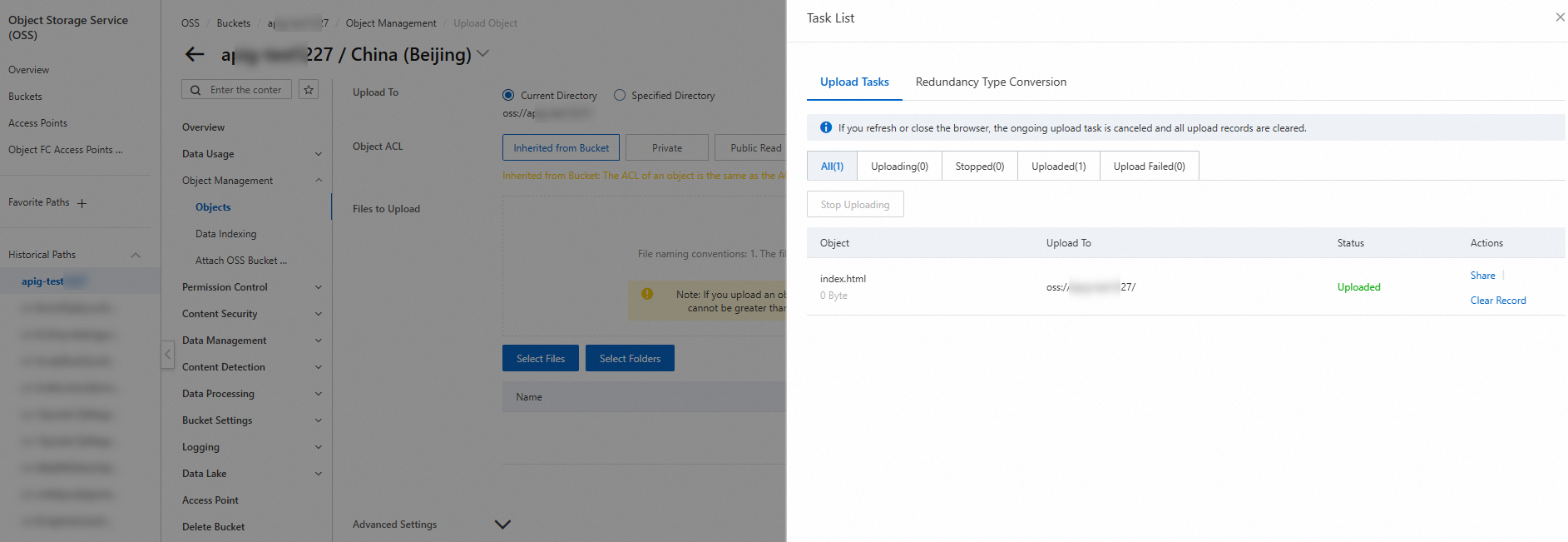
Track the upload progress in the Task List panel. After the upload, verify the file in the destination directory.
(Optional) Step 2: Configure the default homepage
To return index.html when users access the root path (/) of example.com, set it as the default homepage in the bucket.
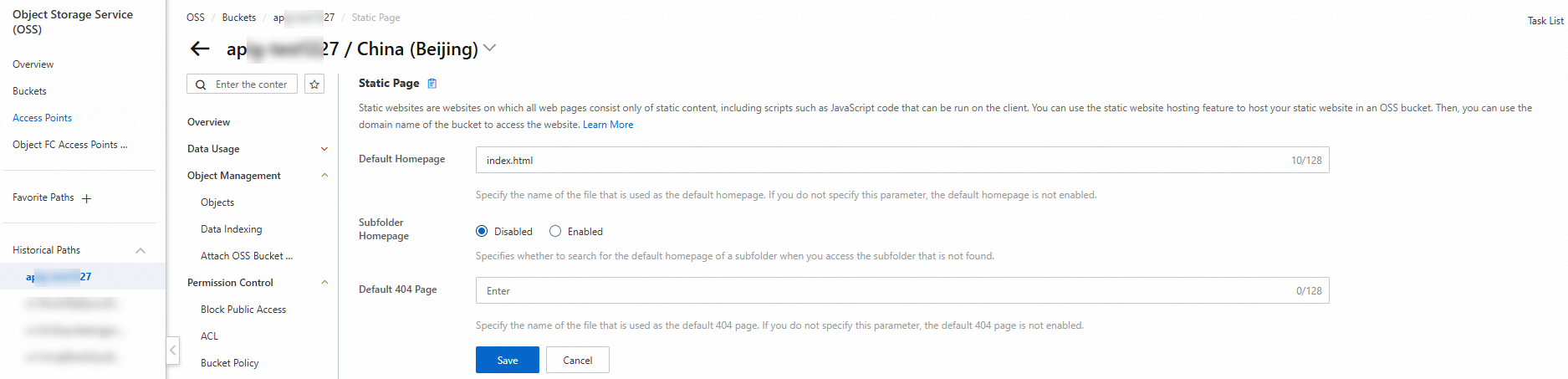
To return a custom 404 page for non-existent files, upload 404.html to the bucket and configure it as the default 404 page.
<html>
   <head>
       <title>The page you visited does not exist</title>
       <meta charset="utf-8">
   </head>
   <body>
       <p>The page you visited does not exist.</p>
       <p>You can try to visit the homepage.</p>
   </body>
 </html>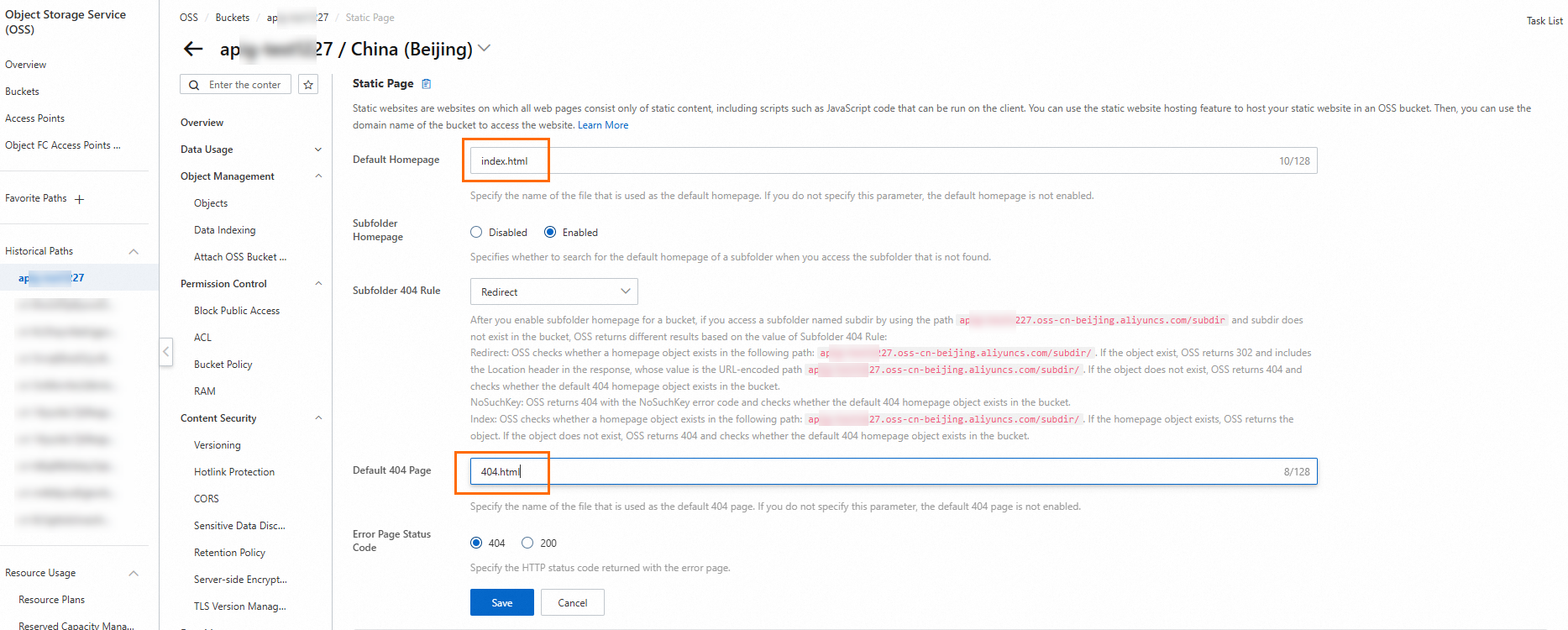
To configure the default homepage, follow Step 2: Configure static website hosting for the examplebucket bucket in the static website hosting tutorial.
Step 3: View the default domain name of the OSS bucket
OSS creates a domain name for each bucket. Find the internal endpoint in the Endpoints section on the Overview page. Access OSS resources from an ECS instance by using an internal endpoint.
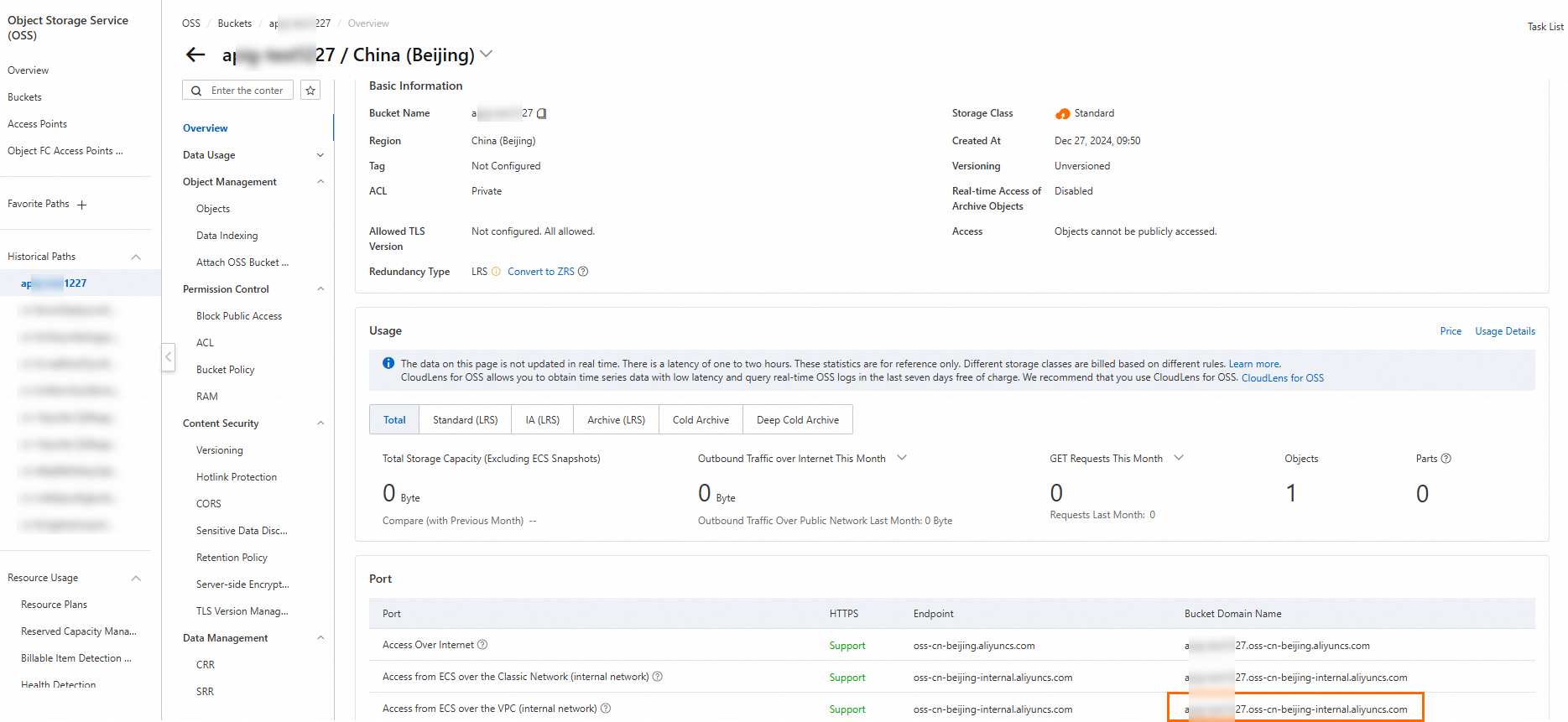
Step 4: Create a service for the OSS bucket on the Cloud-native API Gateway instance
Cloud-native API Gateway treats the OSS bucket as a backend service. Create a service using DNS service discovery on the gateway instance.
Log on to the API Gateway console.
In the left-side navigation pane, click . In the top navigation bar, select a region.
On the Instance page, click the target instance ID.
In the left-side navigation pane, click Service. Then, click the Services tab.
-
Click Create Service. In the Create Service panel, configure the following parameters and then click OK.
Parameter
Description
Service Source
Select DNS Domain Name.
Service Name
A unique service identifier. Example:
static.Service URL
Set the domain name and port. Use the internal domain name from Step 3. Example:
xxx-static-demo.oss-cn-hangzhou-internal.aliyuncs.com:80.TLS Mode
Select Close.
Step 5: Create a route for the static page on the Cloud-native API Gateway instance
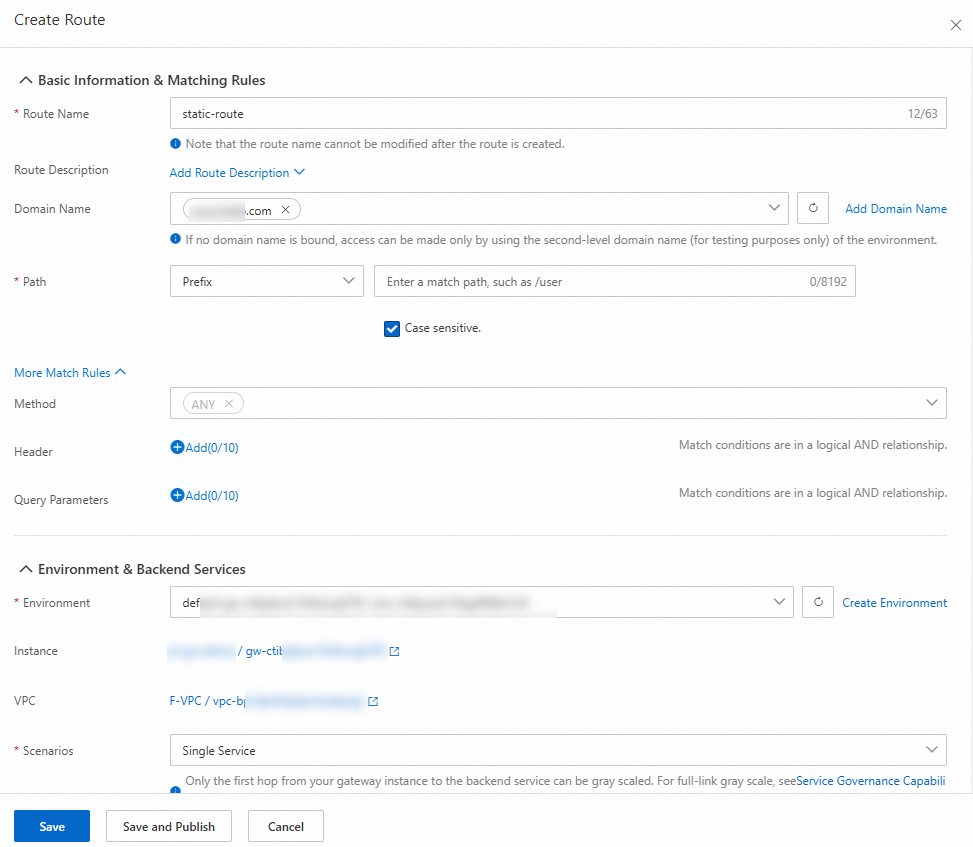
Click the target API and click Create Route in the upper-left corner.
-
On the Create Route page, create a route where the matching condition is Prefix, the path is
/, and the target service isstatic. Create a route.
-
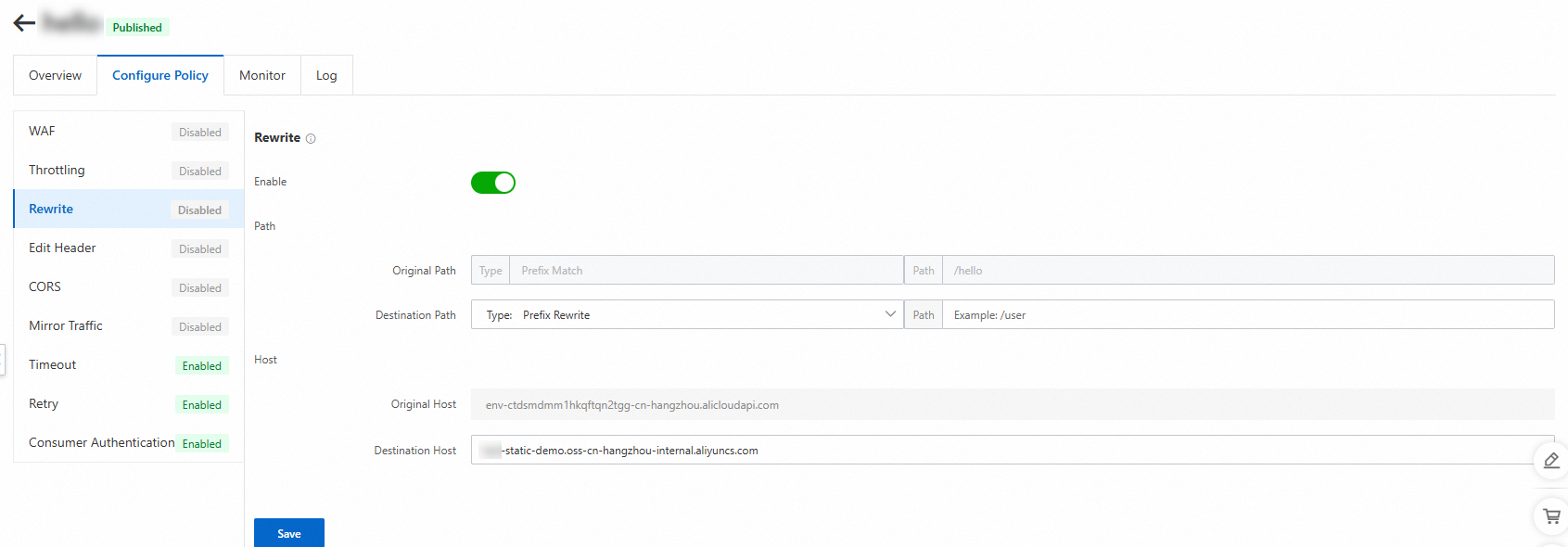
Click the route name, select the Configure Policy tab, and enable the Rewrite policy. Set the Host to the OSS bucket's internal domain name
xxx-static-demo.oss-cn-hangzhou-internal.aliyuncs.com, then click OK. The Rewrite policy rewrites the Path and Host of requests forwarded to the backend. Configure an HTTP rewrite policy. -
Enable the Headers policy to remove the Content-Disposition header from the OSS response. Configure a header modification policy.
Step 6: Perform access testing
With your domain example.com configured, test the following URLs in your browser:
-
example.com — returns index.html because it is set as the default homepage in Step 2.
-
example.com/index.html — directly returns the static page.
-
example.com/test — returns the 404.html page for non-existent paths.