Host a static website with an MSE cloud-native gateway and OSS
A static website consists of web pages with static content, such as HTML files, CSS files, and client-side scripts like JavaScript. You can store the files for your static website in an Alibaba Cloud Object Storage Service (OSS) bucket, and then use an MSE cloud-native gateway to proxy the content in OSS. This topic describes how to host a static website by using an MSE cloud-native gateway and Alibaba Cloud OSS.
Prerequisites
Background information
Web applications typically serve pages to users. When a user visits a page, their browser first requests static content. Then, it uses JavaScript to call backend services and dynamically updates the page based on the responses. A frontend and backend separation design decouples static files from backend services. This lets you maintain static pages and backend services independently, which greatly improves development efficiency.
In this architecture, a storage service hosts your static pages, and a Layer-7 gateway routes incoming requests to either the static content or the backend services.
Example scenario
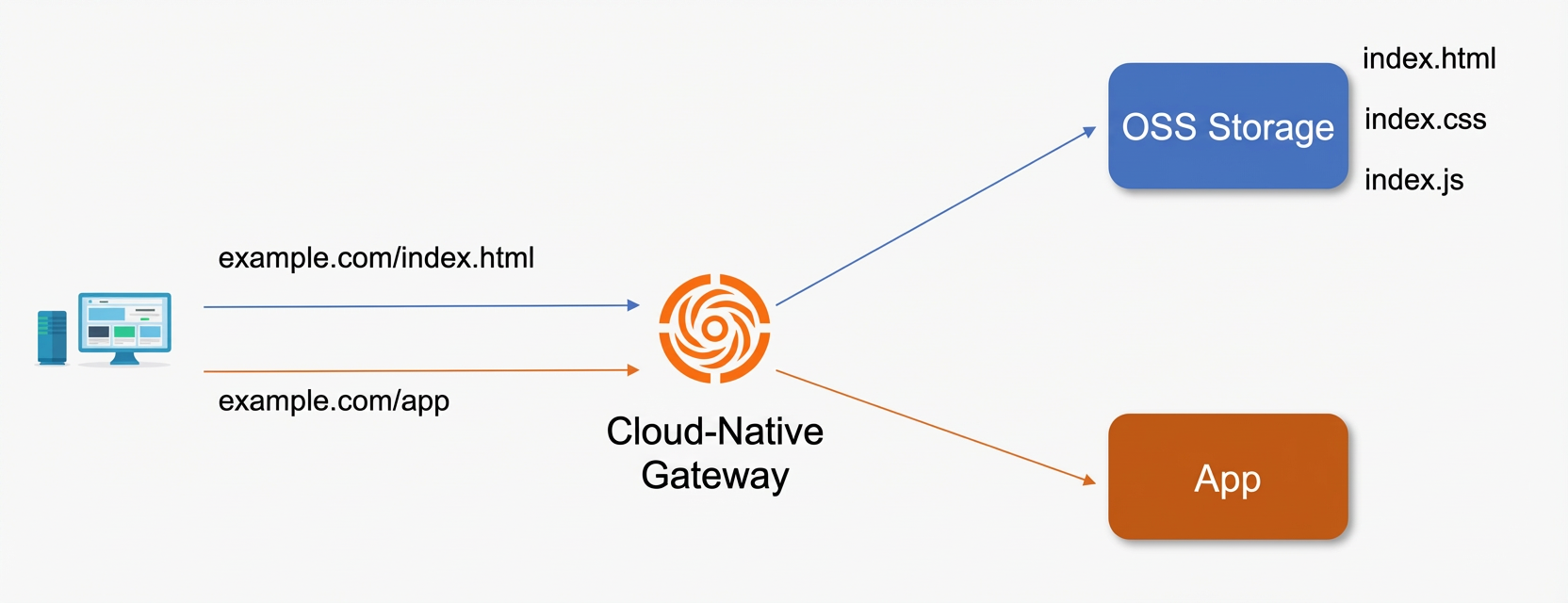
Assume you have a web application with the domain nameexample.com. The static pages are hosted on Alibaba Cloud OSS, and an MSE cloud-native gateway acts as a proxy for both the static pages and backend services. The following diagram shows the architecture.
-
The cloud-native gateway forwards all requests for static pages to OSS. For example, when a user visits
example.comorexample.com/index.html, the homepageindex.htmlis returned. -
The cloud-native gateway forwards requests for other services to the target service. For example, when a user visits
example.com/app, the result from the backend service is returned.
Step 1: Create a bucket and upload static pages
Create aPublic Read bucket to store your static pages.
-
Log on to theOSS console.
-
In the navigation pane on the left, clickBuckets. On the Buckets page, clickCreate Bucket.
-
In theCreate Bucket panel, configure the following parameters, keep the default settings for the other parameters, and then clickCreate.
Parameter
Description
Bucket Name
Enter a name for the bucket. This example usesstatic-demo-0.
Storage Class
SelectStandard Storage.
read/write permissions
ClickPublic Read. In theConfirm dialog box that appears, clickContinue.
-
On theBuckets page, click the name of the bucket you created. On theObjects page, clickUpload File and upload the following example static page,
index.html. ForObject ACL, selectInherited from Bucket.<html> <head> <title>Hello OSS!</title> <meta charset="utf-8"> </head> <body> <p>Start Alibaba Cloud OSS hosting</p> <p>This is the index page</p> </body> </html> -
ClickUpload File.
In the Upload panel, setUpload to toCurrent Directory and keep the defaultObject ACL setting ofInherit from Bucket. ClickSelect Files to choose your static page files. After the upload is complete, the status in the task list on the right showsSucceeded.
(Optional) Step 2: Configure default homepage
If you want to serve the static page index.html when you access the root path / of your domain example.com, you must configure a static page for the target bucket. In the left navigation pane, choose Data Management > Static Page, enter index.html in the Default Homepage text box, select Disabled for Subdirectory Homepage, configure the Default 404 Page as needed, and then click Save.
To return a custom 404 error page for non-existent files, upload a 404.html file to your bucket and configure it in the static page settings.
<html>
   <head>
       <title>The page you requested does not exist</title>
       <meta charset="utf-8">
   </head>
   <body>
       <p>The page you requested does not exist</p>
       <p>You can try visiting the homepage</p>
   </body>
 </html>
In theStatic Pages settings, setSubdirectory Homepage toEnable, selectNoSuchKey forFile 404 Rule, and choose404 forError Document Response Code. Then, clickSave.
For more information about how to configure a default homepage, seeConfigure static website hosting for examplebucket.
Step 3: Find the OSS internal domain
Alibaba Cloud OSS automatically creates a domain name for your bucket. On theOverview page, find the internal domain name in theAccess Port section. For more information, seeAccess OSS resources from an ECS instance by using an OSS internal endpoint.
Find the row forVPC Endpoint (Internal). The correspondingBucket Domain Name is in the format<BucketName>.oss-cn-hangzhou-internal.aliyuncs.com.
Step 4: Create a service for the OSS bucket
An MSE cloud-native gateway treats the OSS bucket as a service. Therefore, you must create a corresponding service in the gateway that uses DNS-based service discovery.
-
Log on to the MSE console.
-
In the left-side navigation pane, choose Cloud-native Gateway > Gateways. On the Gateways page, click the ID of the gateway.
-
In the left-side navigation pane, click Routes. Then, click the Services tab.
-
ClickCreate Service. In theCreate Service panel, configure the following parameters, and then clickOK.
Parameter
Description
Service Source
SelectDNS Domain Name.
Service Name
A unique name for the service. This example uses
static.Service Port
Set the port to 80.
Domain Names
The domain name of the backend service. For this example, use the internal domain name of the bucket fromStep 3, which is
static-demo-0.oss-cn-hangzhou-internal.aliyuncs.com.TLS Mode
SelectClose.
Step 5: Create a route for the static website
-
Log on to the MSE console.
-
In the left-side navigation pane, choose Cloud-native Gateway > Gateways. On the Gateways page, click the ID of the gateway.
-
On the Gateways page, click the ID of the gateway.
-
In the left-side navigation pane, click Routes. Then, click the Routes tab.
-
ClickAdd Route. On theAdd Route page, create a route with the match condition set toPrefix, the path to
/, and the destination service tostatic. For more information, seeCreate a route. -
On the route details page, click thePolicies tab and enable theRewrite policy for the route. Rewrite theRewrite to the internal domain name of your OSS bucket,
static-demo-0.oss-cn-hangzhou-internal.aliyuncs.com, and then clickOK. With this policy enabled, the gateway modifies the original request's path and Host header based on the policy before forwarding it. For more information, seeConfigure a Rewrite policy. -
Enable theHeaders policy and configure it to remove thecontent-disposition header from the OSS response. For more information, seeConfigure a Header settings policy.
Step 6: Test the static website
Assuming your domain name isexample.com, enter example.com, example.com/index.html, and example.com/test in your browser's address bar.
-
Because you configured a default homepage in the OSS bucket inStep 2, entering
example.comin the browser returns theindex.htmlpage. -
You can also access the
index.htmlfile directly. Enteringexample.com/index.htmlin the browser also returns theindex.htmlpage. -
If you access a file that does not exist, such as
example.com/test, the configured404.htmlpage is displayed.