Landscape mode
This document explains how to integrate the AUIKits landscape mode component for interactive live streaming on a web client. For details on use cases and the differences between landscape and portrait modes, see landscape mode.
Prerequisites
AppServer
You have set up an AppServer and obtained its domain name. For setup instructions, see server-side integration.
Publisher
The web client currently supports only the viewer role and cannot publish streams. For full functionality, you must integrate the AUIKits suite on a mobile client to start a live stream. For integration instructions, see Android landscape mode and iOS landscape mode.
Development framework
This project uses the UmiJS framework with React and TypeScript. For more information about the framework, see the official UmiJS documentation.
Quick integration
Environment setup
Set up your local Node.js environment. For instructions, see the UmiJS Quick Start guide. If you already have Node.js installed, you can skip this step.
Source code download
For the download address, see the open source project.
Configuration
Configure the project parameters in the config object in the /src/config.ts file.
AppServer configuration
In config.appServer, configure the parameters required for the AppServer.
appServer: {
  // The domain name for the AppServer service. Do not add a trailing slash (/). Cross-origin resource sharing (CORS) must be enabled on the server.
  origin: 'https://xxx.xxx.xxx',
}
For business-specific customizations, you can directly modify variables such as ServicesOrigin and ApiPrefixPath in the src/services/base.ts file.
imServer configuration
In config.imServer, configure the parameters for the IM service. Ensure the settings are consistent on both the client and server.
imServer: {
  // The legacy interactive message service, which will be phased out. We do not recommend enabling it.
  // If enabled, you must import aliyun-interaction-sdk by using a script tag.
  aliyunIMV1: {
    enable: false, // Specifies whether to enable the service.
    primary: false, // Specifies whether this is the primary channel.
  },
  // The new interactive message service. We recommend that you enable it.
  // If enabled, you must import alivc-im-sdk by using a script tag.
  aliyunIMV2: {
    enable: true, // Specifies whether to enable the service.
    primary: true, // Specifies whether this is the primary channel.
  },
}The legacy interactive message service is being phased out. We recommend that you use the new alivc-im-sdk.
Run locally
After you configure the API domain name, open your terminal, navigate to the project folder, and run the following commands to run the project locally.
Build configuration
// Run the build command to generate the final artifacts in the ./dist directory.
npm run build
The main build files are index.html, umi.js, and umi.css. Other files are resource files that are loaded on demand.
Configure the publicPath in .umirc.ts based on your deployment to the production environment and how resources are loaded. If your final page loads the generated JS and CSS resources separately, you do not need to configure publicPath. If you use index.html directly, refer to the following example and configure it based on your deployment.
Required implementation
This project focuses on the live stream room module. You must implement the remaining modules to offer a complete service to your users.
Login
The login module in this project is sample code. The AppServer provides a login API that sends the username and password in plaintext to get an authentication token. This logic is intended for local development and testing only. Do not use it in a production environment. For production, you must implement a secure solution such as single sign-on (SSO) or OAuth 2.0.
Before entering pages like the live stream list or a live stream room, the project checks if the user is logged in. If not, it redirects to the login page. This logic is located in src/wrappers/auth/index.tsx. Modify it to fit your business requirements.
Live stream list
The code for the live stream list page is located in the src/pages/room-list folder. The current logic is basic, and you need to optimize it for your specific use case.
Dependent services and third-party packages
VConsole
The plugin.ts file imports the VConsole SDK, which is used for testing on mobile clients. It is disabled by default and is only enabled when the URL contains the vconsole=1 parameter.
AliPlayer
The plugin.ts file imports the AliPlayer SDK, which is used to play live streams in the room. For more information, see web player.
alivc-im-sdk
The plugin.ts file imports the new alivc-im-sdk for sending and receiving interactive messages. The v2/token API provided by the AppServer returns the authentication data required by the SDK. We recommend migrating to this new service, which is becoming the standard.
aliyun-interaction-sdk
The plugin.ts file imports the legacy aliyun-interaction-sdk for sending and receiving interactive messages. The AppServer's Token API returns the token required for SDK authentication. For more information, see Release notes.
The legacy interactive message SDK is being phased out. If you are using the new SDK, you can remove this import from plugin.ts.
axios
An open-source npm package for making HTTP requests to the AppServer API. For more information, see axios.
uni-app H5 integration
AUIKits also provides a uni-app-based project that compiles to an H5 page.
Environment setup
We recommend using the HBuilderX visual editor for development. Refer to the quick start guide to configure the necessary program paths.
Source code download
For the download address, see the open source project.
Parameter configuration
Open the project in HBuilderX and configure the parameters in config.js. Currently, you can configure the AppServer domain name.
export default {
 // The domain name for the AppServer. Note: Do not include a trailing slash (/). If you are not using the default port, you must include the port number.
 appServer: 'https://your-appserver-origin',
};
Run locally
After your development environment is ready and the parameters are set, click Run > Run to Browser on the toolbar, select a browser, and start testing.
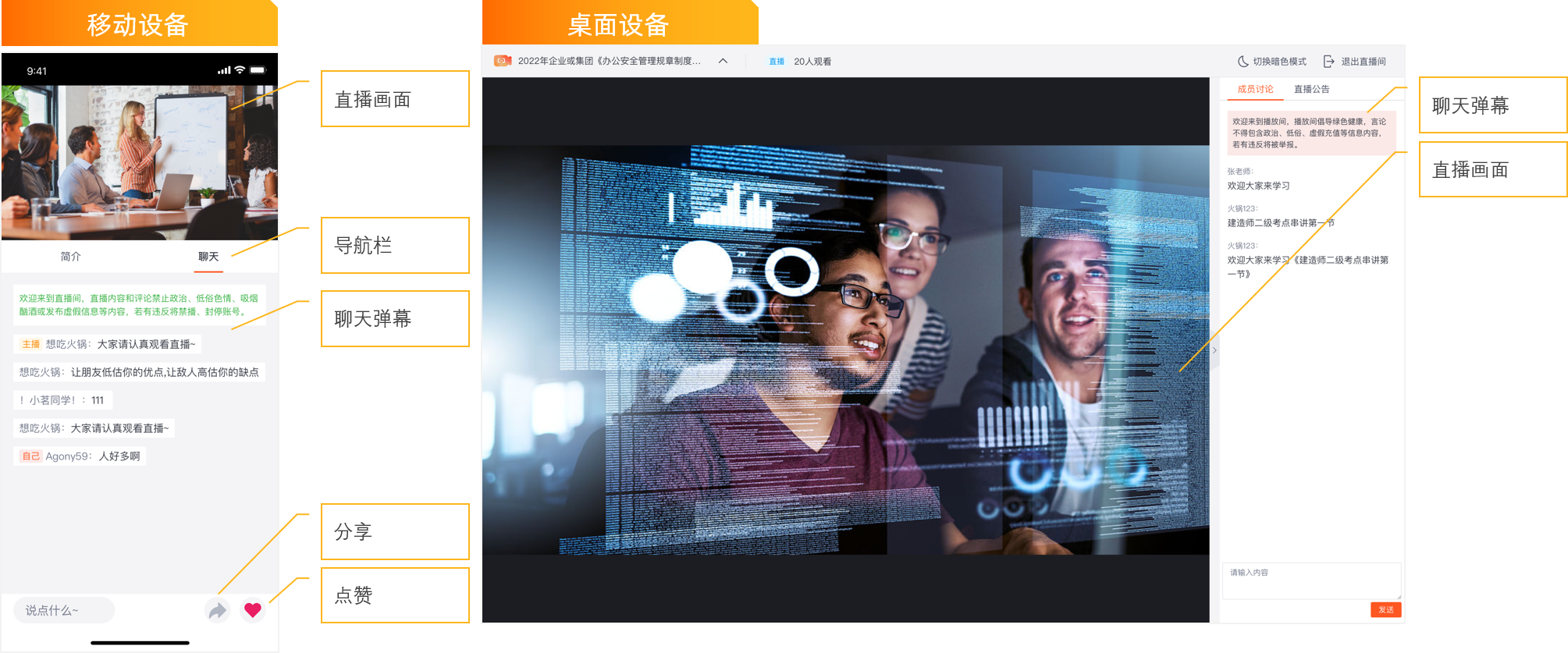
On the welcome page, enter a nickname to enter the landscape mode page.
Publishing
For instructions, see the official uni-app documentation on publishing to a web platform.
Other
The dependent services and required implementation for this project are similar to the standard web project. See the sections above for details.