Use the Windows live streaming assistant
This topic describes how to use the Windows live streaming assistant, a low-code integration tool from AUI Kits. This topic also includes sample code.
Background information
AUI Kits offers the Windows live streaming assistant for interactive live streaming scenarios.
The client provides the following features for streamers:
Ingest video streams from cameras. You can switch to external camera devices.
Share your screen, a window, or system audio. When you share your screen, you can overlay the camera feed.
Ingest audio from microphones. You can switch to external microphone devices.
Set the live video quality.
Engage in chat interactions. You can mute all participants.
Import local MP4 files for playback during the stream.
For more information about AUI Kits or for usage instructions, you can contact us by joining the AUI customer support DingTalk group (ID: 35685013712).
Prerequisites
To ensure that the live streaming assistant runs correctly, make sure that your device meets the following requirements:
Memory: 8 GB or more.
CPU: Intel Core i5 or AMD Ryzen 7 processor or later.
Graphics card: We recommend that you use a discrete graphics card.
NoteIf your computer has two graphics cards, you must switch to the discrete graphics card.
Graphics card driver: We recommend that you install the latest version.
Operating system: 64-bit Windows 10 or later.
Microphone: We recommend that you use an external microphone or a headset with a microphone.
Network: We recommend an upstream bandwidth of 10 Mbps or higher.
Download and install
Download URL
You can download the assistant here: Windows live streaming assistant.
Installation instructions
Before installation, install the live streaming assistant to the default path to prevent startup issues.
During installation, if your security software reports a threat, ignore the alert and allow the installation to proceed.
After a successful installation, if the live streaming assistant fails to start, exit all security software, then uninstall and reinstall the assistant.
Obtain a streaming URL and create a live channel
Prepare the environment
Install the Node.js environment. For more information, see UmiJS Quick Start Tutorial.
The API operations used by the streaming assistant depend on the AppServer service. You must first deploy, run, and connect to the live channel AppServer. For more information, see Server-side configuration and running.
Run code to obtain a streaming URL
We provide genLiveUrl.zip, which you can run to obtain a streaming URL for the streaming assistant.
Decompress the downloaded file. In the genLiveUrl.js file, set the origin variable to the domain name (or IP address and port number) of your AppServer to obtain the streaming URL.
const axios = require('axios');
// Enter the domain name of your AppServer. Do not end it with a forward slash (/).
const origin = '';
Import the axios dependency into your project and run the code to obtain the streaming URL.
npm install axios --save
node genLiveUrl.js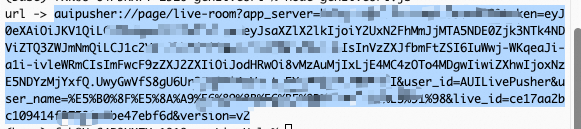
Copy the obtained URL into the streaming assistant and enter the live channel. The default codec for stream ingest in the streaming assistant is hardware encoding, but software encoding is also available. For more information about the differences between hardware and software encoding, see Codec.
Invoke the integration
We recommend that you invoke the live streaming assistant using the following logic. You need to develop the following features for your system:

The genLiveUrl.js file, mentioned in Run code to obtain the streaming URL, provides sample code for generating a streaming URL. You can use this sample code for custom development.
Example of invoking the client
You need to import the custom-protocol-check dependency into your project. For example: npm install custom-protocol-check --save.
import customProtocolCheck from "custom-protocol-check";

// The URL is generated by genurl above, or obtained through the getLiveJumpUrl API by other means.
const url = `auipusher://page/live-room?xxxxxx`;

// For more documentation, see https://www.npmjs.com/package/custom-protocol-check
customProtocolCheck(
  url,
  () => {
    // We recommend implementing a pop-up window here to prompt for download.
    console.log("Custom protocol not found. Check if the live streaming assistant is installed!");
  },
  () => {
    console.log("Custom protocol found and successfully opened!");
  },
  5000,
  () => {
    console.log("The current environment does not support this feature.");
  },
);
Logon instructions
Enter the streaming URL and click Enter Live Channel. Key data is extracted from the streaming URL, and the server-side signature verification API is called to validate the URL. After successful validation, the get single live channel API is called to verify other information. If the verification is successful, the live channel page is displayed.
If logon fails, you can use a tool such as Postman to check whether the relevant APIs are functioning correctly by referring to the server-side API documentation.
The field names for API parameters and response parameters must match those specified in the server-side documentation.

Start live streaming
Log on to the live streaming assistant. You can log on in external invocation mode or manual mode.
External invocation: Open the live streaming assistant from a browser using the invocation URL. The client parses the server, live channel, and streamer information and then automatically logs on.
Manual entry: Click the live streaming assistant shortcut to go to the logon page. Enter the invocation URL and click Enter Live Channel. The client parses the server, live channel, and streamer information and then automatically logs on.
Optional: Set up the camera device.
Turn the camera on or off: Click the camera icon to toggle its state. The camera is on by default when you enter a live channel.
Switch cameras: Click the triangle icon next to the camera icon to display the camera list. Click a video source input device to select it.
(Optional) Configure the microphone device.
Turn the microphone on or off: Click the microphone icon to toggle its status. The microphone is on by default when you enter a live channel.
Switch microphones: Click the triangle icon next to the microphone icon to display the microphone list. Click an audio source to select it as the input device.
(Optional) Share your screen.
Share a screen or window: Click the screen sharing button. In the dialog box that appears, select a screen or window to share.
Stop sharing: Click the stop sharing button that appears when you share a screen or window.
(Optional) Select a recommended video quality based on your network speed.
Click the settings icon to open the settings dialog box.
Select the desired video quality. If you select a custom quality, you can set the resolution, bitrate, and frame rate for the stream ingest.
NoteComplete these settings before you start the live stream. If you adjust the video quality during a live stream, co-stream, or video recording, it will affect the viewing experience.
Complete the configuration and click Start Live Streaming.
Viewing on the playback client
The streaming assistant uses the Opus audio format for stream ingest. Streams that use the Real-Time Streaming (RTS) protocol can be played back normally. However, the FLV, RTMP, and HTTP Live Streaming (HLS) protocols have poor support for Opus. If you play back streams that use these protocols, you will not hear any audio. Therefore, we recommend that you configure an audio transcoding template to ensure compatibility on the playback client.
The following steps describe how to configure the settings to watch a standard live stream:
Log on to the ApsaraVideo Live console.
In the navigation pane on the left, click Function Management > Live Stream Transcoding to go to the Live Stream Transcoding page.
Select the streaming domain that you want to configure and click the Default Transcoding tab.
On the Default Transcoding tab, click Add.
On the Configure Transcoding Template page, select the Original Quality - Audio Only template and set the encoding format to AAC.
Click OK. After the configuration is complete, the corresponding transcoded streaming URL is returned in the API response for the live channel details.
To play back the live stream, add a recording configuration. For more information, see Live stream recording.
FAQ
For answers to common questions, see FAQ for the live streaming assistant.