Enable control-plane log collection and alerting (ASM versions earlier than 1.17.2.35)
ASM supports control-plane log collection and log-based alerting. For example, ASM can collect the logs generated when the control plane pushes configurations to the data plane sidecars. This topic describes how to enable control-plane log collection and log-based alerting.
Background information
One of the main functions of the ASM control plane is to push mesh rule configurations to the sidecar proxies or gateways on the data plane. If the mesh rules that you configure conflict with each other and a push fails, the proxies or gateways cannot receive the latest configuration. Although a proxy or gateway can continue to run with the configuration that it has already received as long as it is not restarted, a restart of these pods may cause the sidecar proxy or gateway to fail to start. In practice, misconfigurations frequently make gateways or proxies unavailable. Therefore, it is essential to enable control-plane log-based alerting so that you can detect and resolve such issues promptly.
Prerequisites
An ASM instance of a version earlier than 1.17.2.35. For more information, see Create an ASM instance.
NoteThis topic applies to ASM instances with versions earlier than 1.17.2.35. If your ASM instance runs version 1.17.2.35 or later, see Enable control-plane log collection and log-based alerting in an ASM instance of version 1.17.2.35 or later.
Simple Log Service is activated for your Alibaba Cloud account. For more information, see Activate Simple Log Service.
ImportantCollecting control-plane logs into the ASM log service incurs no extra ASM fee, but Simple Log Service bills based on the volume of written data or the features used. For more information about SLS billing, see Billing overview.
Enable control-plane log collection
Log on to the ASM console. In the left-side navigation pane, choose Service Mesh > Mesh Management.
On the Mesh Management page, click the name of your ASM instance. In the left-side navigation pane, choose ASM Instance > Base Information.
In the Config Info section, click Enable next to Control-plane log collection.
First-time enablement: The Enable Control-plane log collection dialog box appears. Create a project or select an existing one. When creating a project, use either the default name or a custom name, then click Submit.
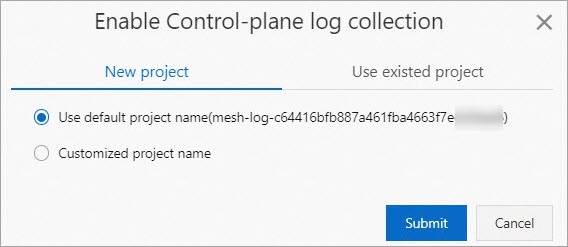
Re-enablement (previously enabled and then disabled): A Note message appears. Click OK. The previously used project is automatically selected.
ImportantThe control-plane Logstore retains logs for 30 days and automatically discards older logs.
After log collection is enabled, click View log next to Control-plane log collection in the Base Information section to view detailed control-plane logs on the log project page.in the Base Information section to view detailed control-plane logs on the log project page.in the Base Information section to view detailed control-plane logs on the log project page.
Enable log-based alerting
Enable control-plane log collection before you set up log-based alerting. Otherwise, log-based alerting cannot be used.
When the data plane rejects an xDS request from the control plane, a data plane synchronization failure alert is triggered. This means the affected sidecar proxy or gateway did not receive the latest configuration. The impact depends on the proxy's state:
Has previous configurations: The proxy or gateway keeps running with the last successfully received configuration.
Has no configurations: The proxy or gateway has no configuration information. It may have no listeners configured and cannot process requests based on routing rules.
To enable alerting:
Log on to the ASM console. In the left-side navigation pane, choose Service Mesh > Mesh Management.
On the Mesh Management page, click the name of your ASM instance. In the left-side navigation pane, choose ASM Instance > Base Information.
In the Config Info section, click Alert Setting next to Control-plane log collection.
In the Control-Plane Alert Setting dialog box, find the action policy to enable. Select ASM Built-in Action Strategy (recommended) or a custom action policy, then click Enable Alert. An action policy specifies the action to be performed when an alert is triggered. To create or modify action policies, see Create an action policy in Simple Log Service.
In the Note message, click OK.
Configure alert contacts
You can configure the built-in action policy to set alert notification recipients and notification templates. Add members to the built-in alert user group so they receive alert notifications.
Log on to the Simple Log Service console.
In the Projects section, click the name of your project. In the left-side navigation pane, click Alerts.
On the Alert Center page, choose Notification Objects > User Group Management.
On the User Group Management tab, find sls.app.asm.builtin and click Edit in the Actions column.
In the Edit User Group dialog box, select the members to add, click the
 icon to add them to the group, then click OK.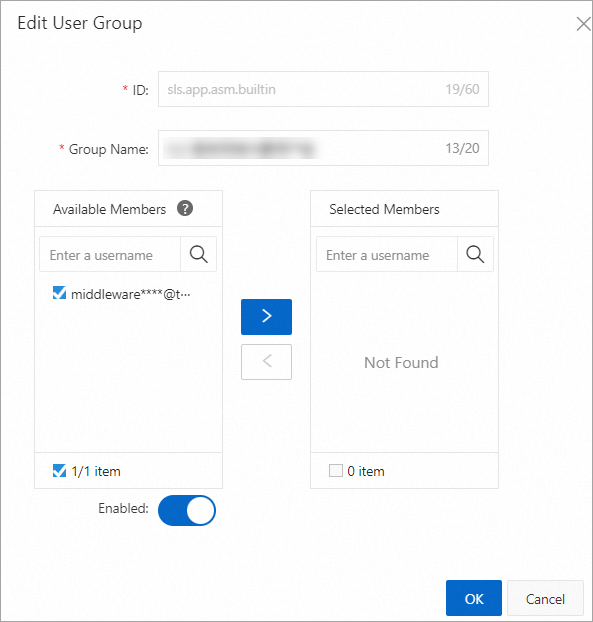
Verify alert notifications
To confirm that alerts are delivered correctly, apply an intentionally invalid gateway configuration that references a non-existing TLS credential. This triggers a configuration push failure and generates an alert.
This example covers one specific alert type. For other error messages and their solutions, see Troubleshoot failed configuration pushes in this topic.
Log on to the ASM console. In the left-side navigation pane, choose Service Mesh > Mesh Management.
On the Mesh Management page, click the name of your ASM instance. In the left-side navigation pane, choose ASM Gateways > Gateway. Click Create from YAML.
On the Create page, select a namespace and a template, paste the following YAML, and click Create. The following Istio gateway uses the
defaultnamespace and references a non-existing TLS credential (not-existing-credential), which causes a configuration push failure:apiVersion: networking.istio.io/v1beta1 kind: Gateway metadata: name: gateway-test namespace: default spec: selector: istio: ingressgateway servers: - hosts: - '*console.aliyun.com' port: name: https number: 443 protocol: HTTPS tls: credentialName: not-existing-credential mode: SIMPLECheck that the alert was triggered:
On the ASM instance details page, choose ASM Instance > Base Information in the left-side navigation pane.
In the Config Info section, click View log next to Control-plane log collection.
In the Simple Log Service console, search for
'ACK ERROR'to locate the alert log entry.Example output: The query returns an
istio-ingressgatewayerror log indicating thatserver_namesdoes not support partial wildcards.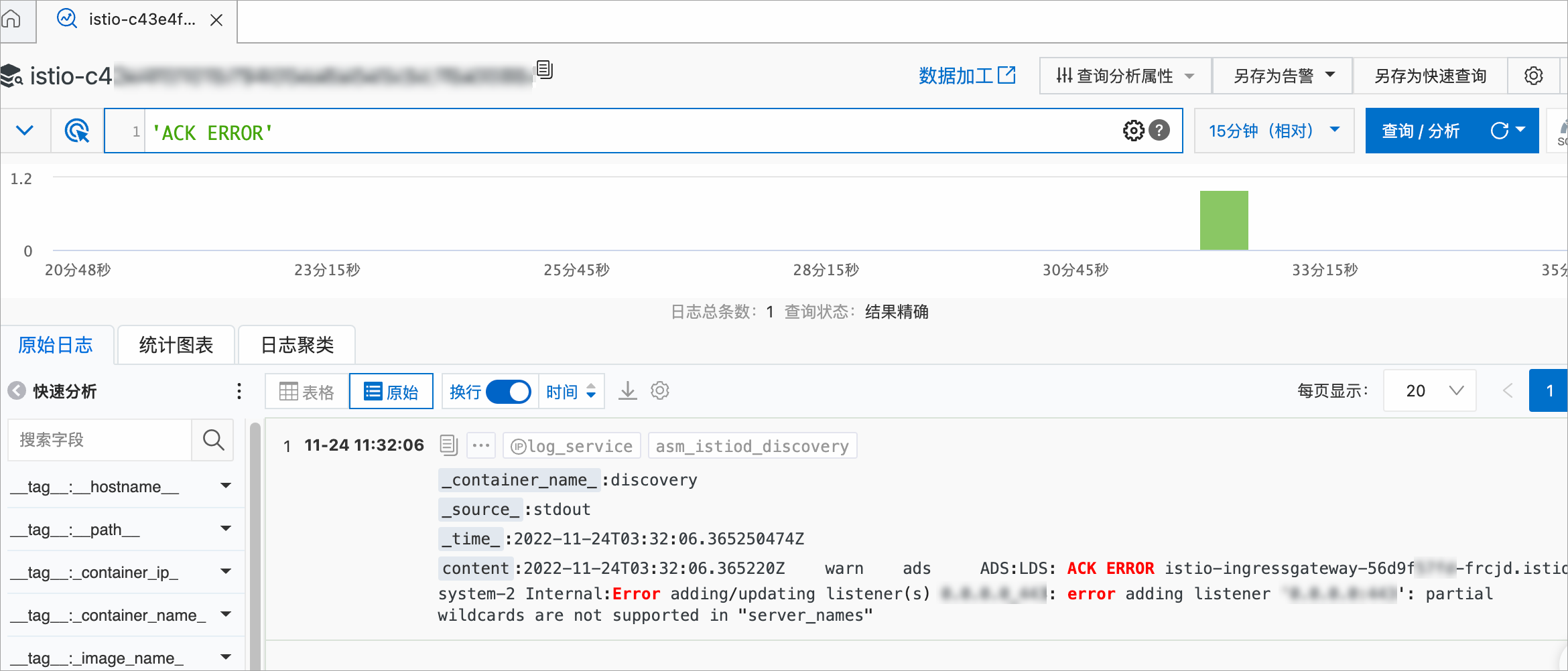
If you have configured email notifications, also check your inbox for the alert email.
Handle alerts
Alerts from potential configuration risks
ASM detects configurations that may produce unexpected results. Review these alerts on the Mesh Diagnosis page and follow the instructions to correct the configurations.
Alerts from incorrect configurations
ASM detects configurations that are likely to cause unexpected behaviors. Review these alerts on the Mesh Diagnosis page and correct the configurations as soon as possible.
Troubleshoot failed configuration pushes
The following table lists common errors when configuration pushes from the control plane to the data plane fail.
Error message | Cause | Solution |
| The data-plane cluster does not support the configured certificate type. | Configure a P-256 ECDSA certificate. For details, see Use an ingress gateway to enable HTTPS. |
| The certificate path is invalid or the certificate does not exist. | Verify that the certificate mount path matches the path specified in the gateway configuration. For details, see Use an ingress gateway to enable HTTPS. |
| Duplicate listening ports are configured for the gateway. | Remove the duplicate port entries from the gateway configuration. |
| The EnvoyFilter reference for the 15021 listener patch does not exist in sidecar proxies or ingress gateway services. | Delete the invalid EnvoyFilter reference. |
| The xDS v2 protocol is deprecated. This typically occurs when sidecar proxy versions on the data plane do not match the control plane version. | Update sidecar proxies by deleting existing pods. The latest proxy version is automatically injected into recreated pods. |
If your error is not listed, submit a ticket for assistance.
Change the control-plane log project
Log on to the ASM console. In the left-side navigation pane, choose Service Mesh > Mesh Management.
On the Mesh Management page, click the name of your ASM instance. In the left-side navigation pane, choose ASM Instance > Base Information.
In the Config Info section of the Base Information page, click Change Log Project next to Control-plane log collection. In the Change Log Project dialog box, modify the settings and click Submit.