If your example project has an issue, or you want to use its new features, delete and then reactivate the project. This topic describes how to delete an example project.
Although the platform provisions various resources when you activate an example project, you only need to follow the steps below to delete it: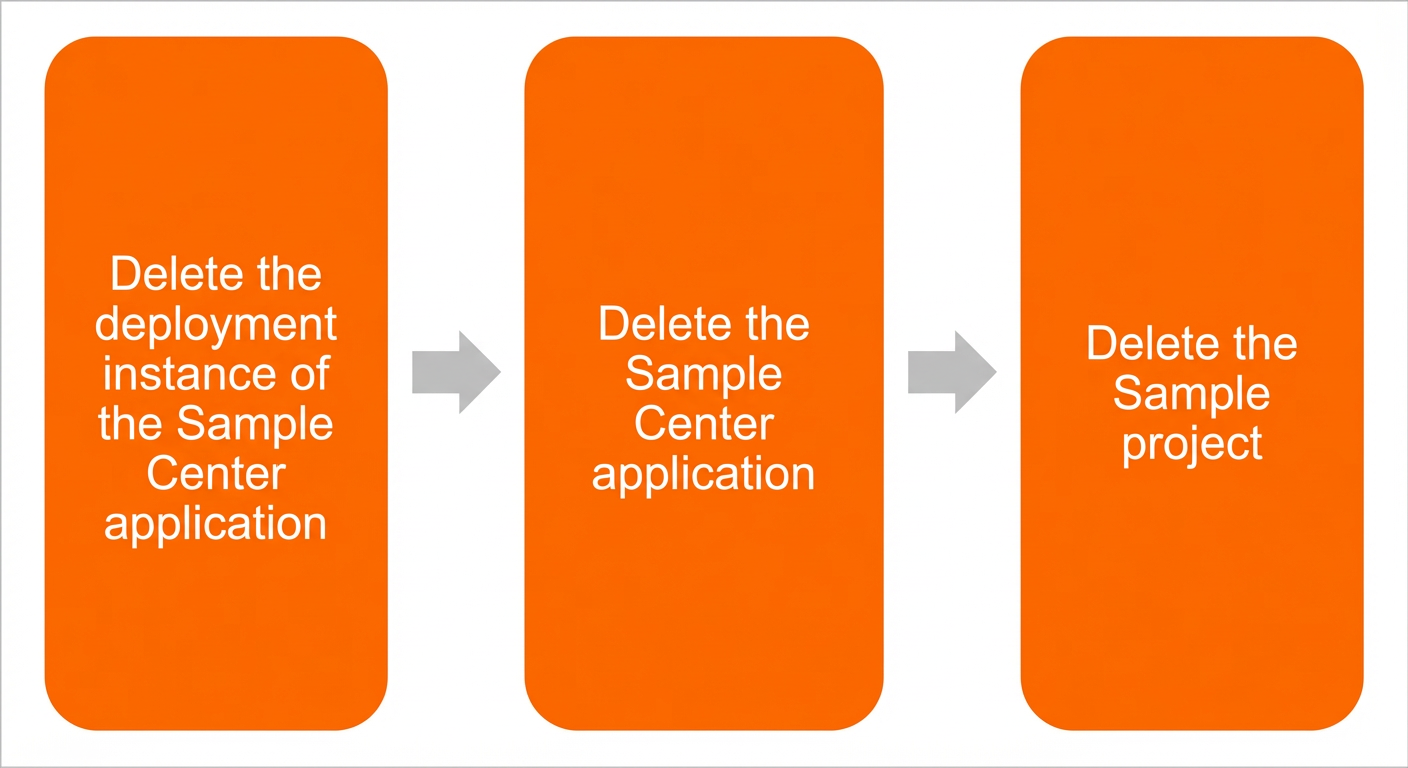
-
Delete all deployment instances of the example center application. This operation requires an account with the project owner or enterprise administrator role.
-
Delete the center application. This operation requires an account with the project owner role.
-
Delete the example project. This operation requires an account with the enterprise administrator role.
Step 1: Delete application instances
After you publish the application and list its capabilities for the example project, you will find one instance in the example development environment and another in the example production environment on the Application deployment page of the example product center. You must delete both deployment instances. This topic uses the deletion of the instance in the example development environment as an example.
-
On the Application deployment page of the example product center, under the example development environment, click the card for the target instance.
-
In the Application deployment instance panel, click Delete.
-
In the confirmation dialog box, click Delete.
Repeat this process to delete all deployment instances in the example product center. For more information, see Delete a center application instance.
Step 2: Delete the example center application
You can delete the application only after deleting all of its deployment instances.
-
On the Application list page, click Delete in the Actions column for the target application.
-
In the confirmation dialog box, click Delete.
For more information, see Delete a center application.
Step 3: Delete the example project
After deleting all applications, delete the example project from the Platform project management page in your enterprise settings.
-
On the Platform project management page, click Delete project in the Actions column for the target project.
-
In the confirmation dialog box, click Delete.
For more information, see Delete a project.
(Optional) Step 4: Reactivate
If you need to use the example project again after deleting it, reactivate it. For more information, see Step 1: Activate the example project.