Use sequence diagrams to derive dependencies between bounded contexts. This process abstracts the required application services, domain events, and event consumers.
Create a mapping derivation
Log in to BizWorks, in the select Platform drop-down list selected modeling Platform.
Click the
 icon or the text box in the upper-right corner of the page. From the drop-down list, click the name of the project that you want to view and click the Modeling tab. In the Modeling navigation pane, choose .
 On the Context Map page, click the version number of the target context map.
In the navigation pane on the left, click Mapping Derivation and then click Create.
In the Create panel, on the Basic Information tab, enter a Business Name.
On the Associated Business Service tab, select one or more target business services.
On the Associated Business Process tab, select one or more target business processes, and then click Create.
Mapping derivation
On the Mapping Derivation page, click Mapping Derivation Designer. On the designer page, go to the Sequence Design tab and click the desired mapping derivation.
From the Component tab, drag components to the canvas on the right. For example, drag the Role component to the canvas and select a role from the drop-down list.
NoteRoles are created on the Ubiquitous Language page. To create a new role, see Create a role.
As needed, drag the Bounded Context and External Dependency components onto the canvas. Then, from their respective drop-down lists, select the desired bounded context and external dependency.
You can also drag the Note component onto the canvas to add annotations.
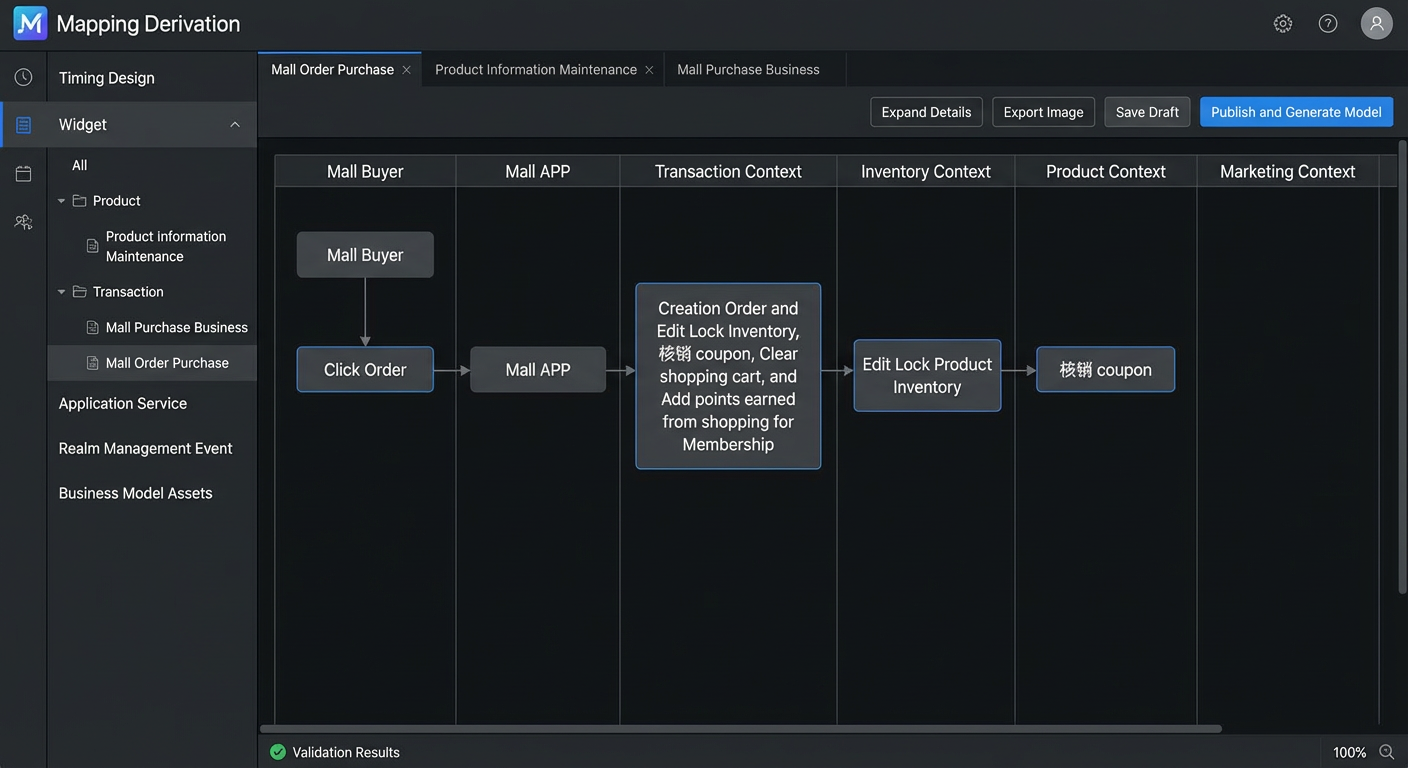
Use the following diagram to perform the mapping derivation.
The following figure shows an example of a completed mapping derivation:
On the Application Service and Domain Event tabs, select a target item. Then, on the right side of the canvas, click the
 icon for the corresponding application service or domain event.
In the panel that appears, view or modify the settings as needed, and then click OK.
Optional: Click Expand Details in the top toolbar to view the service methods and event information derived from the sequence diagram.
Optional: Select a target application service or domain event, and then click the
 icon on the right side of the canvas to perform the mapping derivation again as needed.
Optional: You can create a new sequence design. On the Sequence Design tab, click the
 icon and select New Sequence Design. In the New Sequence Design dialog box, enter a name for the sequence design, and then click Create.
After completing the mapping derivation, click Publish and Generate Model.
The platform generates the derived models in the corresponding bounded context.
Edit a mapping derivation
On the Mapping Derivation page, find the target business name and click Edit in the Actions column.
On the designer page, make changes as needed, and then click Save as Draft or Publish and Generate Model.
Delete a mapping derivation
Method 1
On the Mapping Derivation page, find the target business name and click Delete in the Actions column.
In the confirmation dialog box that appears, click Delete.
Method 2
On the designer page, go to the Sequence Design tab. Click the
 icon next to the target mapping derivation and select Delete.
In the confirmation dialog box that appears, click Delete.
 icon next to the target mapping derivation and select Delete.