Automatically generate an architecture diagram
This topic describes how to use the Application Resource Planning feature of Cloud Architecture Design Tool (CADT) to automatically generate an architecture diagram.
Use case
This topic uses a classic web application architecture to demonstrate how to use the Application Resource Planning feature of CADT and highlights key considerations.
For more information, see Best Practices for Classic Website Architectures on the Cloud. The application architecture to be deployed is shown in the following figure: 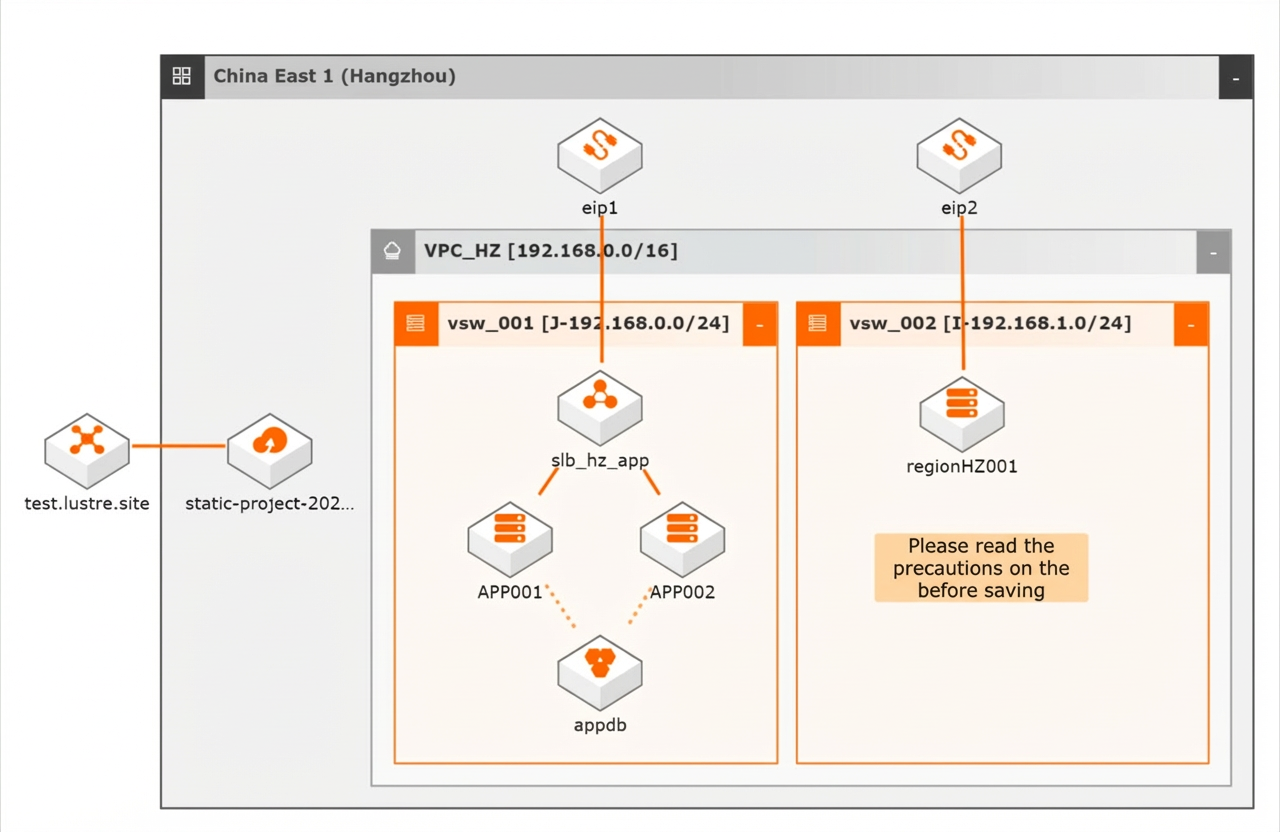
Plan your resources before deploying them to the cloud. The following table lists the products and their specifications required for this architecture.
|
Product |
Instance specifications |
|
Region |
China (Hangzhou) |
|
ECS |
|
|
EIP |
|
|
CLB |
|
|
ApsaraDB RDS |
|
|
OSS |
|
Procedure
-
Log on to the Cloud Architecture Design Tool (CADT) console.
-
In the top navigation bar, choose Resources > Application Resource Planning.
-
In the Application Resource Planning dialog box, complete the following configurations.
-
Region: Select the region where your business application will be deployed. For this example, select China (Hangzhou).
-
Region Source: The default value is New.
-
VPC Source: The default value is New.
-
Dual-AZ: Select this option if your application requires high availability and you need to deploy resources across different availability zones.
-
-
Scenario 1: Deploy resources in a single availability zone.
-
Set Region to China (Hangzhou). Use the default value New for Region Source and VPC Source, and then click Add Recommended Resources.
-
In the Recommended Resources dialog box, select the products for resource planning based on the use case and supported products. For this example, select EIP, ApsaraDB RDS, OSS, CLB, and ECS. After you make the selections, click OK.
-
Configure the specifications for each product on its respective tab according to the resource list in the use case. After you configure all products, click Calculate Availability Zones.
-
EIP: Set Commodity type to pay-as-you-go, Line type to BGP (Multi-ISP), and Network type to Public. Set Traffic billing method to Pay-by-traffic. Set Bandwidth peak to 5Mbps and Quantity to 2.
-
ApsaraDB RDS: Set Billing method to pay-as-you-go. Select MySQL for Type and 5.7 for Version. Choose High-availability Edition for Edition and ESSD PL1 for Storage type. Select 4 vCPU, 16 GiB (General-purpose) for Instance type and set Quantity to 1.
-
OSS: Enter a custom Bucket name. Set Storage class to Standard, Zone-redundant storage to Disabled, and Read/write permissions to Private. Set Quantity to 1.
-
CLB: Set Billing method to pay-as-you-go and Instance type to Standard I (slb.s2.small). Select IPv4 for IP version and set Quantity to 1.
-
ECS: Set Billing method to pay-as-you-go and Instance type to ecs.g7.xlarge (4 vCPU, 16 GiB). Select ESSD for System disk type and set Quantity to 3.
-
-
After you complete the configurations, click Calculate Availability Zones. CADT calculates the supported availability zones for each resource in the selected region based on your configurations.
-
Select an availability zone that is supported by all resources from the Selectable Availability Zones list, and click Generate Architecture Diagram. For example, select China (Hangzhou) Zone K and set Selectable Availability Zones to New.
-
An application architecture is generated. CADT automatically generates the topology and connections based on the planned specifications.
-
-
Scenario 2: Deploy resources in a dual-AZ architecture.
-
Select the Dual-AZ option, configure the resources and their specifications, and then click Calculate Availability Zones. The dialog box displays the configuration forms for each product, such as EIP-1 and RDS-1.
-
Based on the calculation results, select a primary and a secondary availability zone, and then click Generate Architecture Diagram. For example, select China (Hangzhou) Zone K for Selectable Primary Availability Zone and China (Hangzhou) Zone J for Selectable Secondary Availability Zone. For both availability zones, set the VPC option to New.
-
CADT automatically generates a dual-AZ architecture. In the diagram, the VPC spans two availability zones, and resources are automatically distributed across the zones for high availability.
-
-
After the architecture diagram is generated, you can perform other operations in CADT that suit your business architecture. This process helps ensure that the resources you need are available before you begin deployment.