ComfyUI project FAQ
1. How to check the ComfyUI version?
1.1 Method 1: Click to view the ComfyUI version
Step 1: In the lower-left corner, click Settings.
Step 2: Click About.
Step 3: View the ComfyUI version.
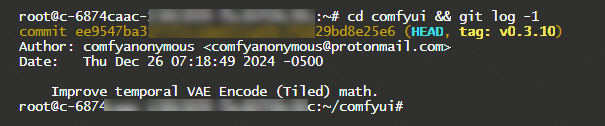
1.2 Method 2: Log on to the instance and run a command
Step 1: Click .
Step 2: Run the cd comfyui && git log -1 command.
2. How to upgrade the ComfyUI version?
Log on to an instance to upgrade using Git commands
Log on to the instance and go to the directory.
cd comfyuiAdd or update the remote image repository.
git remote add mirror https://gh.llkk.cc/https://github.com/comfyanonymous/ComfyUI.gitNoteIf you have already added this mirror, the command returns the error
fatal: remote mirror already exists.. This is expected behavior. You can ignore the error and proceed to the next step.Pull the latest updates from the image repository.
git fetch mirror --tagsSwitch to a specific version.
# Replace v0.3.49 with the target version number.
git checkout -f v0.3.49
Install dependencies for the new version.
pip install -r requirements.txtRestart the workspace.
After you run all the commands, perform the following steps:
Save and close the workspace.
Restart the workspace to apply the changes and use the new version.
If a file permission error occurs during the git checkout step, which can happen when you switch between Windows and Linux systems, run the following command first: git config --global core.fileMode false . This command configures Git to ignore file permission changes. Then, run the checkout command again.
3. How to prefetch a model to avoid long processing times for the first image generation request?
When a new compute instance starts, it must load large and complex model files from the hard disk into the high-speed GPU memory. This loading process is time-consuming and causes the first image generation to be slow. After the model files are loaded, they are cached in the GPU memory, and subsequent image generations are much faster. However, occasional slow requests may occur because of configuration updates or underlying resource rotations.
To prevent slow first-time image generation and maintain stable service processing times, Function AI provides a model prefetch feature. This feature automatically submits an image generation task to load the model in advance after ComfyUI starts but before it handles any image generation tasks. This ensures that new instances can generate images with high performance from the start.
3.1 Prepare a model prefetch script
Deploy the ComfyUI project with one click using Function AI. For more information, see Deploy a ComfyUI project. Test the workflow in project development mode and export the workflow as a JSON file for prefetching.
Modify the content of the exported JSON file to create the model prefetch script.
ImportantThe prefetch workflow must meet the following requirements:
The workflow must run correctly. Make sure that all required models, plugins, and custom nodes are installed in the function instance.
To prefetch multiple models, you can add multiple model loaders to the workflow or extend it with sub-workflows.
The core purpose of prefetching is to load the model into GPU memory, not to generate a high-quality image. Therefore, you can shorten the ramp-up period in the following ways:
Set the number of sampler iteration steps to 1.
Set the image dimensions (width and height) to the minimum value of 16 × 16.
The following is an example.
{
  "3": {
    "inputs": {
      "seed": 234571336938304,
      "steps": 1,
      "cfg": 8,
      "sampler_name": "euler",
      "scheduler": "normal",
      "denoise": 1,
      "model": [
        "4",
        0
      ],
      "positive": [
        "6",
        0
      ],
      "negative": [
        "7",
        0
      ],
      "latent_image": [
        "5",
        0
      ]
    },
    "class_type": "KSampler",
    "_meta": {
      "title": "KSampler"
    }
  },
  "4": {
    "inputs": {
      "ckpt_name": "sd-v1-5-inpainting.ckpt"
    },
    "class_type": "CheckpointLoaderSimple",
    "_meta": {
      "title": "Load Checkpoint"
    }
  },
  "5": {
    "inputs": {
      "width": 16,
      "height": 16,
      "batch_size": 1
    },
    "class_type": "EmptyLatentImage",
    "_meta": {
      "title": "Empty Latent Image"
    }
  },
  "6": {
    "inputs": {
      "text": "beautiful scenery nature glass bottle landscape, , purple galaxy bottle,",
      "clip": [
        "4",
        1
      ]
    },
    "class_type": "CLIPTextEncode",
    "_meta": {
      "title": "CLIP Text Encode (Prompt)"
    }
  },
  "7": {
    "inputs": {
      "text": "text, watermark",
      "clip": [
        "4",
        1
      ]
    },
    "class_type": "CLIPTextEncode",
    "_meta": {
      "title": "CLIP Text Encode (Prompt)"
    }
  },
  "8": {
    "inputs": {
      "samples": [
        "3",
        0
      ],
      "vae": [
        "4",
        2
      ]
    },
    "class_type": "VAEDecode",
    "_meta": {
      "title": "VAE Decode"
    }
  },
  "9": {
    "inputs": {
      "filename_prefix": "ComfyUI",
      "images": [
        "8",
        0
      ]
    },
    "class_type": "SaveImage",
    "_meta": {
      "title": "Save Image"
    }
  }
}
3.2 Configure model prefetch
Publish the API. In the ComfyUI interface, choose . In the Advanced Configuration section, set Workflow Prefetch to Enable, and enter the model prefetch script that you prepared in Step 1.
On the page, in the Resource Configuration section, select a GPU resource that meets your business requirements. Set a snapshot at the second level, and then click Save.
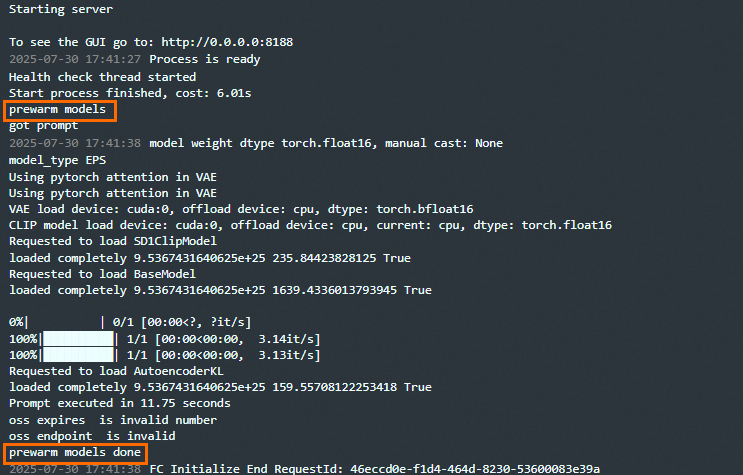
After the configuration is complete, Function AI creates an instance for you. After ComfyUI starts, it automatically triggers an image generation request to prefetch the model. In API call mode, you can go to to view the model prefetch status, as shown in the following figure.