This topic describes how to configure Cloud Contact Center to transfer incoming calls directly to a specific agent.
Function Overview
By default, the human agent transfer module in an IVR flow routes incoming calls to a skill group. Cloud Contact Center then intelligently assigns the call to an available agent within that group. In special cases, you might need to route certain calls directly to a specific agent. This feature supports that requirement. In Cloud Contact Center version 2.0, use the UserId parameter to transfer a call to a specific agent.
Usage Overview
Obtain the agent's UserId.
Set a custom parameter in the IVR start module or use a function to set it.
Select the corresponding custom parameter in the human agent transfer module.
Get the agent's UserId
An agent’s username typically follows this format: username@XXX, where XXX is the Cloud Contact Center instance ID. To obtain the UserId, retrieve both the agent’s username and the Cloud Contact Center instance ID. For example, if the agent username is "yunlianluo" and the Cloud Contact Center instance ID is test_callcenter_2, the agent’s UserId is: yunlianluo@test_callcenter_2
Manually query the agent username
Log on to the Cloud Contact Center console using your Alibaba Cloud account and go to the target Cloud Contact Center instance.
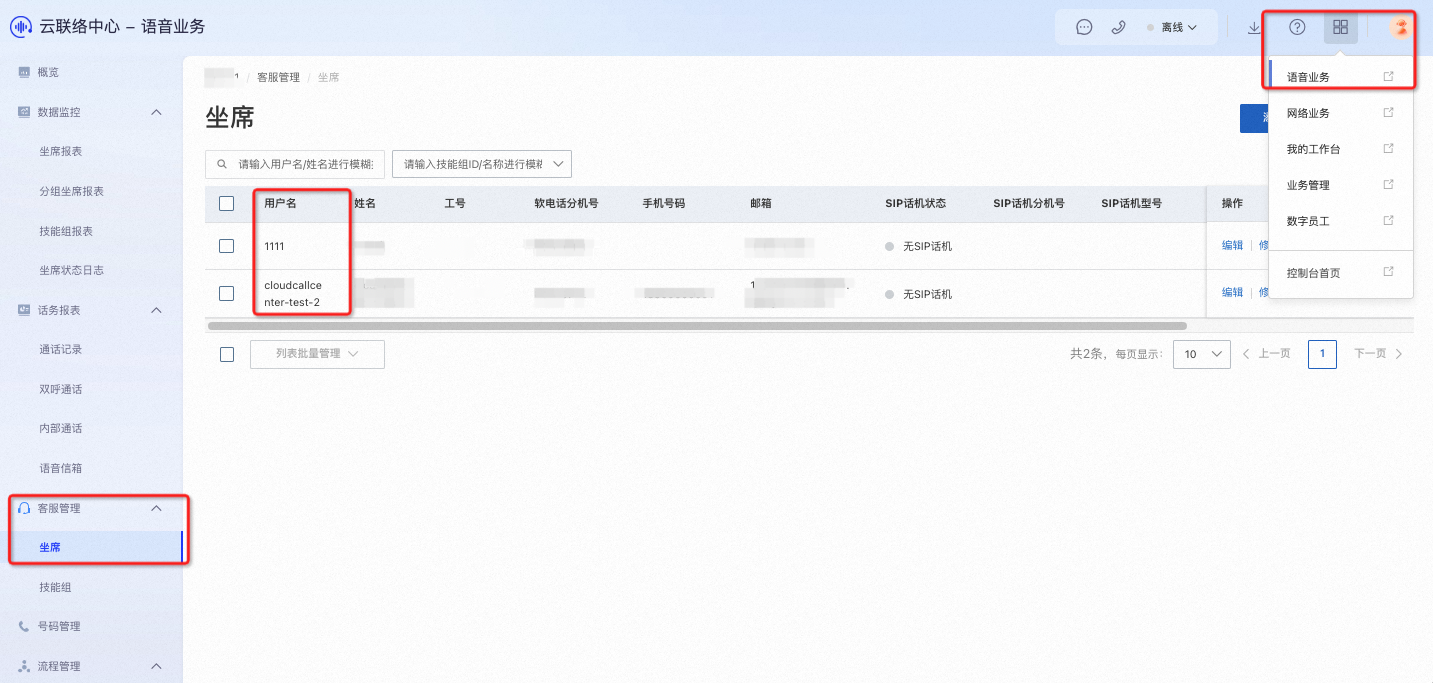
Click the menu in the upper-right corner, choose Voice Services, then go to Agent Management > Agents, and view the corresponding Username.
Get the Cloud Contact Center endpoint
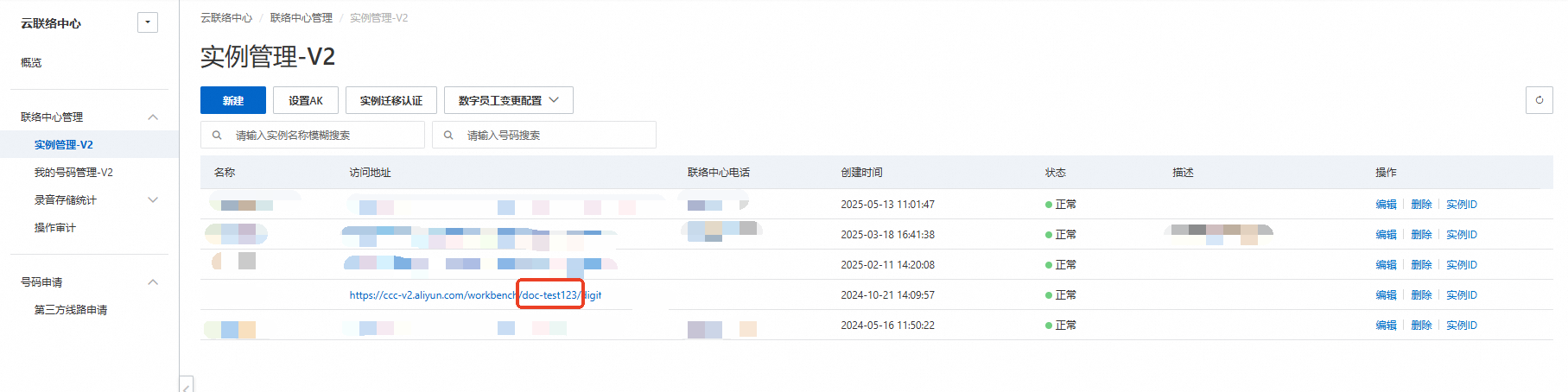
The full Cloud Contact Center endpoint usually follows this format: https://ccc.aliyun.com/workbench/XXX/agentdesk, where XXX is the Cloud Contact Center instance ID. You can find this ID in the Cloud Contact Center console – Instance Management – V2, as shown in the following image. In this example, doc-test123 is the required Cloud Contact Center instance ID.
Get UserId by calling an API
Call the ListUsers or GetUser API to retrieve an agent’s UserId.
Set a custom parameter
You can set the agent’s UserId as a custom parameter in the IVR flow in two ways. The simpler method defines the custom parameter directly in the start module. The more flexible method uses a function module to return the required agent UserId and assign it to a custom parameter.
Set a custom parameter in the start module
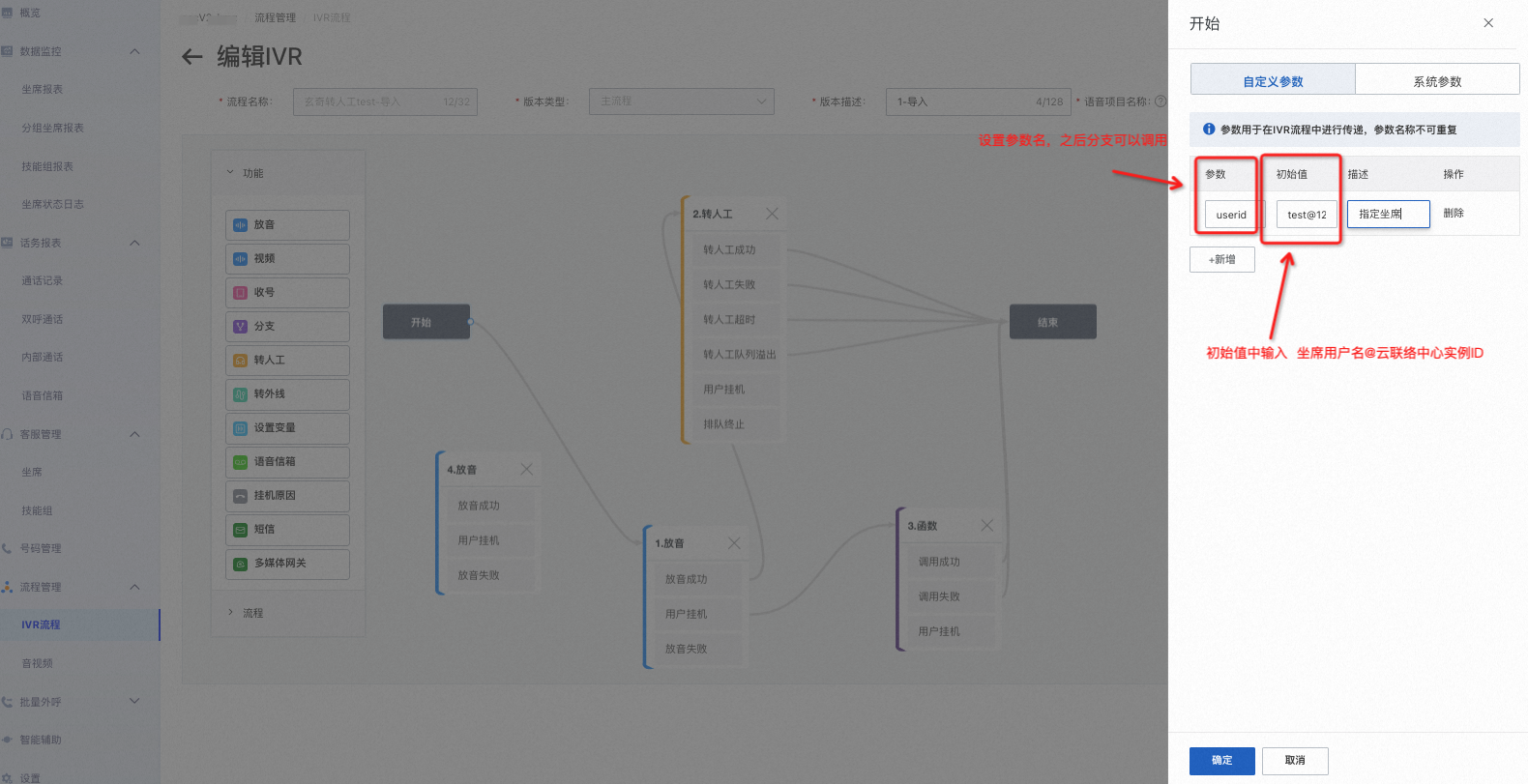
Edit the Start module, go to custom parameter settings, and enter the agent’s username@Cloud Contact Center instance ID in the Initial Value field.
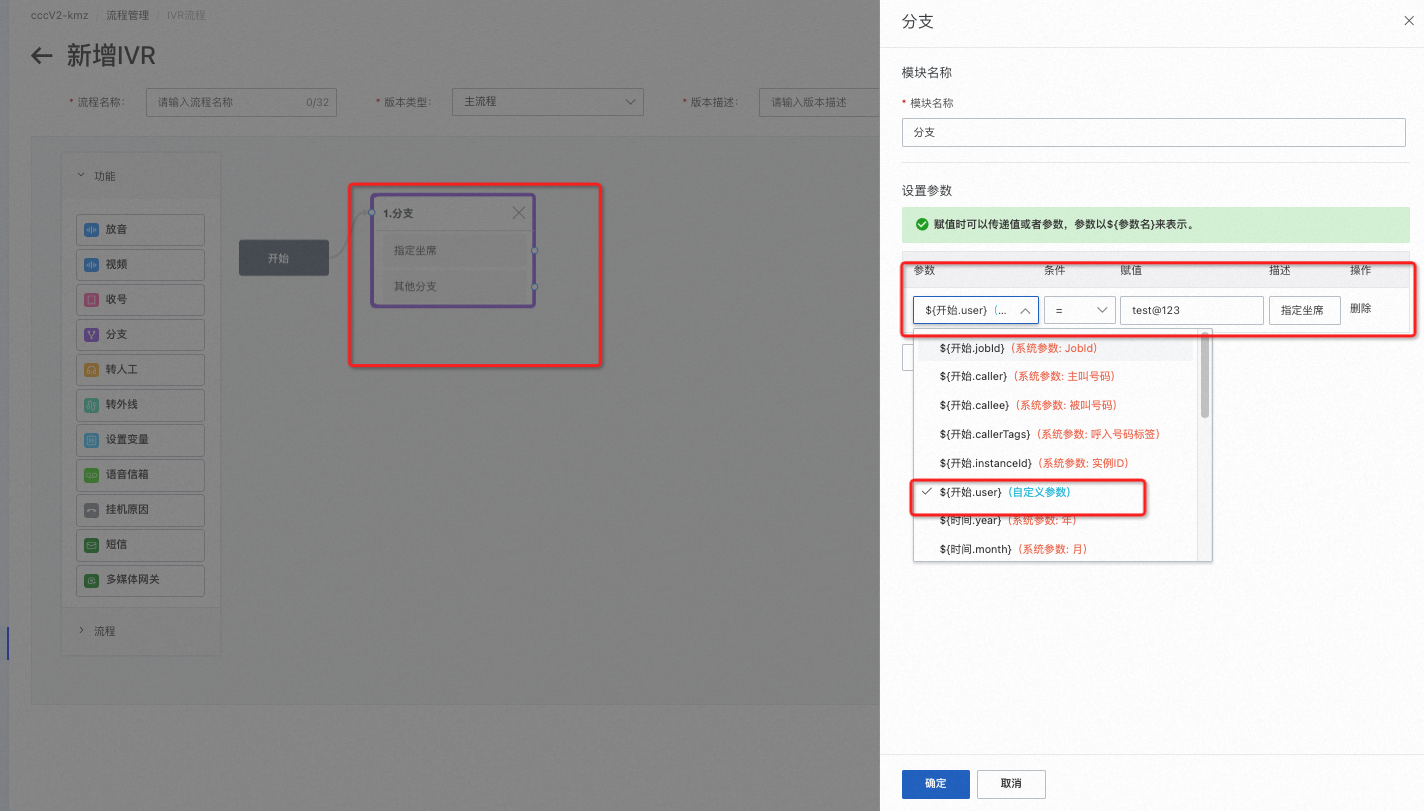
After configuring the start branch, use conditional logic in subsequent branches to read the parameter set in the start module and perform the specific agent transfer.
Use a function module for flexible custom parameter assignment
Defining the value directly in the start module is static and not easily changed. Using a function module, you can run server-side or Function Compute logic to dynamically determine and return the correct agent UserId. The function module then assigns this return value to a custom parameter.
Common scenarios include the following:
Route high-priority customers directly to a dedicated service representative.
Match the incoming phone number against your own database to identify the assigned service representative. If that representative is available, route the call directly to them.
Using a function module assumes you have development capabilities. Before returning a specific agent’s UserId, check whether the agent is currently idle. Only idle agents can receive incoming calls. However, because agent status changes in real time, there is still a small chance that another call reaches the agent at the exact moment your call is transferred.
Select the custom parameter
In the human agent transfer module, select the corresponding custom parameter. Under the transfer method dropdown—Skill Group, Specific Agent, or Extension Number—choose Specific Agent, then select the desired agent from the list.
Specific Agent: Enter username@instanceID directly to transfer the call to that agent.
Reference Parameter: Use the parameter value assigned in a preceding function node, as described in the configuration above.
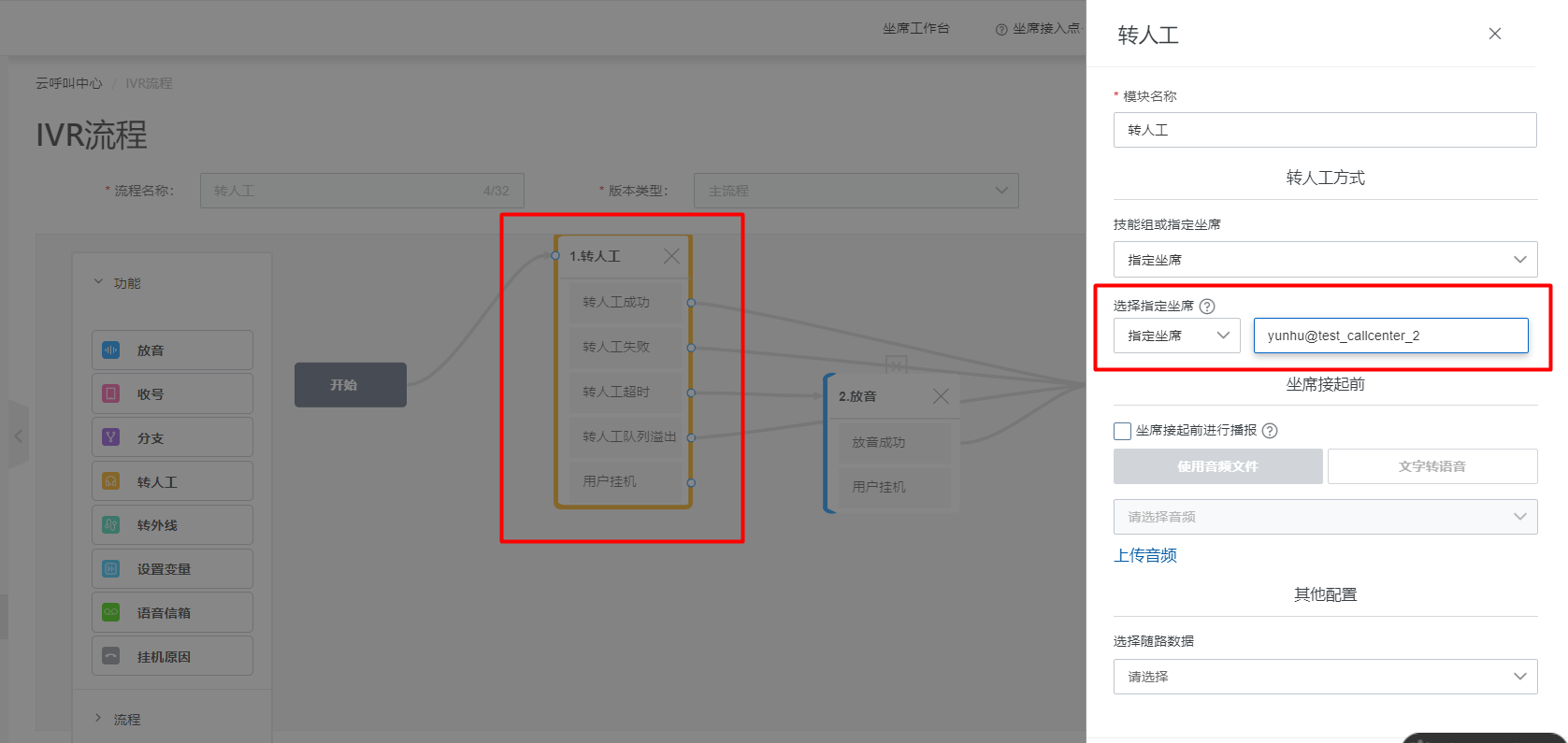
As shown in the image above, select Specific Agent under the transfer method, then choose the corresponding custom parameter. Transferring directly to an agent routes the call to their personal queue. The transfer succeeds only if the agent is idle. Otherwise, the call follows the human agent transfer failure (timeout) path.