This component sends WhatsApp messages that users can reply to using specific WhatsApp features.
Component information
Icon | Name |
| Send a WhatsApp Message |

Prerequisites
To configure this component, access the flow canvas by using an existing flow or creating a new one.
Go to the canvas of an existing flow
In the
Create a new flow to open its canvas. For more information, see Create a flow.
Procedure
On the canvas, click the Send a WhatsApp Message component icon to open the configuration panel on the right.
Configure the component's parameters as needed. For more information, see Parameters.
After you finish the configuration, click Save. In the dialog box that appears, click Save.
Parameters
Available variables
The Available variables section lists default variables for your flow. To add a custom variable, click the Insert Variable button. The new variable will then appear in this list. For more information about how to use available variables, see How to use available variables.
Send settings
Select a send action: From/To or Reply.
From/To
If the trigger type is Manual, you must select From/To.
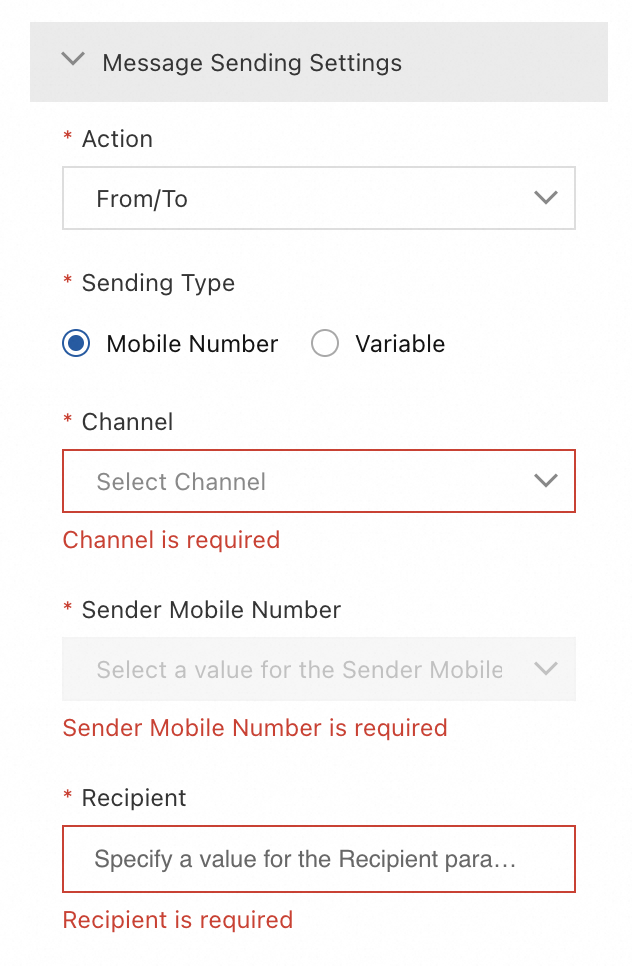
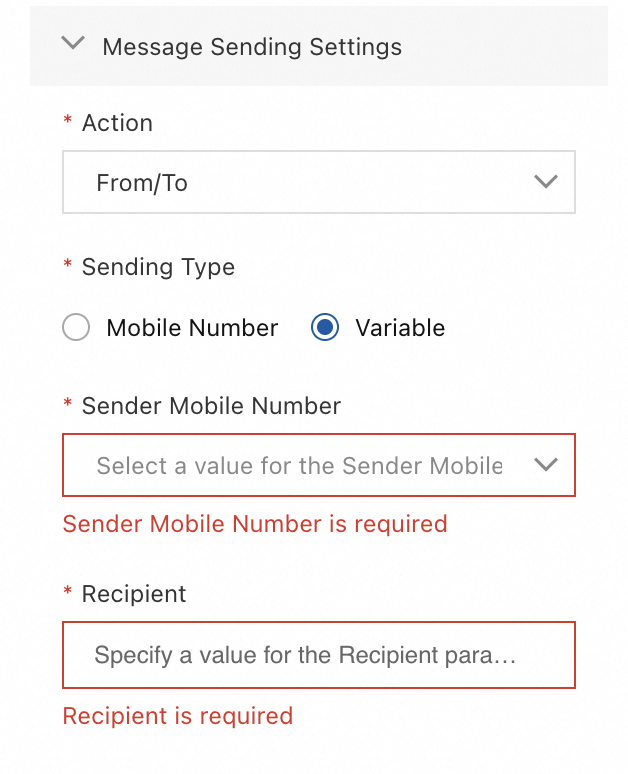
Send type | Description | Example |
If the send type is Mobile Number | When the send type is Mobile Number, select a channel and a sender number. The channel must be approved and the number must be active and connected. For the recipient number, you can enter a fixed value or insert a variable. |
|
If the send type is Variable | When the send type is Variable, select the sender's mobile number from the drop-down list. For the recipient number, you can enter a fixed value or insert a variable. |
|
Reply
This action uses the WABA and number associated with the current flow to reply to user-initiated messages. No further configuration is needed.
Message settings
These settings define the message type. Supported types include Text, Media, Interactive Message, Product Message, and Template Message.
Text
The Text type sends a plain text message. You must define the message content, which can include variables.
Media
The Media type sends a media file. Supported media types are Image, Audio, Video, File, and Location. For Location messages, you must specify the longitude and latitude. For all other media types, you must provide a URL for the media file.
WhatsApp media types and size limits:
Media | Supported types | Size limit |
Audio | ACC, MP4, MPEG, AMR. | 16 MB. |
File | TXT, PDF, PPT, DOC, XLS, DOCX, PPTX, XLSX. | 100 MB. |
Image | JPEG, PNG. | 5 MB. |
Video | MP4, 3GP.
| 16 MB. |
Interactive
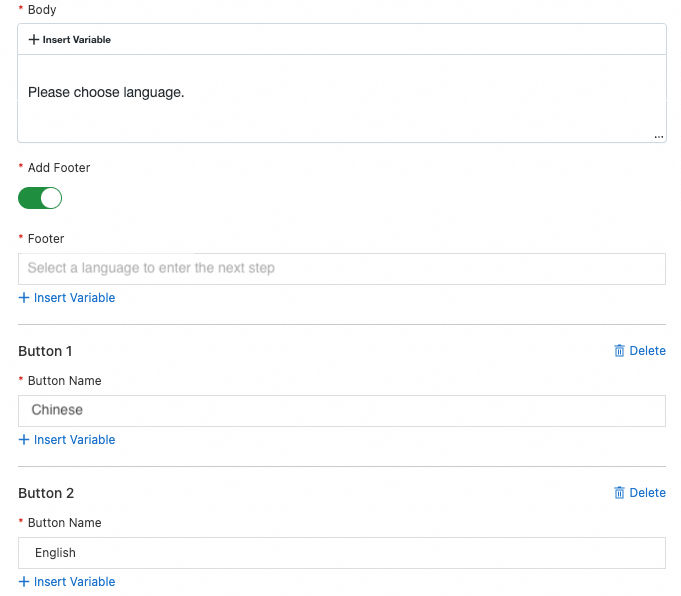
Interactive messages support two formats: Reply Button and List.
Message | Description | Example |
Reply Button |
|
|
List |
|
|

Product
Product messages can be either Single Product or Multiple Products messages. The difference is that a single-product message supports only one item ID, while a multi-product message supports multiple item IDs and allows you to create sections for the items.
The Catalog ID and Retail ID (the ID of an item in the catalog) are provided by Meta Commerce Manager. To get these IDs, go to Meta Commerce Manager, select your account and the shop you want to use, and then click Catalog > Items to view the required ID information.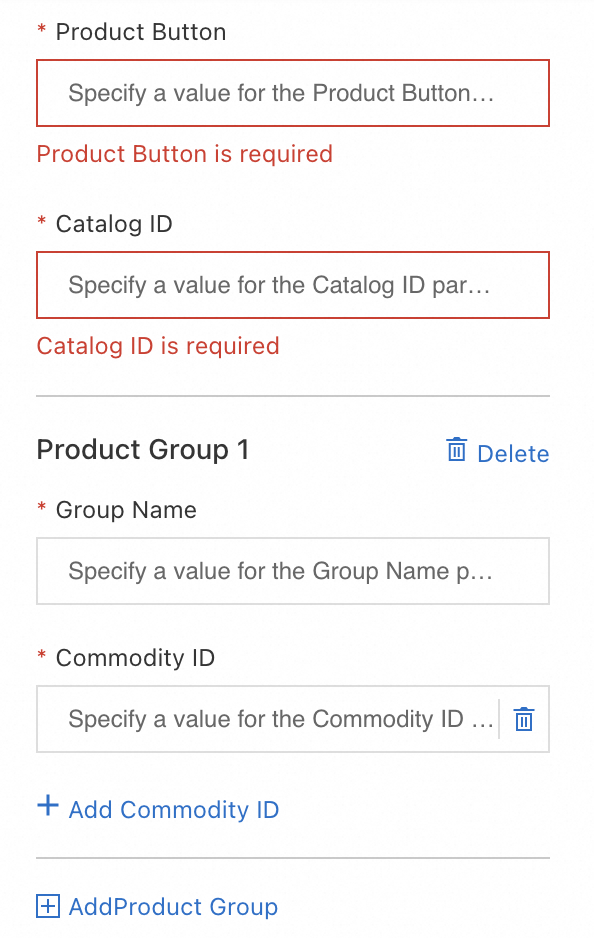
Template
To send a Template message, select a channel and a message template, both of which must be approved. Click Preview to view the selected template content.
Timeout settings
You can enable the Undelivered and Unread branches. If enabled, set a timeout and add components to these branches to handle messages that are not delivered or read within that time. For example, if a message is not delivered within the timeout period, you can use the Send SMS Message component as a fallback.
Interactive reply settings
This setting applies only to messages of the Interactive Message type.
Configuration | Description | Example |
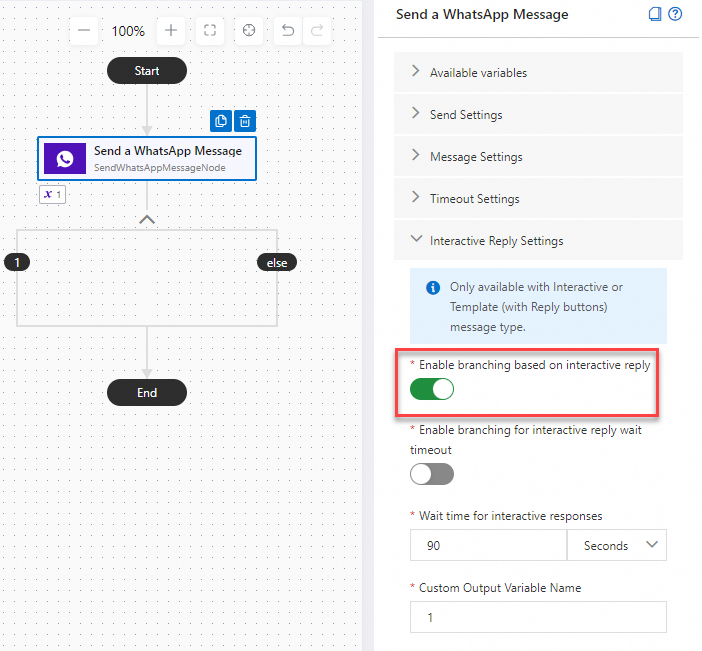
Enable branching based on interactive replies | If enabled, this creates a branch for each button or item, allowing you to define a separate path for each user reply. |
|
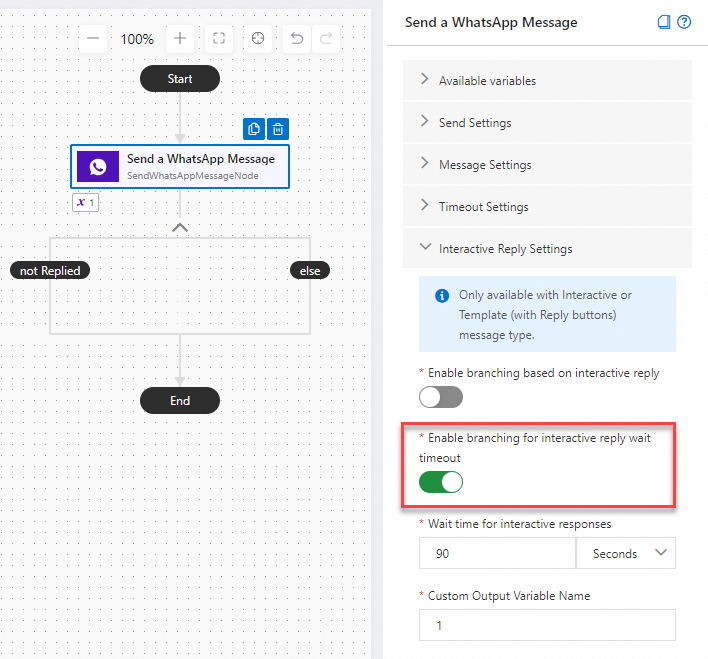
Enable branching for interactive reply wait timeout | If enabled, this creates a "Not Replied" branch to handle cases where a user does not reply in time. You must set a custom timeout in the Wait Time for Interactive Reply field. If this branch is enabled but left empty, the flow proceeds to the next component after the timeout. |
|
Wait time for interactive reply | Set the timeout period. The unit can be seconds, minutes, or hours. After the timeout period is reached, the configuration in the "Not Replied" branch is executed. | - |
Custom output variable name | Define a custom variable to store the user's reply. This variable is then added to the list of available variables for use in subsequent steps of the flow. | - |
Advanced settings
Parameter | Description |
Status Report | If you enable the Status Report feature, you must provide a URL to receive status reports. |
Track ID | A custom identifier used to tag and track a specific message. |