Install, update, and uninstall Alibaba Cloud CLI
This topic describes how to install, verify, update, and uninstall Alibaba Cloud CLI on Linux, macOS, and Windows.
Version information
Alibaba Cloud CLI releases new versions regularly. We recommend that you always use the latest version for the best experience. Run aliyun version to check the installed version, and visit the GitHub Releases page to view the latest version and changes. For update instructions, see Update Alibaba Cloud CLI in this topic.
Prerequisites
-
You have registered an Alibaba Cloud account.
-
(Optional) The
curlcommand-line tool is installed. macOS and most Linux distributions include it by default. You can skip this requirement if you install through a GUI or a package manager.
Supported operating systems
|
Operating system |
Supported versions |
Supported architectures |
|
Linux |
Major distributions, such as CentOS 8+/RHEL 8+, Ubuntu 16.04+, and Debian 9+ (CentOS 7 has reached EOL and is not recommended) |
AMD64, ARM64 |
|
macOS |
macOS 11 (Big Sur) or later |
Intel and Apple Silicon (Universal) |
|
Windows |
Windows 10 or later (64-bit) |
AMD64 (32-bit and ARM64 are not supported) |
Install Alibaba Cloud CLI
Select the tab for your operating system and follow the steps to complete the installation. Each operating system provides multiple installation methods; choose any one of them.
Linux
Install by using a Bash script (recommended)
The following options are supported:
-
Install the latest version
If you do not specify a version, the script automatically installs the latest version.
/bin/bash -c "$(curl -fsSL https://aliyuncli.alicdn.com/install.sh)" -
Install a specific version
Use the
-Voption to specify the version to install. Visit the GitHub Releases page to view available historical versions./bin/bash -c "$(curl -fsSL https://aliyuncli.alicdn.com/install.sh)" -- -V 3.5.1
Install by using a TGZ package (.tar.gz)
-
Download the installation package.
-
Download the latest version:
NoteRun
uname -mto check the Linux system architecture. If the terminal outputsarm64oraarch64, the architecture is ARM64; other output indicates AMD64.-
AMD64 systems:
curl https://aliyuncli.alicdn.com/aliyun-cli-linux-latest-amd64.tgz -o aliyun-cli-linux-latest.tgz -
ARM64 systems:
curl https://aliyuncli.alicdn.com/aliyun-cli-linux-latest-arm64.tgz -o aliyun-cli-linux-latest.tgz
-
-
Download a specific version: Visit the GitHub Releases page to download historical installation packages.
For Linux, the installation package name follows the format
aliyun-cli-linux-<version>-<architecture>.tgz, where<version>is the target version number, such as 3.5.1, and<architecture>is amd64 or arm64.
-
-
Extract the installation package to obtain the
aliyunexecutable.tar xzvf aliyun-cli-linux-latest.tgz -
Move the executable to the
/usr/local/bindirectory so that thealiyuncommand can run from any path.sudo mv ./aliyun /usr/local/bin/
macOS
Install by using Homebrew (recommended)
Before you proceed, make sure that Homebrew is installed and configured.
Install the latest version of Alibaba Cloud CLI:
brew install aliyun-cliInstall by using the graphical interface (PKG)
Double-click to install. No command-line tool is required.
-
Download the installation package.
-
Download the latest version: Open the download link https://aliyuncli.alicdn.com/aliyun-cli-latest.pkg in your browser to download the latest installation package.
-
Download a specific version: Visit the GitHub Releases page to view and download historical installation packages.
For macOS, the PKG (macOS Installer Package, .pkg) installation package name follows the format
aliyun-cli-<version>.pkg.
-
-
Double-click the downloaded installation package and follow the on-screen instructions to complete the installation.
Install by using a Bash script
The installation commands are the same as on Linux. For parameter descriptions, see the "Install by using a Bash script" method for Linux.
-
Install the latest version
/bin/bash -c "$(curl -fsSL https://aliyuncli.alicdn.com/install.sh)" -
Install a specific version
ImportantFor version requirements, see the "Version information" section.
/bin/bash -c "$(curl -fsSL https://aliyuncli.alicdn.com/install.sh)" -- -V 3.5.1
Install by using a TGZ package (.tar.gz)
-
Download the installation package.
-
Download the latest version:
curl https://aliyuncli.alicdn.com/aliyun-cli-macosx-latest-universal.tgz -o aliyun-cli-macosx-latest-universal.tgz -
Download a specific version: Visit the GitHub Releases page to download historical installation packages.
For macOS, the installation package name follows the format
aliyun-cli-macosx-<version>-universal.tgz.ImportantFor version requirements, see the "Version information" section.
-
-
Extract the installation package to obtain the
aliyunexecutable.tar xzvf aliyun-cli-macosx-latest-universal.tgz -
Move the executable to the
/usr/local/bindirectory so that thealiyuncommand can run from any path.sudo mv ./aliyun /usr/local/bin/
Windows
Alibaba Cloud CLI currently supports only Windows systems with the AMD64 architecture. 32-bit Windows systems and other non-AMD64 architectures (such as ARM64) are not supported.
Install by using the graphical interface (GUI)
Download and extract the installation package
-
Download the installation package.
-
Download the latest version: Open the download link https://aliyuncli.alicdn.com/aliyun-cli-windows-latest-amd64.zip in your browser to download the latest installation package.
-
Download a specific version: Visit the GitHub Releases page to download historical installation packages.
For Windows, the installation package name follows the format
aliyun-cli-windows-<version>-amd64.zip.
-
-
Extract the
aliyun.exeexecutable from the installation package to a target directory (such asC:\AliyunCLI). This directory serves as the installation directory of Alibaba Cloud CLI.Note-
This file must be run from a command-line terminal. Double-clicking the file does not work.
-
Remember this installation path. You will need it when you configure PATH later.
-
Configure the PATH environment variable
-
Press the
Windowskey +Skey to open the search interface, and enter the keyword "environment variables". -
In the search results, click Edit the environment variables for your account to open the Environment Variables settings interface.
-
Under User variables, select the environment variable whose key is
Path, and click Edit.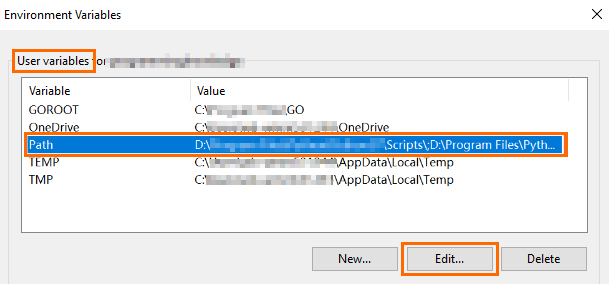
-
In the edit interface, click New and enter the installation directory path of Alibaba Cloud CLI. Example directory:
C:\ExampleDir(replace it with the actual installation directory path).
-
Click OK in each open dialog box to save the changes.
-
Restart the terminal session for the changes to take effect.
Install by using a PowerShell script
-
Create a script file named
Install-CLI-Windows.ps1. You can runNew-Item Install-CLI-Windows.ps1in PowerShell to create it, or create a text document in File Explorer and rename it. -
Copy the following code and save it to the script file.
-
Run the script file to install Alibaba Cloud CLI by referring to the following examples.
NoteThe example script path is
C:\Example\Install-CLI-Windows.ps1. Replace the script path with the actual location before you run the command.-
If you do not specify a version, the script automatically installs the latest version. The default installation path is
C:\Users\<USERNAME>\AppData\Local\AliyunCLI.powershell.exe -ExecutionPolicy Bypass -File C:\Example\Install-CLI-Windows.ps1 -
Use the
-Versionand-InstallDiroptions to specify the installation version and directory. Visit the GitHub Releases page to view available historical versions.powershell.exe -ExecutionPolicy Bypass -File C:\Example\Install-CLI-Windows.ps1 -Version 3.5.1 -InstallDir "C:\ExampleDir\AliyunCLI"
-
Verify the installation
After the installation is complete, run the following command in the terminal to confirm that Alibaba Cloud CLI is installed.
aliyun versionIf a version number is displayed (for example, 3.5.1), the installation is successful.
To further verify that the CLI works correctly:
aliyun configure listIf the list of credential profiles is displayed (even if it is empty), the CLI runs correctly.
After the verification passes, the next step is to configure access credentials for Alibaba Cloud CLI before you can start managing cloud resources:
-
Get started quickly: Learn how to configure credentials and run your first command.
-
Configure credentials: Configure identity credentials such as access keys or RAM roles for Alibaba Cloud CLI.
Update Alibaba Cloud CLI
We recommend that you use the aliyun upgrade command to update in one step. If your current version is earlier than 3.3.5, you must first upgrade to 3.3.5 or later by reinstalling, and then you can use aliyun upgrade.
Update by using aliyun upgrade (recommended)
Version 3.3.5 and later support the aliyun upgrade command, which updates to the latest version in one step. This command applies to CLI installations that are not managed by Homebrew.
-
Interactive update (confirmation required):
aliyun upgrade -
Skip the confirmation and update directly:
aliyun upgrade --yes
If your current version is earlier than 3.3.5 (run aliyun version to check), you must first Update by reinstalling, and then you can use aliyun upgrade.
Update by reinstalling
-
Bash script (Linux/macOS): Re-run the installation command.
/bin/bash -c "$(curl -fsSL https://aliyuncli.alicdn.com/install.sh)" -
Homebrew (macOS only):
brew update && brew upgrade aliyun-cli && brew cleanup aliyun-cli -
GUI installation package (macOS PKG / Windows ZIP): Download the latest installation package and reinstall to overwrite the original version. macOS download link: aliyun-cli-latest.pkg; Windows download link: aliyun-cli-windows-latest-amd64.zip.
-
TGZ installation package (Linux/macOS): Download the latest TGZ package, extract it, and overwrite the
aliyunexecutable to the original installation directory (runwhich aliyunto confirm the path). -
PowerShell script (Windows only): Re-run the installation script with the same parameters.
If you specified a custom installation directory (
-InstallDir) during the initial installation, you must pass the same value when updating; otherwise, it will be installed to the default directory.powershell.exe -ExecutionPolicy Bypass -File C:\Example\Install-CLI-Windows.ps1
After the update is complete, run aliyun version to confirm that the version number has been updated to the latest version.
Confirm the current installation information
If you are unsure about the current installation method or path, you can run the following commands to view the location of the executable:
-
Linux/macOS: Run
which aliyun. The output is the path of the executable.-
If the path contains
homebrew/Cellarorhomebrew/bin→ installed via Homebrew. -
If the path is
/usr/local/bin/aliyun→ installed via a Bash script or a TGZ package.
-
-
Windows: Run
where aliyun. The output is the path of the executable.-
If the path contains
AliyunCLI(such asC:\Users\<USERNAME>\AppData\Local\AliyunCLI) → installed via a PowerShell script. -
If the path is a custom directory → installed via the GUI (manually extracting the ZIP package).
-
Uninstall Alibaba Cloud CLI
Select the tab for your operating system and perform the uninstallation.
Linux
-
Confirm the path of the executable:
which aliyun -
After you confirm that the path is correct, delete the file:
sudo rm -v $(which aliyun)
macOS
Uninstall via Homebrew (for Homebrew installations)
brew uninstall aliyun-cliUninstall via the command line (for PKG, Bash script, or TGZ installations)
The CLI installed via a PKG package is usually also located in /usr/local/bin, and you can use the same command to delete it.
-
Confirm the path of the executable:
which aliyun -
After you confirm that the path is correct, delete the file:
sudo rm -v $(which aliyun)
Windows
Uninstall via File Explorer (for GUI installations)
If you forget the installation directory, you can first run where aliyun in a command-line terminal to view the full path of the executable, and then go to that directory to delete it.
Locate the directory containing aliyun.exe in File Explorer and delete the file. To also remove the installation directory from PATH, delete the corresponding path entry in the system environment variables.
Uninstall via PowerShell (for PowerShell script installations)
Delete the Alibaba Cloud CLI files in the default installation directory. If you used a custom installation path, replace $InstallDir with the actual path.
$InstallDir = Join-Path $env:LOCALAPPDATA "AliyunCLI"
Remove-Item -Path "$InstallDir\aliyun.exe" -Force
Clean up configuration files (optional)
To clean up thoroughly, you can delete the configuration directory of Alibaba Cloud CLI:
-
Linux/macOS:
~/.aliyun -
Windows:
C:\Users\<USERNAME>\.aliyun
Verify the uninstallation
After the uninstallation is complete, run aliyun version in the terminal. If command not found or a similar message is returned, the uninstallation is successful.
FAQ
The aliyun command returns command not found
First close and reopen the terminal, and then run the command again. In most cases, the PATH variable takes effect only after you refresh the terminal following the installation.
If the problem persists after you restart the terminal, run which aliyun (Linux/macOS) or where aliyun (Windows) to check the path of the executable. If the command produces no output, PATH does not include the installation directory, and you must manually add the installation directory to PATH:
-
Bash (Linux): Add
export PATH="$PATH:/usr/local/bin"to the end of~/.bashrc, and then runsource ~/.bashrc. -
Zsh (macOS default): Add
export PATH="$PATH:/usr/local/bin"to the end of~/.zshrc, and then runsource ~/.zshrc. -
Windows: See "Configure the PATH environment variable" in the installation steps, add the installation directory to the user variable Path, and restart the terminal for it to take effect.
The version displayed by aliyun version is not the latest installed version
Multiple aliyun executables may exist on your system. Run which aliyun (Linux/macOS) or where aliyun (Windows) to view the currently invoked path, and then delete the old version file or place the new version installation directory earlier in PATH to resolve the issue.
Double-clicking aliyun.exe on Windows has no effect
Alibaba Cloud CLI is a command-line tool and does not support double-clicking to run. You must use it through a command-line terminal such as PowerShell or CMD. For example, run aliyun version to verify the installation.