How to stop billing for Cloud Backup?
After you activate Cloud Backup, the service cannot be deactivated. If you no longer need to use Cloud Backup, follow the steps in this topic to stop backups for each data source and delete the backup vaults. Billing stops on the day you stop the backups. After you delete the backup vaults, billing for the service stops the next day.
Stop billing for backups
ECS backup
To stop billing, follow the steps for the backup feature you are using.
ECS file backup (Essential)
Canceling backups for an ECS instance permanently deletes all its backup data and configuration information, which cannot be recovered. Proceed with caution to prevent data loss.
-
In the left-side navigation pane of the Cloud Backup console, choose .
-
At the top of the page, select the region where the instance is located. Then, in the Actions column for the instance, click Stop Backup.
-
In the dialog box that appears, click OK.
Cloud Backup deletes all backup points for the instance and stops billing for it. The storage capacity of the block storage attached to the ECS instance is also excluded from billing.
ECS file backup (Standard)
-
In the left-side navigation pane of the Cloud Backup console, choose .
-
On the ECS Instances tab, find the target instance and click Actions in the Actions column. On the details page, select the backup points that you want to delete, click Delete Backup Point at the bottom of the table, and then confirm the deletion when prompted.
-
(Optional) If your backup policy is associated with resources by using tags, detach the resource tags to disassociate the ECS files from the backup policy.
Delete a backup plan.
Click the Backup Plans tab. Find the backup plan that you want to delete. In the Actions column, choose . Confirm the delete operation.
-
Uninstall the backup client.
WarningUninstalling the backup client permanently deletes its configuration information, which cannot be recovered. Proceed with caution to prevent data loss.
Click and select the region. Find the target instance. In the Actions column, choose . In the dialog box that appears, click Confirmation. After a few minutes, the client status changes to Uninstalled.
-
Delete the backups.
On the ECS Instances tab, find the target instance. In the Actions column, choose , and confirm the deletion when prompted.
Delete a backup vault.
WarningAfter a backup vault is deleted, all its backup data and configuration information are permanently deleted and cannot be recovered. Proceed with caution to prevent data loss.
Click Storage Vaults and select a region. Find the backup vault that you want to delete, and in the Actions column, choose .
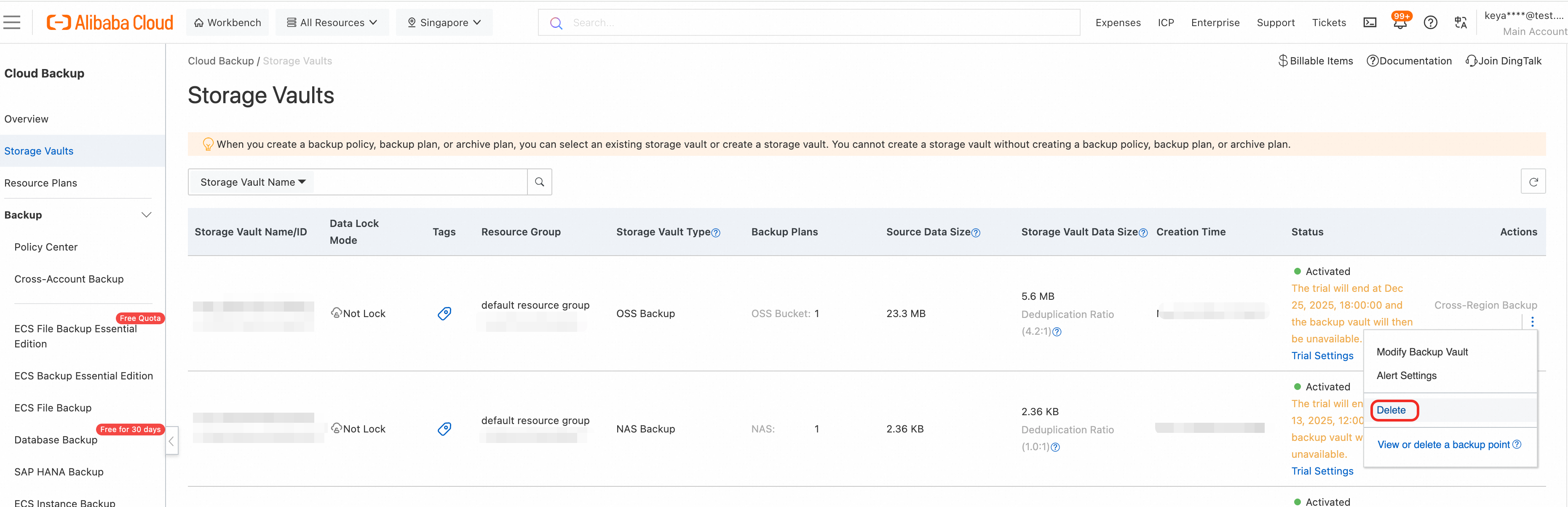
In the confirmation dialog box, click OK to delete the vault.
ImportantIf the backup vault cannot be deleted, the backup lock feature may be enabled for the vault. The vault and all its backup data cannot be deleted before they expire. Wait for the backup data to expire, and then delete the backup vault.
ECS instance backup
After you stop billing for ECS instance backup, you are still charged for the underlying snapshots until all related backup points expire or are manually deleted.
-
In the left-side navigation pane of the Cloud Backup console, choose .
-
(Optional) If your backup policy is associated with resources by using tags, detach the resource tags to disassociate the ECS instance from the backup policy.
-
On the Backed-Up ECS Instances tab, find the target ECS instance. In the Actions column, choose , and confirm the deletion when prompted.
-
On the Backed-Up ECS Instances tab, find the target ECS instance. In the Actions column, choose , select all backup points, and confirm the deletion when prompted.
-
On the Backed-Up ECS Instances tab, find the target ECS instance. In the Actions column, choose , and confirm the removal when prompted.
ECS SAP HANA backup
-
In the left-side navigation pane of the Cloud Backup console, choose .
Delete a backup plan.
Click the Backup Plans tab. Find the backup plan that you want to delete. In the Actions column, choose . Confirm the delete operation.
-
Delete the instance.
Click the SAP HANA Instance tab. Find the target instance. In the Actions column, choose , and confirm the deletion when prompted.
Delete a backup vault.
WarningAfter a backup vault is deleted, all its backup data and configuration information are permanently deleted and cannot be recovered. Proceed with caution to prevent data loss.
Click Storage Vaults and select a region. Find the backup vault that you want to delete, and in the Actions column, choose .
In the confirmation dialog box, click OK to delete the vault.
ImportantIf the backup vault cannot be deleted, the backup lock feature may be enabled for the vault. The vault and all its backup data cannot be deleted before they expire. Wait for the backup data to expire, and then delete the backup vault.
ECS database backup
-
In the left-side navigation pane of the Cloud Backup console, choose .
Delete a backup plan.
Click the Backup Plans tab. Find the backup plan that you want to delete. In the Actions column, choose . Confirm the delete operation.
-
Unregister the database instance.
WarningUnregistering an instance permanently deletes all its backup data and configuration information, which cannot be recovered. Proceed with caution to prevent data loss.
On the ECS Database Instance tab, find the target instance. In the Actions column, choose , and confirm the unregistration when prompted. When you unregister an ECS database instance, the installed backup client is automatically uninstalled. If the backup client fails to uninstall, log on to the ECS instance to manually uninstall the backup client.
-
Clean up the configuration files.
MySQL
Oracle
SQL Server
Delete a backup vault.
WarningAfter a backup vault is deleted, all its backup data and configuration information are permanently deleted and cannot be recovered. Proceed with caution to prevent data loss.
Click Storage Vaults and select a region. Find the backup vault that you want to delete, and in the Actions column, choose .
In the confirmation dialog box, click OK to delete the vault.
ImportantIf the backup vault cannot be deleted, the backup lock feature may be enabled for the vault. The vault and all its backup data cannot be deleted before they expire. Wait for the backup data to expire, and then delete the backup vault.
OSS backup
-
In the left-side navigation pane of the Cloud Backup console, choose .
-
(Optional) If your backup policy is associated with resources by using tags, detach the resource tags to disassociate the OSS bucket from the backup policy.
-
Delete backup points.
Find the target bucket and click Actions in the Actions column. On the details page, select the backup points that you want to delete, click Delete Backup Point at the bottom of the table, and then confirm the deletion when prompted.
Delete a backup plan.
Click the Backup Plans tab. Find the backup plan that you want to delete. In the Actions column, choose . Confirm the delete operation.
Delete a backup vault.
WarningAfter a backup vault is deleted, all its backup data and configuration information are permanently deleted and cannot be recovered. Proceed with caution to prevent data loss.
Click Storage Vaults and select a region. Find the backup vault that you want to delete, and in the Actions column, choose .
In the confirmation dialog box, click OK to delete the vault.
ImportantIf the backup vault cannot be deleted, the backup lock feature may be enabled for the vault. The vault and all its backup data cannot be deleted before they expire. Wait for the backup data to expire, and then delete the backup vault.
NAS backup
Alibaba Cloud NAS
-
In the left-side navigation pane of the Cloud Backup console, choose .
-
At the top of the page, click Alibaba Cloud NAS.
-
(Optional) If your backup policy is associated with resources by using tags, detach the resource tags to disassociate the Alibaba Cloud NAS file system from the backup policy.
Delete a backup plan.
Click the Backup Plans tab. Find the backup plan that you want to delete. In the Actions column, choose . Confirm the delete operation.
Delete a backup vault.
WarningAfter a backup vault is deleted, all its backup data and configuration information are permanently deleted and cannot be recovered. Proceed with caution to prevent data loss.
Click Storage Vaults and select a region. Find the backup vault that you want to delete, and in the Actions column, choose .
In the confirmation dialog box, click OK to delete the vault.
ImportantIf the backup vault cannot be deleted, the backup lock feature may be enabled for the vault. The vault and all its backup data cannot be deleted before they expire. Wait for the backup data to expire, and then delete the backup vault.
On-premises NAS
-
In the left-side navigation pane of the Cloud Backup console, choose .
-
At the top of the page, click Local NAS.
-
Delete backup points.
On the NAS Instance tab, find the target NAS instance and click Actions in the Actions column. On the details page, select the backup points that you want to delete, click Delete Backup Point at the bottom of the table, and then confirm the deletion when prompted.
-
Delete the backup plan.
On the NAS Instance tab, find the target NAS instance and click the
 icon to its left. In the Backup Plan Details section, choose in the Actions column, and confirm the deletion when prompted.
 -
Delete the client group.
On the NAS Instance tab, click View Client Groups.
On the View Client Groups page, find the client group for the target data source and click Actions in the Actions column. In the dialog box that appears, click Confirmation.
Delete backups.
In the navigation pane on the left, click On-Premises File Backup. On the Clients tab, find the uninstalled client and choose . Confirm that you want to delete the backup data for the client.
-
Delete the NAS instance.
On the NAS Instance tab, find the target NAS instance. In the Actions column, choose , and confirm the deletion when prompted.
Delete a backup vault.
WarningAfter a backup vault is deleted, all its backup data and configuration information are permanently deleted and cannot be recovered. Proceed with caution to prevent data loss.
Click Storage Vaults and select a region. Find the backup vault that you want to delete, and in the Actions column, choose .
In the confirmation dialog box, click OK to delete the vault.
ImportantIf the backup vault cannot be deleted, the backup lock feature may be enabled for the vault. The vault and all its backup data cannot be deleted before they expire. Wait for the backup data to expire, and then delete the backup vault.
 icon to its left. In the Backup Plan Details section, choose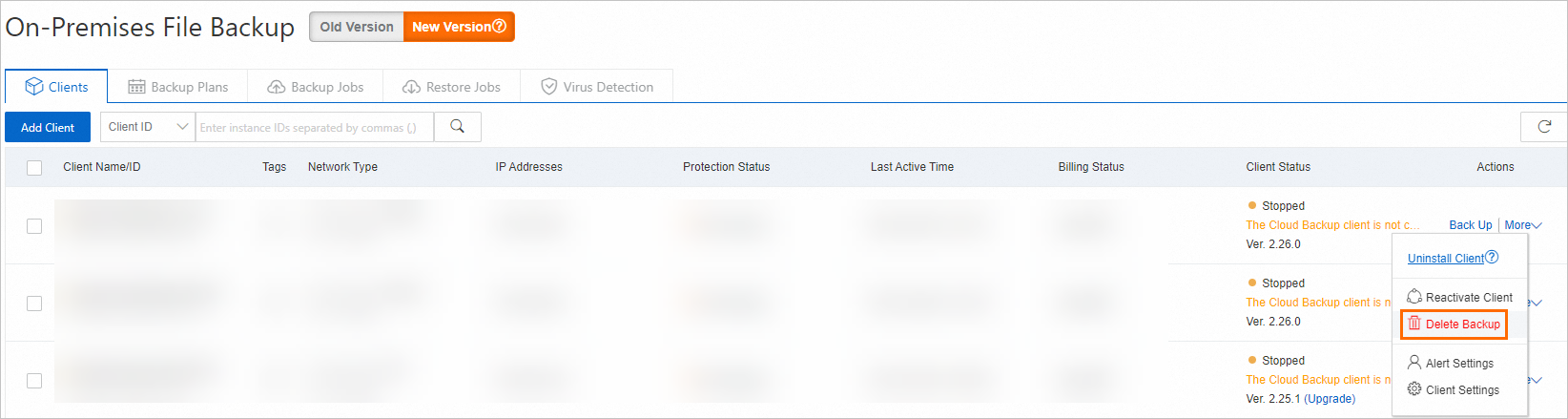
Tablestore backup
-
In the left-side navigation pane of the Cloud Backup console, choose .
-
(Optional) If your backup policy is associated with resources by using tags, detach the resource tags to disassociate the Tablestore instance from the backup policy.
Delete a backup plan.
Click the Backup Plans tab. Find the backup plan that you want to delete. In the Actions column, choose . Confirm the delete operation.
Delete a backup vault.
WarningAfter a backup vault is deleted, all its backup data and configuration information are permanently deleted and cannot be recovered. Proceed with caution to prevent data loss.
Click Storage Vaults and select a region. Find the backup vault that you want to delete, and in the Actions column, choose .
In the confirmation dialog box, click OK to delete the vault.
ImportantIf the backup vault cannot be deleted, the backup lock feature may be enabled for the vault. The vault and all its backup data cannot be deleted before they expire. Wait for the backup data to expire, and then delete the backup vault.
CPFS backup
-
In the left-side navigation pane of the Cloud Backup console, choose .
-
Delete backup points.
On the Data Source List tab, find the target data source and click Actions in the Actions column. On the details page, select the backup points that you want to delete, click Delete Backup Point at the bottom of the table, and then confirm the deletion when prompted.
-
Delete the backup plan.
Click the
icon to the left of the target data source. On the Backup Plan Details tab, find the target backup plan. In the Actions column, choose , and confirm the deletion when prompted. -
Delete the client group.
On the Data Source List tab, click View Client Groups.
On the View Client Groups page, find the client group for the target data source and click Actions in the Actions column. In the dialog box that appears, click Confirmation.
Delete a backup vault.
WarningAfter a backup vault is deleted, all its backup data and configuration information are permanently deleted and cannot be recovered. Proceed with caution to prevent data loss.
Click Storage Vaults and select a region. Find the backup vault that you want to delete, and in the Actions column, choose .
In the confirmation dialog box, click OK to delete the vault.
ImportantIf the backup vault cannot be deleted, the backup lock feature may be enabled for the vault. The vault and all its backup data cannot be deleted before they expire. Wait for the backup data to expire, and then delete the backup vault.
 icon to the left of the target data source. On the Backup Plan Details tab, find the target backup plan. In the Actions column, choose
 on-premises database backup
-
In the left-side navigation pane of the Cloud Backup console, choose .
Delete a backup plan.
Click the Backup Plans tab. Find the backup plan that you want to delete. In the Actions column, choose . Confirm the delete operation.
-
Unregister the database instance.
WarningUnregistering an instance permanently deletes all its backup data and configuration information, which cannot be recovered. Proceed with caution to prevent data loss.
On the Local Database Instance tab, find the target instance. In the Actions column, choose , and confirm the unregistration when prompted.
-
Log on to the on-premises server and uninstall the backup client.
MySQL
Oracle
SQL Server
-
Clean up the configuration files.
MySQL
Oracle
SQL Server
Delete a backup vault.
WarningAfter a backup vault is deleted, all its backup data and configuration information are permanently deleted and cannot be recovered. Proceed with caution to prevent data loss.
Click Storage Vaults and select a region. Find the backup vault that you want to delete, and in the Actions column, choose .
In the confirmation dialog box, click OK to delete the vault.
ImportantIf the backup vault cannot be deleted, the backup lock feature may be enabled for the vault. The vault and all its backup data cannot be deleted before they expire. Wait for the backup data to expire, and then delete the backup vault.
VMware backup and disaster recovery
-
In the left-side navigation pane of the Cloud Backup console, choose .
Delete a backup plan.
Click the Backup Plans tab. Find the backup plan that you want to delete. In the Actions column, choose . Confirm the delete operation.
-
Delete the vCenter server.
Click the Managed vCenter tab. Find the target vCenter server. In the Actions column, choose , and confirm the deletion when prompted.
-
Delete the disaster recovery gateway.
On the Backup & Disaster Recovery Gateway tab, find the target disaster recovery gateway. In the Actions column, choose , and confirm the deletion when prompted.
Delete a backup vault.
WarningAfter a backup vault is deleted, all its backup data and configuration information are permanently deleted and cannot be recovered. Proceed with caution to prevent data loss.
Click Storage Vaults and select a region. Find the backup vault that you want to delete, and in the Actions column, choose .
In the confirmation dialog box, click OK to delete the vault.
ImportantIf the backup vault cannot be deleted, the backup lock feature may be enabled for the vault. The vault and all its backup data cannot be deleted before they expire. Wait for the backup data to expire, and then delete the backup vault.
Container backup
Log on to the Cloud Backup console.
Delete a backup vault.
WarningAfter a backup vault is deleted, all its backup data and configuration information are permanently deleted and cannot be recovered. Proceed with caution to prevent data loss.
Click Storage Vaults and select a region. Find the backup vault that you want to delete, and in the Actions column, choose .
In the confirmation dialog box, click OK to delete the vault.
ImportantIf the backup vault cannot be deleted, the backup lock feature may be enabled for the vault. The vault and all its backup data cannot be deleted before they expire. Wait for the backup data to expire, and then delete the backup vault.
Stop billing for archiving
-
In the left-side navigation pane of the Cloud Backup console, click Archive.
-
Delete the archive plan.
On the Archive Plan tab, find the target archive plan. In the Actions column, choose , and confirm the deletion when prompted.
-
Delete the client group.
On the Analyze and Archive tab, click View Client Groups.
On the View Client Groups page, find the client group for the target data source and click Actions in the Actions column. In the dialog box that appears, click Confirmation.
-
Delete the data source.
On the Analyze and Archive tab, find the target data source. In the Actions column, choose , and confirm the unregistration when prompted.
-
Delete the archive vault.
Click Storage Vaults and select a region. Find the target archive vault. In the Actions column, choose , and confirm the deletion when prompted.
Stop billing for ECS disaster recovery
Async disk replication
-
In the left-side navigation pane of the Cloud Backup console, choose .
-
Delete the failover drill protection group.
-
Switch to the async disk replication disaster recovery type. On the Site Pairs page, click the target site pair.
-
Select the Fault Drill tab. In the Actions column for the target drill protection group, click Delete Fault Drill Group, and confirm the deletion when prompted. This action also deletes all resources created during the drill, including ECS instances, cloud disks, elastic network interfaces, snapshots, and images.
-
-
Remove the instance from the protection group.
-
On the Protection Groups tab, click Actions in the Actions column.
-
In the list of protected instances, click Actions in the Actions column, and confirm the removal when prompted.
-
-
Delete the protection group.
On the Protection Groups tab, click the
icon in the Actions column of the target protection group, and choose , and confirm the deletion when prompted. -
Delete the vSwitch and security group mappings.
On the Network and Security tab, delete the vSwitch and security group mappings, and confirm each deletion when prompted.
-
Delete a site pair.
In the list of site pairs, click Delete in the Actions column for the target site pair. Confirm the deletion.
 icon in the Actions column of the target protection group, and choose
 Continuous replication
-
In the left navigation bar of the Cloud Backup console, select .
-
Switch to continuous replication disaster recovery. On the Overview page, click the drop-down list in the upper-right corner and select the target site pair.
-
Click the Protected Servers tab, select the protected servers that you want to remove, and if their Server Status is Starting Replication, Full Replication in Progress, Real-time Replication in Progress, or Replication Start Failed, click Stop Replication.
-
After the replication task is complete, click Deregister. When the list of protected servers is empty, this means the protected server has been successfully removed.
Stop billing for data synchronization
-
In the left-side navigation pane of the Cloud Backup console, choose .
-
Delete the synchronization plan.
On the Sync Plan tab, find the target plan. In the Actions column, choose and confirm the deletion when prompted.
-
Delete the client group.
On the Data Source List tab, click View Client Groups.
On the View Client Groups page, find the client group for the target data source and click Actions in the Actions column. In the dialog box that appears, click Confirmation.
-
Delete the data source.
On the Data Source List tab, find the target data source. In the Actions column, choose , and confirm the unregistration when prompted.