This topic describes how to use Cloud Connector (CC) to connect an Internet of Things (IoT) device to IoT Platform. You can use CC to secure data transmission and accelerate access to IoT Platform.
Prerequisites
CC is activated. For more information, see Activate Cloud Connector.
An IoT card is purchased. For more information, see Purchase an IoT card.
Background information
The following scenario is used as an example. You want to connect an IoT device to IoT Platform in an efficient manner while ensuring the security and stability of data transmission. You can use CC to create a secure and reliable connection between the IoT device and IoT Platform. 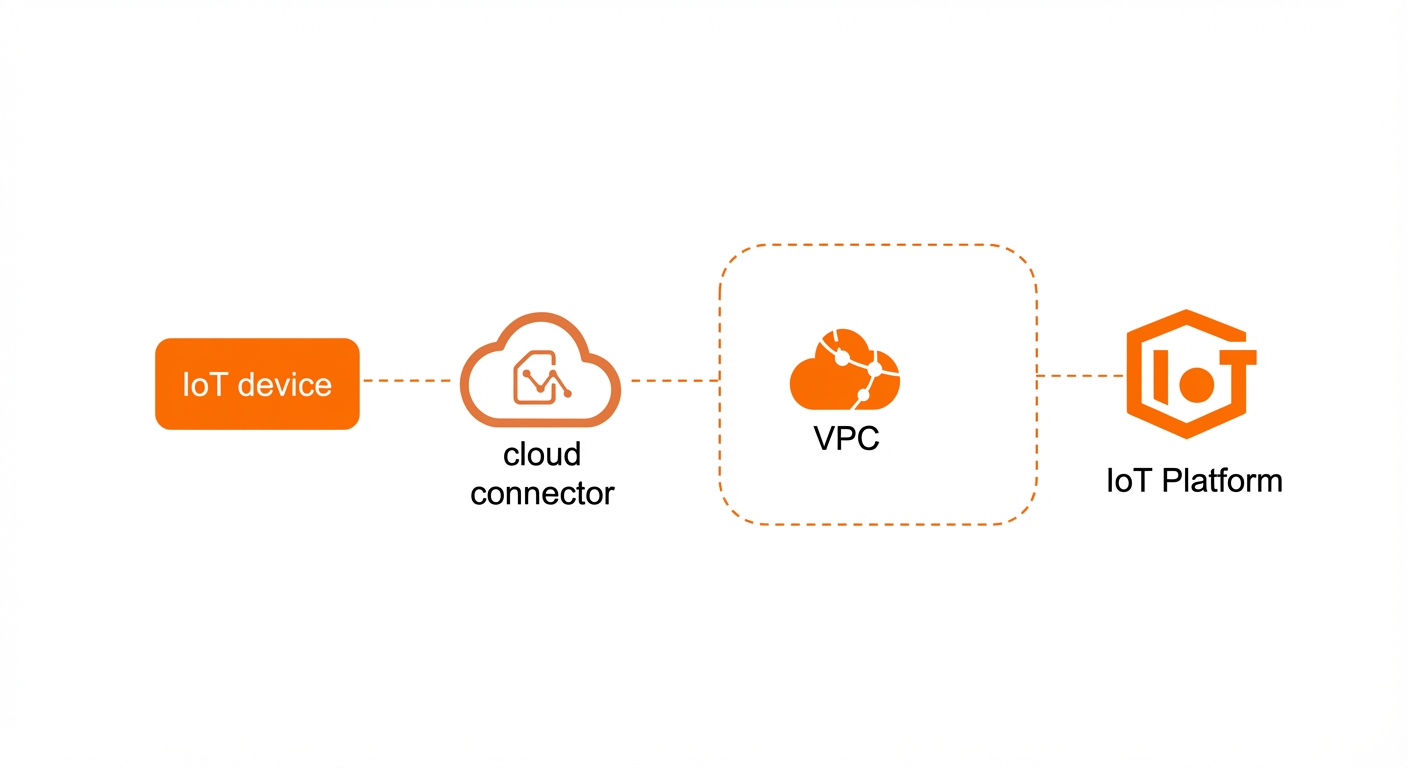
Procedure
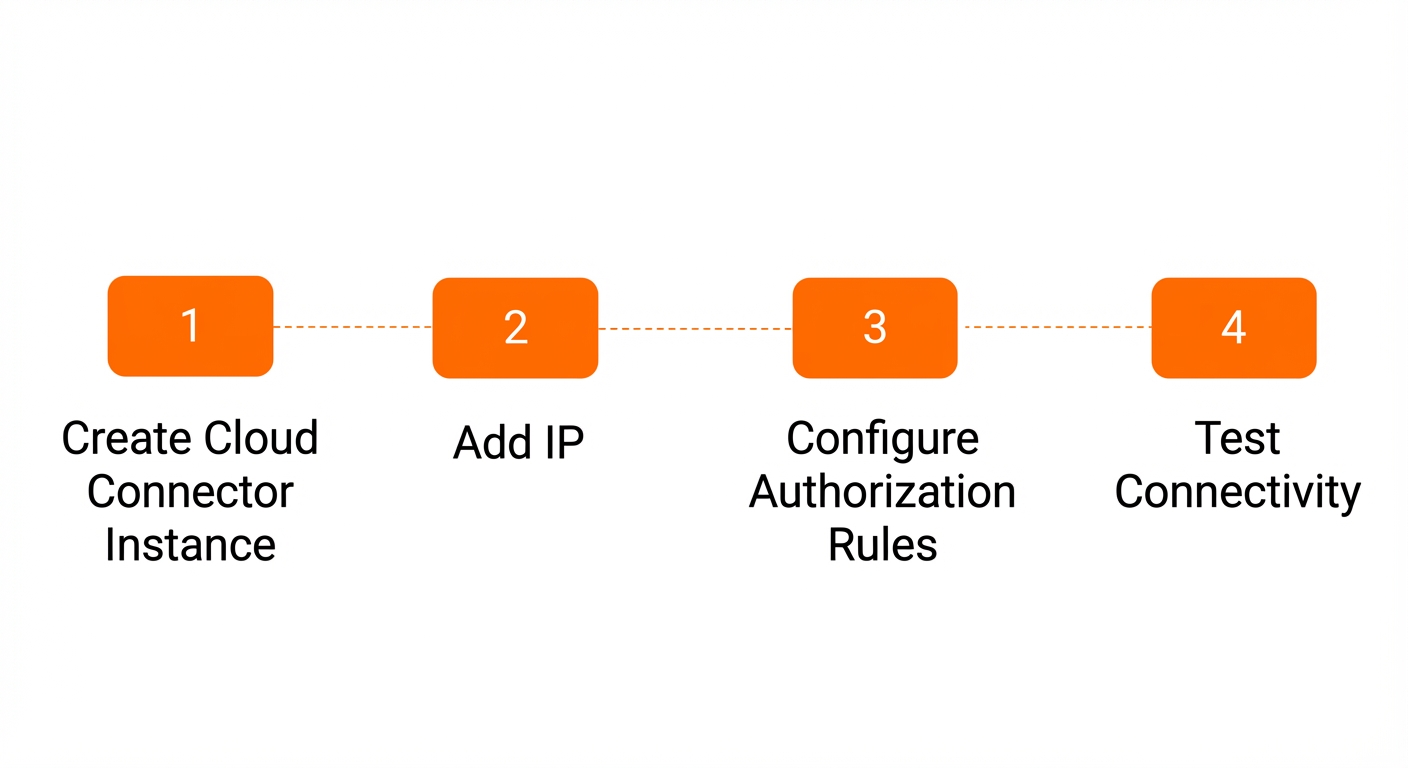
Step 1: Create a CC instance
Before you can use CC to connect your IoT devices to IoT Platform, you must create a CC instance and specify a dedicated Access Point Name (APN), a virtual private cloud (VPC), and vSwitches.
- Log on to the Cloud Connector console.
- In the top navigation bar, select the region for the Cloud Connector instance.
- On the Instance List page, click Create Instance.
- On the Create Instance page, set the following parameters and click Complete.
Parameter Description Basic Information Region The region where the Cloud Connector instance will be created. Name Enter a name for the Cloud Connector instance. Carrier The carrier of the dedicated APN. After you select an APN, the system automatically populates this field.
APN The dedicated APN for network access. IoT endpoints use this APN to connect privately to Alibaba Cloud services.
Network Settings VPC Select an existing VPC. IoT endpoints can connect directly to this VPC.
vSwitch Select existing vSwitches. You must select two vSwitches in different availability zones to serve as the primary and secondary vSwitches.
Note- After a Cloud Connector instance is created, its carrier and APN cannot be changed.
- When you create a Cloud Connector instance, the system checks whether the AliyunServiceRoleForCCIoT and AliyunServiceRoleForNatgw service-linked roles exist. If these roles do not exist, the system automatically creates them. For more information, see AliyunServiceRoleForCCIoT and AliyunServiceRoleForNatgw.
Step 2: Associate the IP address of the IoT device with the CC instance
To enable an IoT device to access IoT Platform, you must associate the IP address of the IoT device with the CC instance. Make sure that the IP address meets the following requirements:
- The IP addresses must be valid and belong to the dedicated APN associated with the Cloud Connector instance.
- The IP addresses must not be used by another Cloud Connector instance.
Log on to the Cloud Connector Management Console.
On the Instances page, find the target Cloud Connector instance and, in the Actions column, click Add IP.
On the IP management tab, click Download template. Add the IP addresses to the downloaded template file and save it.
On the IP management tab, click Add IP.
In the Add IP dialog box, click Select file and select the file that you saved in step 3. After the file is uploaded, click OK.
NoteThe file to be uploaded must be in CSV format.
Step 3: Configure an authorization rule
Before the IoT device can access IoT Platform, you must configure an authorization rule on the CC instance. Set the destination to the elastic IP address (EIP) or the private domain name of IoT Platform
- Log on to the Cloud Connector console.
On the Instances page, find the target Cloud Connector instance, and in the Actions column, click Configure Authorization Rules.
On the Authorization Rules tab, click Add Rule.
In the Add Rule dialog box, set the following parameters and click OK.
Parameter
Description
Rule name
Enter a name for the authorization rule.
Destination
Enter the destination.
Select a destination type. Valid values: Domain Name and CIDR Block. In this example, Domain Name is selected.
Enter a domain name, an IP address, or a CIDR block based on the specified destination type. In this example, the domain name IoT Platform is used.
Protection Action
Select an action. In this example, Allow is selected.
Step 4: Test the network connectivity
Configure the IoT card on the IoT device.
Run the ping command to test the connectivity between the IoT device and IoT Platform. If you can receive echo reply packets, the connection is established.
ping <The private domain name of IoT Platform>
The test method varies based on the IoT device. For more information, see the user guide of your IoT device.