Outlet Usage
Updated at:
You can use a personal digital assistant (PDA) to bind commodities to electronic shelf labels (ESLs) for a store.
Background information
CloudESL supports the following PDA models: Urovo, iData, Seuic, Honeywell, and Alps. If your device model is not listed, contact Alibaba Cloud support for an assessment.
Procedure
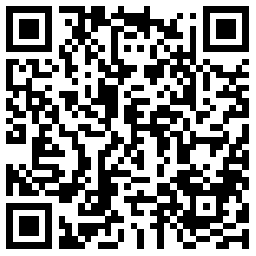
- On your Android phone or PDA, download the latest CloudESL app package and follow the on-screen instructions to install the app.
You can also download the app by scanning the following QR code.
- Log on to the app.
- Tap the
 icon on the desktop of your PDA to open the CloudESL app.
- Log on to the app as a RAM user.
- Select a store and tap Start. The ESL Management page appears.
- Tap the
- Manage ESLs on your PDA.
- Bind an ESL to a commodity
On the ESL Management page, tap Commodity Binding to bind an ESL to a commodity. Three binding methods are supported: barcode-based binding, code-based binding, and name-based binding.
- Barcode-based binding
Bind an ESL to a commodity by scanning their barcodes. You can use the built-in infrared scanner or QR code scanner of your PDA to scan the barcodes.
- Code-based binding
Bind an ESL to a commodity by entering the commodity code and scanning the barcode of the ESL.
- Name-based binding
Bind an ESL to a commodity by entering the commodity name and scanning the barcode of the ESL.
- Barcode-based binding
- Unbind an ESL
On the ESL Management page, tap Unbind and scan the barcode of the ESL that you want to unbind.
- View the details of an ESL
On the ESL Management page, tap ESL Details and scan the barcode of an ESL to view its details.
- Bind an ESL to a commodity
What to do next
ESL ManagementOn the page, tap the
 Settings icon in the upper-right corner to go to the page.
- Tap the profile picture to log out of the app.
- Tap Device Model to view the PDA models that CloudESL supports.
Important When you log on to the app for the first time, the system automatically selects the matching device model. If you select a model that does not match your device, the barcode scanning feature will not function properly.
- Click Scanning Method and select a method for scanning CloudESLs and product bar codes.
- Click Version Number to check the app's update status.
Is this page helpful?