SQL conversion
The Aliyun Sql Migration Tool (ASMT) converts SQL jobs from various source big data products, such as OLAP and data warehouses, into SQL for Alibaba Cloud computing engines. It handles DDL, DML, and DQL statements. The tool also analyzes table lineage in your SQL jobs to provide optimized DDL generation recommendations for specific target computing engines. This simplifies and streamlines migrating your big data platform to the cloud. For migration scenarios with significant SQL syntax incompatibilities, ASMT highlights these issues to facilitate manual review.
1. Batch conversion
1.1. Create a DDL conversion task
In the left-side navigation pane, click Job migration > SQL conversion, and then click the DDL tab.
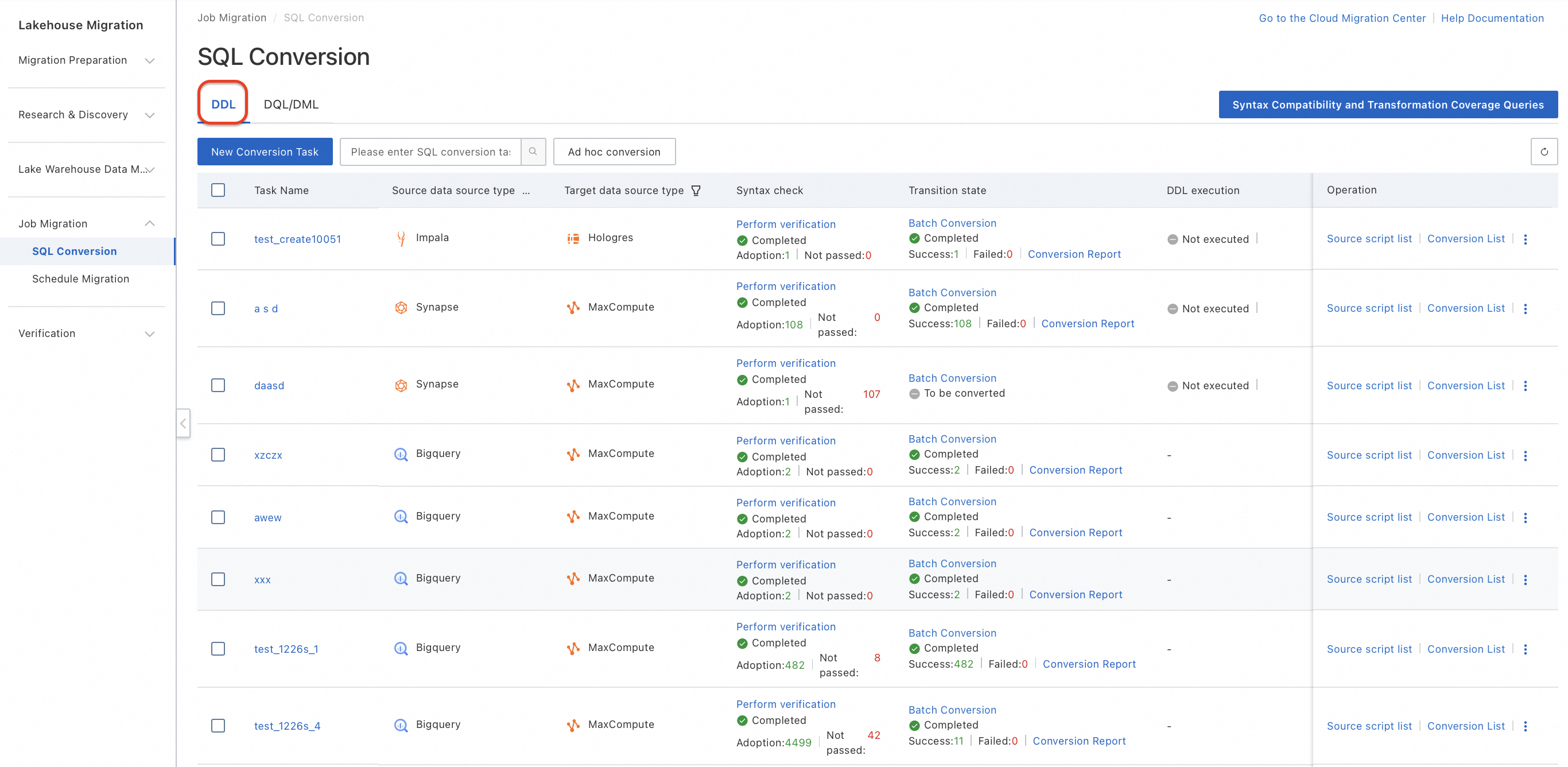
Click Create conversion task.
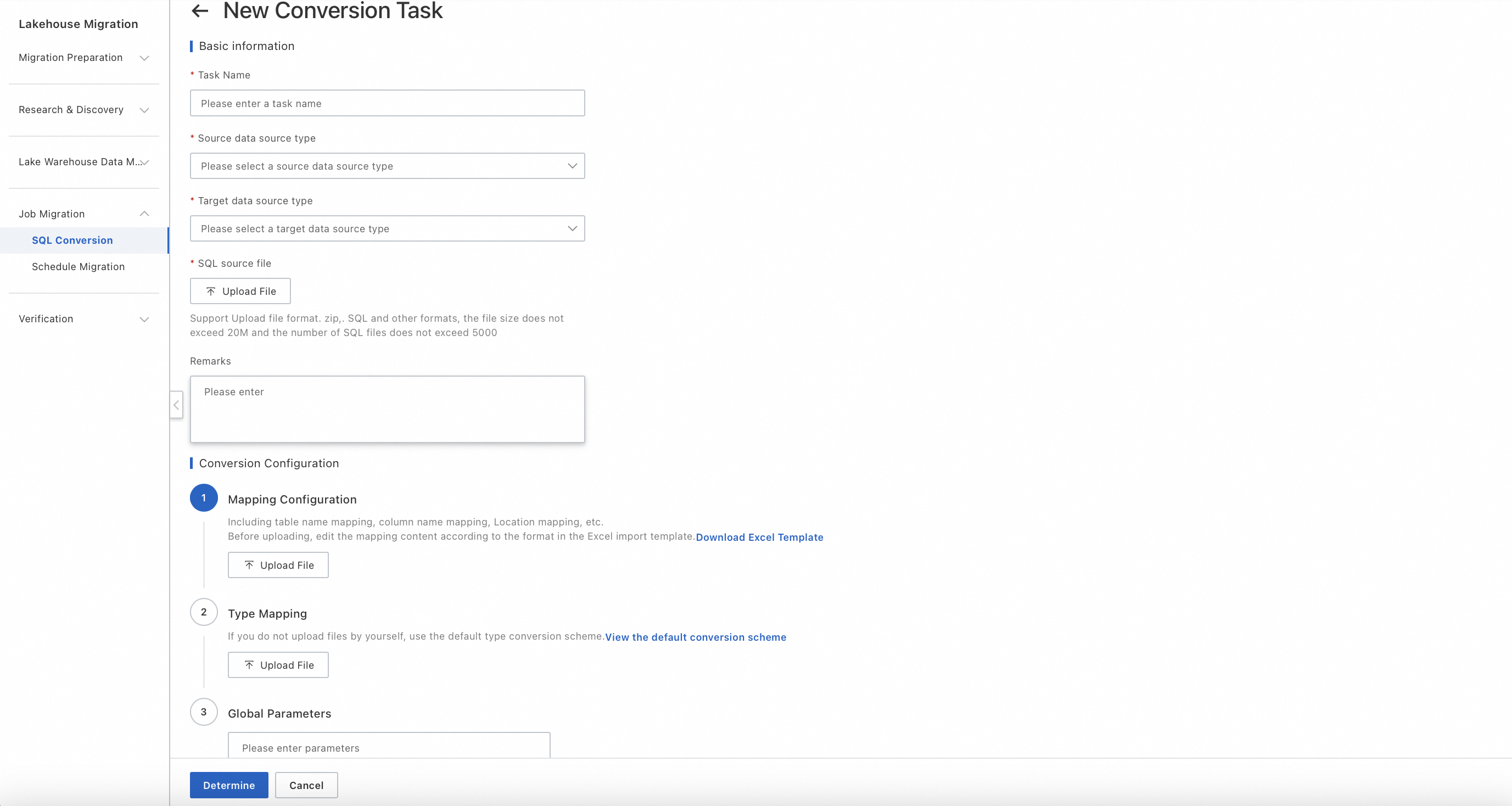
Parameter | Description |
Task name | The name of the SQL conversion task. |
Source data source type | For a list of supported types, see the SQL Conversion Matrix. |
Target data source type | For a list of supported types, see the SQL Conversion Matrix. |
Source SQL file | The source file containing the SQL scripts to be converted. Supports .zip and .sql formats. The file size cannot exceed 20 MB. A maximum of 5,000 SQL files is recommended. |
Table name mapping | Define the mapping between source and target table names. |
Type mapping | Define custom data type conversion rules. This configuration is optional and only needed for specific business requirements. |
Global parameters |
Forces quotation marks around aliases. This is primarily for migrations to Hologres to ensure case sensitivity is preserved from the source.
For MaxCompute targets, this parameter determines whether to convert tables to regular tables or Delta tables. |
1.2. Create a DQL/DML conversion task
In the left-side navigation pane, click Job migration > SQL conversion, and then click the DQL/DML tab.
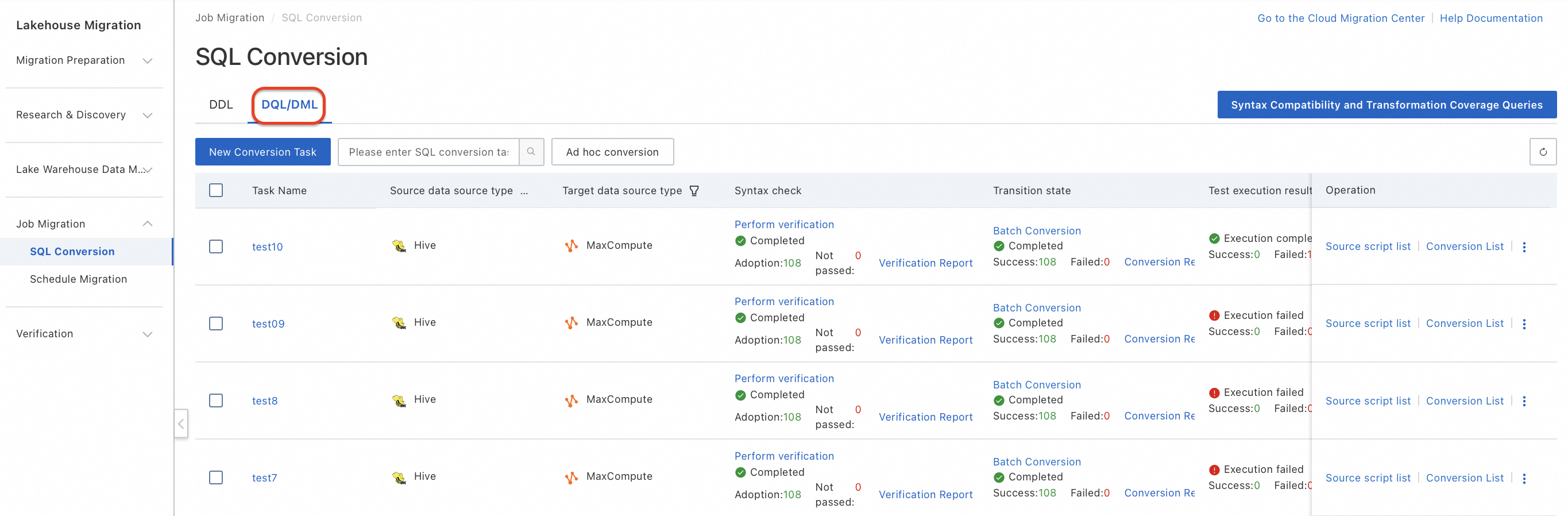
Click Create conversion task.
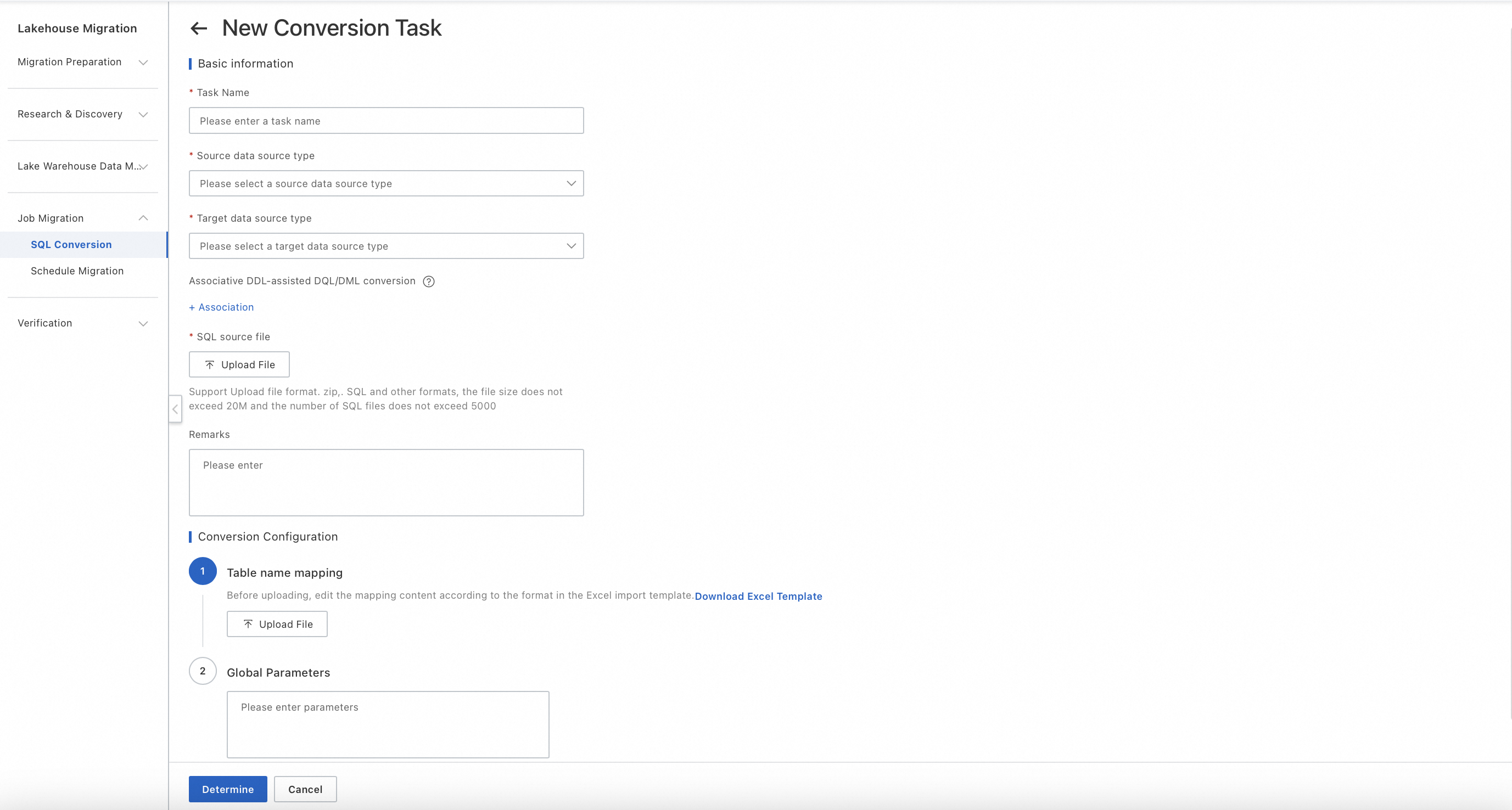
Parameter | Description |
Task name | The name of the SQL conversion task. |
Source data source type | For a list of supported types, see the SQL Conversion Matrix. |
Target data source type | For a list of supported types, see the SQL Conversion Matrix. |
Source SQL file | The source file containing the SQL scripts to be converted. Supports .zip and .sql formats. The file size cannot exceed 20 MB. A maximum of 5,000 SQL files is recommended. |
Associated DDL | Providing DDL files, which contain table structure metadata, improves the accuracy of DQL/DML conversion. For example, this helps resolve implicit conversion issues. |
Table name mapping | Define the mapping between source and target table names. |
2. Syntax check
2.1. Run syntax check
After you create a conversion task, you must run a syntax check. The conversion can only run after the SQL scripts pass parser validation. This process applies to DDL, DML, and DQL tasks.
1. Click Run Validation in the conversion task list.
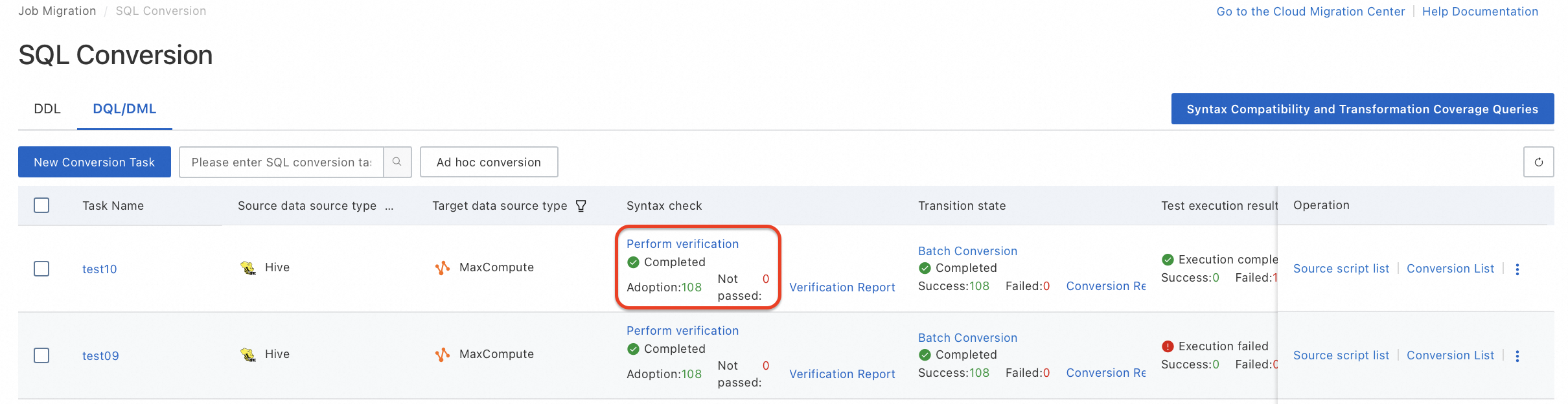
2. Alternatively, use the batch validation feature on the Source script list page.
To access this feature:

Batch validation:
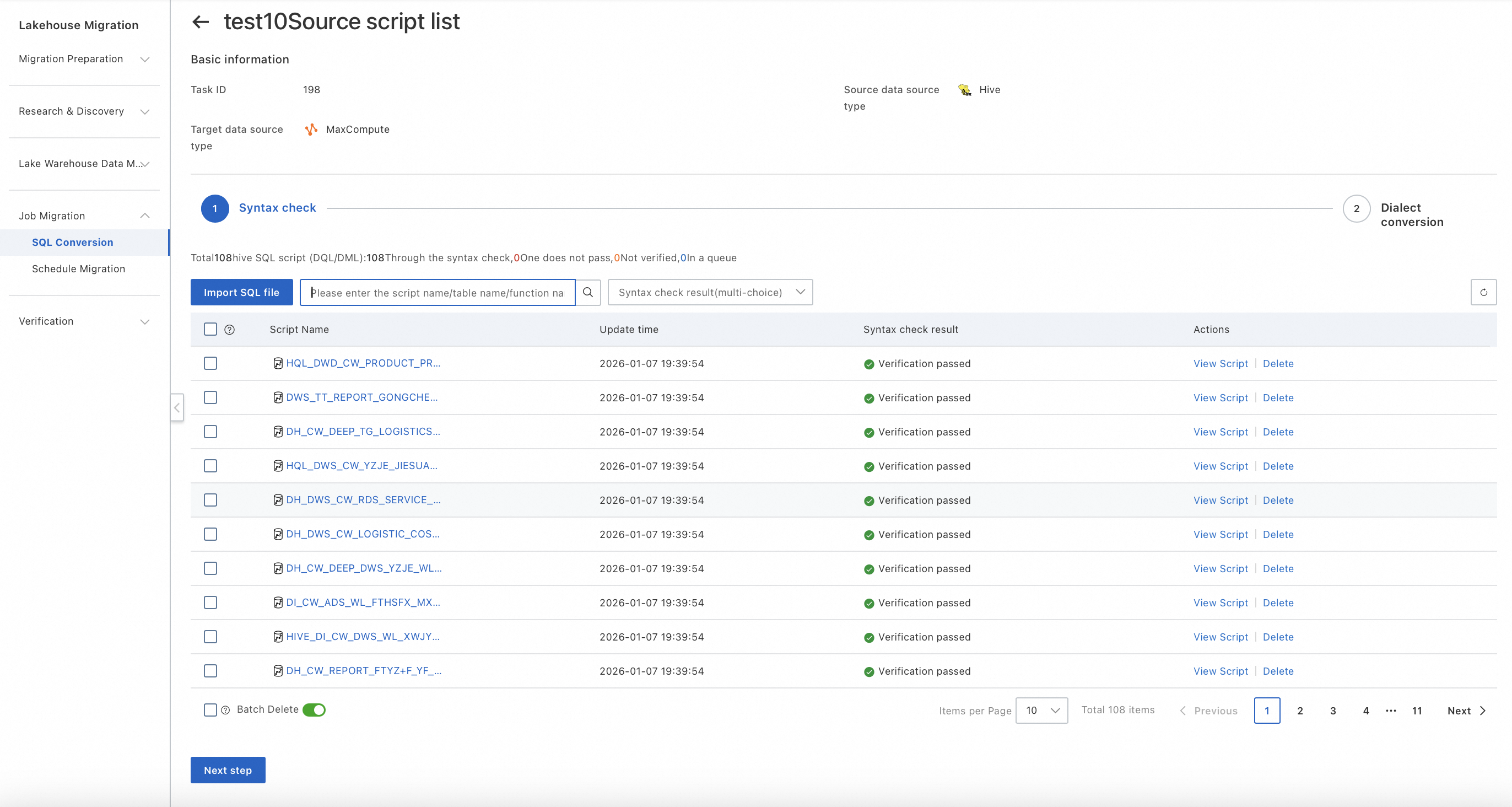
You can add more SQL files to be converted on this page.
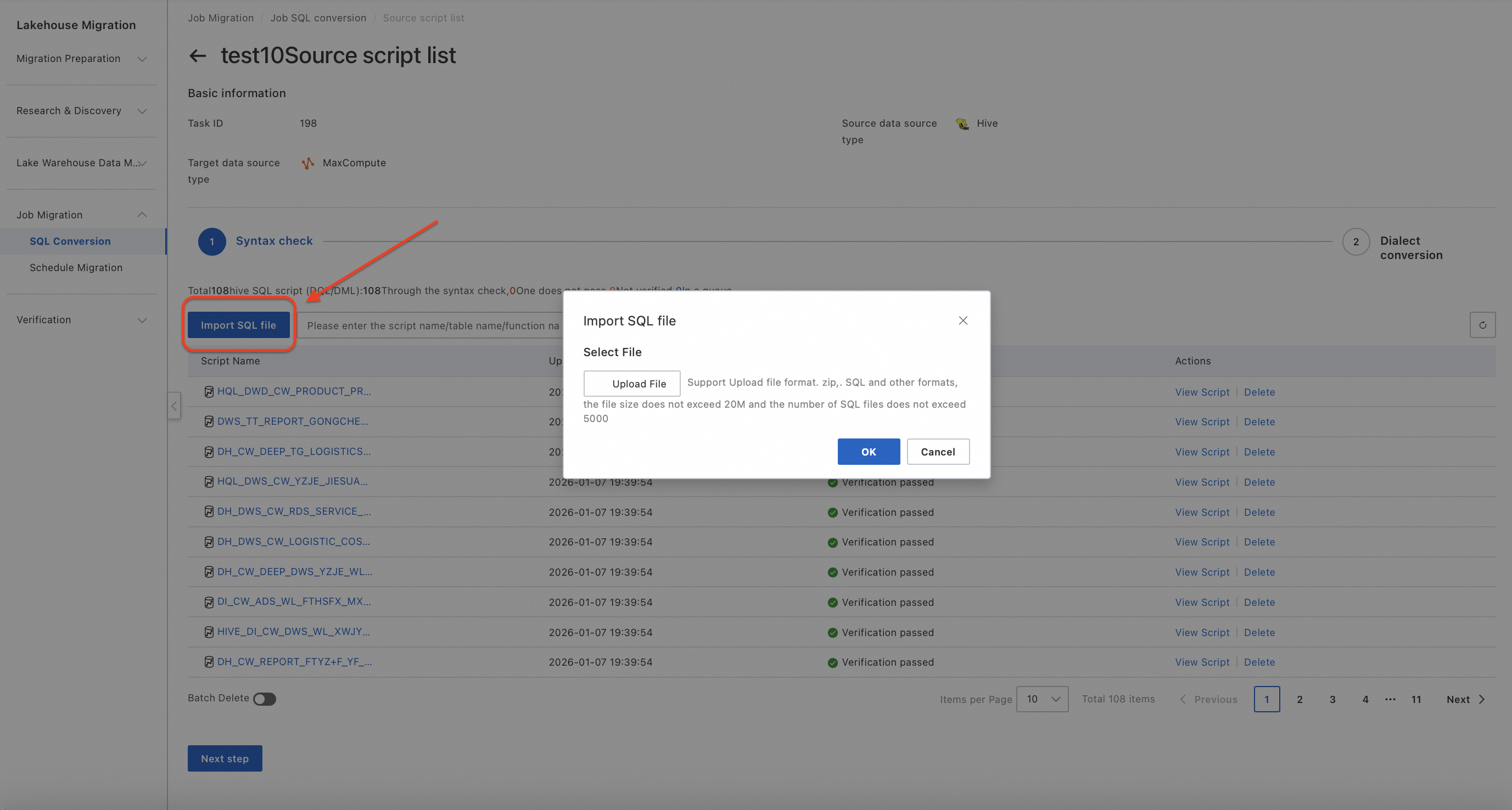
2.2. Validation report
Syntax and function scan results
After the syntax check is complete, the tool generates a validation report. This report details the functions scanned in the SQL files, including the total count and whether they are supported for conversion, as shown in the following figure.
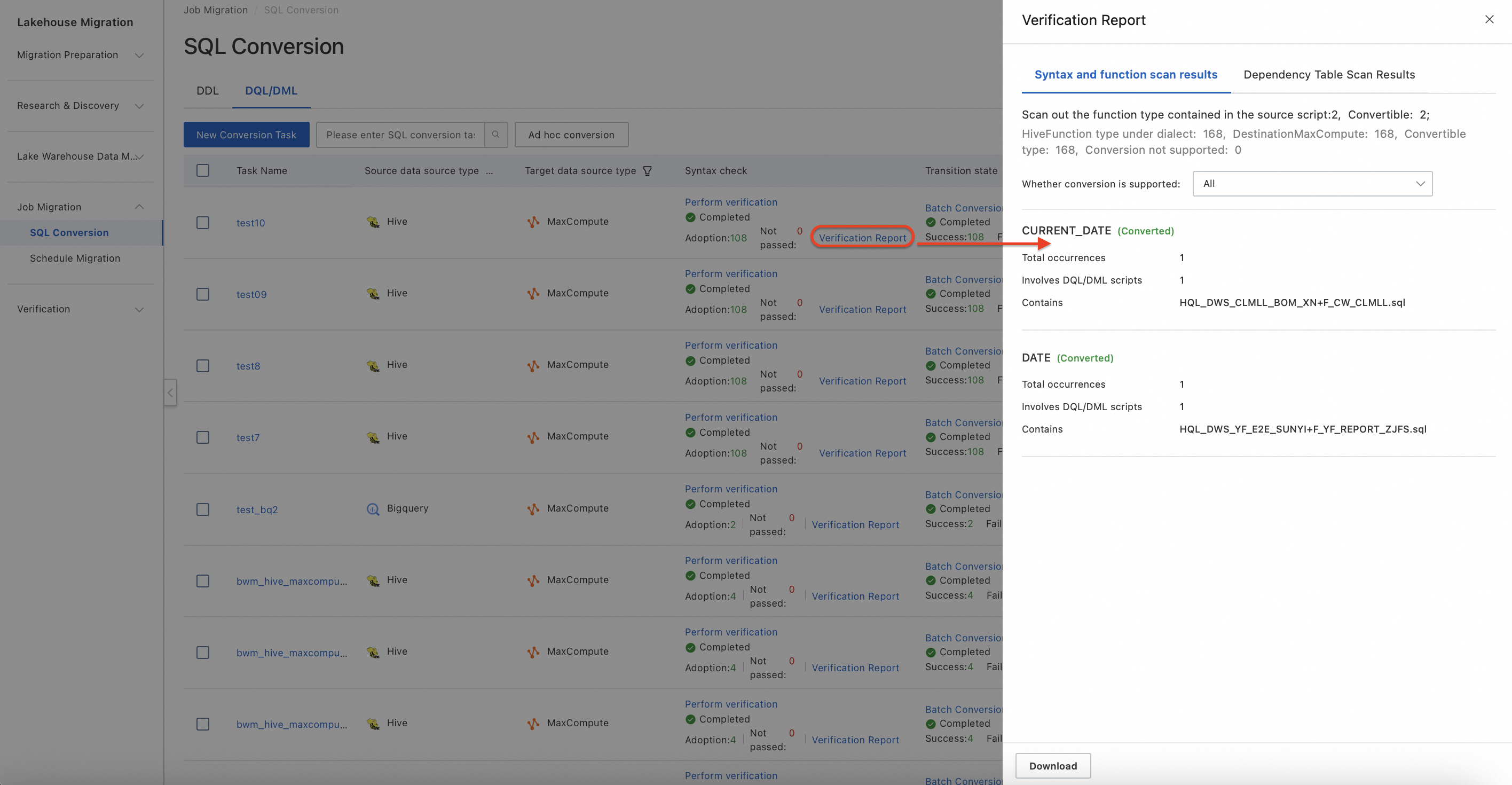
You can click Download and Export in the lower-left corner to save the report.
Dependency table scan results
The tool analyzes the SQL to identify all input tables used in each script, as shown in the following figure.
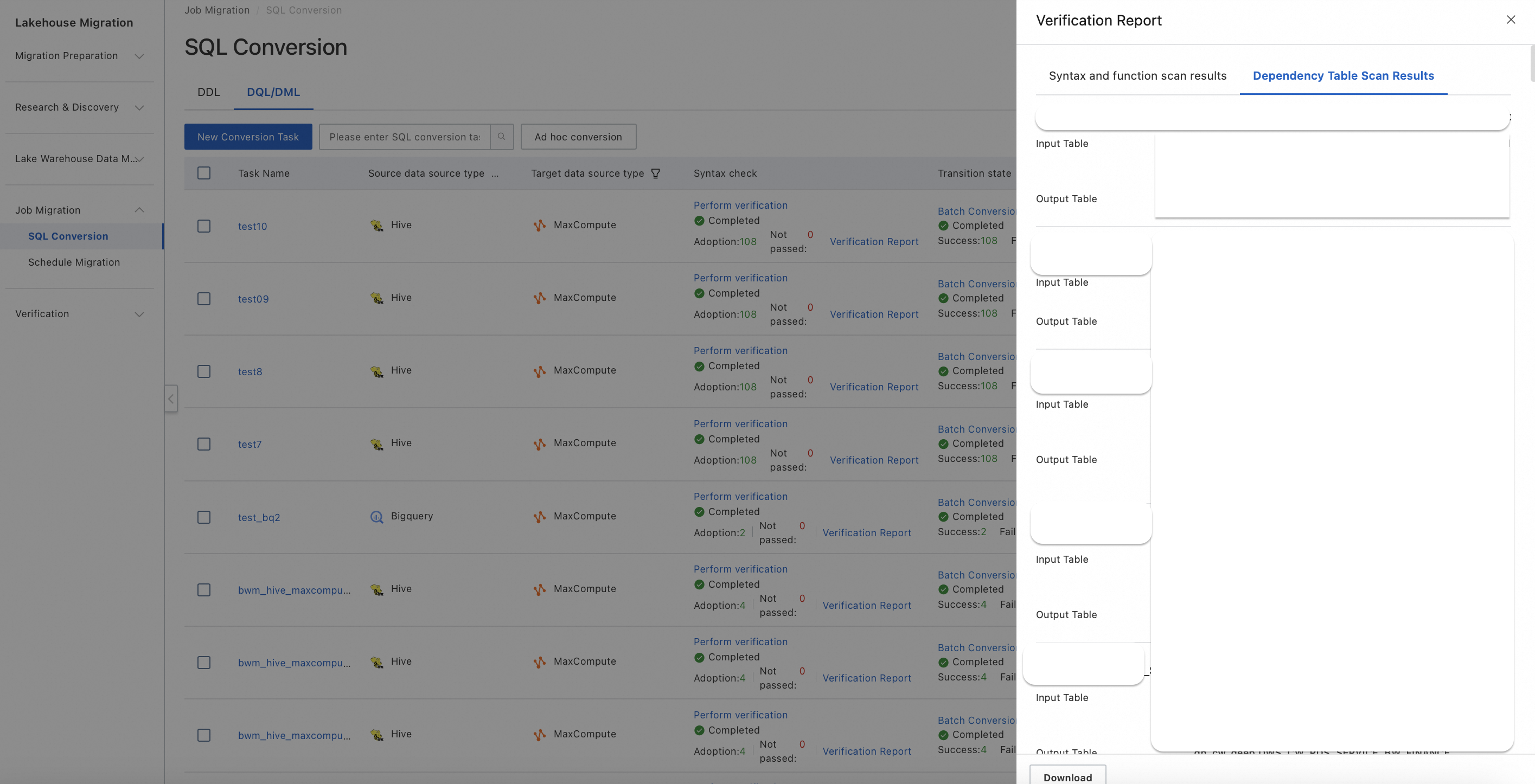
You can click Download and Export in the lower-left corner to save the report.
3. SQL conversion
3.1. Run the conversion
After the SQL scripts in a conversion task pass the syntax check, you can run the batch conversion. This process applies to DDL, DML, and DQL tasks.
1. Click Batch Convert in the conversion task list.
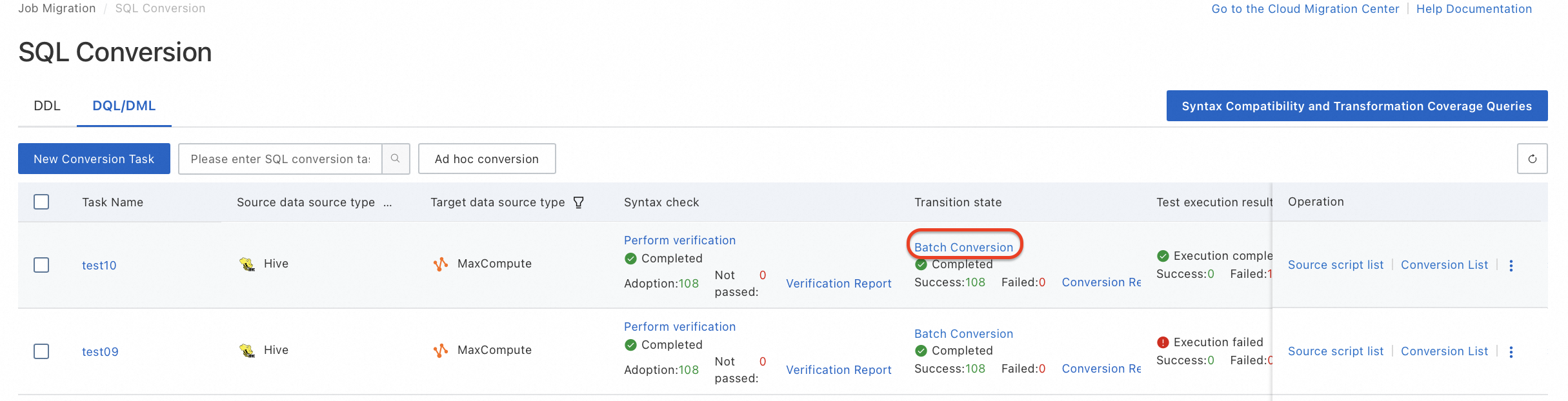
2. Alternatively, you can run the conversion from the Source script list page.
Click Source script list to the right of the conversion task.
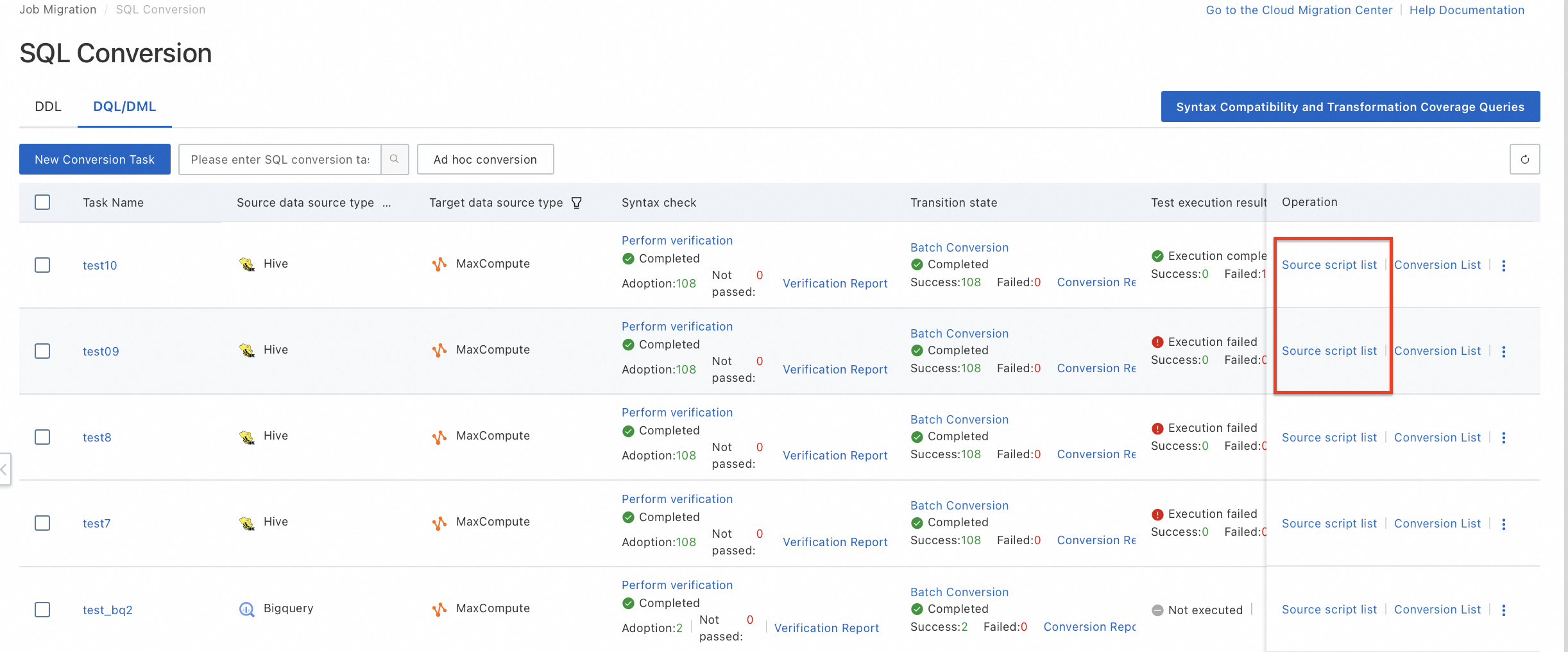
On the Source script list page, confirm that the syntax check has passed, and then click Next in the lower-left corner.
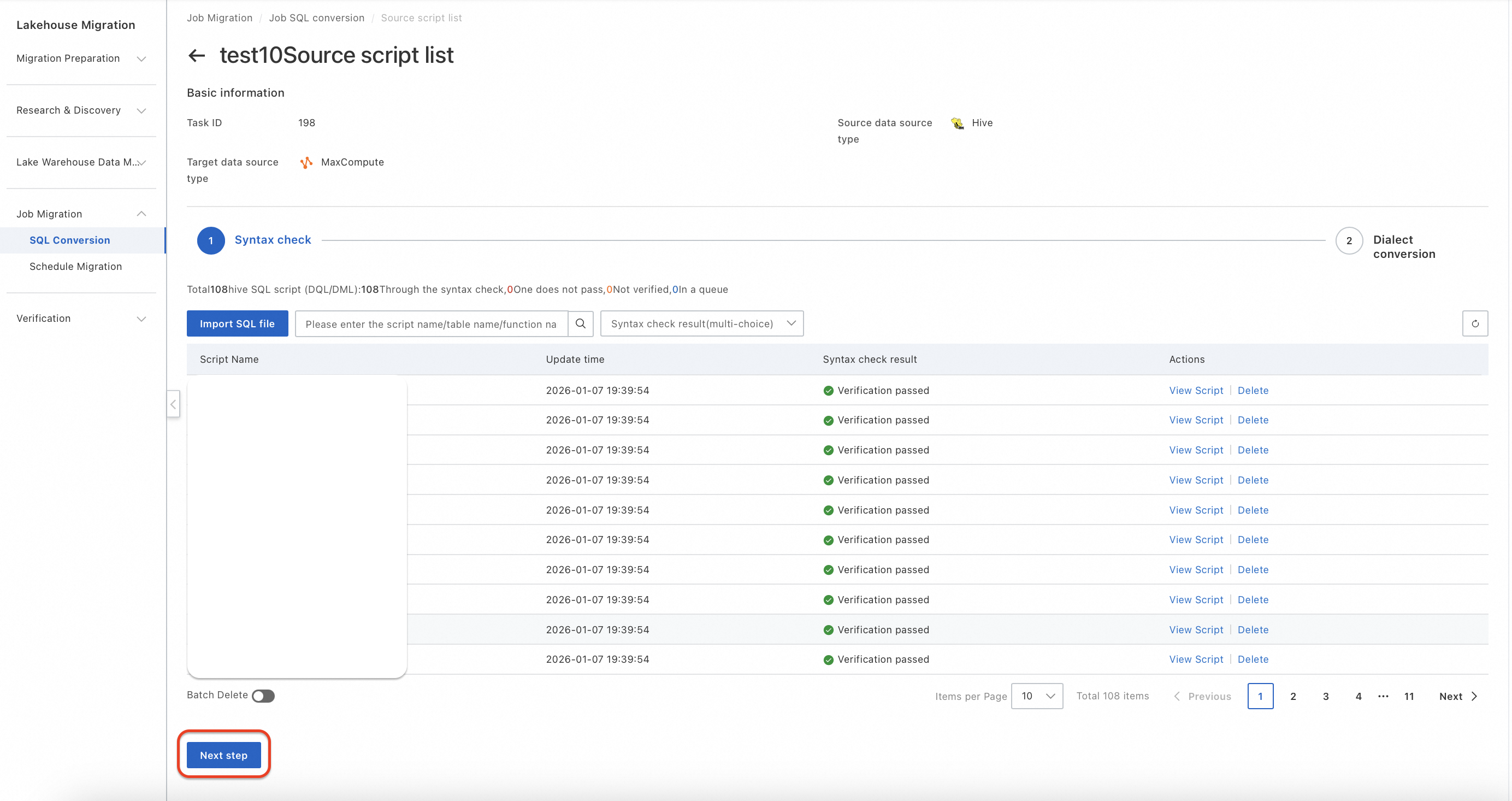
This takes you to the Script conversion list page. Click Batch run conversion.
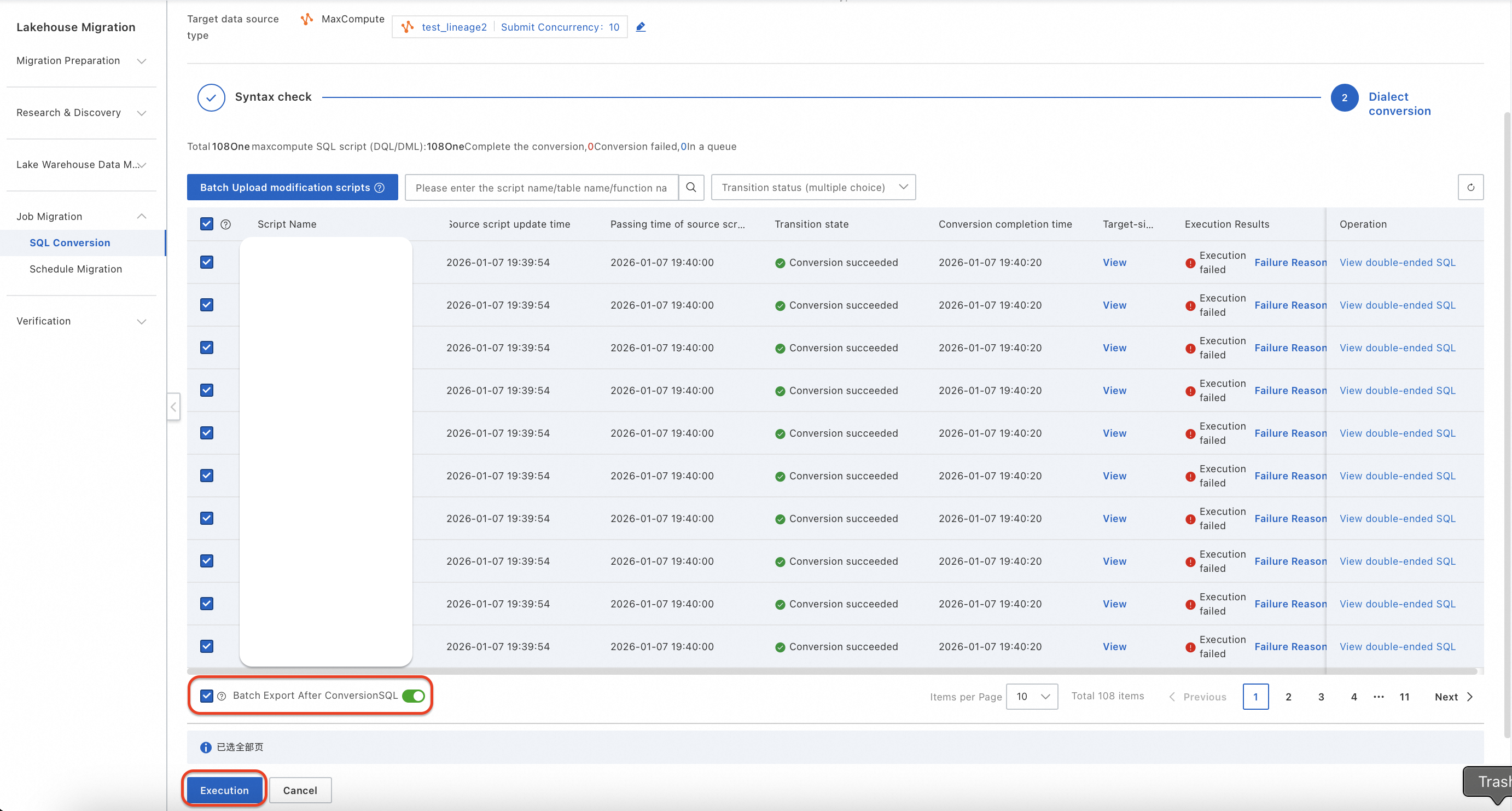
3.2. Conversion report
After the conversion is complete, the tool generates a report. This report details the results, including the converted functions and SQL nodes, the number of affected scripts, and a list of the specific scripts involved.
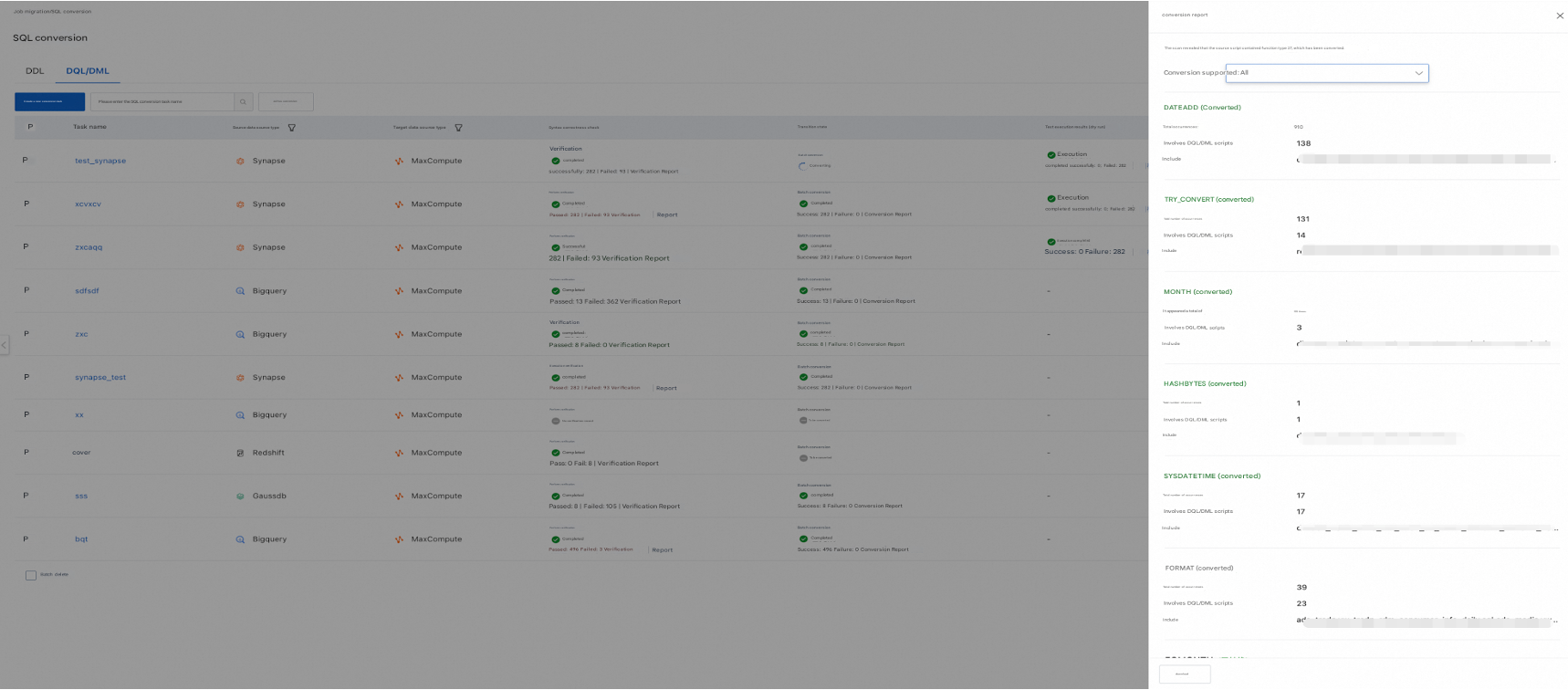
You can click Download and Export in the lower-left corner to save the report.
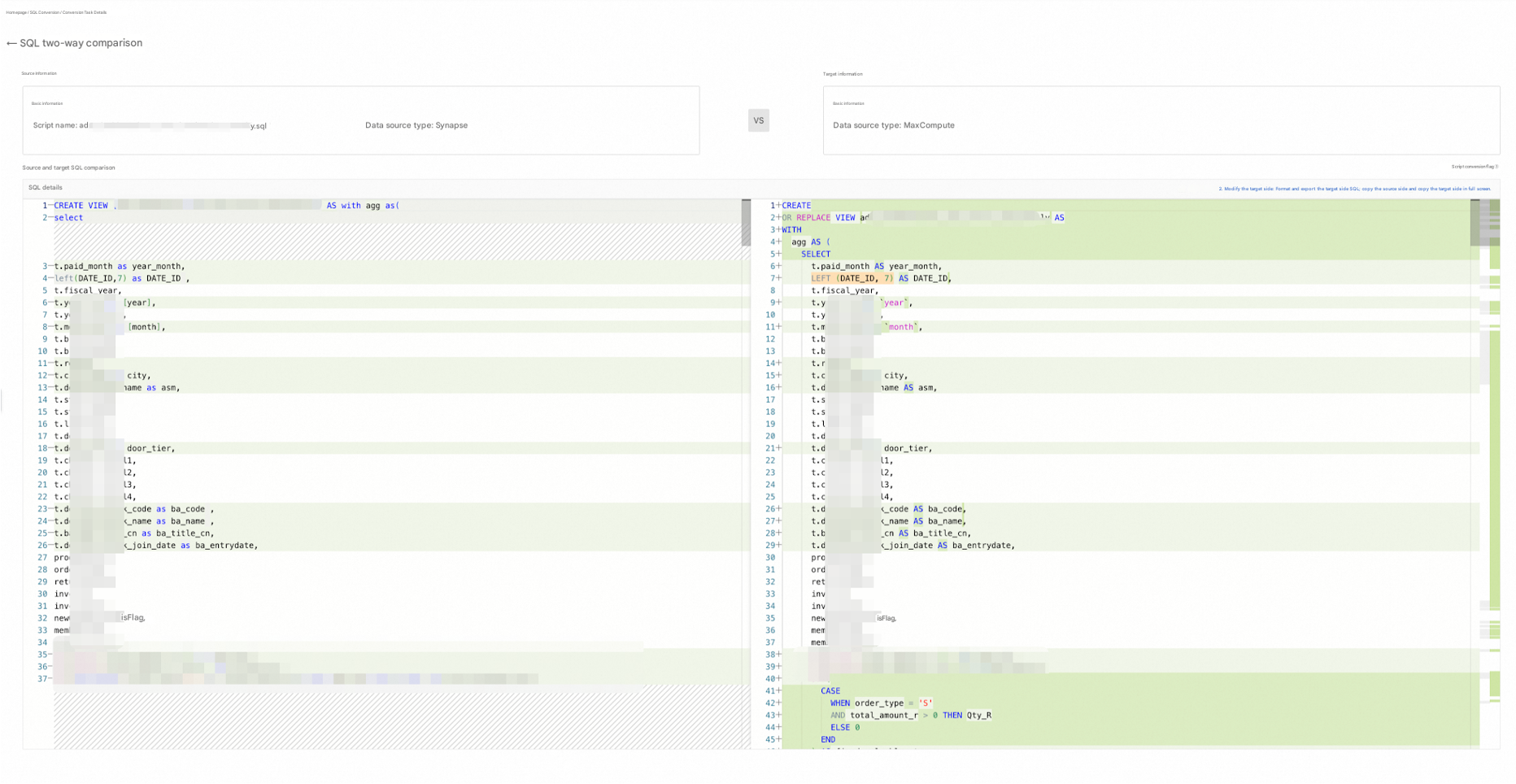
3.3. Side-by-side comparison
On the Script conversion list page, click View side-by-side SQL.
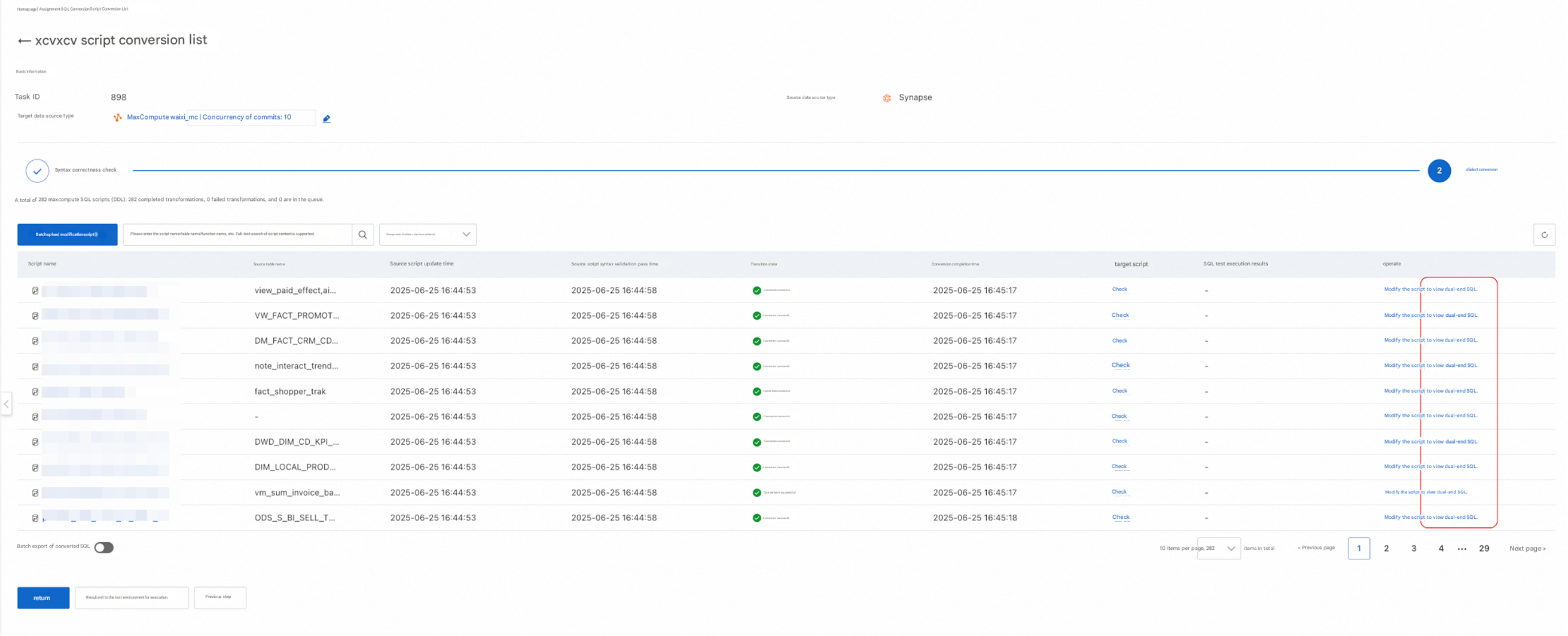
The following figure shows a side-by-side comparison of the original and converted SQL.
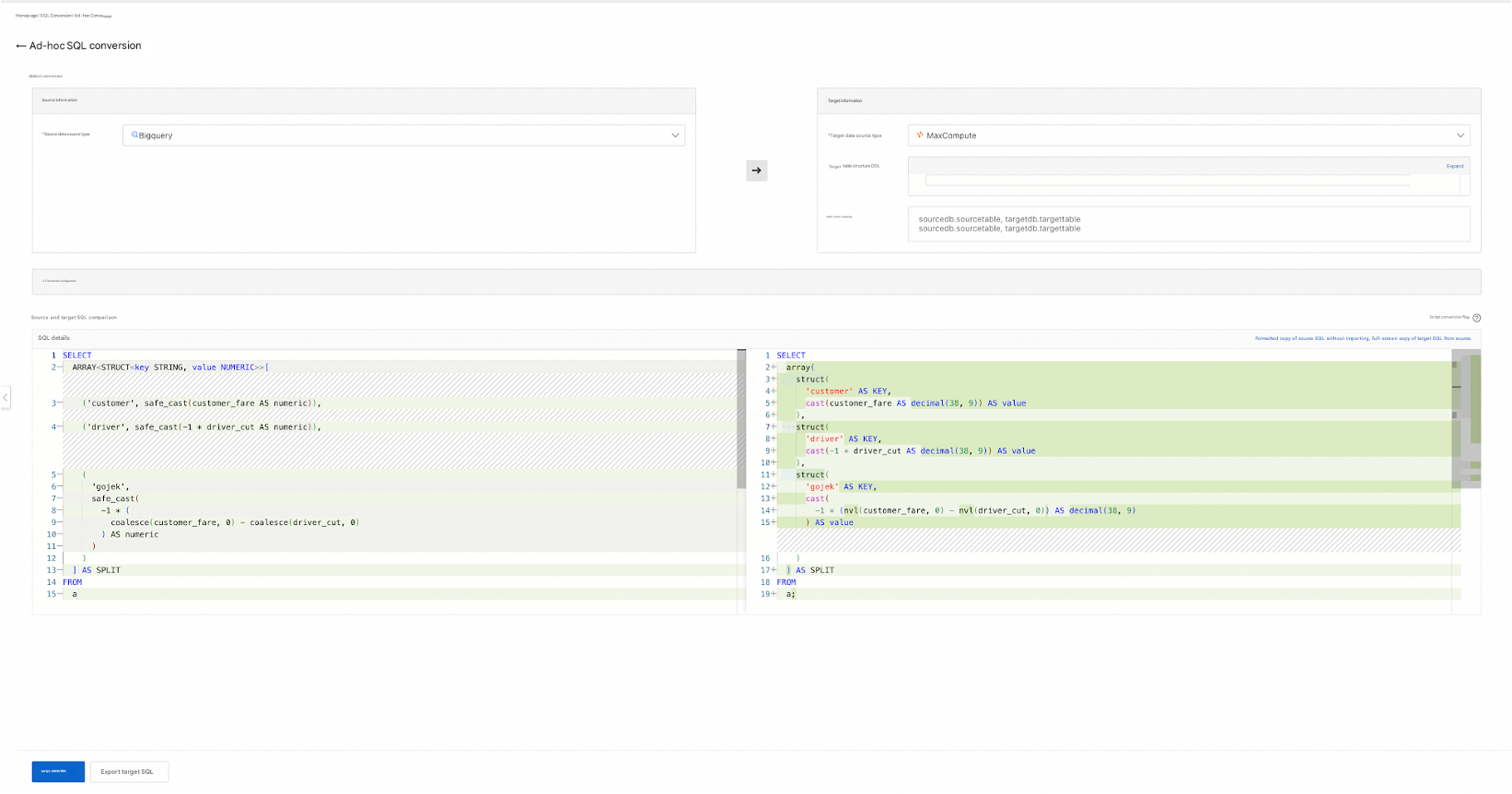
4. Ad hoc conversion
To access this feature:
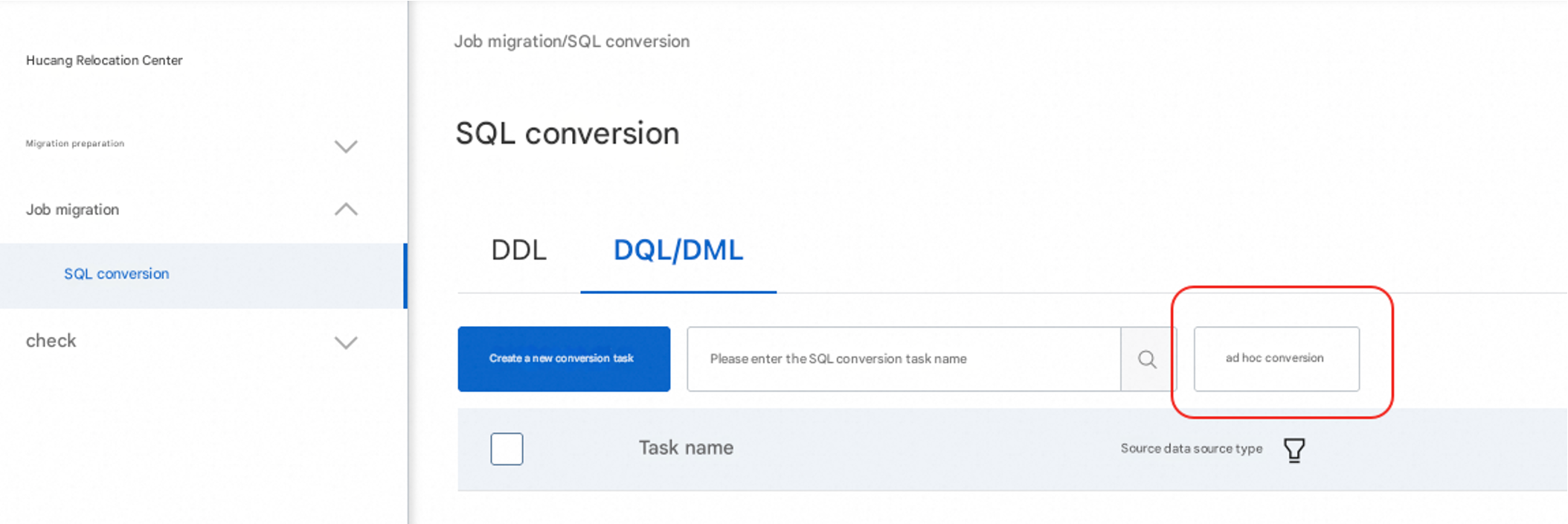 The process is the same for DDL.
The DDL ad hoc conversion interface:
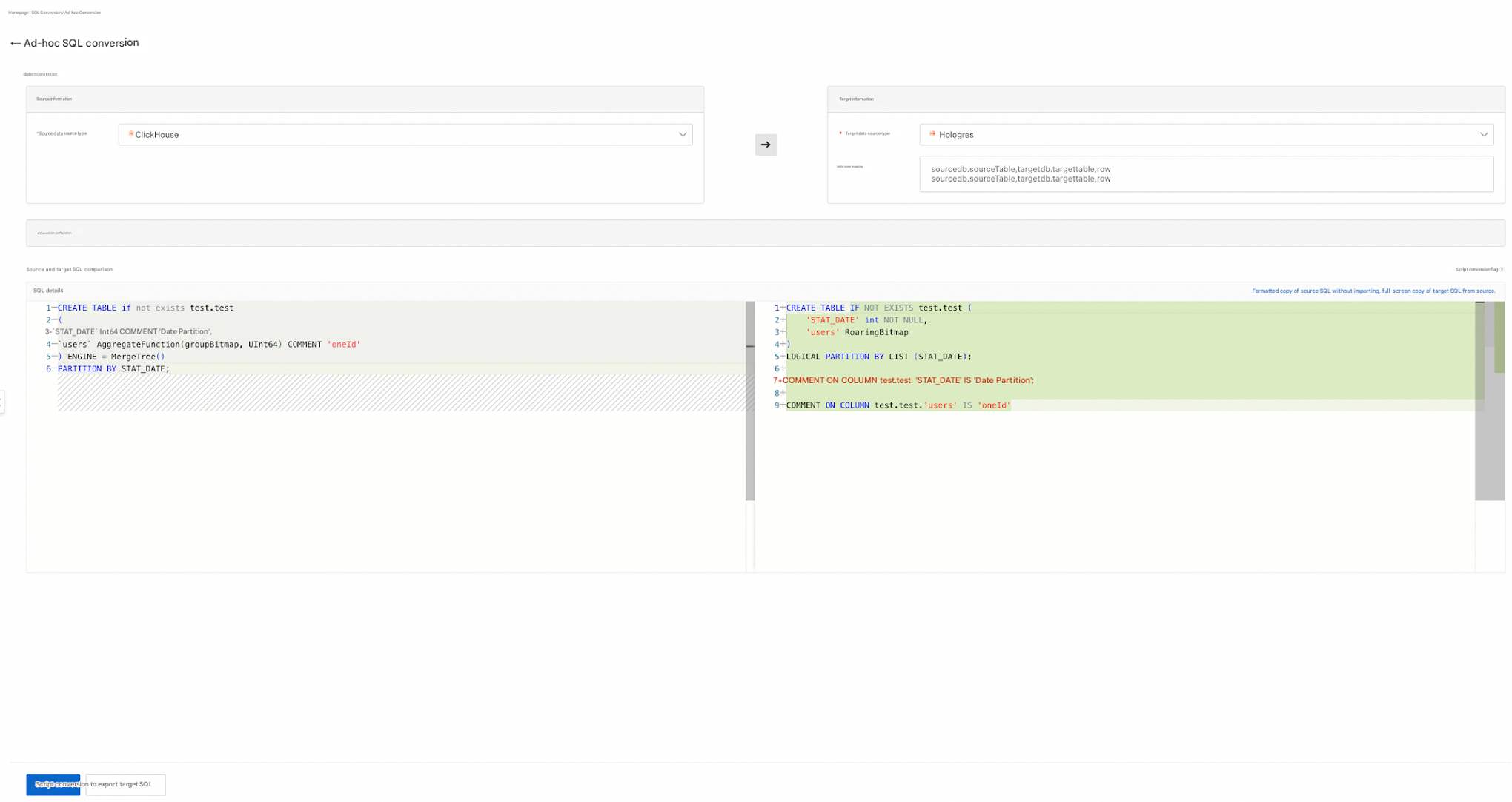
The DQL/DML ad hoc conversion interface: