Batch testing SQL scripts
Converted SQL scripts often require adjustments due to differences in business logic and execution environments. Lakehouse Migration Center (LHM) supports test execution for MaxCompute data sources, helping you identify and troubleshoot issues through execution problem statistics.
1. Prerequisites
Install the agent
LHM data validation relies on an agent to connect to data sources and run ad hoc metadata queries. To protect sensitive data, you must install an agent before using the data validation module. Provide a server, such as an Alibaba Cloud ECS instance, and the agent is automatically installed on it.
Before you install the agent, request a license. Click the Request License button to generate one automatically. A license protects the agent from misuse.
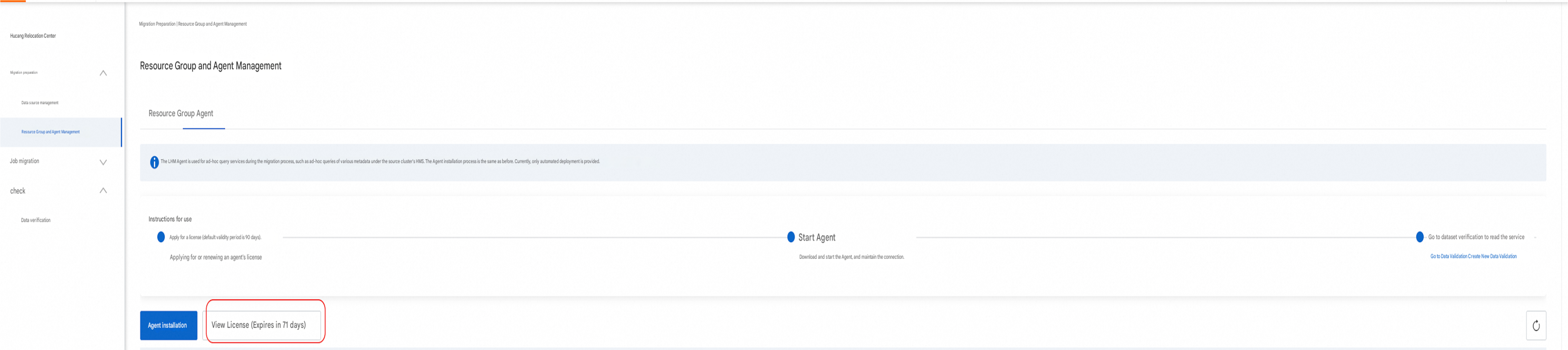
Automatic deployment is currently supported only in the Hangzhou region. For deployment in other regions, contact us online.
Note:
-
Automatic deployment is supported only for ECS instances created on Alibaba Cloud.
-
You must enable the PrivateLink service before installation.
-
Establishing a network connection through PrivateLink creates a reverse endpoint in your account. This may incur fees. You must manually release the endpoint after you are finished.
-
Ensure that the server can connect to both the source and destination data sources that require validation.
Click Install.
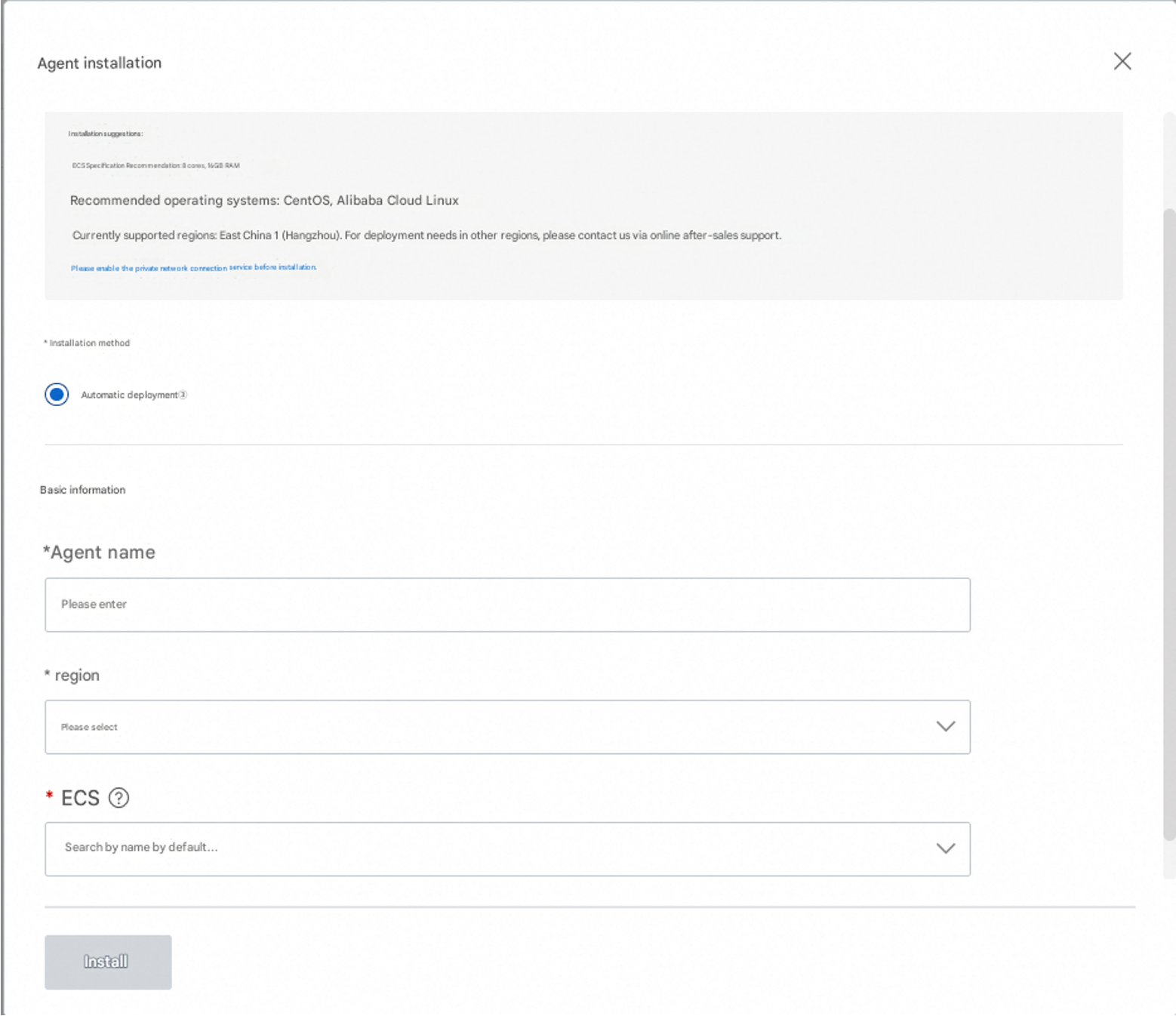
Enter an agent name, select a region, and choose the ECS instance for agent installation. Deployment and installation are automated.
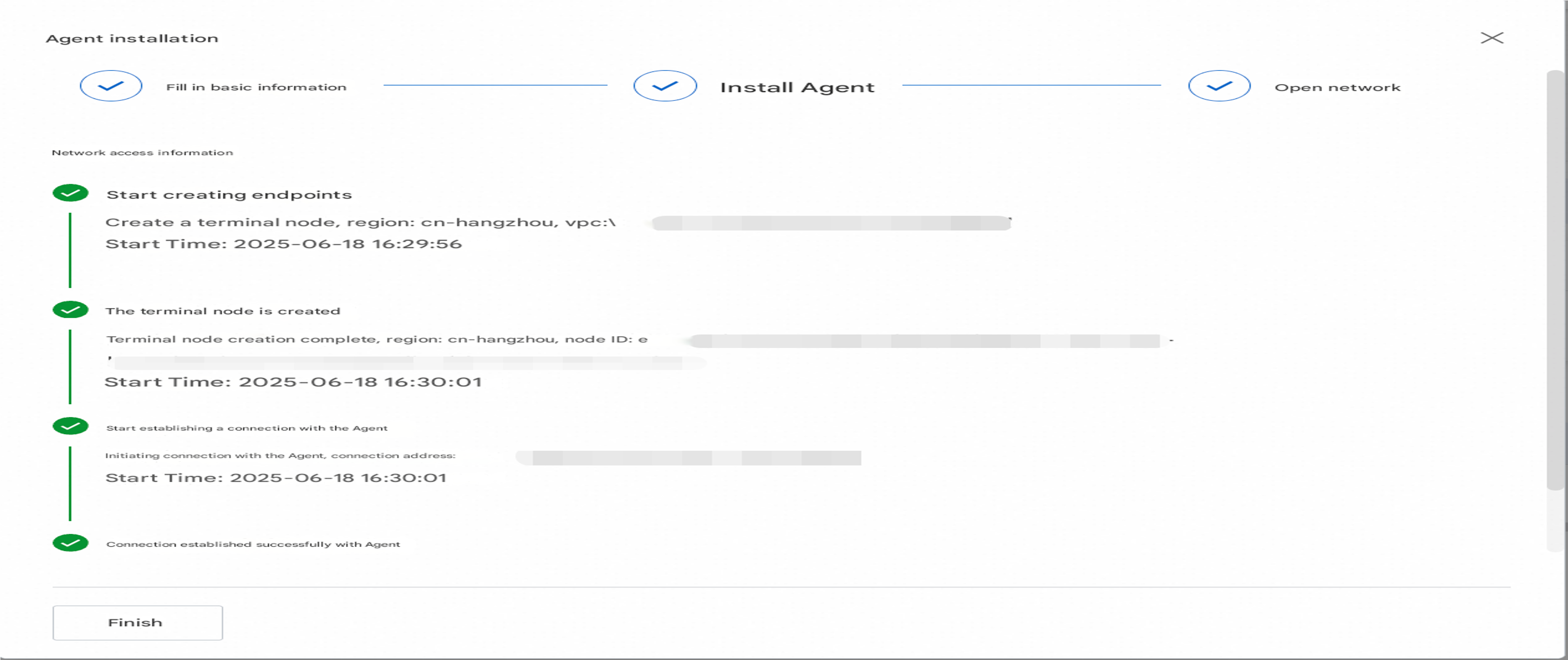
You can view the deployment progress in real time.
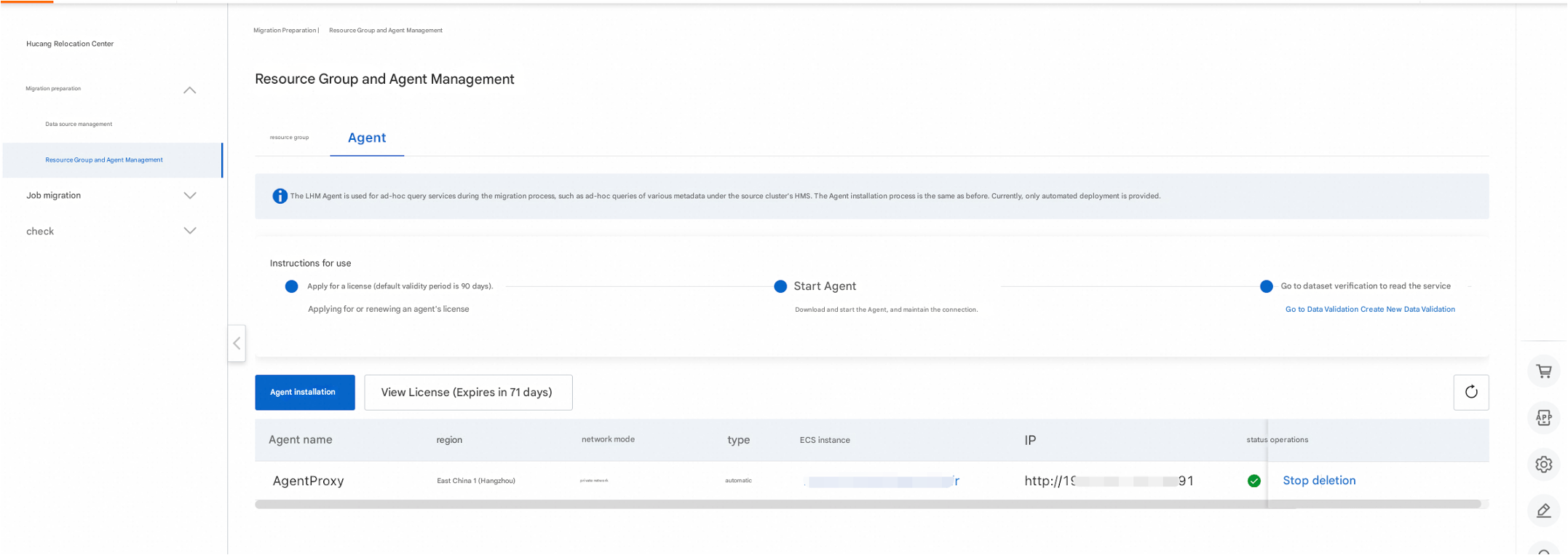
After installation, check the agent's online status in the agent list.
2. Run the test
2.1 Configuring the staging environment data source
Navigate to the Conversion List page.
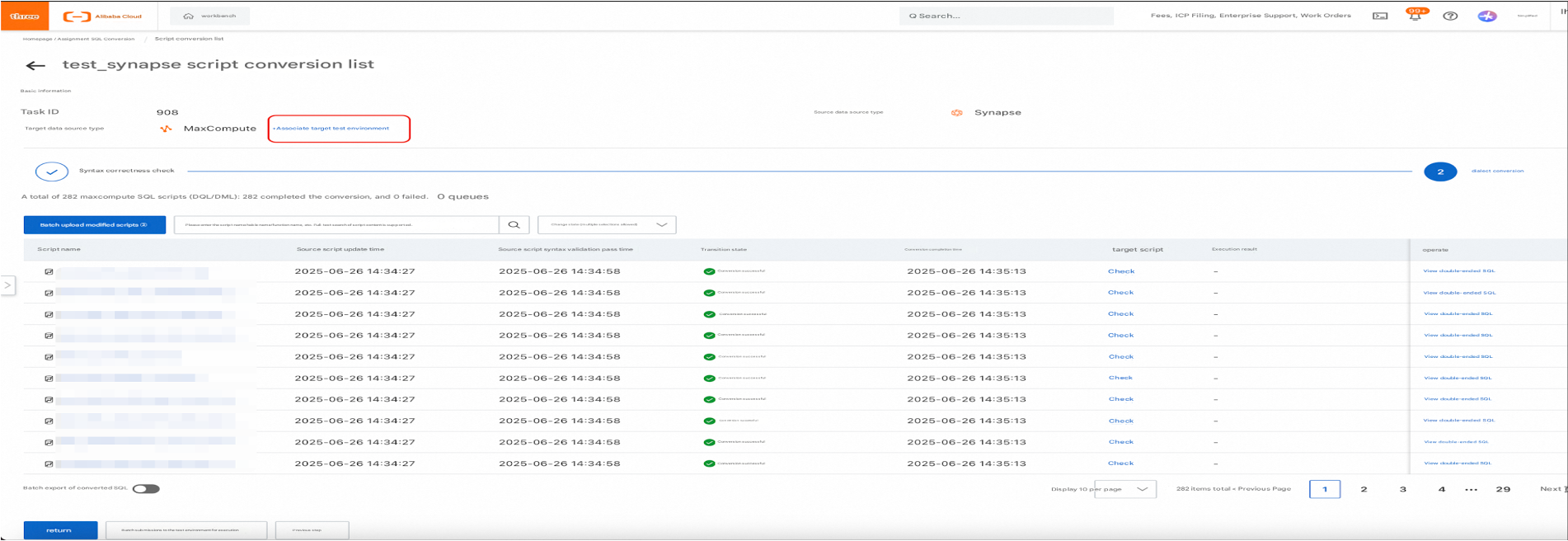
After all scripts are converted, in the basic information section, click Associate Staging Environment next to the target data source type. Select your data source, set the project or database, and configure the concurrency.
Configure the settings.
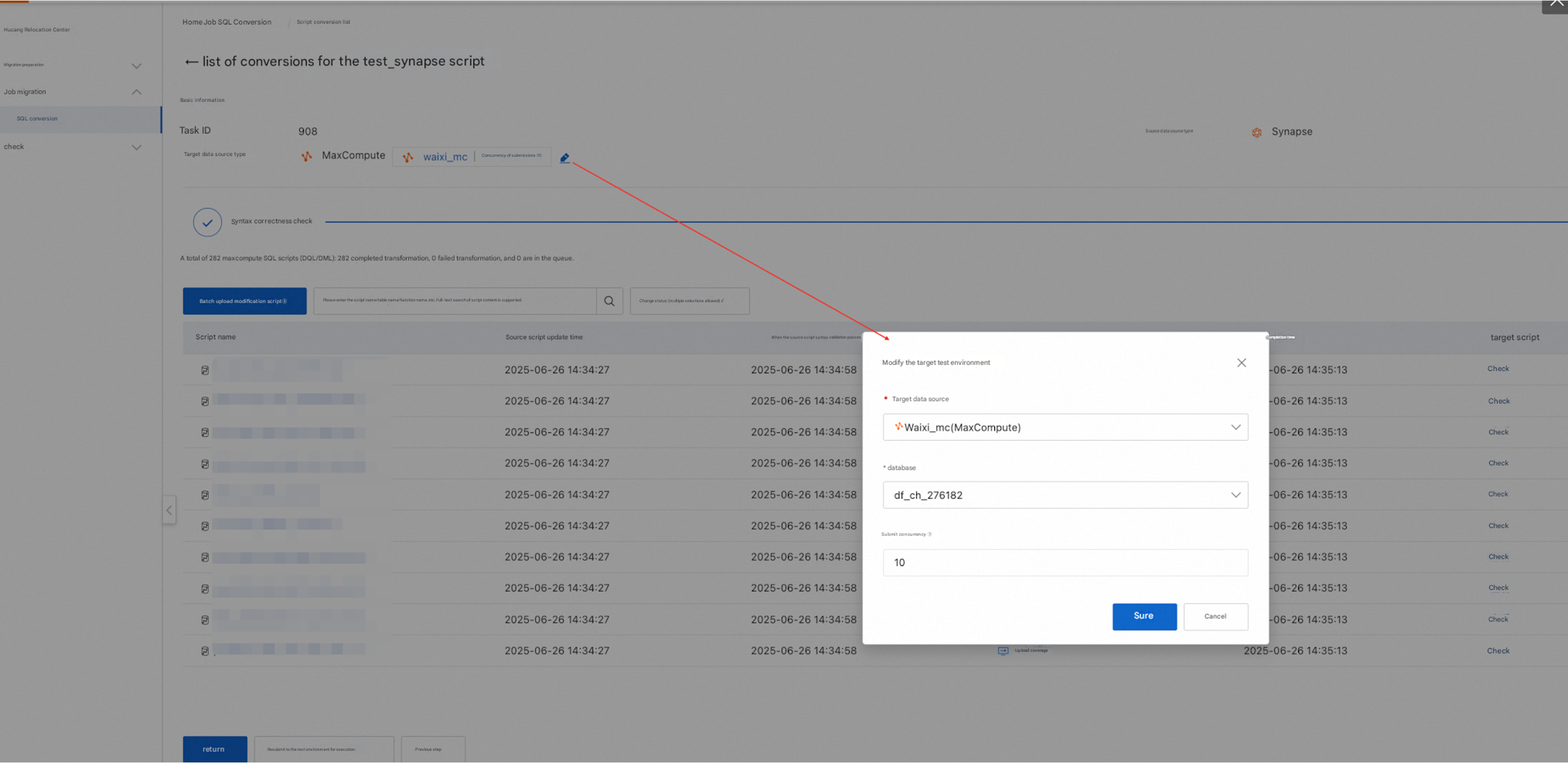
Submit Concurrency: This setting affects only the target runtime and is unrelated to the conversion. You can modify it as needed.
2.2 Batch submit scripts for execution on the target
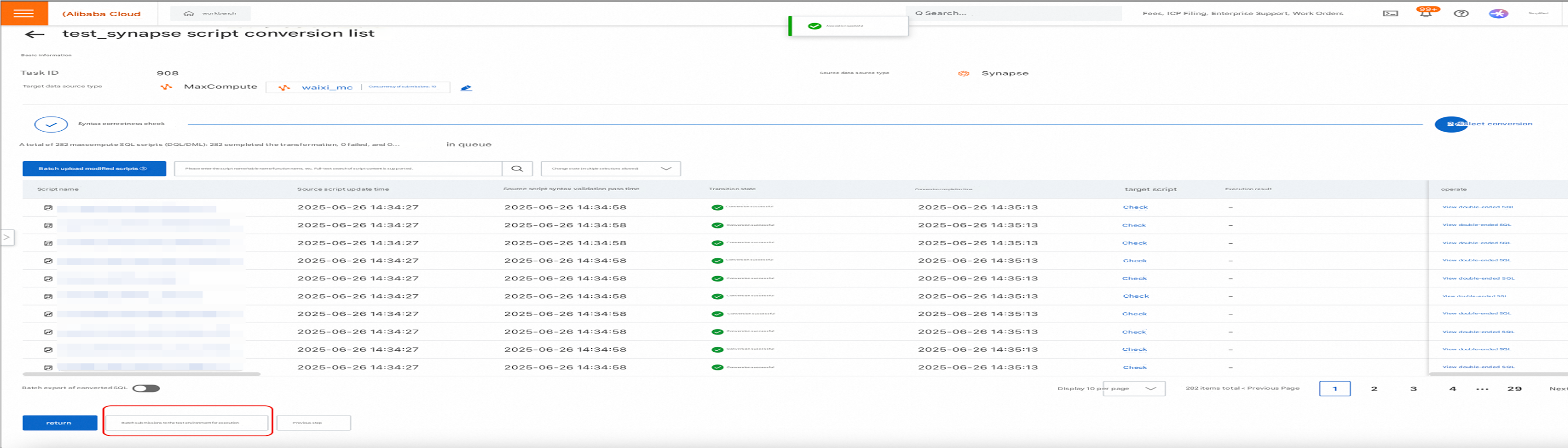
Click Batch Submit to Staging Environment for Execution. The converted scripts change to "Pending Execution" status, are sent to the agent, and then executed on the target environment, such as MaxCompute or Hologres.
Note: The LHM SQL conversion tool cannot directly access your data sources. This step requires a configured agent. Before you proceed, make sure the agent is installed on your ECS instance, is running correctly, and can connect to the required test data sources.
3. View execution results
3.1 Troubleshoot a single script
The following figure shows an example.
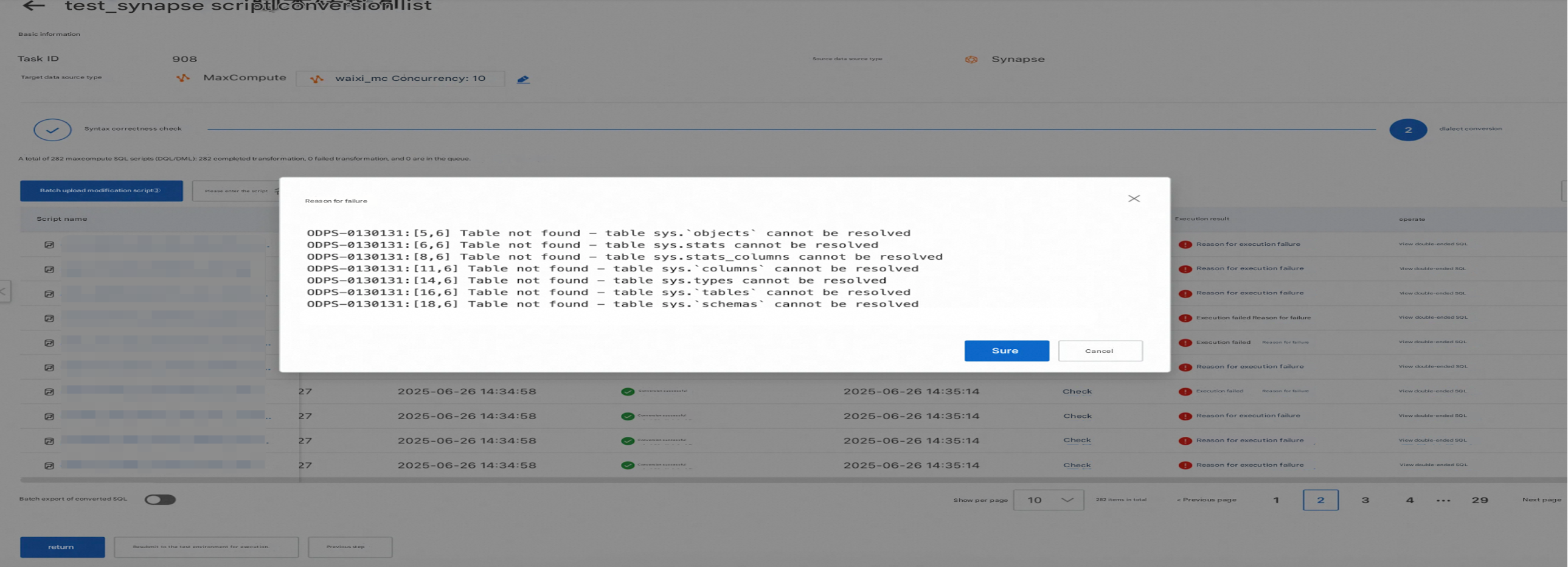
After execution, click Failure Reason for any failed SQL script to view its error message.
3.2 View the execution problem statistics report
In the SQL conversion task list, go to the Test Execution Result column and click Target Execution Report.
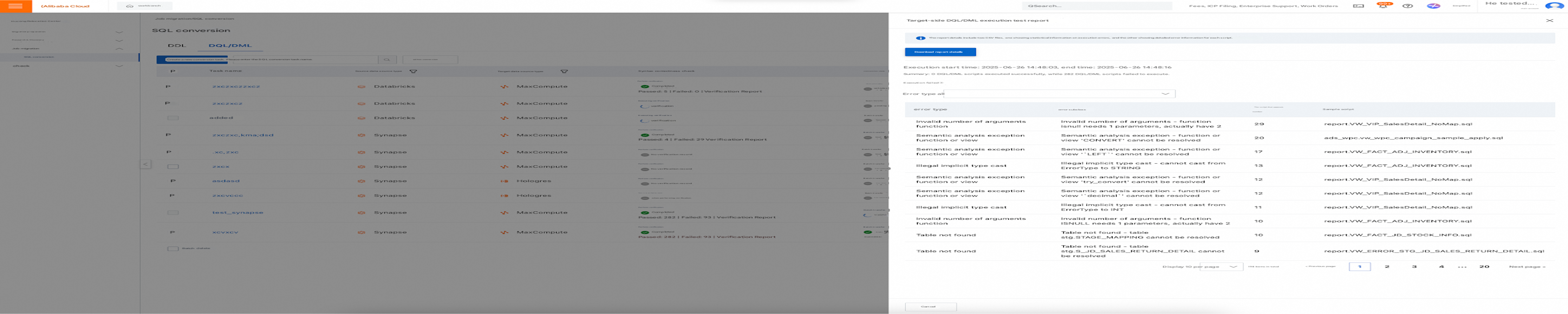
You can view the test report. The report displays the error type, error child class, the number of affected SQL scripts, and a sample script name.
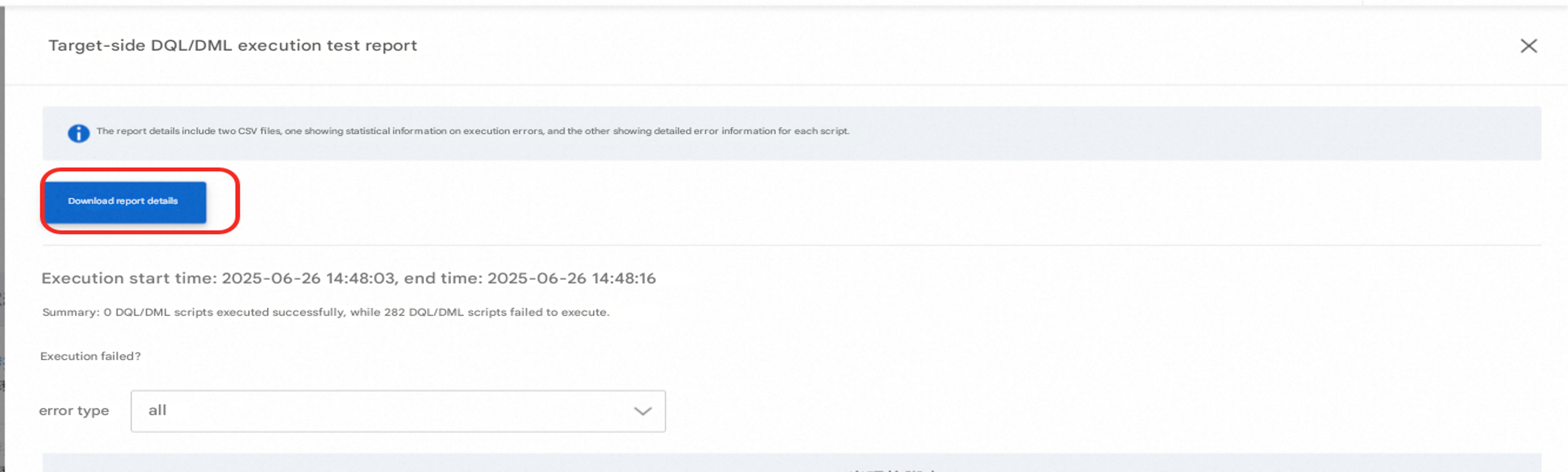
Click Download Report to obtain the error statistics and details for the executed SQL scripts.
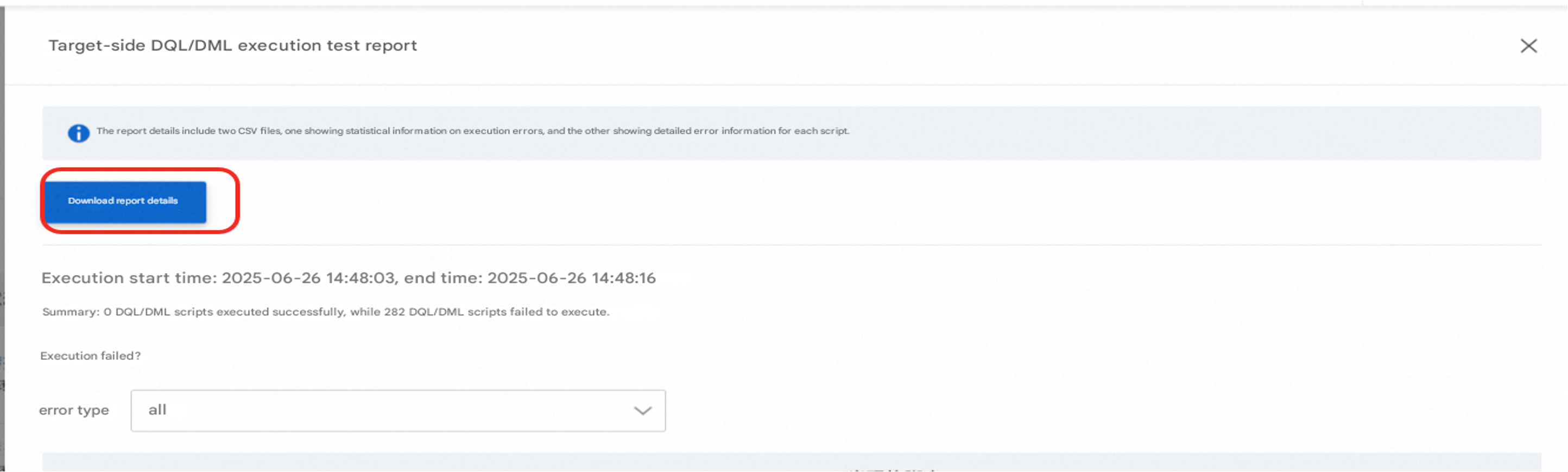
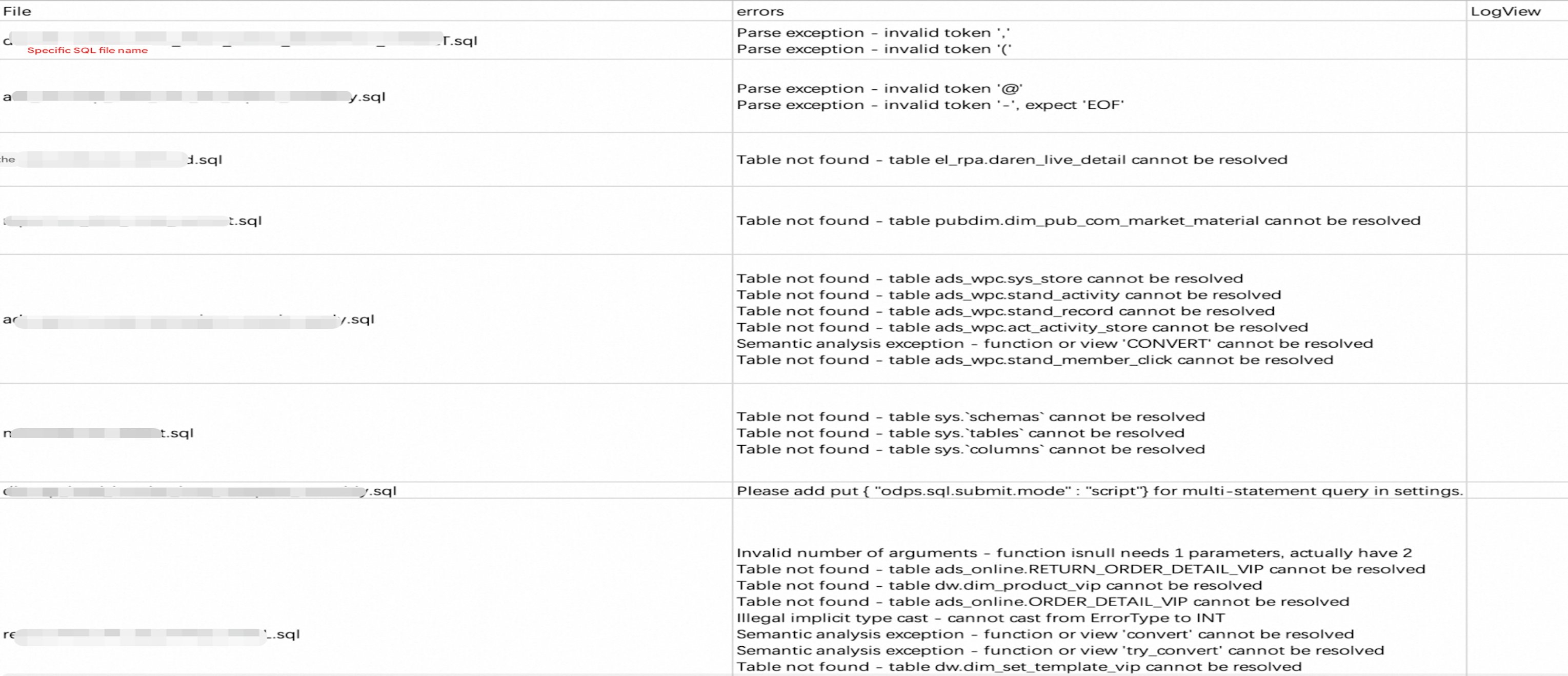
The download includes two CSV files: Stats and Detail. The Stats file shows error details, the number of SQL script files in the conversion batch, error classifications, and a sample filename for troubleshooting.
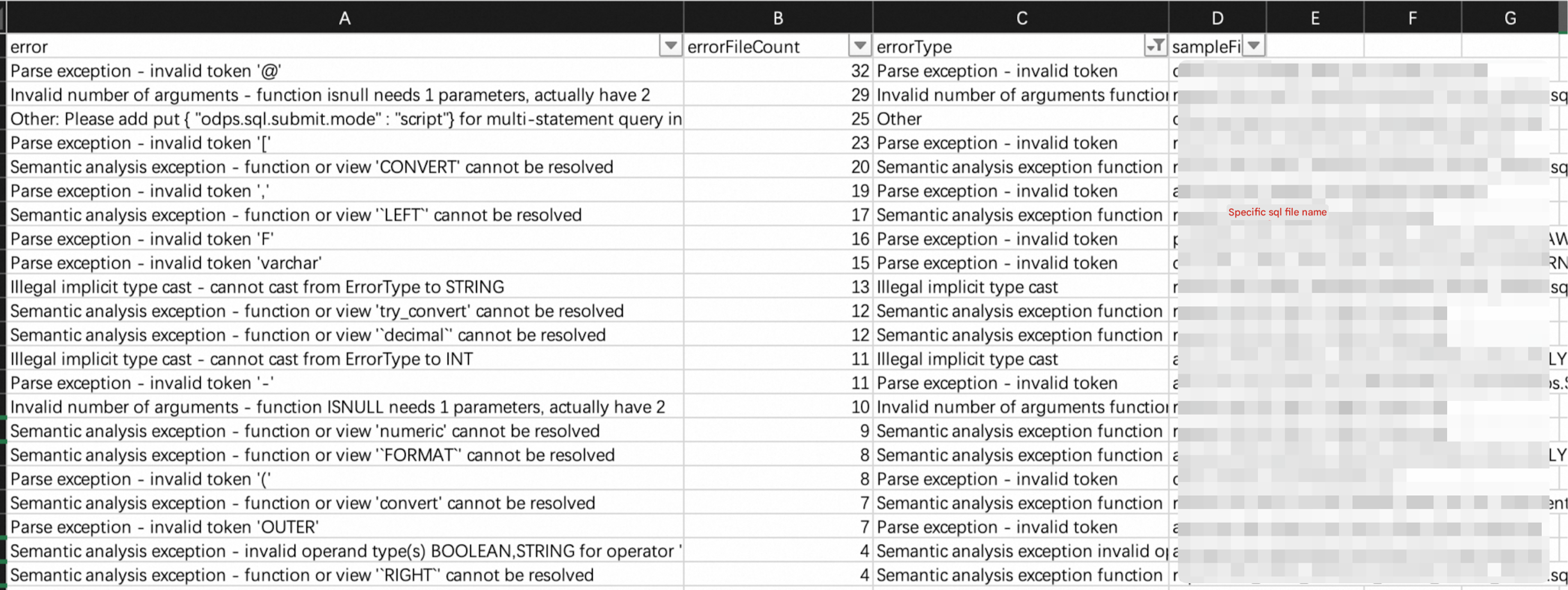
Address the most frequent problems first. Use the sample filenames and error messages in the report to identify SQL issues that require manual processing.
The Detail file contains the SQL filename and error message for each script, helping you look up problems for individual scripts. You can also view this information directly on the interface.
3.3 Iterative validation
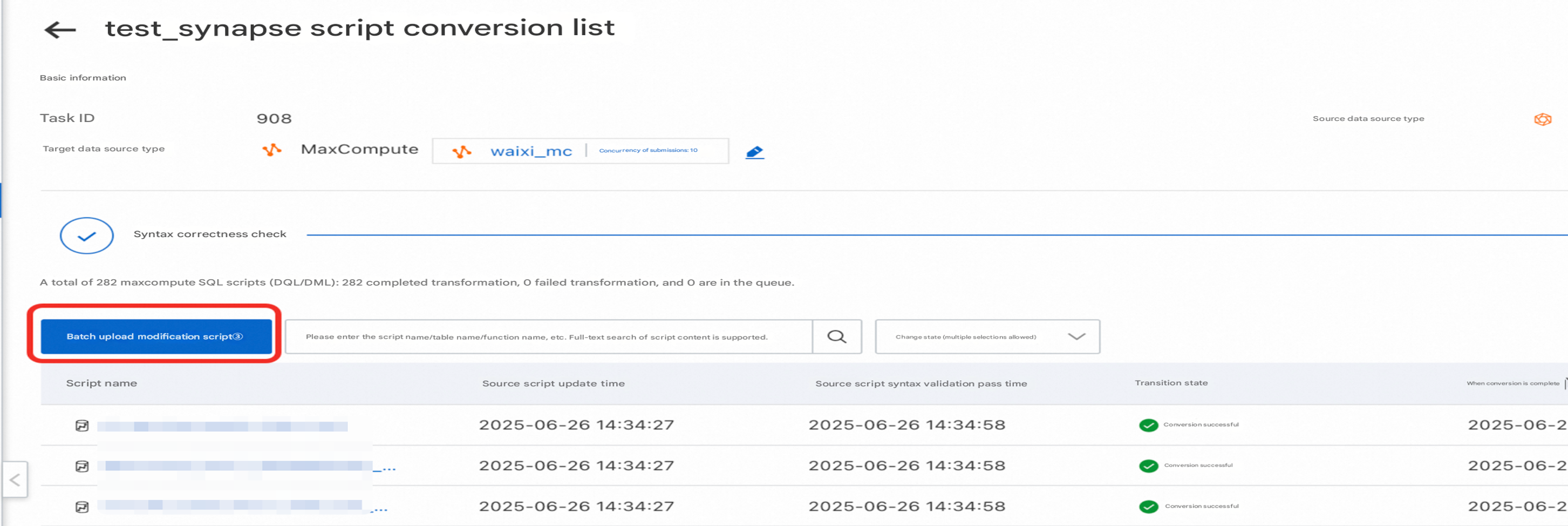
If you modify converted SQL scripts over several rounds, use Batch Upload Modified Scripts on the Conversion List page to upload and overwrite the existing scripts, then re-run the execution to verify.
Note: You must upload a ZIP package of your modified scripts. Files in the ZIP package with the same name as existing files will overwrite the converted results.
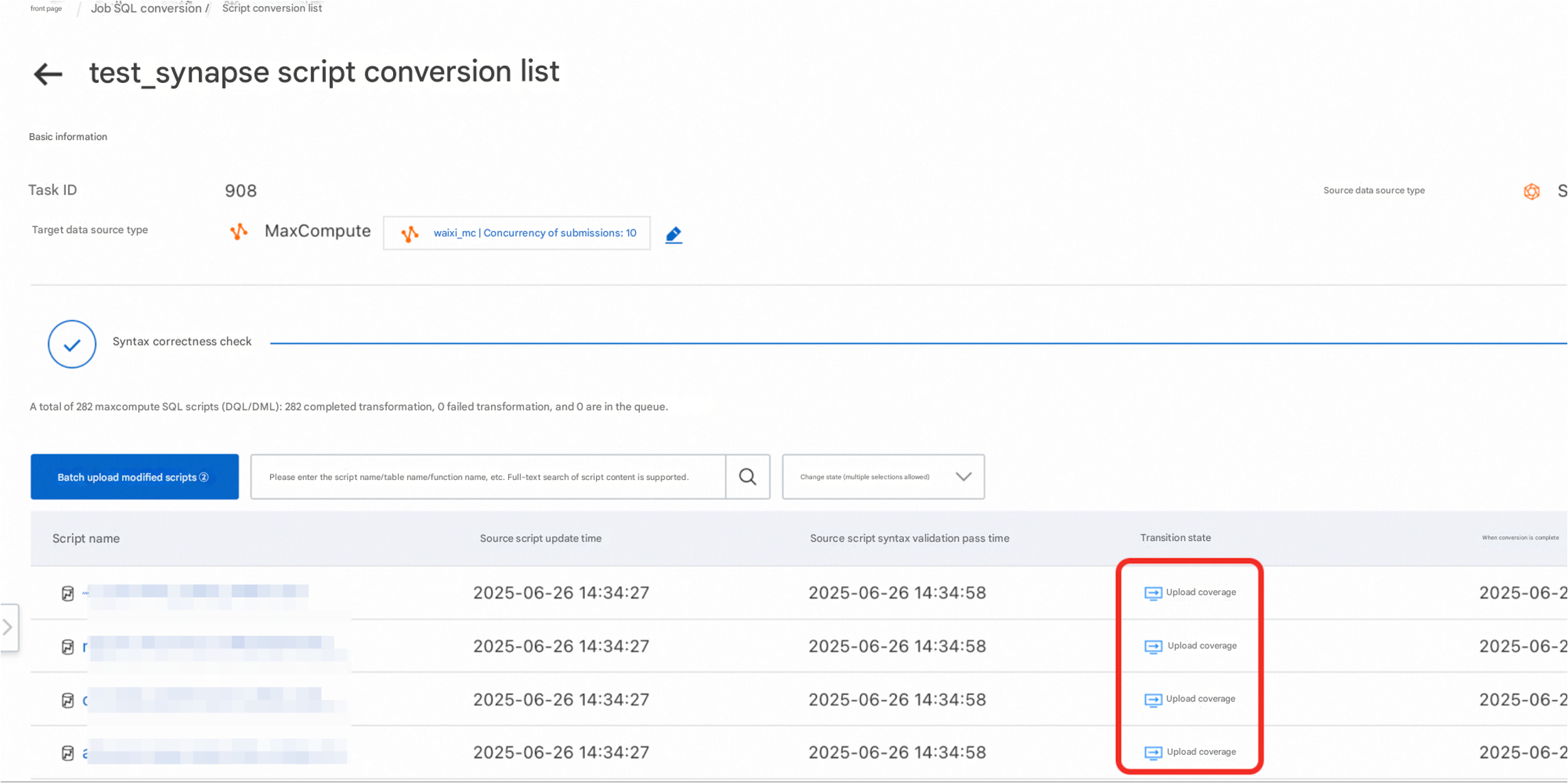
After you re-upload the scripts, their conversion status changes to "Uploaded to Overwrite".
Run the validation again on the overwritten results. Repeat this process as needed to resolve all major errors.