Configure Agent types
Agent types define the options that users can select when they create an instance. As an Agent Manager administrator, you maintain the Agent types and their configuration templates, custom variables, channel templates, and backup and restore commands in Agent Configuration.
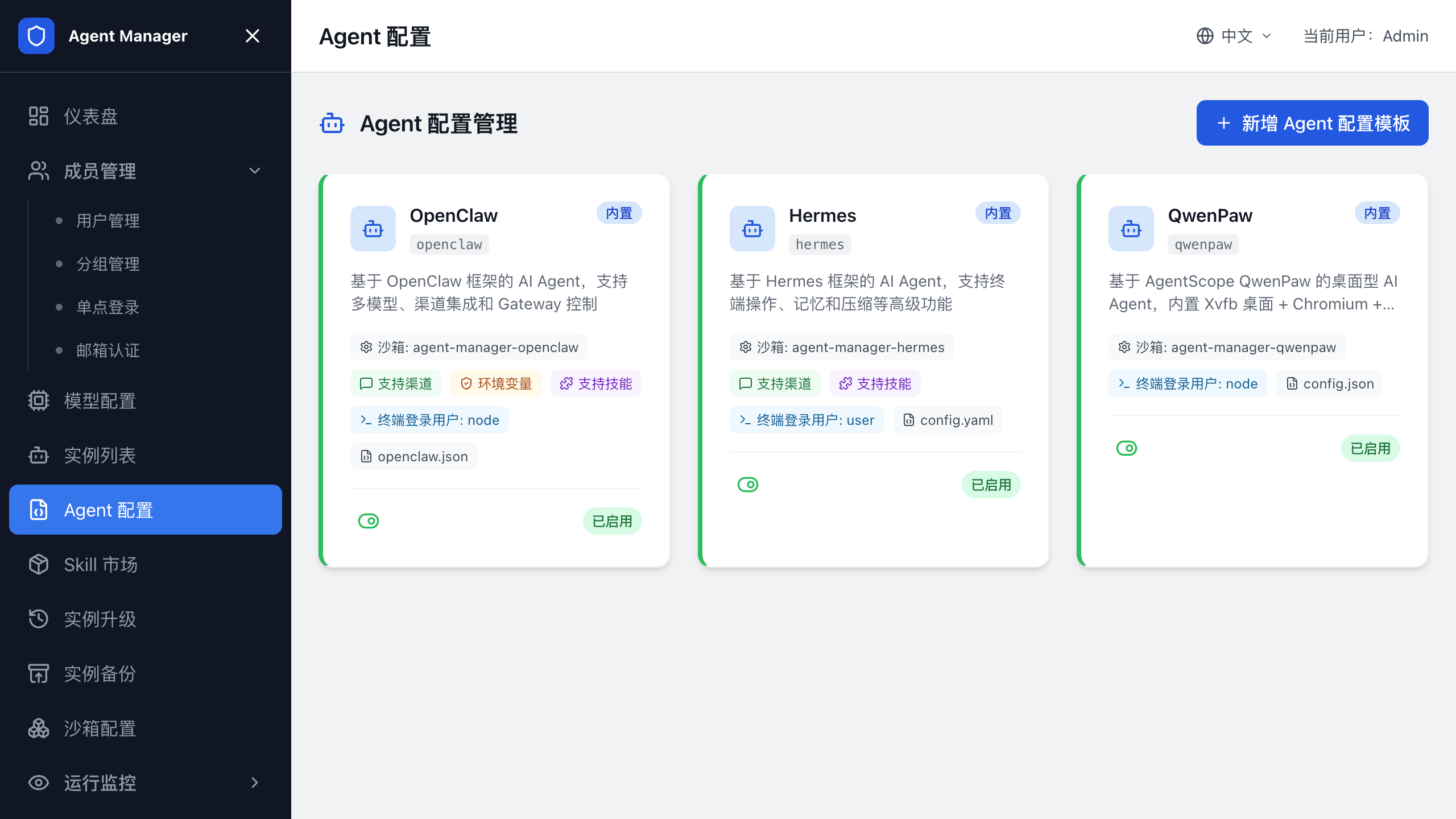
The following figure shows the Agent Configuration page.
Agent types
Users select an Agent type first when they create an instance. The Agent type determines which configuration template the instance uses, which configuration file it writes to, which SandboxSet it is associated with, which user it starts as, and how to modify models and channels.
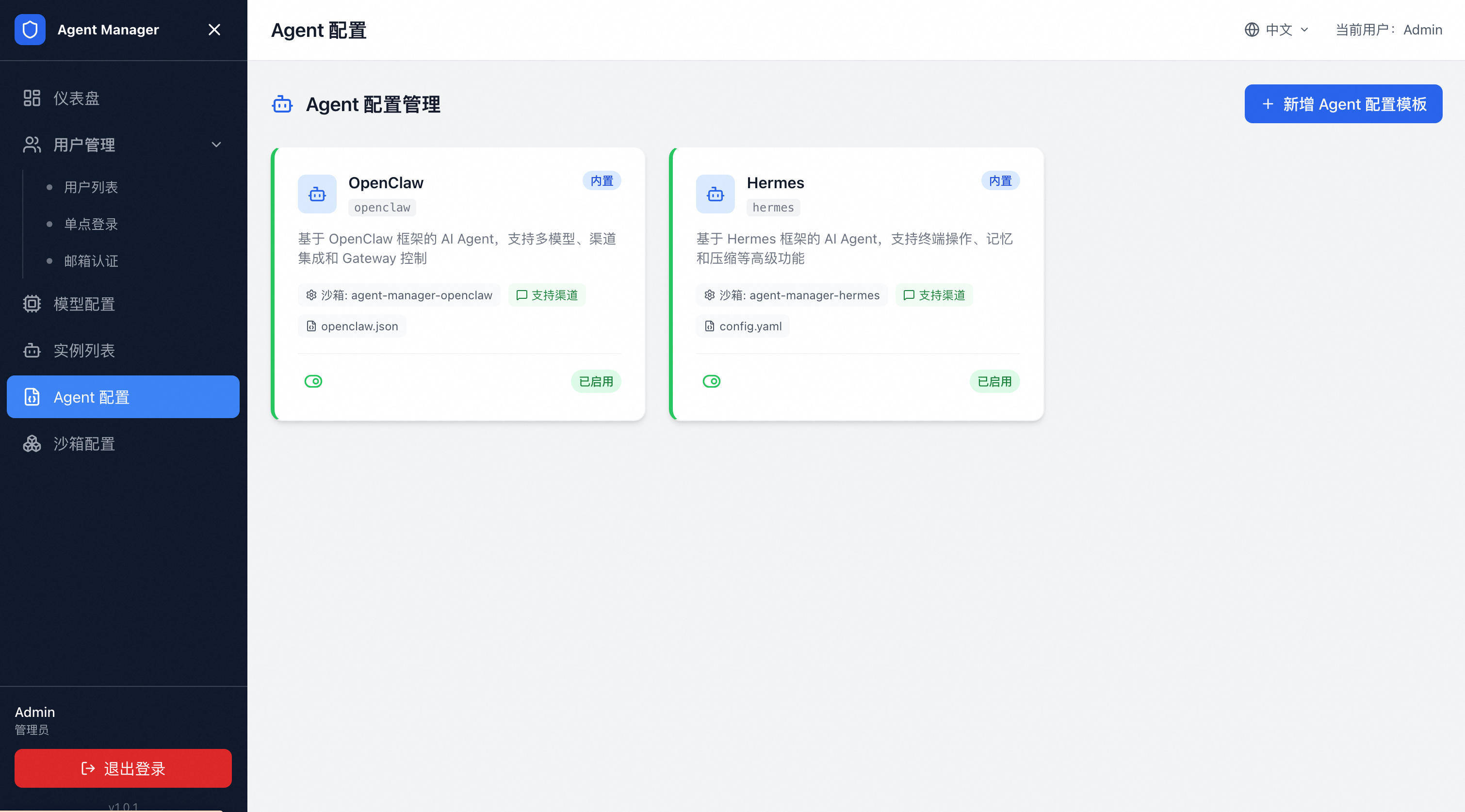
A new environment deployed through Compute Nest includes the following built-in Agent types by default:
| Type | Code | Configuration format | Associated SandboxSet | Description |
| OpenClaw | openclaw | JSON | agent-manager-openclaw | An AI Agent based on the OpenClaw framework, with built-in multi-channel integration. |
| Hermes | hermes | YAML | agent-manager-hermes | The Hermes Agent runtime environment. |
Different versions may include more built-in types, such as QwenPaw. Refer to the types that the administrator console displays.
View Agent configuration
You can view the configuration of an Agent type in the administrator console:
Log on to the administrator console.
Open
Agent Configuration.Select the target Agent type in the list.
View the basic configuration, configuration template, channel template, and command scripts.
The following figure shows the configuration of an Agent type.
Configuration templates
A configuration template generates the Agent configuration file for each instance.
Templates support placeholders. When a user creates an instance or an administrator saves the configuration, the system writes the model, channel, and custom variable values into the template.
Common placeholders include:
| Placeholder | Source |
${DASHSCOPE_API_KEY} | The Model Studio API key. The placeholder name follows the DashScope naming. |
${AI_GATEWAY_DOMAIN} | The Alibaba Cloud AI Gateway domain name. |
${CONSUMER_API_KEY} | The consumer key that AI Gateway assigns to the user. |
${LITELLM_PROXY_URL} | The LiteLLM Proxy address. |
${LITELLM_API_KEY} | The key that LiteLLM assigns to the user. |
${CUSTOM_VAR} | A custom variable defined by the administrator. |
When you add a model provider, apiKeyPlaceholder and domainPlaceholder must exactly match the placeholder names used in the template and the command scripts.
Mismatched names cause model calls to fail.
Configuration write path and sandbox user
An Agent type must declare where the configuration file is written and which sandbox user it runs as.
Common examples:
| Type | Configuration write path | Sandbox user |
| OpenClaw | /home/node/.openclaw/openclaw.json | node |
| Hermes | /opt/data/config.yaml | Subject to the actual image configuration |
The sandbox user must match the user that actually runs in the SandboxSet image. For Hermes, confirm the actual user in the image configuration before you save.
If the users differ, the platform fails to write the configuration file and the instance fails to start.
Custom variables
Custom variables pass the business parameters that differ from instance to instance into the Agent, such as a project token, a webhook address, an external service API key, or a system prompt.
Define the fields in the custom variable area of Agent Configuration. When a user creates an instance, the page displays an input box for each defined field.
The following table describes the custom variable fields.
| Field | Description |
| Variable name | The placeholder name referenced in the template and the command scripts. |
| Display label | The field name shown to users in the create-instance form. |
| Type | Text, password, or multi-line text. |
| Required | When enabled, users must fill in this field when they create an instance. |
| Default value | Optional. Used when the field is left blank. |
| Description | The input hint shown to users. |
Custom variables are filled in only when the instance is created. After creation, users cannot modify them directly on the instance details page.
Channel templates
Agent types that support channels maintain channel templates. A channel template defines the IM or conversation access parameters that users fill in when they create an instance, such as the app ID, secret, webhook, or token for Lark, DingTalk, WeCom, or QQ.
When you configure a channel template, make sure that:
The field names match the placeholders in the Agent configuration template.
Secret fields use the password type, so that they are not displayed in plain text on pages or in logs.
The channel template describes only the channels that this Agent type supports. Do not mix in private fields from other Agent types.
After a user creates an instance and selects a channel, the page displays a form based on the channel template and writes the submitted values into the instance configuration.
Upgrade configuration entry
The Agent type details page contains the Backup & Upgrade Configuration tab, which stores the pre-upgrade backup command, the post-upgrade restore command, and the command timeout.
When an Agent upgrade starts, the platform reads these settings and applies them to the target sandbox.
These settings only define how to back up and restore the data of this Agent type during an upgrade. For instance backup operations, see Agent backup. To select a sandbox, start an upgrade, view the history, and handle failed tasks, see Agent upgrade.
Add an Agent type
You can add an Agent type in two ways: copy an existing type, or create a custom type. Choose one of the two methods.
A built-in type that already declares its configuration write path, sandbox user, and startup command can be used to create instances directly. To adjust a built-in type, copy it first and test the copy.
Copy an existing type when you only need to change the name, code, template, commands, or channel configuration of an existing type. Create a custom type when you need to prepare your own Agent image and SandboxSet YAML.
Copy from a template
Open
Agent Configuration.Click Add Agent Type.
Select Copy from template.
Select an existing type, such as OpenClaw.
Modify the name, code, template, commands, or channel configuration.
Save.
Create a custom type
For SandboxSet and sandbox image configuration, see .
Prepare the Agent image.
Prepare the SandboxSet YAML.
Create the SandboxSet in
Sandbox Configuration.Create the Agent type in
Agent Configuration.Associate the corresponding SandboxSet.
Fill in the configuration write path, the sandbox user, and the startup command.
Save, and then create a test instance to verify.