Use Kourier Ingress in Knative
Kourier is a lightweight ingress controller for Knative based on the Envoy proxy. As an open-source implementation from the Knative community, Kourier routes traffic to Knative Revisions and supports features such as gRPC services, timeouts and retries, TLS certificates, and external authentication and authorization.
Prerequisites
-
You have deployed Knative in the ACS cluster.
-
You have enabled DNS-based service discovery for the ACK cluster. For more information, see DNS overview and the CoreDNS component.
Step 1: Deploy Kourier Ingress
-
Log on to the ACS console. In the left navigation pane, click Clusters.
-
On the Clusters page, click the name of the target cluster. In the left navigation pane, choose .
-
On the Add-ons tab, click Deploy Knative, select the Kourier ingress, and follow the on-screen instructions.
Step 2: Access a service via Kourier Ingress
This section shows you how to create a helloworld-go service and access it over HTTP or HTTPS via Kourier Ingress.
HTTP access
-
Log on to the ACS console. In the left navigation pane, click Clusters.
-
On the Clusters page, click the name of the target cluster. In the left navigation pane, choose .
-
On the Services tab of the Knative page, set Namespace to default. Click Create from Template, paste the following YAML, and click Create.
The template creates a Service named
helloworld-go.apiVersion: serving.knative.dev/v1 kind: Service metadata: name: helloworld-go spec: template: spec: containers: - image: registry.cn-hangzhou.aliyuncs.com/knative-sample/helloworld-go:73fbdd56 env: - name: TARGET value: "Knative"Verify that the Status column displays Created.
-
On the Services page, note the domain name and gateway IP of
helloworld-gofrom the Default Domain and Gateway columns. -
Access the
helloworld-goService:curl -H "Host: helloworld-go.default.example.com" http://8.141.XX.XX # Specify the actual gateway IP address and domain name that you obtained.Expected output:
Hello Knative!The Knative Service is accessible over HTTP.
HTTPS access
-
Log on to the ACS console. In the left navigation pane, click Clusters.
-
On the Clusters page, click the name of the target cluster. In the left navigation pane, choose .
-
On the Services tab of the Knative page, set Namespace to default. Click Create from Template, paste the following YAML, and click Create.
The template creates a Service named
helloworld-go.apiVersion: serving.knative.dev/v1 kind: Service metadata: name: helloworld-go spec: template: spec: containers: - image: registry.cn-hangzhou.aliyuncs.com/knative-sample/helloworld-go:73fbdd56 env: - name: TARGET value: "Knative"Verify that the Status column displays Created.
-
Create a certificate.
-
Generate a TLS certificate:
openssl genrsa -out tls.key 4096 openssl req -subj "/CN=*.example.com/L=*.example.com" -sha256 -new -key tls.key -out tls.csr echo subjectAltName = DNS:helloworld-go.default.example.com,DNS:helloworld-go.default.example.cn > extfile.cnf openssl x509 -req -days 3650 -sha256 -in tls.csr -signkey tls.key -out tls.crt -extfile extfile.cnf -
Create a Secret from the generated TLS certificate:
kubectl -n knative-serving create secret tls kourier-cert --key tls.key --cert tls.crt
-
-
Check whether the
net-kourier-controllerDeployment exists in theknative-servingnamespace:kubectl get deployments -n knative-serving -
Configure the certificate:
kubectl -n knative-serving edit deployment net-kourier-controllerSet these parameters in the
net-kourier-controllerDeployment:-
CERTS_SECRET_NAMESPACE: The namespace of the Secret. -
CERTS_SECRET_NAME: The name of the Secret.
...
   spec:
      containers:
      - env:
        - name: CERTS_SECRET_NAMESPACE
          value: knative-serving
        - name: CERTS_SECRET_NAME
          value: kourier-cert
...
Check the net-kourier-controller status:
kubectl -n knative-serving get poExpected output:
NAME READY STATUS RESTARTS AGE net-kourier-controller-****** 1/1 Running 0 10s -
-
Access the Knative Service over HTTPS:
curl -H "Host: helloworld-go.default.example.com" -k --cert tls.crt --key tls.key https://8.141.XX.XX # Specify the actual gateway IP address and domain name that you obtained.Expected output:
Hello Knative!The Knative Service is accessible over HTTPS.
(Optional) Step 3: View service monitoring data
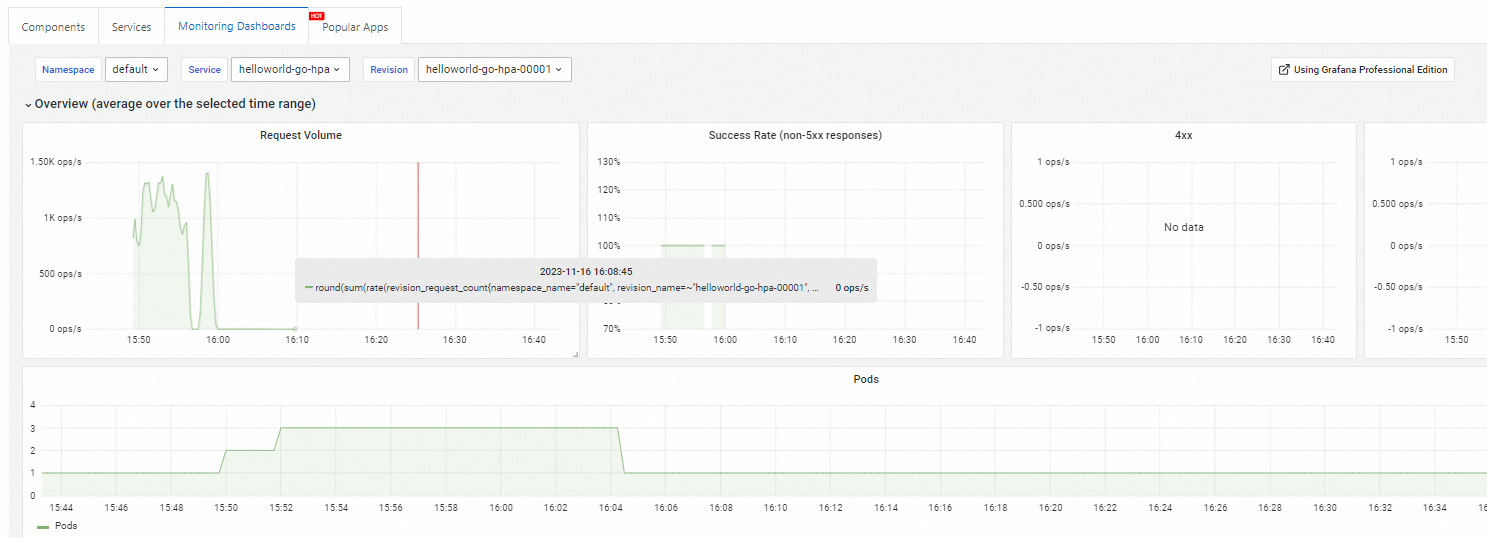
Knative provides built-in observability. On the Knative page, click the Monitoring Dashboards tab to view monitoring data. View the Knative Service monitoring dashboard.
Related documents
-
Enable a custom domain for your Knative Service. Use a custom domain.
-
Configure an HTTPS certificate for your Knative Service. Configure an HTTPS certificate.
-
Deploy a gRPC service in Knative to improve network efficiency. Deploy a gRPC service in Knative.
-
Configure a probe to monitor the health of your Knative Service. Configure a port probe in Knative.