Find bidding information
This topic describes how to find bidding information.
Definitions
Bidding announcements: Publicly available online information about tenders and bid awards.
Projects under planning or construction: Construction projects that are in the design phase, planned but not yet started, or recently started. This information helps you learn about and track projects early.
Cloud Business Opportunities only collects, analyzes, and recommends bidding information. To submit a bid, unlock the bidding information and contact the tendering party.
Find bidding information
The Find Bidding Information section provides two types of information: Bidding Announcements and Projects Under Planning. To access this page, go to Cloud Business Opportunities and click Find Bidding Information on the menu bar. You can then select either Bidding Announcements or Projects Under Planning.
Search for projects
On the Find Bidding Information page, select either Bidding Announcements or Projects Under Planning. Enter keywords such as the project name, organization, or subject matter in the search box. You can also use filters to narrow your search results.
If your filter criteria are too specific, you may not find any bidding information.
Use the filters at the top to customize your search. If you set a filter for Purchase Scale, Industry, Region, or Publication Time, a Subscribe by Filter Criteria button appears in the upper-right corner. Click this button to go to the Intelligent Subscription > Lead Subscription page. After you set your subscription criteria, Cloud Business Opportunities sends you relevant opportunities daily. For more information, see how to add a new rule.
View project details
Click a project, either a bidding announcement or a project under planning, to open its details page and view the detailed bidding information. View benefits and purchase>>
View the original link
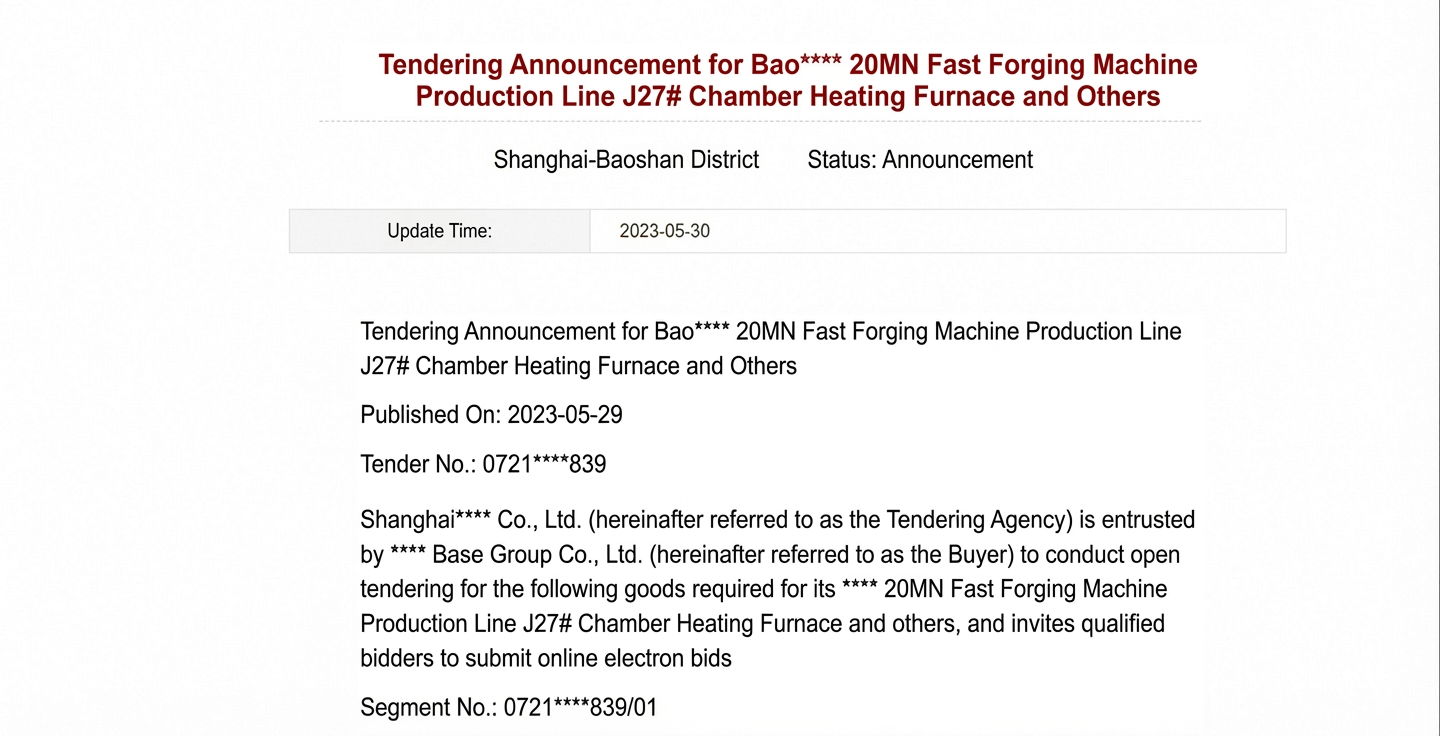
Click View Original in the upper-right corner to open the original announcement link. This provides more information about the bid and helps you prepare your submission.
Download attachments
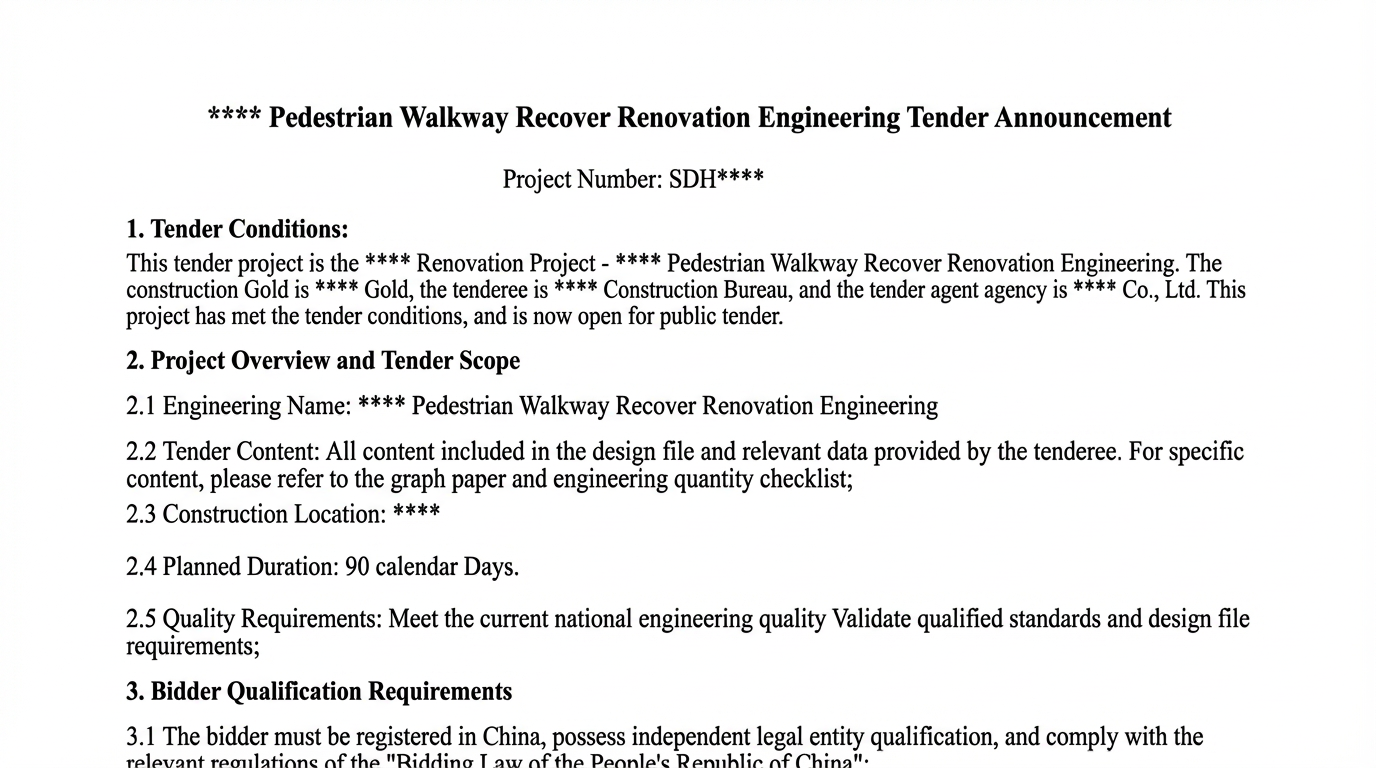
On the bidding information details page, find the tender document attachment and click Download.
Favorite bidding information
If you are interested in a bid, click the Favorite button in the bid list. You can view your favorited bids in Lead Library > My Favorites.
View history
Click More > View History > Bidding Information to view your browsing history. From here, you can view the details of any bid. To find a specific bid, select a start and end time.