Configure the knowledge graph output component
The knowledge graph output component writes data to a knowledge graph space. This topic explains how to configure it.
Prerequisites
-
A knowledge graph space must already exist in the current tenant. For more information, see Create and manage knowledge graph spaces.
-
The personal account for configuring the knowledge graph output component requires graph modification permissions for the knowledge graph space. By default, the space administrator and modeler roles have this permission. For other accounts, contact a space administrator for these permissions, or apply for them in Management Center > Permission Management. For more information, see .
-
When you commit, publish, or schedule an integration task with a knowledge graph output component, the project's production account must have graph modification permissions for the knowledge graph space. If the production account lacks this permission, you must apply for it before retrying the operation.
After you upgrade to Dataphin V6.3, the system validates the graph modification permission for the production account. For pre-upgrade integration tasks running in the production environment, you must grant this permission to the project's production account before resuming the schedule. Otherwise, the task will fail. If a task fails, grant the permission and rerun it.
Procedure
-
In the top navigation bar of the Dataphin homepage, choose Develop > Data Integration.
-
In the top navigation bar of the integration page, select a project. In Dev-Prod mode, you must also select an environment.
-
In the left-side navigation pane, click batch integration. In the batch integration list, click the batch pipeline to open its configuration page.
-
In the upper-right corner of the page, click Component Library to open the Component Library panel.
-
In the left-side navigation pane of the Component Library panel, select Output. In the output component list on the right, find the knowledge graph output component and drag it onto the canvas.
-
Click and drag the
 icon of the upstream source component to connect it to the current knowledge graph output component.
 -
Click the
 icon on the knowledge graph output component card to open the Knowledge Graph Output Configuration dialog box.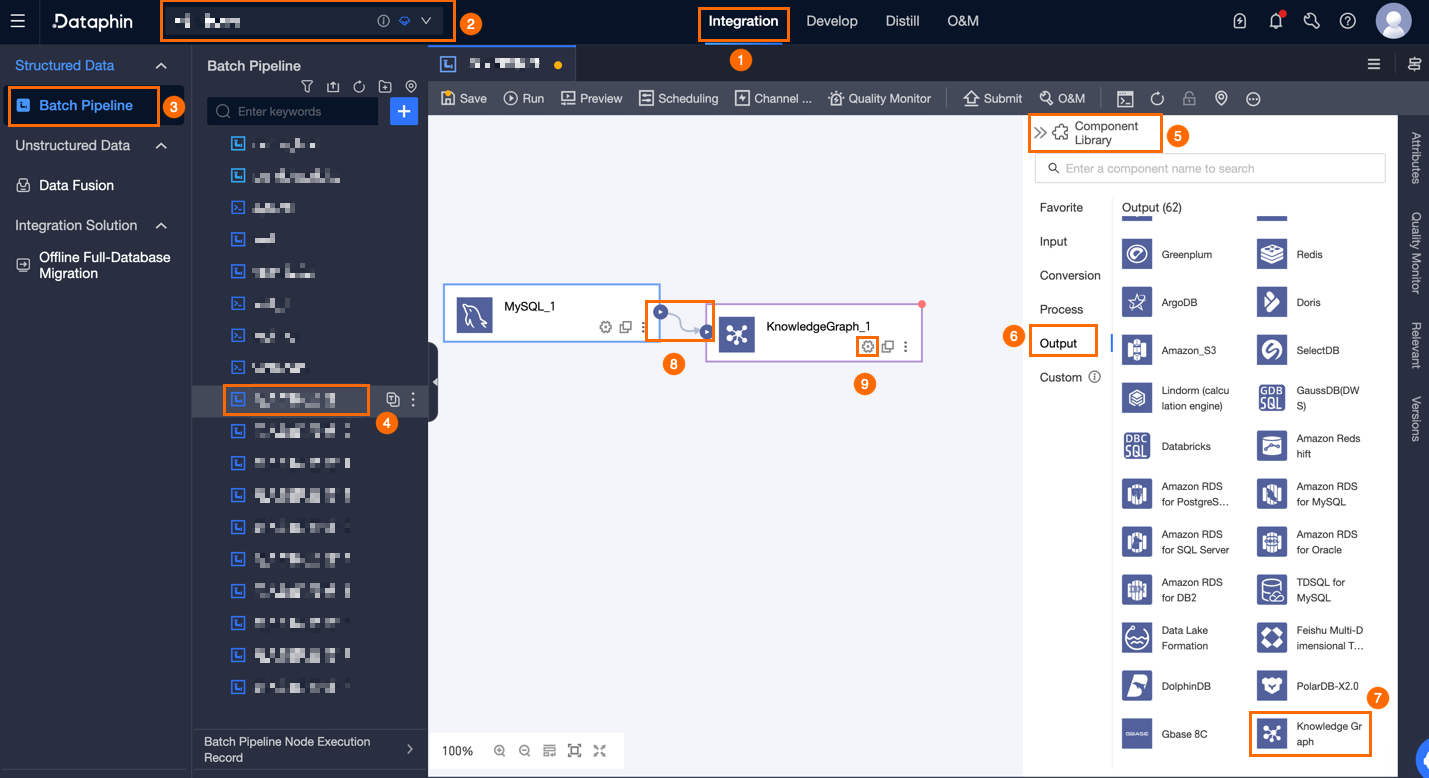
-
In the Knowledge Graph Output Configuration dialog box, configure the following parameters.
Parameter
Description
Basic Settings
Step Name
The name of the knowledge graph output component. Dataphin generates a default name, which you can change to suit your business needs.
-
Can contain only Chinese characters, letters, underscores (_), and digits.
-
Cannot exceed 64 characters in length.
Graph Space
Select a knowledge graph space from the drop-down list. The list shows all spaces in the current tenant where you have graph modification permissions.
If you do not have the graph modification permission for a knowledge graph space, you can either go to Management Center > Permission Management to apply for the graph modification permission, or contact a knowledge graph space administrator to grant you the permission. For more information, see .
Write Mode
-
Upsert: If a node exists, its properties are updated with non-null attribute values, while attributes with null values are unchanged. If the node does not exist, the system creates a new one.
-
Append Only: The system writes only new nodes and skips existing ones.
-
Overwrite All: The system clears all nodes of the same type before writing new data.
Batch Size in Bytes (Optional)
The size of each data batch, in bytes. You can set this along with Batch Size in Records. The system initiates a write operation as soon as either limit is reached. The default is 32 MB.
Batch Size in Records (Optional)
The default value is 2,048 records. A batch writing strategy is used for synchronous data writes. The parameters for this strategy include Batch Size in Records and Batch Size in Bytes.
-
When the accumulated data reaches either the size or record count limit, the system immediately writes the batch to the destination.
-
For best performance, set the batch size to 32 MB. You can adjust the batch record limit based on the size of a single record. For example, if a single record is about 1 KB, you can set the batch size in bytes to 16 MB and the batch size in records to a value greater than 16,384 (16 MB / 1 KB). In this case, setting the limit to 20,000 records ensures that the write operation is triggered by the 16 MB data size limit.
Pre SQL (Optional)
A Cypher script to execute against the knowledge graph before importing data.
Post SQL (Optional)
A Cypher script to execute against the knowledge graph after importing data.
Field Mapping
Based on the fields of the upstream input dataset and the schema of the target Graph Space, map the input fields to the properties of entities or relationships. This process involves two modes, entity mapping and relationship mapping, which you can configure simultaneously and independently. You can configure mappings manually for each field, or use batch mapping features such as Map Fields with the Same Name (automatic matching by field name) or Map Fields in the Same Row (sequential matching by field order).
ImportantYou must map the
idfield for each entity type, and thesourceIdandtargetIdfields for each relationship type. If these fields are unmapped, the task will fail.-
Click Entity-Relationship Management. In the Entity-Relationship Management dialog box, select the entity and relationship types to write to the knowledge graph space.
-
Click each entity or relationship type to configure its field mapping.
-
Input Field: Displays the output fields from the upstream component.
-
Output Field: Displays all properties of the selected entity or relationship type.
-
Mapping Relationship: Manually map the input fields from the source to the fields in the target schema.
-
Deduplication Settings: This option is available when the Write Mode is Upsert and the system generates the primary key for the current entity.
Click Deduplication Settings and select a handling policy and business rules in the dialog box.
-
Handling Policy:
-
Skip deduplication: Does not perform duplicate checks. The system writes each row as a new entity. This policy is suitable when your source data contains no duplicates, or when duplicates will be handled later by a separate deduplication task or manual cleaning. If you select this policy, you cannot select a business rule.
-
Perform deduplication (create new for suspected duplicates): Automatically links records that the system is highly confident are the same entity (requires the business identification rule for this entity type to have auto-linking enabled). The system creates all other records as new entities and generates no candidates for manual review. This is suitable for high-quality data where manual review costs are a concern.
-
Perform deduplication (manual review for suspected duplicates) (Recommended): Automatically links records that the system is highly confident are the same entity (requires the business identification rule for this entity type to have auto-linking enabled). Suspected duplicates generate candidates that require manual confirmation on the Candidate Review page of the knowledge graph space. All other records are created as new entities. This policy balances automation efficiency and the prevention of incorrect merges.
-
-
Business Rule: This option is available if you select Perform deduplication (create new for suspected duplicates) or Perform deduplication (manual review for suspected duplicates), and the entity type has two or more business identification rules configured in the knowledge graph. You cannot select rules that include a semantic similarity matching strategy. If you delete a selected rule from the knowledge graph, the batch integration task will run, and the system records a warning in the logs. If you delete all selected rules, the handling policy becomes equivalent to skipping deduplication.
Important-
The handling policy only affects row-level writes for the current entity type. It does not affect other entity types or relationship mappings.
-
The business rules only apply to the current entity mapping in this batch integration task and do not affect the global business identification rules for the entity type in the knowledge graph.
-
Deduplication can reduce data integration performance. For best results, use no more than two business rules, preferably those based on exact matching.
-
-
Map Fields with the Same Name: Maps fields that have the same name.
-
Map Fields in the Same Row: Maps input and output fields sequentially based on their row order.
-
-
Field Management: Click Field Management to select output fields.
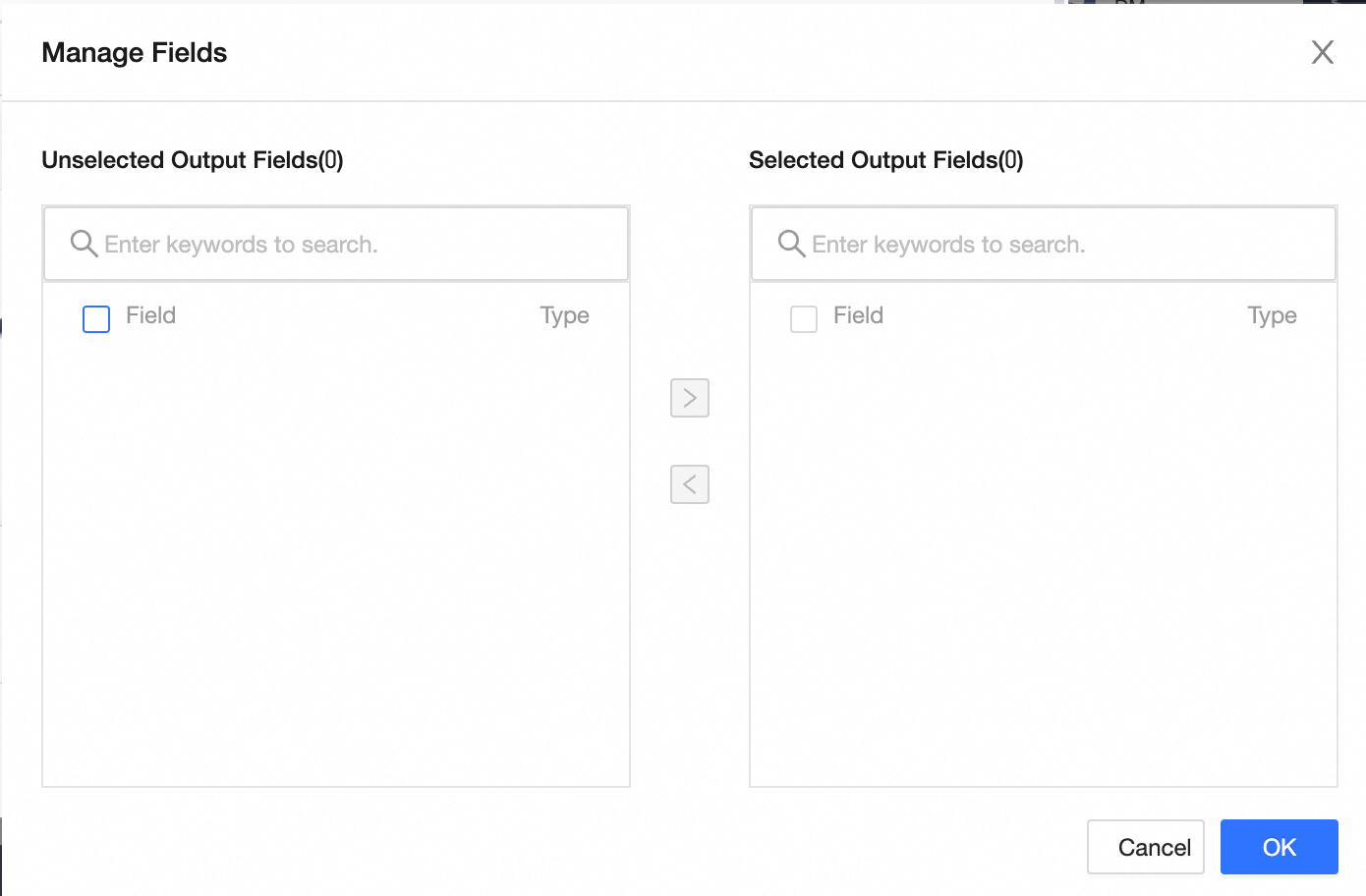
-
Click the
 icon to move fields from Selected Input Fields to Unselected Input Fields.
 -
Click the
 icon to move fields from Unselected Input Fields to Selected Input Fields.
-
-
-
-
Click Confirm to save the configuration for the knowledge graph output component.
 icon to move fields from Unselected Input Fields to Selected Input Fields.