Create a Hive data source
This topic describes how to create a Hive data source, which allows Dataphin to read from and write to Hive.
Background
Hive is a data warehouse tool built on Hadoop. It maps structured data files to a database table and enables SQL queries. Hive translates HQL or SQL statements into programs such as MapReduce and Tez. To use Hive with Dataphin for data development or to write data from Dataphin to Hive, you must first create a Hive data source. For more information, see the Hive website.
Limitations
-
If you use the E-MapReduce 5.x Hadoop compute engine, you must complete the required configurations to use OSS-based Hive external tables for offline integration. For configuration details, see .
-
When you use a Hive data source for data integration, ensure that the Dataphin IP addresses are in the Hive network whitelist. This allows Dataphin to access data in Hive.
-
The Dataphin application clusters and scheduling clusters must have connectivity to the following services: the Hive service, the HDFS NameNode (including its WebUI and IPC interfaces) and DataNode, the KDC Server, the metastore or Hive metastore, and ZooKeeper.
-
You can use a Hive data source only after purchasing the Metadata Collection - Big Data Storage feature and creating a registered scheduling cluster that can access this data source.
Permissions
The Super Administrator, Data Source Administrator, Workspace Architect, and Project Administrator roles, as well as custom global roles with the Create Data Source permission, can create a data source.
Procedure
-
On the Dataphin homepage, go to Management Center > Data Source Management.
-
On the Data Sources page, click + New data source.
-
On the New Data Source page, in the Big Data Storage section, select Hive.
If you have used Hive recently, you can also find it in the Recently used section. Alternatively, enter "Hive" in the search box to find it quickly.
-
On the New Hive Data Source page, configure the connection parameters.
In the configuration parameters for a Hive data source, the integration configuration enables data integration, the real-time development configuration enables real-time development, and the metastore configuration retrieves metadata.
NoteAs a best practice, configure production and development data sources separately. This ensures environment isolation and reduces the impact of the development data source on the production one. However, Dataphin also supports configuring them as a single data source with identical parameter values.
-
Basic Hive data source
Parameter
Description
Data source name
Enter a data source name. The name must meet the following requirements:
-
Can contain only Chinese characters, uppercase and lowercase letters, digits, underscores (_), and hyphens (-).
-
Cannot be longer than 64 characters.
Data source code
After you configure the data source code, you can reference tables in the data source in Flink SQL tasks by using the
data_source_code.table_nameordata_source_code.schema.table_nameformat. To automatically access the data source for the current environment, use the variable format${data_source_code}.tableor${data_source_code}.schema.table. For more information, see or Development methods for Flink SQL tasks.Important-
The data source code cannot be modified after it is configured.
-
You can preview data on the object details page in the asset directory and asset checklist only after the data source code is configured.
-
In Flink SQL, only MySQL, Hologres, MaxCompute, Oracle, StarRocks, Hive, SelectDB, and GaussDB data warehouse service (DWS) data sources are currently supported.
Version
Select the version of the Hive data source. Dataphin supports the following versions:
-
CDH 5.x Hive 1.1.0
-
Alibaba Cloud EMR 3.x Hive 2.3.5
-
Alibaba Cloud EMR 5.x Hive 3.1.x
-
CDH 6.x Hive 2.1.1
-
FusionInsight 8.x Hive 3.1.0
-
CDP 7.x Hive 3.1.3
-
AsiaInfo DP 5.x Hive 3.1.0
-
Amazon EMR
Data source description
A brief description of the data source, up to 128 characters.
Data source configuration
Select the configuration environment for the data source:
-
If your business separates production and development data sources, select Production and development data source.
-
If your business does not separate production and development data sources, select Production data source.
Tag
You can add tags to the data source to categorize it. To learn how to create tags, see Manage data source tags.
-
-
Production/development data source configuration
The required data source parameters vary depending on the Hive version.
Other versions
Hive configuration
Metadata acquisition method: You can acquire metadata by using a metastore, or DLF. The required parameters depend on the method you select.
Metastore
NoteIf you select only the real-time development module, the only supported metadata acquisition method is metastore.
Parameter
Description
Database type
Select the database type that corresponds to the metastore type used in your cluster. Dataphin supports MySQL. The MySQL database type supports MySQL 5.1.43, MySQL 5.6/5.7, and MySQL 8 versions.
JDBC URL
Enter the JDBC connection URL for the target database. The format is
jdbc:mysql://host:port/dbname.Username, password
Enter the username and password for the metastore database.
Hive JDBC URL
Enter the JDBC connection URL for Hive. The following three types of connection URLs are supported:
-
Hive Server: The format is
jdbc:hive://host:port/dbname. -
ZooKeeper: For example,
jdbc:hive2://zk01:2181,zk02:2181,zk03:2181/;serviceDiscoveryMode=zooKeeper;zooKeeperNamespace=hiveserver2. -
Hive with Kerberos enabled: The format is
jdbc:hive2://host:port/dbname;principal=hive/_HOST@xx.com.
NoteIf you select E-MapReduce 3.x, E-MapReduce 5.x, or Cloudera Data Platform as the version and enable Kerberos authentication, you cannot specify multiple IP addresses in the JDBC URL.
DLF
NoteThe DLF acquisition method is supported only for E-MapReduce 5.x Hive 3.1.x.
Parameter
Description
Endpoint
Enter the DLF endpoint for your cluster's region. For more information, see DLF Regions and Endpoints.
AccessKey ID, AccessKey Secret
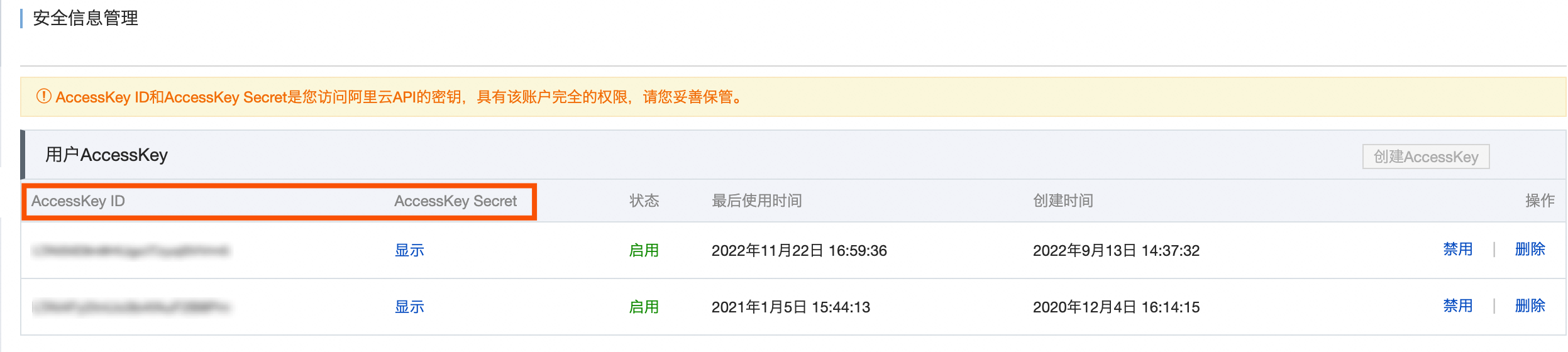
Enter the AccessKey ID and AccessKey Secret of the account that owns the cluster.
You can obtain the AccessKey ID and AccessKey Secret from the User Information Management page.
hive-site.xml
Upload the
hive-site.xmlconfiguration file.NoteIf you enable real-time development, this configuration file is also used by that module.
Hive JDBC URL
Enter the JDBC connection URL for Hive. The following three types of connection URLs are supported:
-
Hive Server: The format is
jdbc:hive://host:port/dbname. -
ZooKeeper: For example,
jdbc:hive2://zk01:2181,zk02:2181,zk03:2181/;serviceDiscoveryMode=zooKeeper;zooKeeperNamespace=hiveserver2. -
Hive with Kerberos enabled: The format is
jdbc:hive2://host:port/dbname;principal=hive/_HOST@xx.com.
Integration
NoteAfter you enable the Integration module, you can configure its parameters.
Integration configuration
You can use HDFS or OSS-HDFS cluster storage. The required parameters depend on the selected storage method.
HDFS
Parameter
Description
NameNode
A NameNode manages the metadata in an HDFS cluster. Click Add and configure the NameNode information in the Add NameNode dialog box.
-
Web UI Port: The port for accessing the web UIs of components in the Hadoop cluster.
-
IPC Port: The port for inter-process communication (IPC).
In a CDH 5 environment, the default values for Web UI Port and IPC Port are
50070and8020, respectively. Specify the ports according to your actual environment.NoteThe Test Connection operation succeeds if you enter the correct value for either the Web UI Port or the IPC Port.
Configuration files
Upload the Hadoop configuration files
hdfs-site.xmlandcore-site.xml. You can export these files from your Hadoop cluster.NoteAfter you enable the data lake table format option and select Hudi, if real-time development uses a Hive data source with the dp-hudi Connector, you must also upload the
hive-site.xmlconfiguration file.Enable Kerberos
Kerberos is an authentication protocol based on symmetric-key cryptography. It provides authentication for other services and supports Single Sign-On (SSO). After a client authenticates, it can access multiple services, such as HBase and HDFS.
If your Hadoop cluster uses Kerberos authentication, complete the following configuration.
-
Kerberos configuration method
-
KDC server: The address of the KDC server, which assists with Kerberos authentication.
NoteYou can configure multiple KDC server addresses, separated by commas (,).
-
Krb5 file configuration: Upload a krb5 file for Kerberos authentication.
-
-
HDFS configuration
-
HDFS keytab file: Upload the keytab file for authentication. You can obtain this file from the HDFS server.
-
HDFS principal: Enter the principal that corresponds to the HDFS keytab file, for example,
xxx/hdfsclient@xxx.xxx.
-
-
Hive configuration
-
JDBC URL: Enter the JDBC connection URL for Hive. The following three types of connection URLs are supported:
-
A Hive Server connection URL, with the format
jdbc:hive://host:port/dbname. -
A ZooKeeper connection URL. For example,
jdbc:hive2://zk01:2181,zk02:2181,zk03:2181/;serviceDiscoveryMode=zooKeeper;zooKeeperNamespace=hiveserver2. -
A Kerberos-enabled connection URL, with the format
jdbc:hive2://host:port/dbname;principal=hive/_HOST@xx.com.
NoteIf you select E-MapReduce 3.x, E-MapReduce 5.x, or Cloudera Data Platform as the version and enable Kerberos authentication, you cannot specify multiple IP addresses in the JDBC URL.
-
-
Hive keytab file: Upload the keytab file for authentication. You can obtain this file from the Hive server.
-
Hive principal: Enter the principal that corresponds to the Hive keytab file, for example,
xxx/hdfsclient@xxx.xxx.
-
Disable Kerberos
If your Hadoop cluster does not use Kerberos authentication, complete the following configuration.
-
JDBC URL: Enter the JDBC connection URL for Hive. The following three types of connection URLs are supported:
-
A Hive Server connection URL, with the format
jdbc:hive://host:port/dbname. -
A ZooKeeper connection URL. For example,
jdbc:hive2://zk01:2181,zk02:2181,zk03:2181/;serviceDiscoveryMode=zooKeeper;zooKeeperNamespace=hiveserver2. -
A Kerberos-enabled connection URL, with the format
jdbc:hive2://host:port/dbname;principal=hive/_HOST@xx.com.NoteIf you select E-MapReduce 3.x, E-MapReduce 5.x, or Cloudera Data Platform as the version and enable Kerberos authentication, you cannot specify multiple IP addresses in the JDBC URL.
-
-
Username, Password: Enter the username and password for logging in to Hive.
NoteTo ensure that tasks run correctly, verify that the specified user has permission to access Hive data.
OSS-HDFS
NoteOSS-HDFS cluster storage is supported only for E-MapReduce 5.x Hive 3.1.x.
Parameter
Description
Cluster storage
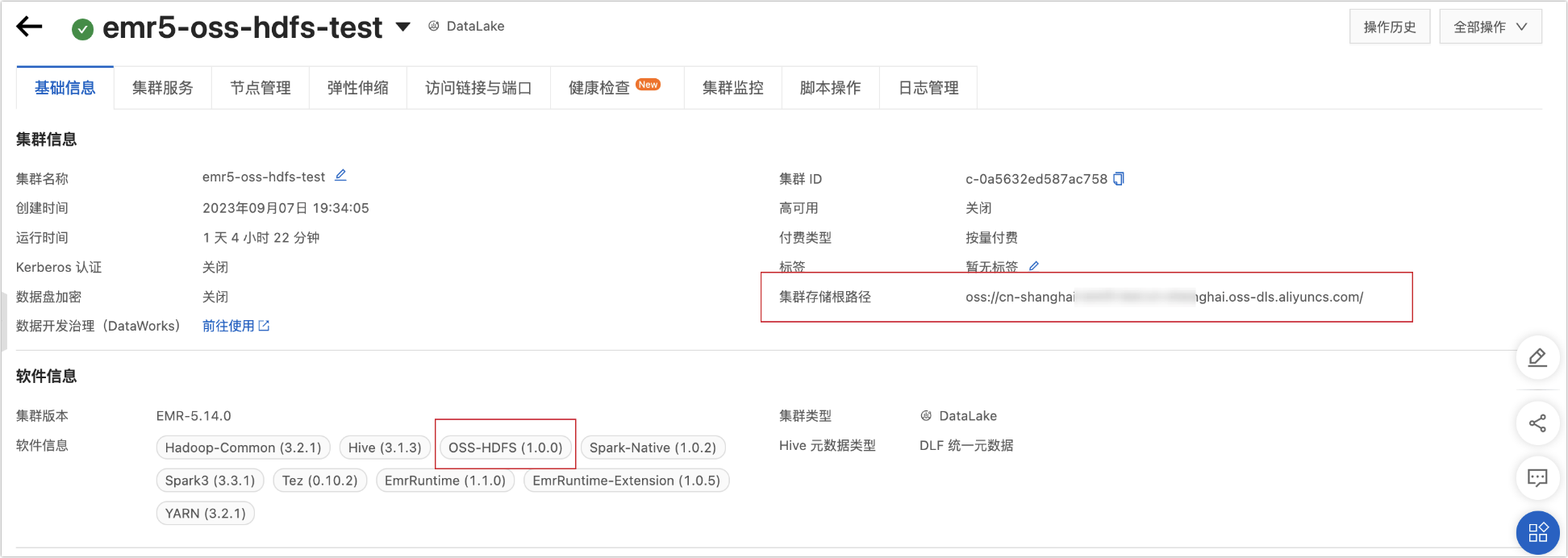
You can check the cluster storage type in the following ways:
-
Before creating a cluster: View the cluster storage type on the E-MapReduce 5.x cluster creation page, as shown in the following figure:

-
After creating a cluster: View the cluster storage type on the E-MapReduce 5.x cluster details page, as shown in the following figure:
Cluster storage root directory
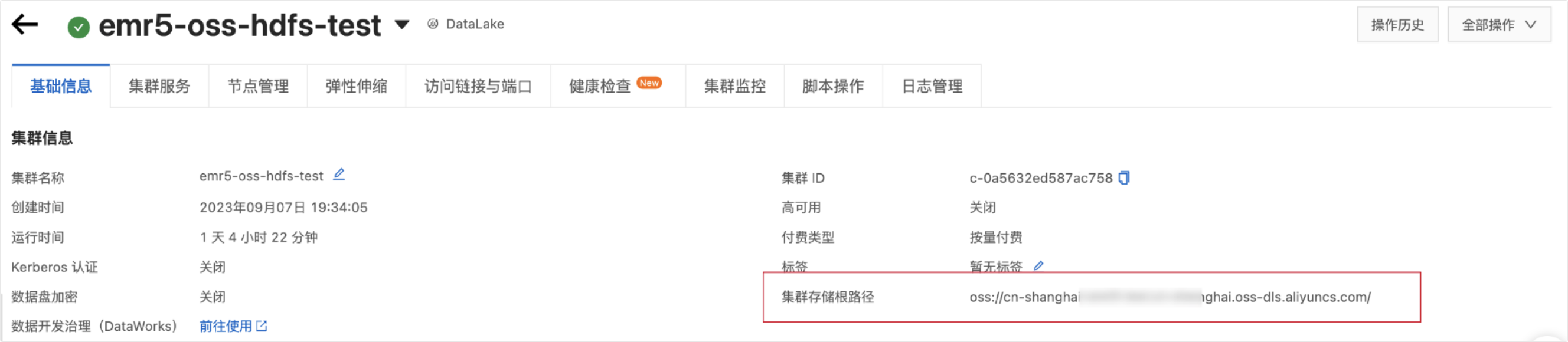
Enter the cluster storage root directory. You can obtain this information from the E-MapReduce 5.x cluster details page, as shown in the following figure:
 Important
If the path includes an endpoint, Dataphin uses that endpoint. If the path does not include an endpoint, Dataphin uses the bucket-level endpoint from
core-site.xml. If no bucket-level endpoint is configured, Dataphin uses the global endpoint fromcore-site.xml. For more information, see Configure an endpoint for the Alibaba Cloud OSS-HDFS service (JindoFS).Configuration files
Upload the cluster's
core-site.xmlandhive-metastore-site.xmlconfiguration files. You can export these files from your Hadoop cluster.AccessKey ID, AccessKey Secret
Enter the AccessKey ID and AccessKey Secret for accessing the cluster's OSS. You can use an existing AccessKey pair or create a new AccessKey.
Important-
The credentials that you enter here take precedence over the AccessKey credentials in the
core-site.xmlfile. -
To reduce security risks, the AccessKey Secret is displayed only upon creation and cannot be retrieved later. Store it securely.
Enable Kerberos
Kerberos is an authentication protocol based on symmetric-key cryptography. It provides authentication for other services and supports Single Sign-On (SSO). After a client authenticates, it can access multiple services, such as HBase and HDFS.
If your Hadoop cluster uses Kerberos authentication, complete the following configuration.
-
Kerberos configuration method
Krb5 file configuration: Upload a krb5 file for Kerberos authentication.
-
Hive configuration
-
JDBC URL: Enter the JDBC connection URL for Hive. The following three types of connection URLs are supported:
-
A Hive Server connection URL, with the format
jdbc:hive://host:port/dbname. -
A ZooKeeper connection URL. For example,
jdbc:hive2://zk01:2181,zk02:2181,zk03:2181/;serviceDiscoveryMode=zooKeeper;zooKeeperNamespace=hiveserver2. -
A Kerberos-enabled connection URL, with the format
jdbc:hive2://host:port/dbname;principal=hive/_HOST@xx.com.NoteIf you select E-MapReduce 3.x, E-MapReduce 5.x, or Cloudera Data Platform as the version and enable Kerberos authentication, you cannot specify multiple IP addresses in the JDBC URL.
-
-
Hive keytab file: Upload the keytab file for authentication. You can obtain this file from the Hive server.
-
Hive principal: Enter the principal that corresponds to the Hive keytab file, for example,
xxx/hdfsclient@xxx.xxx.
-
Disable Kerberos
If your Hadoop cluster does not use Kerberos authentication, complete the following configuration.
-
JDBC URL: Enter the JDBC connection URL for Hive. The following three types of connection URLs are supported:
-
A Hive Server connection URL, with the format
jdbc:hive://host:port/dbname. -
A ZooKeeper connection URL. For example,
jdbc:hive2://zk01:2181,zk02:2181,zk03:2181/;serviceDiscoveryMode=zooKeeper;zooKeeperNamespace=hiveserver2. -
A Kerberos-enabled connection URL, with the format
jdbc:hive2://host:port/dbname;principal=hive/_HOST@xx.com.
-
-
Username, Password: Enter the username and password for logging in to Hive.
NoteTo ensure that tasks run correctly, verify that the specified user has permission to access Hive data.
Spark configuration
Note-
Spark configuration is supported for CDP 7.x Hive 3.1.3 with the Hudi data lake table format.
-
Spark configuration is supported for E-MapReduce 5.x Hive 3.1.x with the Iceberg or Paimon data lake table formats.
Parameter
Description
Spark
You can enable or disable this option. This option is enabled by default. If enabled, you must also configure the following parameters.
NoteYou cannot disable Spark if the data lake table format is set to Paimon.
Service type
Select Kyuubi or Livy. Kyuubi is selected by default.
Spark JDBC URL
Enter the JDBC connection URL. The format is
jdbc:hive2://{host}:{port}/{database name}.Authentication method
Select no authentication, LDAP, or Kerberos.
Username, password
Enter the username and password for authentication. To ensure that tasks run correctly, verify that this user has the required data permissions.
NoteIf you select no authentication, you must enter a username. If you select LDAP, you must enter a username and password.
Spark keytab file
Upload the keytab file for authentication. You can obtain this file from the Spark server.
NoteThis parameter is available only when the authentication method is set to Kerberos.
Spark principal
Enter the principal that corresponds to the Spark keytab file, for example,
xxx/hadooppclient@xxx.xxx.NoteThis parameter is available only when the authentication method is set to Kerberos.
Real-time development
NoteAfter you enable the real-time development module, you can configure its parameters. Real-time development is supported only for the following versions: CDH 6.x Hive 2.1.1, CDP 7.x Hive 3.1.3, and AsiaInfo DP 5.x Hive 3.1.0.
Configuration file: Upload the hive-site.xml file. Flink SQL tasks ignore the authentication information from the integration configuration and use the Flink engine's authentication to access the Hive data source.
Amazon EMR
Parameter
Description
Master node public DNS
The public DNS provides access to the VPC private DNS, which both Hive and Spark use to connect. The format is
ec2-{public_ip}.{region}.compute.amazonaws.com.Key file (.pem)
The key pair for accessing the master node's EC2 instance, specified when the EMR cluster was created.
Configuration files
You can upload the relevant cluster configuration files (core-site.xml, yarn-site.xml, hive-site.xml, and hdfs-site.xml), or click Get cluster configuration to download them from the master node. To use this option, you must first provide the master node public DNS and the key file.
Database
Enter the database name for the Amazon EMR compute engine.
Engine type
Select Hive or Spark. Hive is selected by default. You must provide the corresponding JDBC URL for your selected engine type.
-
Hive JDBC URL: Enter the JDBC connection URL for Hive, or click Auto-fill. To use this option, you must first provide the master node public DNS and the key file. The format is
jdbc:hive2//host1:port1,host2:post2/, and a database name is not required. -
Spark JDBC URL: Enter the JDBC connection URL for Spark in the format
jdbc:hive2//{host:port}/{database name}.
Username
The username for the Hive or Spark JDBC connection, which is used as the JDBC
username.Cluster storage
Select HDFS or S3.
If you select S3, configure the following parameters:
-
Region: Enter the AWS region of the S3 bucket, for example,
us-east-1. -
Access key ID, secret access key: Enter the access key ID and secret access key for S3.
Metadata store
Amazon Glue: If you select Amazon Glue, configure the following parameters: Glue region code, Glue access key ID, and Glue secret access key.
-
Glue region code: Enter the region code for Amazon Glue, for example, ap-northeast-3, us-east-1, or us-west-1.
-
Glue access key ID, Glue secret access key: Enter the access key ID and secret access key for Amazon Glue.
-
-
-
Select the Default Resource Group to run jobs related to the current data source, such as database SQL, offline full database migration, and data preview.
-
Click Test Connection or click OK to save and create the Hive data source.
Click Test Connection, and the system will test whether the data source can connect to Dataphin successfully. If you click OK directly, the system automatically tests the connection for all selected clusters, but the data source can still be created successfully even if the connection to all selected clusters fails.
Test Connection tests the connection for the Public Scheduling Cluster or Registered Scheduling Clusters that have been registered in Dataphin and are in normal use. The Public Scheduling Cluster is selected by default and cannot be deselected. If there are no resource groups under a Registered Scheduling Cluster, connection testing is not supported. You need to create a resource group first before testing the connection.
-
The selected clusters are used only to test network connectivity and are not used for running tasks.
-
The test connection usually completes within 2 minutes. If it times out, click the
 icon to view the reason and retry.
 -
Regardless of the test result (Connection Failed, Connection Successful, or Succeeded With Warning), the system records the timestamp of the final result.
NoteOnly the test results for the Public Scheduling Cluster include three connection statuses: Succeeded With Warning, Connection Successful, and Connection Failed. The test results for Registered Scheduling Clusters in Dataphin only include two connection statuses: Connection Successful and Connection Failed.
-
When the test result is Connection Failed, click the
 icon to view the failure reason.
 -
When the test result is Succeeded With Warning, the application cluster connection succeeded but the scheduling cluster connection failed. The data source cannot be used for data development and integration. Click the
icon to view the log information.
If the Hive metastore address is a public address, select the resource group of the public scheduling cluster as the default resource group. When you configure an integration task, run the task on a registered scheduling cluster. If the Hive metastore address is an internal address, select the resource group of the registered scheduling cluster as the default resource group, and then configure a collection task in metadata. When you configure an integration task, run the task on a registered scheduling cluster.
ImportantIf the connection test fails, troubleshoot common network connectivity problems. For more information, see network connectivity solution.
-