Add a Hologres data source
Creating a Hologres data source enables Dataphin to read business data from Hologres and write data to Hologres. In scenarios where you need to import business data from Hologres to Dataphin or write data from Dataphin to Hologres, you must first create a Hologres data source. This topic describes how to create a Hologres data source.
Prerequisites
To create a data source based on Alibaba Cloud products in Dataphin, you must add the IP address of Dataphin to the whitelist (or security group) of the database before you create the data source. This ensures network connectivity between the data source and Dataphin. For more information, see Configure a whitelist for a data source.
Background information
Hologres is an interactive analytics service developed by Alibaba. If you use Hologres and want to connect it to Dataphin for data development, you must first create a Hologres data source.For more information about Hologres, see What is Hologres.
Permissions
Only users who have the Create Data Source permission point in a custom global role and users who have the super administrator, data source administrator, domain architect, or project administrator role can create data sources.
Procedure
In the top navigation bar of the Dataphin homepage, choose Management Center > Datasource Management.
On the Datasource page, click +Create Data Source.
On the Create Data Source page, select Hologres in the Big Data section.
If you have recently used Hologres, you can also select Hologres in the Recently Used section. You can also enter keywords in the search box to quickly filter for Hologres.
On the Create Hologres Data Source page, configure the connection parameters.
Configure the basic information of the data source.
Parameter
Description
Datasource Name
Enter a name for the data source. The name must meet the following requirements:
The name can contain only Chinese characters, letters, digits, underscores (_), and hyphens (-).
The name cannot exceed 64 characters in length.
Datasource Code
After you configure the data source code, you can reference tables in the data source in a Flink_SQL task by using the
data source code.table nameordata source code.schema.table nameformat. If you want to automatically access the data source in the corresponding environment based on the current environment, use the variable format${data source code}.tableor${data source code}.schema.table. For more information, see Development method for Flink_SQL tasks.ImportantThe data source code cannot be modified after it is configured.
You can preview data on the object details page in the asset directory and asset checklist only after the data source code is configured.
In Flink SQL, only MySQL, Hologres, MaxCompute, Oracle, StarRocks, Hive, SelectDB, and GaussDB data warehouse service (DWS) data sources are currently supported.
Data Source Description
Enter a brief description of the data source. The description cannot exceed 128 characters in length.
Data Source Configuration
Select the data source that you want to configure:
If your business data source distinguishes between production and development data sources, select Production + Development Data Source.
If your business data source does not distinguish between production and development data sources, select Production Data Source.
Tag
You can categorize and tag data sources based on tags. For information about how to create tags, see Manage data source tags.
Configure the connection parameters between the data source and Dataphin.
ImportantSSL connections to Hologres data sources are currently not supported.
If you select Production + Development data source for your data source configuration, you need to configure the connection information for the Production + Development data source. If your data source configuration is Production data source, you only need to configure the connection information for the Production data source.
NoteIn most cases, the production data source and development data source should be configured as different data sources to isolate the development environment from the production environment and reduce the impact of the development data source on the production data source. However, Dataphin also supports configuring them as the same data source with identical parameter values.
Parameter
Description
Endpoint
The endpoint of the Hologres instance. Select the appropriate endpoint based on your network environment and access method. For information about how to obtain the endpoint, see Endpoints.
DBName
You can view the database name on the Database Management page in the Hologres console. For more information about how to obtain the database name, see Manage databases.
Schema
Enter the schema that you want to access.
Access Id, Access Key
Enter the authentication Access ID and Access Key. To ensure that tasks can be executed properly, make sure you have the required data permissions.
Type
Supports Directly Connectable Database, ApsaraDB, and Self-managed Database On ECS (VPC). You can select and configure based on your database type and business requirements.
Directly Connectable Database: Connect to the database directly through the default scheduling cluster or a registered scheduling cluster. This option is suitable for the following scenarios: ① Public network databases, ② Databases in the same network environment as the registered scheduling cluster. If you need to add an access whitelist, you can add the public network outbound IP address of the Dataphin default scheduling cluster: 47.102.192.174.
ApsaraDB: A database purchased on Alibaba Cloud. Supports access through VPC Proxy or Direct Connection.
VPC Proxy: When the database is an Alibaba Cloud database in a VPC network environment, specify the authorized IP whitelist: 100.104.0.0/16 for the connection.
Region: The region where the database is located. Only databases in the same region as the Dataphin instance are supported. If your Dataphin instance is in China (Shanghai), you can only select the China (Shanghai) region.
VPC ID: Enter the VPC ID of the VPC network where the database is located. You can log on to the Virtual Private Cloud console to view it. The following figure shows the VPC ID:
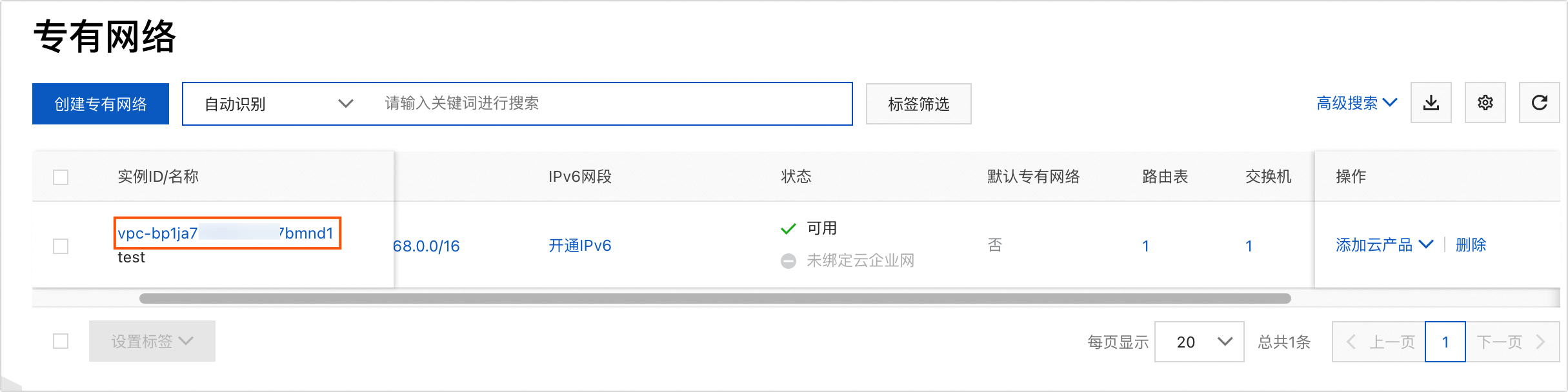
VPC Instance ID: Enter the VPC instance ID of the database, which is
VpcInstanceId. You can useGetInstanceto query it. For more information, see GetInstance - Get instance details.
Direct Connection: Connect to the database directly through the default scheduling cluster or a registered scheduling cluster. If you need to add an access whitelist, you can add the public network outbound IP address of the Dataphin default scheduling cluster: 47.102.192.174.
Self-managed Database On ECS (VPC): When the database is an Alibaba Cloud database in a VPC network environment, specify the authorized IP whitelist: 100.104.0.0/16 for the connection.
Region: The region where the database is located. Only databases in the same region as the Dataphin instance are supported. If your Dataphin instance is in China (Shanghai), you can only select the China (Shanghai) region.
VPC ID: Enter the VPC ID of the VPC network where the ECS instance is located. You can log on to the Virtual Private Cloud console to view it. The following figure shows the VPC ID:
ECS ID: Enter the ECS ID of the ECS server where the database is deployed. You can log on to the ECS console to view it. The following figure shows the ECS ID:

Configure advanced settings for the connection between the data source and Dataphin.
Connection Retries: If the database connection times out, the system automatically retries the connection until the specified number of retries is reached. If the connection still fails after the maximum number of retries, the connection fails.
NoteThe default number of retries is 1, and you can configure a value between 0 and 10.
The connection retry count is applied by default to offline integration tasks and global quality (requires the Data Quality module to be activated). You can configure task-level retry counts separately in offline integration tasks.
Select a Default Resource Group, which is used to run tasks related to the current data source, including database SQL, offline database migration, data preview, and more.
Click Test Connection or directly click OK to save and complete the creation of the Hologres data source.
When you click Test Connection, the system tests whether the data source can connect to Dataphin properly. If you directly click OK, the system automatically tests the connection for all selected clusters. However, even if all selected clusters fail the connection test, the data source can still be created normally.
ImportantIf the connection test fails, you can troubleshoot the issue based on common network connectivity problems. For more information, see Network connectivity solutions.
When the test connection returns the error
VPC_GRANT_ACCESS_API_ERROR, you can refer to Solution for VPC_GRANT_ACCESS_API_ERROR for resolution.