Create a Python computing task
To support a wide range of Python application scenarios, Dataphin lets you create Python computing nodes that use Python syntax. This topic describes how to create a Python computing node in Dataphin.
Background information
Python 3.7 better meets the needs of diverse big data processing. For example, Python 3.7 supports the list.clear() method, which is not supported in Python 2.7. For more information, see Python.
Limits
Python 3.7 is not backward compatible with Python 2.7. You cannot directly upgrade existing Python 2.7 nodes.
Starting from version 2.9.3, Dataphin supports the development of Python 3.7 computing nodes by default. You can only modify the version of Python nodes that are in the draft state. The supported versions are Python 2.7, Python 3.7, and Python 3.11.
Permissions
The following project roles can use all datasets in the project from the Dataset section of the node properties:
Dev and Basic projects: project administrator, developer, and analyst.
Prod projects: project administrator and O&M.
Custom project roles with the Dataset - Use permission.
Task execution
After you edit a Python node in Dataphin, the Dataphin scheduling cluster runs the node. When the scheduling cluster runs a Python node, it clones a built-in template image to execute the node. This template image contains common Python resource packages that you can use to develop Python nodes. For more information, see Built-in Python resource packages.
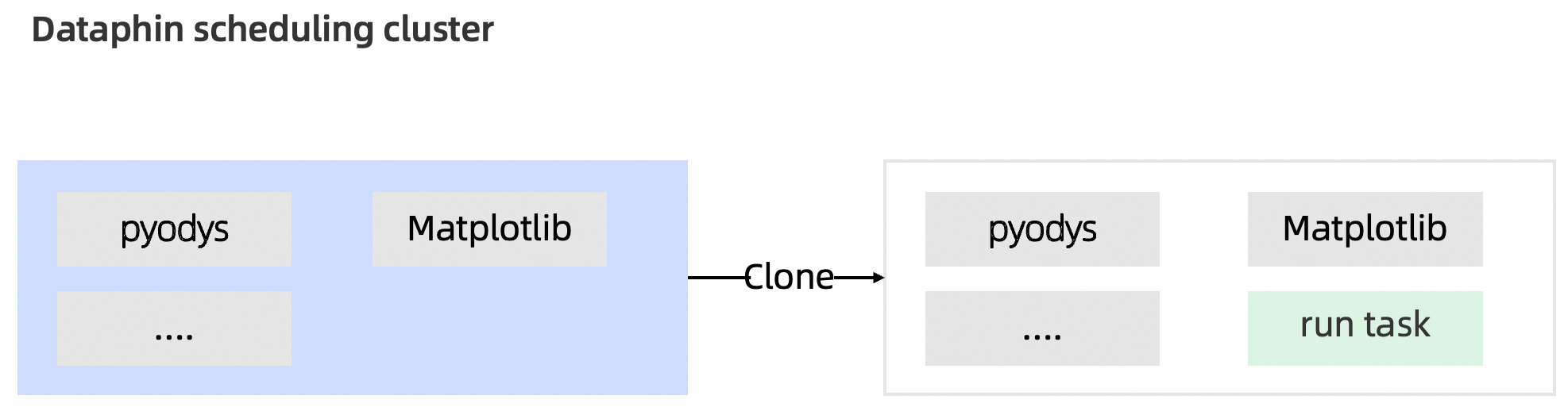
If the built-in resource packages do not meet your needs, you can install required resource packages from the Python third-party packages section in the Management Center. You can use installed resource packages by referencing them. At runtime, the system automatically places the referenced resource packages in the runtime environment for node execution. Because Dataphin clones the built-in template image every time it runs, if you use the
pip installcommand to use a resource package, thepip installcommand will run again each time the node runs. Use Python third-party packages. For instructions, see Use a third-party library to develop a Python computing node.
Procedure
On the Dataphin home page, choose Develop > Data Development from the top menu bar.
On the Develop page, select a project from the top menu bar. If you are in Dev-Prod mode, you must also select an environment.
In the navigation pane on the left, choose Data Processing > Script Task. In the Script Task list, click the
 icon and select Python.
In the Create Python Node dialog box, configure the following parameters.
Parameter
Description
Task Name
Enter the code task name.
The name can be up to 256 characters long and cannot contain vertical bars (|), forward slashes (/), backslashes (\), colons (:), question marks (?), angle brackets (<>), asterisks (*), or double quotation marks (").
Schedule Type
Select a schedule type for the node. Schedule Type includes:
Recurring Task: The node is periodically scheduled by the system.
Manual Task: The task must be manually triggered.
Select Directory
Select the folder that contains the task.
If no folder has been created, you can create a new folder as follows:
Above the list of computing nodes, click the
 icon to open the Create Folder dialog box.
In the Create Folder dialog box, enter a folder Name and select a Directory as needed.
Click OK.
Use Template
Reference a code template for efficient development. The code of a template node is read-only and cannot be edited. Simply configure the template parameters to complete the code development.
Python Version
You can select Python 2.7, Python 3.7, or Python 3.11.
Python Third-Party Packages
To use a third-party Python package, select a Python Version, and then select the Python Third-party Package to import. The Python version defaults to the version selected in Development Platform Settings > Default Python Version. You can select Python 2.7, Python 3.7, or Python 3.11. If you select multiple third-party Python packages, you can adjust their upload order in the list below.
For more information about third-party Python packages, see Install a Python module.
NoteAfter you add a third-party module in the Python third-party packages section, you must declare a reference to it in the node before you can import the module in your code. You can edit the referenced module in the node properties > Python Third-party Package configuration item.
Description
Enter a brief description of the task. The maximum length is 1,000 characters.
Click OK.
In the code editor on the Python node tab, write the code for the Python computing node. After you finish editing the code, click Run above the code editor.
NoteWhen you develop a Python computing node, you typically need to install resource packages based on your business scenario. Dataphin has pre-installed common resource packages in the system. During code development, you can add an
import {package_name}statement at the beginning of your code, such asimport configparser. For more information, see Built-in Python resource packages.When you develop a Python computing node, add comments about the encoding in the first two lines of the Python file. This prevents the system from using its default encoding, which can cause execution errors.
To import uploaded resource files into Python, see Upload and reference resources.
Click Property in the right-side sidebar. In the Property panel, configure the node's Basic Information, Runtime Resources, Python Third-party Package, Dataset, Runtime Parameter, Scheduling Properties (for auto triggered tasks), Schedule Dependency (for auto triggered tasks), Runtime Configuration, and Resource Configuration.
Basic Information
Defines basic information for the scheduled node, such as its name, owner, and description. For configuration instructions, see Configure basic information for a node.
Runtime Resources
The CPU and memory resources allocated to run the current computing node. The default is 0.1 cores and 256 MB. For configuration instructions, see Configure runtime resources for an offline node.
Python Third-party Package
Select the third-party Python packages to import. For more information, see Install a Python module.
Dataset
Select the datasets to reference. You can reference up to 5 datasets. For configuration instructions, see Configure referenced datasets for a Python or Shell node.
ImportantYou can add datasets only after you purchase the unstructured data feature for the current instance.
Only Shell nodes in Basic projects support dataset referencing.
Runtime Parameter
If your node calls parameter variables, you can assign values to the parameters in the properties. This allows the parameter variables to be automatically replaced with their corresponding values during node scheduling. For configuration instructions, see Configure runtime parameters for an offline node.
Scheduling Properties (for auto triggered tasks)
If the schedule type of the offline computing node is Recurring Task, you must configure the node's scheduling properties in addition to its Basic Information. For configuration instructions, see Configure scheduling properties for an offline node.
Schedule Dependency (for auto triggered tasks)
If the schedule type of the offline computing node is Recurring Task, you must configure the node's schedule dependencies in addition to its Basic Information. For configuration instructions, see Configure schedule dependencies for an offline node.
Runtime Configuration
You can configure a node-level runtime timeout and a retry policy for when the node fails, based on your business scenario. If not configured, the node inherits the default values set at the tenant level. For configuration instructions, see Configure runtime settings for a computing node.
Resource Configuration
You can configure the resource group for the current computing node. When the node runs, it uses the resources of this resource group for scheduling. For configuration instructions, see Configure resources for a computing node.
On the Python node tab, save and submit the node.
Click the
 icon above the code editor to save the code.
Click the
 icon above the code editor to submit the code.
On the Submitting Log page, confirm the results of the Submission Content and Pre-check, and enter any remarks. For more information, see Submit an offline computing node.
After you confirm the information, click Confirm and Submit.
NoteTo ensure data security, if the code in your Python node contains
from dataphin import hivecorimport dataphin, a code review is triggered upon submission. A ticket for a code review request is automatically generated. The node can be submitted only after the review is approved.The code reviewer is the project administrator of the current project. If there are multiple project administrators, approval from any one of them is sufficient for submission.
What to do next
If your development mode is Dev-Prod, after the node is submitted successfully, you must go to the publish list and publish the node to the production environment. For more information, see Manage published nodes.
If your development mode is Basic, the Python node can be scheduled in the production environment after it is submitted successfully. You can go to the Operation Center to view your published nodes. For more information, see Manage integration and computing nodes and Manage one-time nodes.