Configure the Hive output component
The Hive output component writes data to a Hive data source. When syncing data to a Hive data source, after configuring the source data source, you need to configure the Hive output component with the target data source. This topic explains how to configure the Hive output component.
Limitations
The Hive output component can write to Hive tables in the following file formats: ORC, parquet, text, Hudi (only for Hive compute sources or data sources on Cloudera Data Platform 7.x), Iceberg (only for Hive compute sources or data sources on E-MapReduce 5.x), and Paimon (only for Hive compute sources or data sources on E-MapReduce 5.x and Amazon EMR). However, it cannot write to transactional tables in ORC format or to Kudu tables.
To integrate data with Kudu tables, use the Impala output component. For more information, see Configure the Impala output component.
Prerequisites
-
You have created a Hive data source. For more information, see Create a Hive data source.
-
The account used to configure the Hive output component must have synchronous read permission on the data source. If you do not have this permission, request data source permissions. For more information, see Request data source permissions.
Procedure
-
From the top navigation bar on the Dataphin homepage, choose Development > Data Integration.
-
In the top menu bar, select Project (or Environment if in Dev-Prod mode).
-
In the navigation pane, click offline integration. In the offline integration list, click the desired offline pipeline to open its configuration page.
-
In the top-right corner, click Component Library to open the Component Library panel.
-
In the component library panel, select output from the left navigation bar. Then, from the list on the right, drag the Hive component onto the canvas.
-
Click and drag the
 icon from an input, transform, or flow component to the Hive output component.
 -
Click the
 icon on the Hive output component card to open the Hive output configuration dialog box.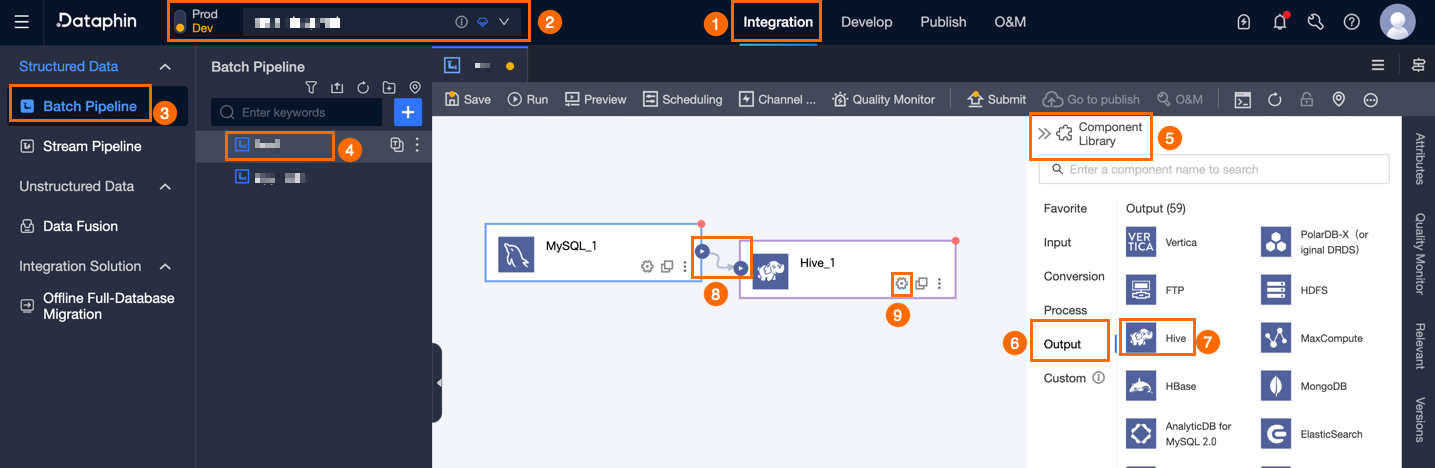
-
In the Hive Output Configuration dialog box, configure the parameters.
Hive and Hudi tables require different parameters.
Configure a Hive output target
Parameter
Description
Basic settings
Step name
The name of the Hive output component. Dataphin automatically generates a step name, which you can change as needed. The name must follow these rules:
-
Must contain only Chinese characters, letters, digits, and underscores (_).
-
Cannot exceed 64 characters in length.
Data source
The Data source drop-down list displays all available Hive data sources, including those you have write permissions for and those you do not. Click the
 icon to copy the name of the selected data source.
-
If you lack write permissions for a data source, click Apply to request access. For more information, see Apply for data source permissions.
-
If no Hive data source is available, click New Data Source to add one. For more information, see Create a Hive data source.
Table
Select the target table. You can search for a table by entering a keyword, or enter the exact table name and click Exact Search. After you select a table, the system automatically checks its status. Click the
 icon to copy the name of the selected table.
If the target table does not exist in the selected Hive data source, you can use the one-click table creation feature to create one. Follow these steps:
-
Click One-click table creation. Dataphin automatically generates a DDL statement to create the target table. This statement prefills the target table name with the source table name and converts the field types from the source table.
-
Set Data Lake Table Format to None or Iceberg.
NoteYou can select Iceberg only if the Iceberg data lake table format is enabled for the selected data source or the project's compute source.
-
Set Execution Engine to Hive or Spark.
NoteThis parameter is available only when Data Lake Table Format is set to Iceberg. If Spark is configured for the selected data source, Spark is selected by default. Otherwise, only Hive is available.
-
A DDL statement is automatically generated based on the selected data lake table format and execution engine. You can modify the statement and then click Create. After the target table is created, Dataphin automatically sets it as the output target.
Note-
If a table with the same name already exists in the development environment, an error is reported.
-
If no match is found, you can manually enter a table name to create the table.
-
Policy for missing production table
Defines how to proceed if the production table does not exist. You can select Ignore or Create Automatically. The default is Create Automatically. If you select Ignore, the production table is not created during task deployment. If you select Create Automatically, a table with the same name is created in the target environment during task deployment.
-
Ignore: If the target table does not exist, a prompt is displayed upon submission, but you can still deploy the task. In this case, you must manually create the target table in the production environment before the task can run.
-
Automatically create: You must edit the table creation statement. The statement for the selected table is populated by default, and you can modify it. The table name in the table creation statement must be the placeholder
${table_name}. This is the only supported value and is replaced with the actual table name during execution.If the target table does not exist, the system first tries to create it using the DDL statement. If table creation fails, the deployment check fails. You can then modify the DDL statement based on the error message and redeploy the task. If the target table already exists, the DDL statement is not executed.
NoteThis parameter is available only in projects that use the Dev-Prod mode.
File encoding
The encoding for files stored in Hive. The File Encoding options are UTF-8 and GBK.
Load strategy
Specifies the load strategy for writing data to the target Hive data source. You can select one of the following options: Overwrite All Data, Append Data, or Overwrite Data Written by This Task Only.
-
Overwrite All Data: Deletes all existing data in the target table or partition and then adds new data files prefixed with the table name.
-
Append Data: Appends data directly to the target table.
-
Overwrite Data Written by This Task Only: Deletes only the data files in the target table or partition that are prefixed with the table name. Data written by other methods, such as SQL queries, is preserved.
NULL value replacement (Optional)
Only source tables that use the
textfiledata storage format are supported. Enter the string to be replaced withNULL. For example, if you enter\N, the system replaces the\Nstring withNULL.Field delimiter (Optional)
Only source tables that use the
textfiledata storage format are supported. Specify the delimiter between fields. If you do not specify a delimiter, the system uses\u0001as the default delimiter.Compression format (Optional)
The compression format for the output files. The available formats depend on the storage format of the Hive table:
-
If the storage format is orc, the supported compression formats are zlib and snappy.
-
If the storage format is parquet, the supported compression formats are snappy and gzip.
-
If the storage format is textfile, the supported compression formats are gzip, bzip2, lzo, lzo_deflate, hadoop-snappy, and zlib.
Field delimiter handling (Optional)
Only output tables in the
textfiledata storage format are supported. If data contains default or custom field delimiters, you can configure the field delimiter handling policy to prevent data write errors. You can select Keep, Remove, or Replace with.Row delimiter handling (Optional)
Only output tables that use the
textfiledata storage format are supported. If your data contains default or user-configured field delimiters, you can configure the Row Delimiter Handling policy. By default,\nis used as the row delimiter. If the data contains newline characters such as\ror\n, you can select a handling policy to prevent data write errors. You can choose to Keep, Remove, or Replace with.Hadoop parameter configuration (Optional)
This parameter is used to adjust write settings for different table types. Specify parameters in the format
{"key1":"value1", "key2":"value2"}, and separate multiple parameters with commas (,). For example, if an output table is in ORC format and has many fields, you can adjust the{"hive.exec.orc.default.buffer.size"}parameter based on the memory size. If you have sufficient memory, you can increase this value to improve write performance. If you have insufficient memory, you can decrease this value to reduce Garbage Collection (GC) time and improve write performance. The default value is 16,384 bytes (16 KB). We recommend that you do not set the value to more than 262,144 bytes (256 KB).Partition
If the selected target table is a partitioned table, you must specify the partition information. For example,
state_date=20190101. You can also use parameters to write data incrementally every day. For example,state_date=${bizdate}.SQL execution engine
The SQL execution engine to use for the pre-execution and post-execution statements. You can select Hive or Spark. The default is Hive. The SQL syntax of your statements must match the selected engine.
NoteThis parameter appears only if Spark is configured for the selected data source or for the compute source used by the current project.
Pre-execution statement (Optional)
An SQL script that runs before the data loading process begins.
For example, to ensure high availability, a script can write new data to a temporary table (e.g., Target_A). Once the write is complete, the script renames the current production table (e.g., Service_B) to a backup (e.g., Temp_C), promotes the temporary table to become the new production table, and then drops the backup.
Post-execution statement (Optional)
An SQL script that runs after the data loading process finishes.
Field mapping
Input fields
Displays the input fields from the upstream component.
Output fields
Displays all fields of the selected target table.
ImportantTo ensure data integrity, every output field must be mapped to an input field.
Mapping
You can manually select field mappings based on the upstream input and the fields of the target table. Mapping relationships include row-based mapping and name-based mapping.
-
map by name: Maps input and output fields that have the same name.
-
map by position: Maps fields based on their order. This is useful when field names differ but their positions correspond.
Select a Hudi destination table
Parameter
Description
Basic settings
Step name
The name of the Hive output component. Dataphin automatically generates a step name, which you can customize. Naming conventions:
-
Can contain only Chinese characters, letters, underscores (_), and digits.
-
Cannot exceed 64 characters.
Data source
The data source drop-down list displays all Hive data sources, including those for which you have sync write permission and those for which you do not. Click the
 icon to copy the name of the current data source.
-
If you do not have sync write permission for a data source, click Apply next to it to request the permission. For more information, see Apply for data source permissions.
-
If you do not have a Hive data source, click Create data source. For more information, see Create Hive data source.
Table
Select a destination table (Hudi table) for the output data. You can enter a keyword to search for the table or enter the exact table name and click Exact Search. After you select a table, the system automatically checks its status. Click the
icon to copy the name of the selected table.If a suitable destination table does not exist in the Hive data source, use the one-click table creation feature to create one. Follow these steps:
-
Click one-click table creation. Dataphin automatically generates a DDL table creation statement. By default, this statement uses the source table's name for the new table and converts field types from Dataphin's standards.
-
Set data lake table format to Hudi.
-
Hudi table type: Set to MOR (merge on read) or COW (copy on write). The default is MOR (merge on read).
-
Primary key field (Optional): Enter the primary key fields, separated by commas (,).
-
Extended properties (Optional): Enter the configuration properties officially supported by Hudi in the
k=vformat.Note-
If a table with the same name exists in the development environment, Dataphin reports an error when you click Create.
-
If no match is found, you can also integrate data by manually entering a table name.
-
-
-
Set execution engine to Hive or Spark.
NoteYou can select an execution engine only when data lake table format is set to Hudi. The default execution engine is Hive. If Spark is enabled for the selected data source, you can also select Spark.
-
The DDL statement is automatically generated based on the selected data lake table format and execution engine. You can modify it as needed and then click Create.
Production table missing policy
Specifies the action to take if the destination table does not exist in the production environment when the task is released. You can select Do not process or Automatically create. The default is Automatically create. If you select Do not process, the production table is not created when the task is released. If you select Automatically create, a table with the same name is created in the destination environment when the task is released.
-
Do not process: If the destination table does not exist, you are prompted upon submission, but you can still release the task. In this case, you must manually create the destination table in the production environment before the task can run.
-
Automatically create: You must edit the table creation statement. The table creation statement is pre-populated based on the selected table and can be modified. In the statement, the table name must use the
${table_name}placeholder, and only this placeholder is supported. Dataphin replaces this placeholder with the actual table name during execution.If the destination table does not exist, Dataphin first attempts to create it using the table creation statement. If table creation fails, the release check fails. You can then modify the statement based on the error message and release the task again. If the destination table already exists, Dataphin does not execute the table creation statement.
NoteThis parameter is supported only in projects that use the Dev-Prod mode.
Partition
Required if the destination table is a partitioned table. Specify the target partition. For example,
state_date=20190101. You can also use parameters for daily incremental writes, for example,state_date=${bizdate}.Load policy
Specifies how to write data to the destination Hive data source. The options include overwrite data, append data, and update data.
-
overwrite data: Overwrites existing data with new data.
-
append data: Appends data to the destination table.
-
update data: Updates data based on the primary key. If a matching record does not exist, a new record is inserted.
NoteData written by other methods, such as SQL queries, is not affected.
BulkInsert
Suitable for fast, high-volume batch synchronization scenarios, typically used for initial data import.
NoteThis option is available only when the load policy is set to append data or overwrite data. This option is enabled by default.
Batch write
Writes data to the destination table in batches. If you enable this option, you must also configure the batch ratio.
Batch ratio
The proportion of total JVM memory to use. The default is 0.2. Enter a value from 0.01 to 0.50.
Hadoop parameters (Optional)
Specifies custom Hadoop parameters to adjust write behavior. Enter the parameters as a JSON object, such as
{"key1":"value1", "key2":"value2"}. For example, you can use the{"hoodie.parquet.compression.codec":"snappy"}parameter to set the compression format to snappy.Field mapping
Input field
Displays the input fields based on the output of the upstream component.
Output field
Displays all fields of the selected destination table.
NoteFor Hudi tables, you do not need to map all fields.
Mapping relationship
Configure the mapping between the input fields (from the upstream component) and the output fields (from the destination table). The mapping relationship options include row-based mapping and name-based mapping.
-
Name-based mapping: Maps fields that have the same name.
-
Row-based mapping: Maps fields based on their row position. This is useful when the field names in the source and destination tables do not match, but you want to map fields that are in the same position.
Output to Iceberg or Paimon tables
Parameter
Description
Basic settings
Step name
The name of the Hive output component. Dataphin automatically generates a step name, which you can change based on your business requirements. The name must meet the following rules:
-
Can contain only Chinese characters, letters, underscores (_), and digits.
-
Cannot exceed 64 characters in length.
Data source
The drop-down list displays all Hive data sources, both with and without synchronous write permissions. Click the
icon to copy the name of the current data source.-
If you do not have synchronous write permissions for a data source, click Apply next to the data source to request the required permissions. For more information, see Apply for data source permissions.
-
If you do not have a Hive data source, click New Data Source to create one. For more information, see Create a Hive data source.
Table
Select the target Iceberg or Paimon table. You can enter a keyword to search for the table, or enter the exact table name and click Exact Search. After you select a table, the system automatically checks its status. Click the
icon to copy the name of the selected table.If a target table does not exist in the Hive data source, you can use the one-click table creation feature to generate one. The steps are as follows:
-
Click one-click table creation. Dataphin automatically generates a DDL statement to create the target table. This includes the target table name (which defaults to the source table name) and field types (which are initially converted based on Dataphin's field types).
-
For Data lake table format, select None, Iceberg, or Paimon.
NoteYou can select Iceberg here only if the data lake table format is enabled for the selected data source or the compute engine of the current project and the format is set to Iceberg. You can select Paimon if the format is set to Paimon.
-
For Execution engine, select Hive or Spark.
NoteThis parameter is available only when Data lake table format is set to Iceberg or Paimon. If Spark is configured for the selected data source, Spark is displayed and selected by default. Otherwise, only Hive is displayed and selected.
-
For Paimon Table Type, select MOR (merge-on-read), COW (copy-on-write), or MOW (merge-on-write). The default is MOR.
NoteThis parameter is available only when Data lake table format is set to Paimon.
-
The DDL statement is automatically generated based on the selected data lake table format and execution engine. You can modify the statement and then click Create. After the target table is created, Dataphin automatically sets it as the target table for data output.
Note-
If a table with the same name already exists in the development environment, Dataphin reports an error when you click Create.
-
If no matching table is found, you can also integrate data by manually entering a table name.
-
Policy for missing production table
Specifies how to proceed if the production table does not exist. You can select Do Nothing or Auto Create. The default is Auto Create. If you select Do Nothing, the production table is not created when the task is deployed. If you select Auto Create, a table with the same name is created in the target environment during task deployment.
-
Do Nothing: If the target table does not exist, a prompt appears upon submission, but you can still deploy the task. In this case, you must manually create the target table in the production environment before the task can run.
-
Auto Create: Click Edit DDL Statement. The DDL statement for the selected table is populated by default, which you can then modify. The table name in the DDL statement must use the
${table_name}placeholder. It is the only supported value and is replaced with the actual table name at runtime.If the target table does not exist, the system first tries to create it using the DDL statement. If table creation fails, the deployment check fails. You can then modify the DDL statement based on the error message and try to deploy again. If the target table already exists, the DDL statement is not executed.
NoteThis parameter is supported only in projects that use the Dev-Prod mode.
Load policy
The policy for writing data to the target Hive data source. The load policy options include Append Data, Overwrite Data, and Update Data. The use cases are as follows:
-
Append Data: Appends data directly to the target table.
-
Overwrite Data: Overwrites existing data with new data.
-
Update Data: Updates records based on the primary key. If a record does not exist, it is inserted.
NULL value replacement (Optional)
This parameter applies only to source tables that use the
textfilestorage format. Enter the string that you want to replace withNULL. For example, if you enter\N, the system replaces\NwithNULL.Field delimiter (Optional)
This parameter applies only to source tables that use the
textfilestorage format. Enter the delimiter that separates fields. If you do not specify a value, the system uses\u0001as the default delimiter.Field delimiter handling (Optional)
This parameter is supported only for output tables that use the
textfiledata storage format. If your data contains the default or a custom field delimiter, you can configure a Field Delimiter Handling policy to prevent write errors. You can select Keep, Remove, or Replace with.Row delimiter handling (Optional)
This parameter is supported only for output tables that use the
textfiledata storage format. The default row delimiter is\n. If your data contains newline characters such as\ror\n, select a handling policy to prevent write errors. You can select Keep, Remove, or Replace with.Hadoop parameter configuration (Optional)
Use this parameter to adjust write parameters. You can specify different parameters for different table types. Separate multiple parameters with commas (,) in the format
{"key1":"value1", "key2":"value2"}. For example, for an orc-formatted output table with many fields, you can adjust thehive.exec.orc.default.buffer.sizeparameter based on memory availability. If memory is sufficient, you can increase this value to improve write performance. If memory is insufficient, you can decrease it to reduce garbage collection (GC) time and improve write performance. The default value is 16,384 bytes (16 KB), and the recommended maximum value is 262,144 bytes (256 KB).SQL execution engine
The SQL execution engine for the pre-SQL and post-SQL statements. You can select Hive or Spark. The default is Hive. The pre-SQL and post-SQL statements must use the SQL syntax of the selected execution engine.
NoteThis parameter is displayed only if Spark is configured for the selected data source or the execution engine used by the current project.
Partition
If the target table is a partitioned table, you must specify the partition key and value. For example,
state_date=20190101. You can also use parameters for daily incremental writes, for example,state_date=${bizdate}.Field mapping
Input field
Displays the input fields from the upstream component.
Output field
The Output Field section displays all fields in the selected target table.
ImportantMap all output fields to their corresponding input fields to prevent data write errors.
Mapping relationship
Based on the upstream input and the fields of the destination table, you can manually select field mappings. Mapping relationships include row-based mapping and name-based mapping.
-
Map by name: Maps fields with the same name.
-
Map by row: Maps fields based on their row position. This is useful when the field names in the source and target tables do not match but you need to map data in corresponding rows.
-
-
Click Confirm to save the configuration for the Hive output component.