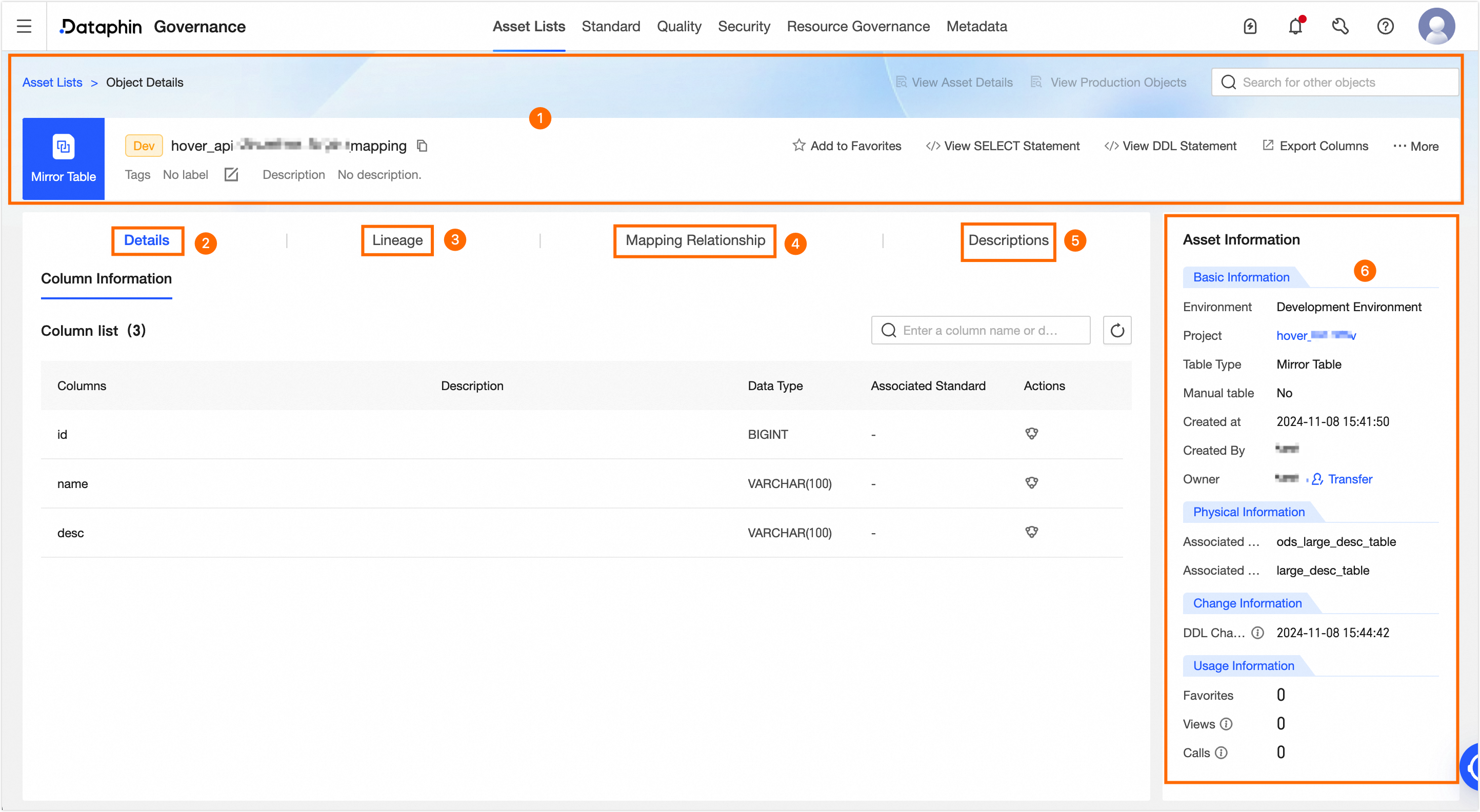
Area | Description |
①Overview information | Displays the type, environment, name, tags, and description of the table. You can also perform the following operations: Search for other asset objects: You can quickly search for and switch to view the details of other assets. View Asset Details: If the current object has been listed in the Asset folder, you can quickly navigate to the product page to view the listed information. View Production/development Objects: Quickly switch to the object details of the current object in the corresponding production or development environment. Tag: Displays the tag values configured for the current asset. To modify tags, click Edit: The length of each tag value must not exceed 128 characters. A maximum of 20 tag values can be configured for each asset object. Super administrators can modify the asset tags of all table types. Current table owners can modify the asset tags of tables they own. Project administrators can modify the asset tags of mirror tables under their projects.
Favorite: Click to add to favorites. After adding, you can view the 30 most recently favorited assets in My Footprints for quick access. You can also view all favorited assets in Personal Data Center. For more information, see View and manage my favorited assets. Generate Select Statement: Click to generate a select statement. You can use the generated select statement to query table data in ad hoc queries. The generated query statement will automatically add corresponding escape characters based on the selected source type to reduce issues caused by misinterpreted system keywords. If you do not need this, deselect it and regenerate the query statement. 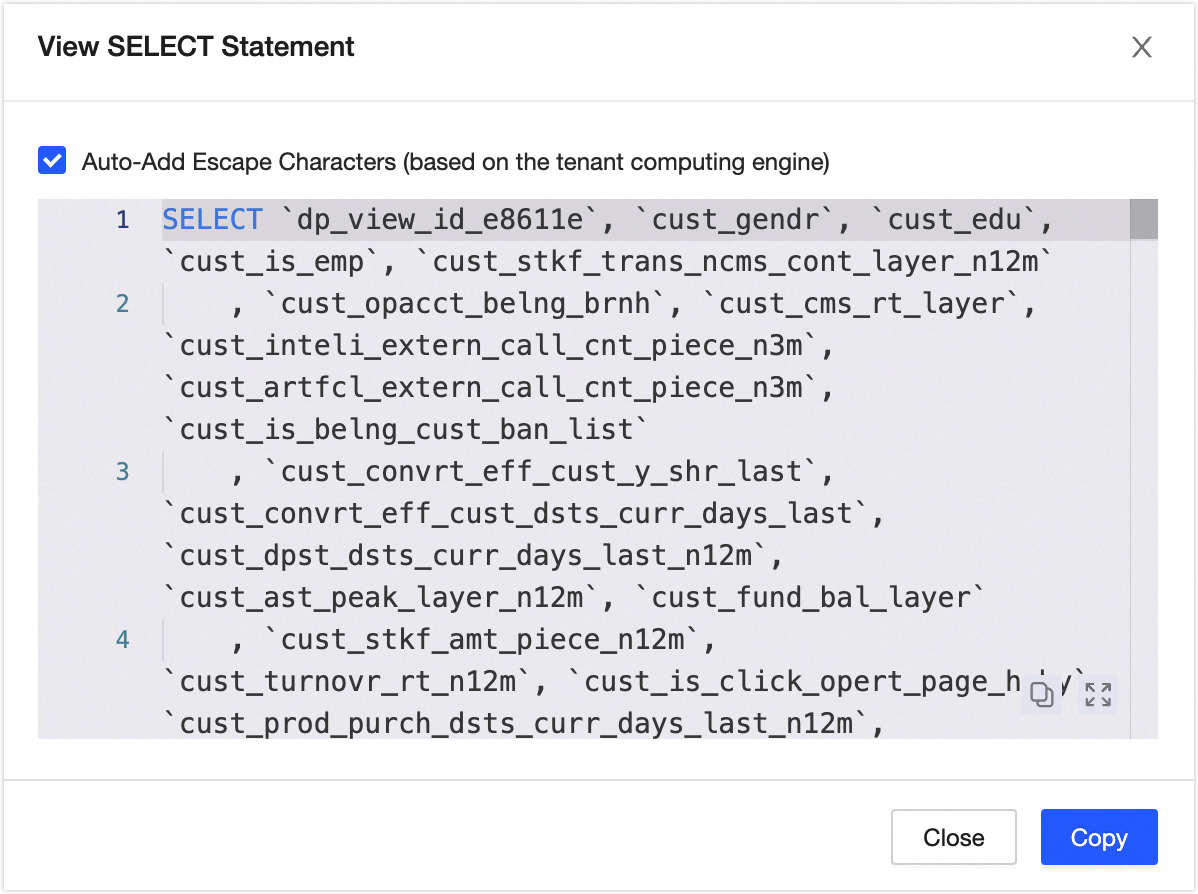
View DDL Statement: Click to view the Flink DDL statement corresponding to the current data table in the tenant compute engine. Additionally, you can select a Data Source Type and click Generate DDL Statement. The system will generate a DDL statement to create a table with the same structure as the current table in the specified data source system. If you select Automatically Add Escape Characters, the generated DDL statement will automatically add corresponding escape characters based on the selected source type to reduce issues caused by misinterpreted system keywords. 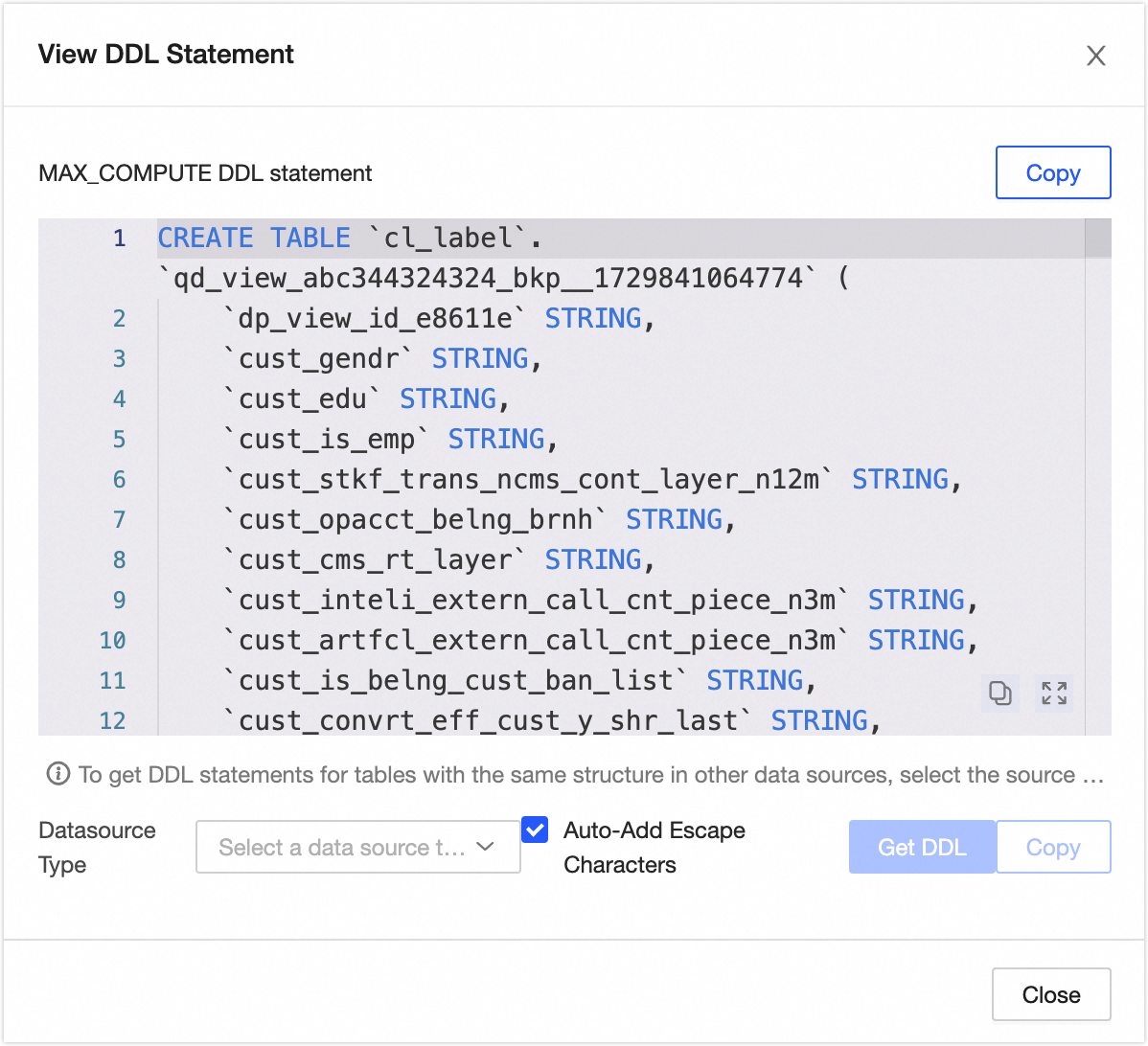
Export Fields: Export field information from the table in CSV format for quick analysis and use by other developers or business personnel. View Change Owner Records: Click More in the upper-right corner and select View Change Owner Records to display the most recent 100 change owner records for the current data table. View Permission List: Click More in the upper-right corner and select View Permission List to view the permission information of the data table.
|
②Details | Displays field information, including the field name, description, data type, and associated standard (requires purchasing the data standard module) information. At the same time, you can click the Actions column's data lineage  icon to view the field lineage centered on the specified field. icon to view the field lineage centered on the specified field. |
③Lineage | Displays the data lineage between tables. The lineage sources include integration sync tasks, custom lineage compute tasks, and SQL compute tasks or logical table tasks that the system can automatically parse. For more information, see Search for tables and view table details.
Note The system parses the lineage of tables in the development environment when tasks are submitted and parses the lineage of tables in the production environment when tasks are published. A single task submission or publication supports parsing up to 100,000 lineage relationships. If this limit is exceeded, the relationships will not be recorded and cannot be displayed in the asset folder. |
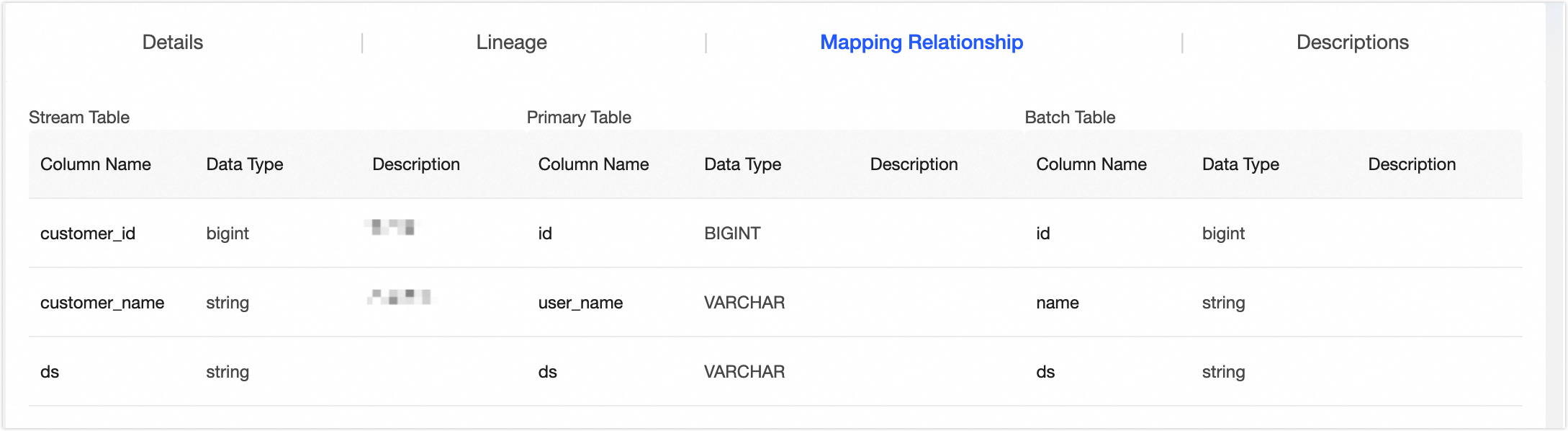
④Mirror relationships | Displays the field list information associated with streaming tables, primary tables, and associated offline tables, including field names, data types, and descriptions. 
|
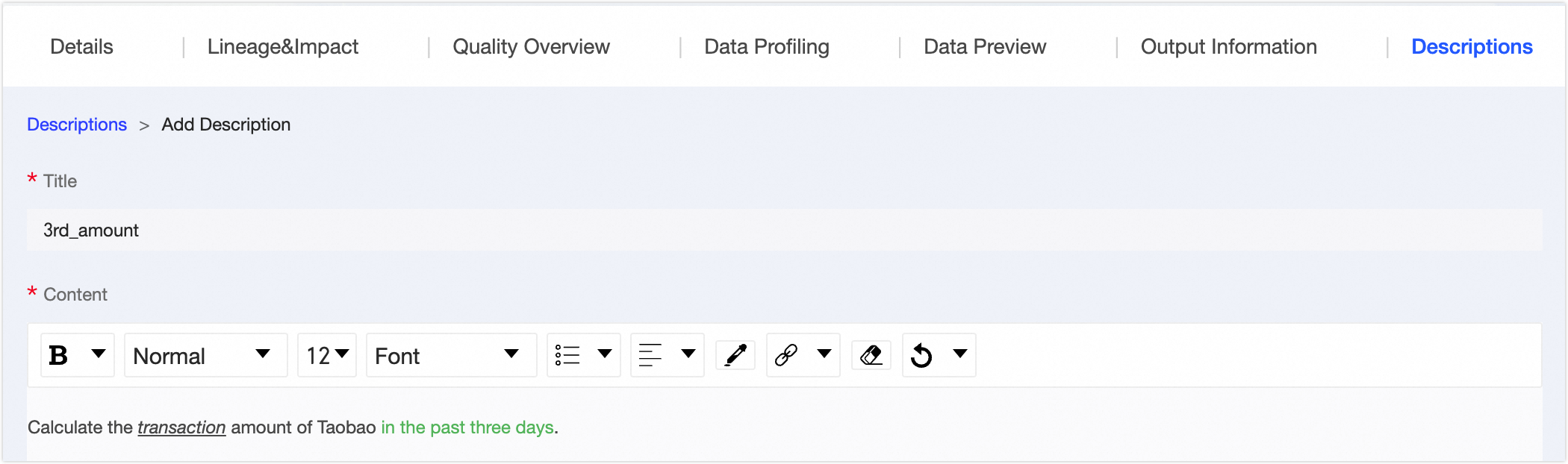
⑤Usage instructions | You can add usage instructions for the data table to provide reference information for data viewers and consumers. Click Add Usage Instructions, fill in the title and content of the instructions, and complete the addition. |
⑥Asset information | Displays detailed information about the mirror table, including Basic Information, Physical Information, Schema Evolution, and Usage Information. Basic information: Includes environment, project, table type, whether it is a partitioned table, creation time, creator, and output task. Project: Information about the project to which the current table belongs. Click the project name to navigate to the asset details page of the project. Owner: The owner of the current table. You can transfer the ownership of the current table to another user in the Change Owner dialog box. You can choose whether to synchronize the transfer of development/production environment tables. After selecting the Recipient, click Confirm to immediately transfer ownership. It is recommended to synchronize with the recipient promptly after the transfer. You can view transfer information on the transfer records page. For more information, see View change owner records.
Note Super administrators can transfer ownership of all table types. Current table owners can transfer ownership of tables they own.
Physical information: Includes associated offline tables and associated streaming tables. Schema evolution: Includes DDL changes. Usage information: Includes the number of favorites, page views, and visits. Number Of Favorites: Displays the number of users who have favorited the current table. This information is updated in real time. Page Views: Displays the number of page views (PV) for the current data table. Each refresh increases the count by one. This information is updated in real time. Visits: Based on SQL parsing, the number of times the table is selected (corresponding to DQL operations) in Dataphin tasks is calculated as one visit. This information is updated daily (T+1) and displays the total number of visits in the last 30 days.
|
 column to view the object details page.