Indicator details

Updated at:

This topic describes how to view the asset details of an indicator.

Limitations

  • The data preview feature is unavailable for tables and custom indicators from PolarDB-X (DRDS), SAP HANA, IBM DB2, or OceanBase data sources.

  • To use the data preview feature for custom indicators from a data source table, you must configure an encoding for the data source. For more information about how to configure data source encoding, see Data source management.

Access indicator details

  1. On the Dataphin homepage, choose Governance > Asset List from the top navigation bar.

  2. Click the Indicators tab. In the indicator list, click the name of the target indicator or the image icon in the Actions column to open its details page.

Indicator details

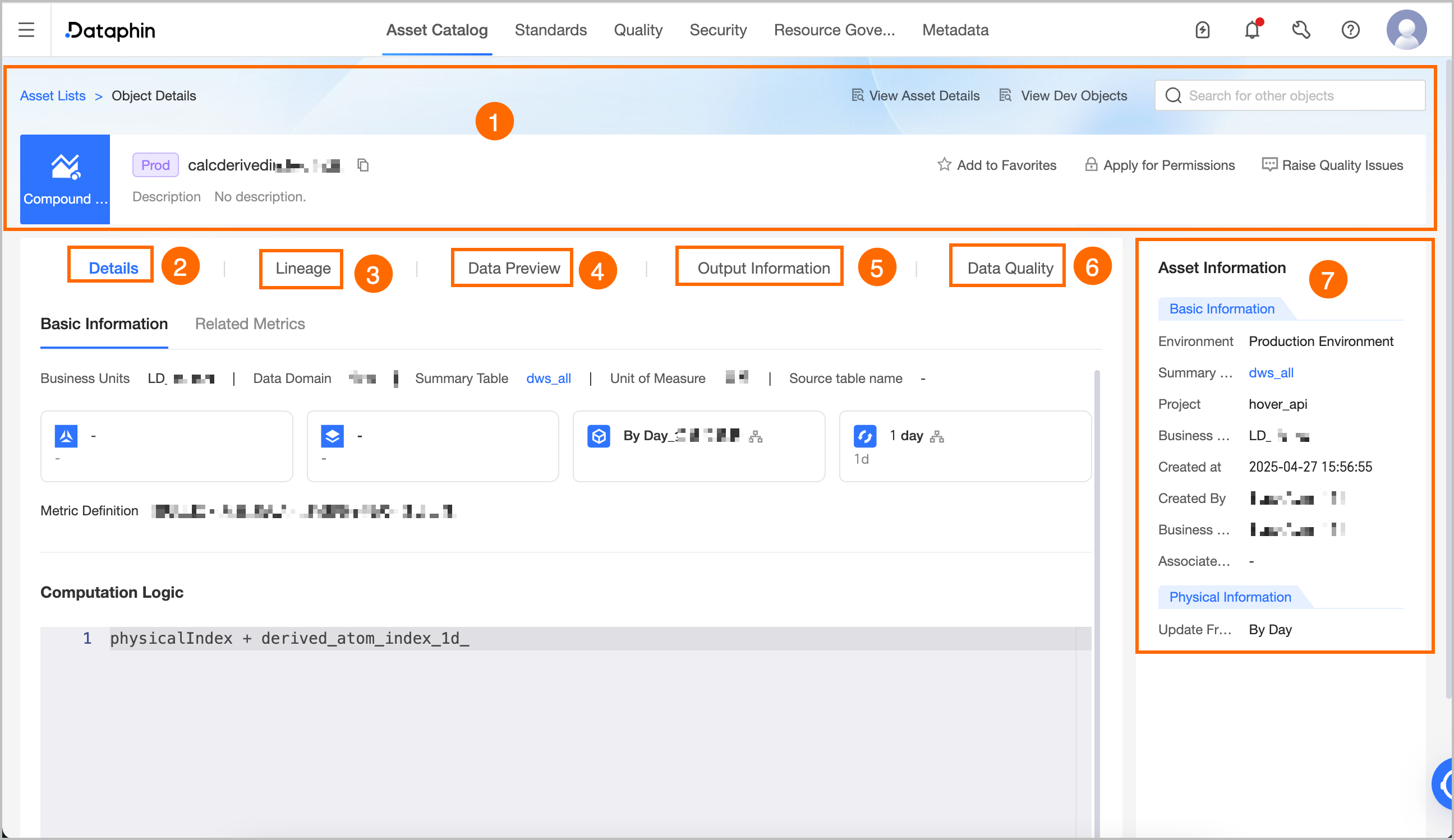
The details pages for derived indicators and registered indicators are very similar. The following figure uses a derived indicator as an example.image
Section

Description

① Overview

Displays the indicator's type, environment, name, and description. You can also perform the following actions:

  • Search for other assets: Quickly search for and view the details of other assets.

  • Favorite: Click to add or remove the indicator from your favorites. After you favorite an indicator, you can find your 30 most recent favorites in Asset List-My History for quick access. You can also view all your favorited assets in the Personal Data Center. For more information, see View and manage my favorited assets.

  • Request Permissions: Click to request permissions for the associated table. For more information, see Apply for, renew, and release table permissions.

  • Report Quality Issue: Report quality issues, such as unstable data output or inaccurate content, to the relevant quality owner. This notifies the person in charge to make timely improvements, which enhances the asset's usability and quality. For configuration details, see Add and manage an issue list.

② Details

Displays the indicator's Basic information and Related indicators.

  • Basic information: Includes attributes such as data section, subject domain, summary table, unit of measurement, source table name, atomic indicator, business qualifier, statistical granularity, statistical period, and indicator definition.

    • atomic indicator, business qualifier, statistical granularity, and statistical period: You can view the calculation logic associated with the indicator. If there are multiple business qualifiers, you can switch between them to view different calculation logic. For time-based business qualifiers, you can view the logic for different time periods.

      image

    • indicator definition: Available only for modeling indicators. Displays the definition entered in Development > Develop > Indicators.

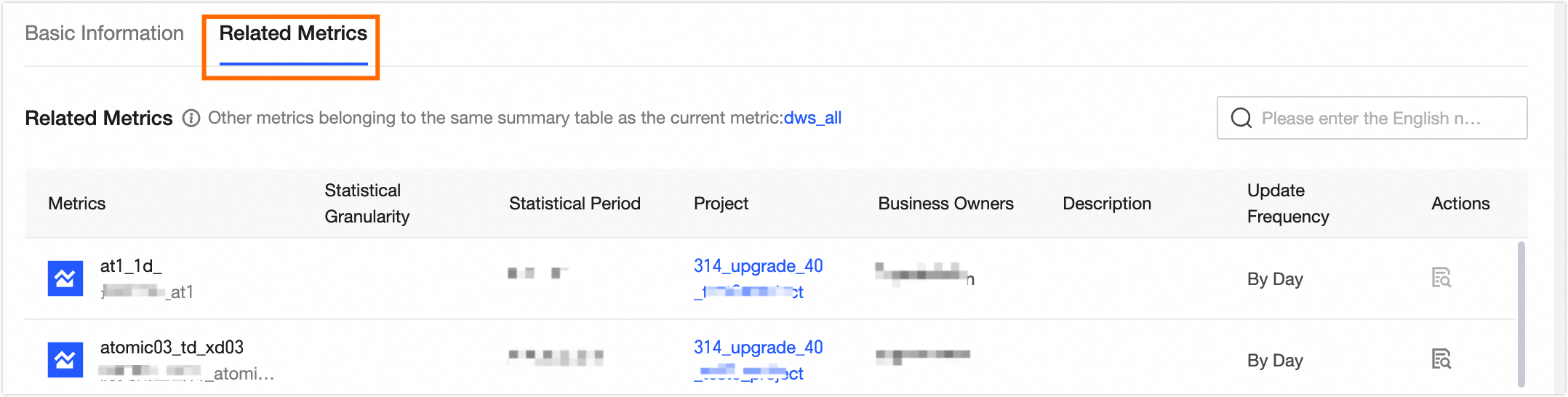
  • Related Metrics: Displays other indicators from the same summary table, including their name, statistical granularity, statistical period, project, business owner, description, and update frequency. You can click the View icon in the Actions column to view that indicator's details.

    image

③ Lineage

Displays the field-level lineage centered on the current indicator. Sources include lineage automatically parsed from integration and synchronization tasks (field-level lineage can be parsed only for some data sources), SQL computation tasks, and logical table tasks; custom lineage manually configured in computation tasks. For more information, see field-level lineage.

Note
  • For automatically parsed lineage and manually configured lineage in computation tasks, the system parses table and field-level lineage from the development environment when a task is submitted, and from the production environment when a task is published. A single task submission or publication can parse up to 100,000 lineage relationships. If this limit is exceeded, the relationships are not recorded and will not be displayed in the asset list.

  • Deleting a logical table also deletes its associated lineage.

④ Data preview

If sample data is available for the data table, it is displayed by default. You can also manually trigger a query to fetch the latest data. If no sample data exists, the system automatically triggers a data preview query.

  • Sample data: This is available when data sampling is enabled and the data preview switch in the configuration is turned on. It only queries sample data for fields where you have column-level permissions and that do not require desensitization. The sample data for each field is stored and sorted independently, but the integrity of row records is not guaranteed.

  • Data preview: If you have permission to query data from the table, you can use this feature. It queries and displays up to 50 records, showing only fields for which you have SELECT permission (including field-level and row-level permissions). For more information about how to request permissions, see Apply for, renew, and release table permissions.

You can search or filter the data by field, view the details of a single row, auto-fit column widths, expand or collapse field display names, and pivot rows and columns. You can also click the sort icon next to a field to sort the data in unsorted, ascending, or descending order. Double-click a field value to copy it.

Note

The data preview for an indicator queries both dimension and indicator fields. For indicators from MaxCompute and Hive data sources, partition fields are also queried by default. You must have permission for all these fields to preview the indicator's data.

⑤ Output information

Displays the output statistics chart for the indicator. The left y-axis represents Time consumed, the right y-axis represents End time, and the x-axis represents Source table output time.

⑥ Data quality

If you have activated the data quality feature and the current indicator is in the production environment, you can view its quality monitoring report.

Quality monitoring: Displays an overview of rule checks and a list of quality monitoring rules for the current indicator. Click View Report Details or View Rule Details to go to the indicator quality details page in the data quality module for more information.

⑦ Asset information

Displays the indicator's Basic information and Physical information.

  • Basic information: Includes the indicator's environment, summary table, project, data section, creation time, creator, business owner, and associated standard.

    • summary table: The summary table that contains the current indicator. Click the table name to open its asset details page.

    • Associated standard: Requires the data standard module to be activated. Displays the standard associated with the current indicator. Click the standard's name to go to the data standard module for more details.

  • Physical information: Includes the update frequency, which is the indicator's scheduling cycle.