Real-time instances
A real-time instance is generated when a real-time job is submitted to the O&M center. Dataphin lets you view instance data from real-time jobs and manage real-time instances. These operations include viewing the associated job, instance code, and instance parameters. This topic explains the statuses of real-time instances and how to manage them.
Real-time instance page
-
On the Dataphin homepage, choose Develop > Task O&M from the top menu bar.
-
In the top menu bar, select the production or development environment.
-
In the left navigation pane, select Instance O&M > Real-time Instance to open the Real-time Instance page.
Real-time instance page
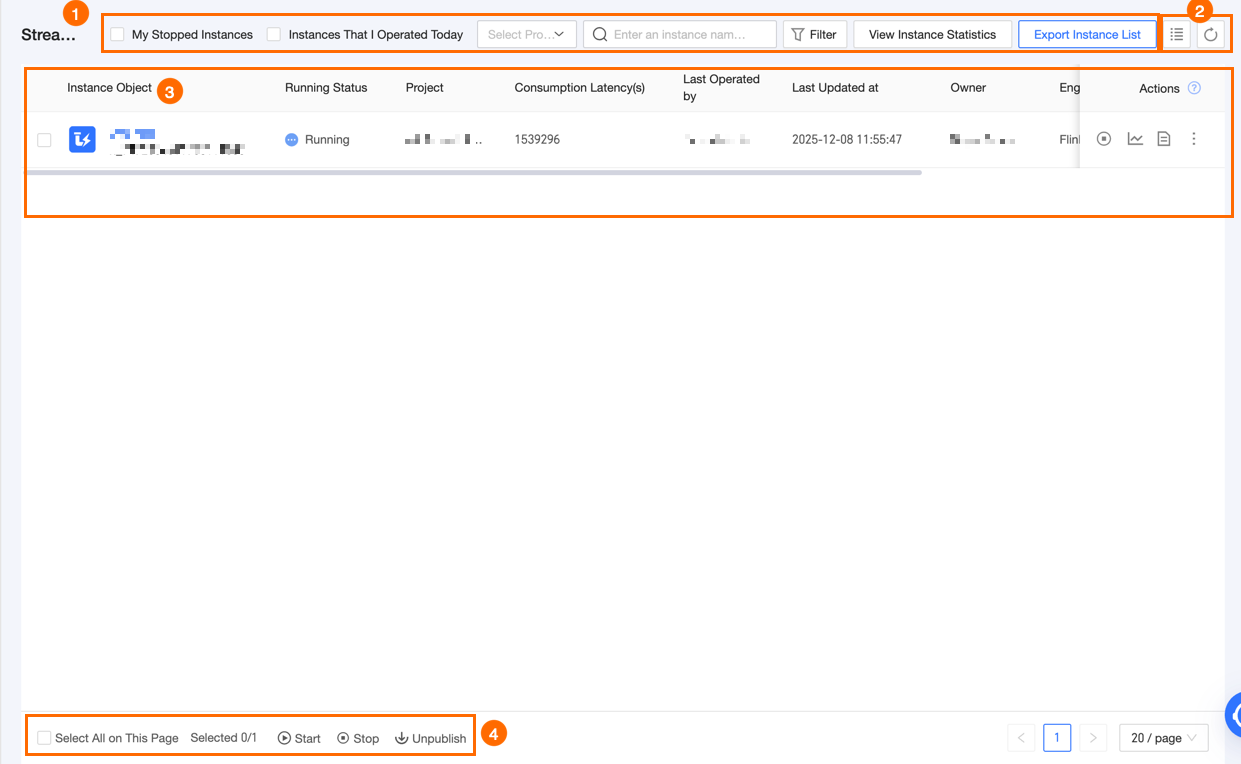
The real-time instance page lists all real-time instances. This page lets you perform O&M operations on them.
|
Section |
Description |
|
①Filter and search area |
You can search for a real-time instance by its name or ID.
|
|
②List operations |
|
|
③Real-time instance list |
The real-time instance list displays real-time instances. The list includes information such as the instance, running status, last operator, last updated time, owner, and project. You can resize each column. Your column width settings are saved locally in your browser. Clearing your browser's history and cookies removes these settings.
The Actions column lists the O&M operations available for real-time instances. For information about individual operations, see Individual Operations. |
|
④Batch operations |
You can use the Start, Stop, and Take Offline operations in the batch operations area to manage multiple real-time instances at once. For information about batch O&M operations on real-time instances, see Batch Operations. |
 icon to select which columns to display and to adjust their order.
 icon to refresh the current list.
Real-time instance statuses
|
Icon |
Status |
Description |
|
|
Succeeded |
Applies to instances that process bounded stream data and have completed execution. |
|
|
Starting |
The instance is starting but not yet running. |
|
|
Running |
The instance is currently running. |
|
|
Stopping |
The system is stopping the instance. |
|
|
Stopped |
The instance is stopped. |
|
|
Failed |
The instance failed during execution. |
|
|
Start Failed |
The instance failed to start. |


Manage real-time instances
Individual operations
|
Operation |
Description |
|
Start |
In the Actions column for the real-time instance, click the |
|
Stop |
In the Actions column for a Running real-time instance, click the
Note
|
|
Take offline |
In the Actions column for the real-time instance, click the |
|
View Run Analytics |
In the Actions column for the real-time instance, click the If the real-time instance uses the Ververica Flink or Blink compute engine, see View Job Details. |
|
View Real-time Task |
In the Actions column for the real-time instance, click the |
|
View Instance Code |
In the Actions column for the real-time instance, click the |
|
View Instance Parameters |
In the Actions column for the real-time instance, click the Note
Viewing instance parameters is not supported for real-time workflow instances. |
 icon to start the instance. For more information, see
  icon to stop it. Two stop modes are available: stateless stop and stop with savepoint.
 icon to take the instance offline from the production environment. You can take an instance offline if it is in the Stopped, Failed, or Start Failed state.
 icon to view its operational information, data curves, failover details, and other parameters.
 icon and select View Real-time Task to open the page for the job that generated the instance and view its details.
Batch operations
|
Operation |
Description |
|
Start |
Note
The statuses from which you can start an instance vary by compute engine.
Start Real-time Development Instances and Start Real-time Workflow Instances:
|
|
Stop |
Note
The stop operation is available only for instances in the Failed, Running, Start Failed, Recovery Failed, or Completed state. Stop Real-time Development Instances and Stop Real-time Workflow Instances:
|
|
Take offline |
Takes the selected real-time instances offline from the production environment. Note
Only real-time instances in the Stopped state can be taken offline. |
Real-time instance DAG
Click the name of a real-time instance in the list. A DAG centered on the selected node appears on the right side of the page. By default, the DAG displays one level of upstream and downstream nodes. You can also adjust the DAG view:
-
Click the
 icon to hide the real-time instance list and expand the DAG view.
 -
Click the
icon to hide the DAG. -
Hover over the
icon and drag to resize the DAG canvas.
 icon to hide the real-time instance list and expand the DAG view.
 icon to hide the DAG.
 icon and drag to resize the DAG canvas.
The DAG visualizes the node's upstream and downstream dependencies and lets you perform O&M operations on them.

|
Section |
Description |
|
①Node Information |
Displays summary information for the currently selected node. You can also click View Node Details for more information. Ververica Flink real-time engine: The available tabs include Node Details, Runtime Log, Operation Log, Node Code, and Task Parameters (only for compute task instances).
Real-time workflow: The available tabs include Node Details, Running Analysis, Logs, Operation Log, and Node Code.
|
|
②Node Search and Filter |
Allows you to quickly set the number of upstream and downstream levels to display around the main node. If the graph becomes too crowded, you can search for a node by name to quickly locate it within the current view. |
|
③Scheduling Dependency Graph |
Displays the instance's scheduling dependency graph. You can expand it to show more upstream and downstream nodes and perform O&M operations on them. Hover over a DAG node to view its name, type, scheduling cycle, O&M owner, and description. |
|
④Canvas Adjustment |
This section provides controls to adjust the DAG's display scale, including setting a specific zoom level (default is 100%), zooming in (up to 200%), zooming out (down to 20%), fitting to the canvas, and full-screen mode. This area also displays the node ID and name of the main node in the current DAG. |
Operations on DAG nodes
|
Operation |
Description |
|
Expand Parent Nodes |
Expands dependency nodes at different levels relative to the main node in the DAG. |
|
Expand Child Nodes |
|
|
View Real-time Task |
Opens the DAG of the task that generated the current instance node, where you can view task node details, upstream and downstream information, and manage the task node. For more information, see Manage real-time tasks. |
|
View Node Code |
Views the task code that generated the current instance. |
|
View Runtime Log |
Views the runtime log of the instance node. If the task generates dirty data, you can click Download Dirty Data File to download and inspect it locally. The file includes the time the dirty data was generated, error message, and cause of the error. The file is retained for 7 days by default. |
|
View Task Parameters |
Views the task parameters for the current instance node, such as Note
Viewing task parameters is not supported for real-time workflow instances. |
|
Edit Development Node |
This operation applies only to the Dev-Prod development model. |
|
Edit Node |
This operation applies only in Basic mode. |
|
View Generation Node |
Views the configuration of the task in the Prod project that generated the current instance node. |
|
View Operation Log |
Views the operation log for the current instance, including the operation time, operator, and the operation performed. |
|
View Running Analysis |
Views the runtime information, data curves, failover details, and other parameters for the current real-time instance. If the real-time instance uses the Ververica Flink or Alibaba Blink real-time engine, see View Job Details. |
|
Start |
Starts the current real-time instance. For specific steps, see Start a real-time instance. |
|
Stop |
Stops the current real-time instance, which can be in the Running or Completed state (For instances in the Completed state, only stateless stop is supported). Two stop modes are available: stateless stop and stop with savepoint.
Note
The Blink real-time compute engine does not support choosing between stateless stop and stop with savepoint. |
|
Decommission |
Decommissions the real-time instance from the production environment. Only instances in the Stopped state can be decommissioned. |