Table asset details
You can only view details for listed assets. This topic describes asset details for Dataphin tables and other system tables.
Prerequisites
You have enabled the Intelligent R&D Edition or purchased the Asset Operation - Standard Edition value-added module.
Limitations
For data source tables, you must configure a data source code before you can use the data preview feature. For more information about how to configure a data source code, see Data Source Management.
For a list of data sources that support the data preview and data profiling features, see Operations supported by different types of collection sources.
Table asset details
In the top navigation bar on the Dataphin homepage, choose Assets > Asset Catalog.
On the Table Asset tab, click an asset's name to go to its details page.
The asset details page is similar for Dataphin tables and tables from other systems. The following figure uses a Dataphin table as an example.
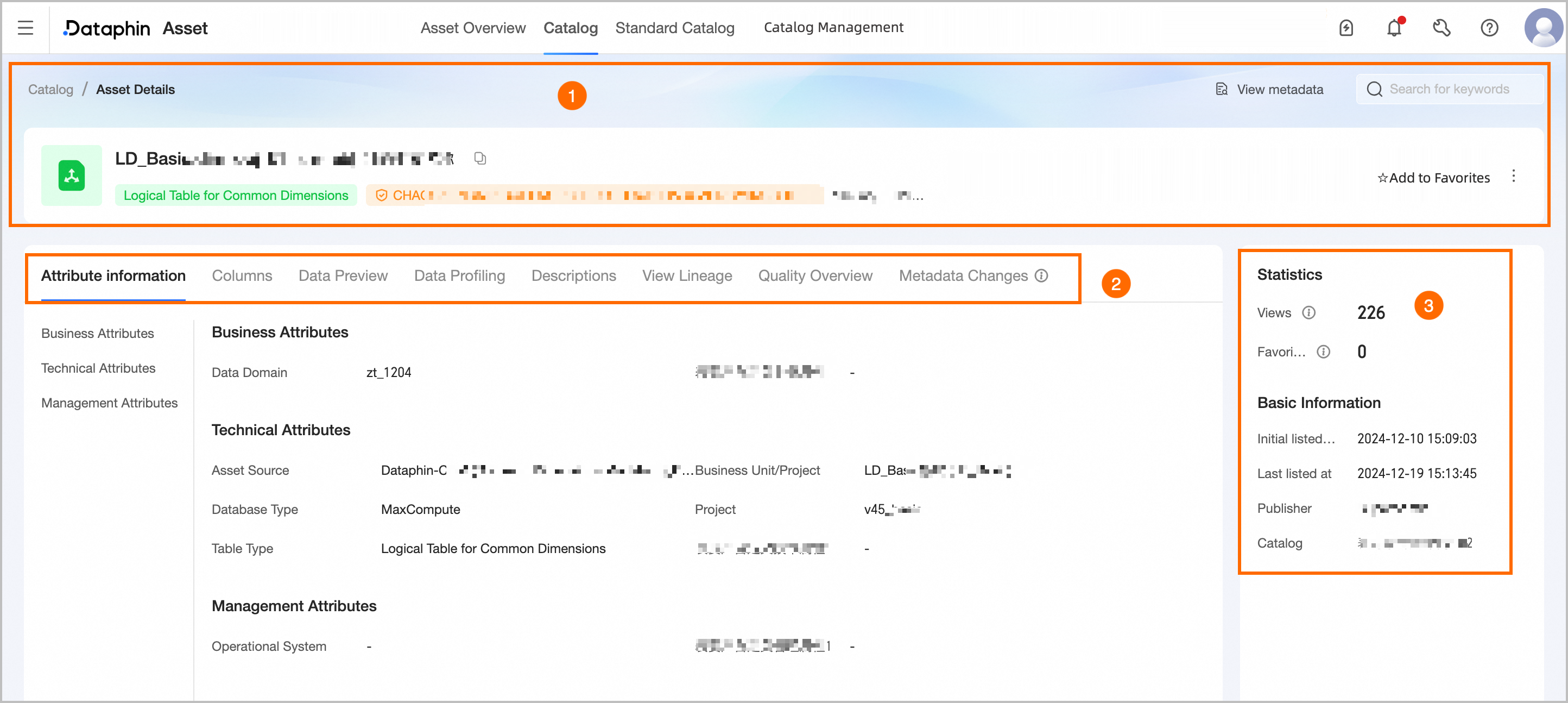
Section
Description
①Overview
Displays the table's name, type, maximum sensitivity level (requires the data security feature), tags, statistical granularity, and description. You can also perform the following operations:
View Metadata: Click View Metadata to go to the table's details page in the asset inventory.
Search for Assets: Allows you to quickly search for other data tables. Select a table to go to its details page.
Statistical Granularity: This section appears when the table is an aggregate logic table that contains a dimension-type field. It displays details for each statistical granularity, including name, code, description, owning business segment, and subject domain. You can also perform the following operations:
View Details: Click to go to the Plan > Data Architecture page and view detailed information on the business entity tab.
View Entity Relationship Diagram: Click to open the Entity Relationship Diagram panel and view the entity relationship diagram centered on this business entity.
Favorite: Click to add the asset to or remove it from your favorites. After you add an asset to your favorites, you can view all your favorite assets in the Personal Data Center. For more information, see View and manage my favorite assets.
Listing Management: Click to go to the edit page for the current table asset under catalog management. You can modify asset properties, usage instructions, and more. For more information, see Edit asset information.
Report Quality Issue: Report data quality issues (such as unstable data output or inaccurate data content) to the assigned quality owner. This helps the owner resolve issues promptly and improves the asset's usability and health. For configuration details, see Add and manage an issue list.
To use this feature, you must enable the data quality module. You can then track the issue's progress and resolution in the issue list within the quality module.
View DDL Statement: For Dataphin tables, you can view the DDL statement for the current table in the tenant compute engine. You can also select a Data Source Type and click Generate DDL Statement to generate a DDL statement that creates a table with the same schema in the selected data source. If you select Automatically Add Escape Characters, the generated DDL statement automatically adds the correct escape characters based on the selected source type, which helps prevent issues such as incorrect escaping of reserved keywords. Some data source tables also support viewing DDL statements. For details, see Operations supported by different types of collection sources.
Export Fields: Exports field information to a local CSV file for quick analysis and use by developers and business users.
②Basic Information
Property Information: Displays the table's properties, including business, management, and technical properties.
Business Properties: Displays the subject domain information.
Management Properties: Includes the owning system, DataWorks workspace, and the DataWorks table owner.
Owning System:
Data source table: The source system of the collection task.
Dataphin table: Displayed as -.
Technical Properties: Includes asset source, owning business segment/project space/data source type, database type, owning project, table type/subtype, asset import name, collection adapter type, and collection adapter information.
Asset Source:
Data source table: The source path is Source System > Data Source > Schema that contains the table. For DataWorks assets, the source path is Source System > DataWorks Application System > DataWorks workspace > Data Source.
Dataphin table: The source path is Dataphin > Project Space Type (logical tables are marked as an intermediate layer) > Owning Project/Business Segment (a business segment includes only logical tables).
Asset Import Name:
Data source table: The name of the collection task for the data source table. For a DataWorks asset, this is the name of the DataWorks collection task.
Dataphin table: Displayed as -.
Custom Properties: Displays the properties created in Data Warehouse Planning > Property Management that are visible in the Asset Catalog. Custom properties are categorized under business, management, or technical properties.
Field Information: Displays field details, including number, name, data type, description/remarks, business type/associated entity (only associated entities are shown for dimension and fact logic tables), associated standard (requires the data standard module), sample data (displayed only when the data sampling feature is enabled), quality score (requires the data quality module and the quality profile to be enabled on the asset's edit page), data category (requires the data security module), data sensitivity level (requires the data security module), and custom properties.
Search and filter: You can search for fields by name, display name, description, or remarks. You can also filter fields by data category and data sensitivity level (requires the data security feature).
Associated Entity: This is displayed for dimension and fact logic tables. It shows the associated entity configured for the dimension on the table's editing page in Develop > Develop. Click the View icon next to an associated entity to see its details, including role name (such as buyer or seller), entity name (code), description, owning business segment, and subject domain. You can also perform the following operations:
View Details: Click to go to the Plan > Data Architecture page and view detailed information on the business entity tab.
View Entity Relationship Diagram: Click to open the Entity Relationship Diagram panel and view the entity relationship diagram centered on this business entity.
Business Type: If the modeling metric is listed, you can click the metric name to go to the Catalog Management > Manual Listing > Technical Metric page and view the details of the listed metric.
Quality Score: Click the View icon next to the quality score value to see the assessment dimensions and quality score for the current field. Click View More to go to the Quality Profile tab for the current asset.
Data Preview: If sample data exists for the table, it is displayed by default. You can also manually trigger a query to fetch the latest data. If no sample data exists, a data preview query is automatically triggered.
You can search or filter the data by field, search within results, view details for a single row, use auto-fit column width, expand or collapse field display names, and pivot rows and columns. You can also click the sort icon next to a field to choose Unsorted, Ascending, or Descending. Double-click a field value to copy it. You can view both sample data and preview data.
Sample data: This is available when both the data sampling switch and the data preview switch in the settings are turned on. It queries sample data only for fields to which you have column-level permissions and that do not require masking. The sample data for each field is stored and sorted independently, so a full row of data is not guaranteed to be complete or accurate.
Data preview: If you have permission to query the table, you can preview its data. It queries only the fields for which you have SELECT permissions (including field-level and row-level permissions) and previews up to the first 50 rows. For information about how to apply for query permissions , see Apply for, renew, and revoke table permissions. For a list of data sources that support data preview, see Data sources and compute engines supported by data profiling.
Data Profiling: If you have enabled the data quality feature, you can configure data profiling tasks for data source tables to quickly assess data health, usability, and potential risks. To enable automatic profiling, you can configure the relevant settings in Govern > Metadata Center > Profiling and Analysis. For details on configuring a profiling task, see Create a data profiling task. For a list of supported data source types, see Data sources and compute engines supported by data profiling.
Instructions: You must enable Instructions on the asset's edit page. This section then displays usage instructions for the current asset to provide information for data viewers and users.
Data Lineage: You must enable data lineage on the asset's edit page. This section then displays system-level, table-level, and field-level lineage graphs.
System lineage: Shows the system lineage of the current asset's owning business segment, project, or source system.
If a related table in the source system or its collection task is deleted, the system is displayed as an unknown source system. For more information, see System lineage.
Table/field lineage: Displays the direct data lineage centered on the current asset. This includes assets that are unlisted or for which you lack view permissions; however, you cannot view their details. For more information, see Table-level lineage, Field-level lineage.
NoteTo view data lineage, you must purchase DataWorks Standard Edition or a later edition.
Calling the OpenAPI consumes QPS (queries per second). For more information, see Use DataWorks OpenAPI .
The table/field lineage for DataWorks data source tables is displayed based on real-time lineage queries from the DataWorks side. By default, one level of direct upstream and downstream dependencies is displayed. You can explore deeper lineage levels in the lineage graph layer by layer.
Real-time query results are cached for one day. If you view the lineage again within the cache period, the cached results are displayed. The lineage cache for a table is automatically invalidated after its collection task is re-executed. To fetch the latest lineage, click Sync Latest Lineage to clear the cache and re-query one level of direct upstream and downstream lineage.
Quality Profile: You must enable the quality profile on the editing page of a manually listed table asset and have purchased the data quality module. This section displays the quality score profile and rule verification details for the current data table and its fields. For more information, see Quality Profile. The quality profile can be viewed only for data tables that are monitored for data quality. For a list of supported data sources, see Data sources supported by Dataphin.
Metadata Change: You must enable metadata change on both the Metadata > Metadata Change Log page and the editing page of the manually listed table asset. You can view the change log for the two most recent versions. For information about how metadata versions are generated for different data sources, see Metadata versions.
Version Comparison: You can switch to view historical version records. This displays basic information, changed fields, and all fields. For more information, see Version comparison.
Downstream Impact: You can view the downstream impact only for the most recent change. The downstream impact is available when the change type is an addition, deletion, or a modification to a data type, field key type, or field nullability.
③Asset Information
Displays details for the data table, such as Data Usage Statistics and Basic Information.
Data Usage Statistics: Includes the page views and number of favorites for the table.
Page views (PV): Displays the real-time page views (PV) for the asset's details page in the Asset Catalog. The count increments with each page refresh.
Number of favorites: Displays the real-time count of how many users have favorited the asset.
Basic Information: Includes the initial listing time, last listing time, publisher, and owning catalog.
System lineage
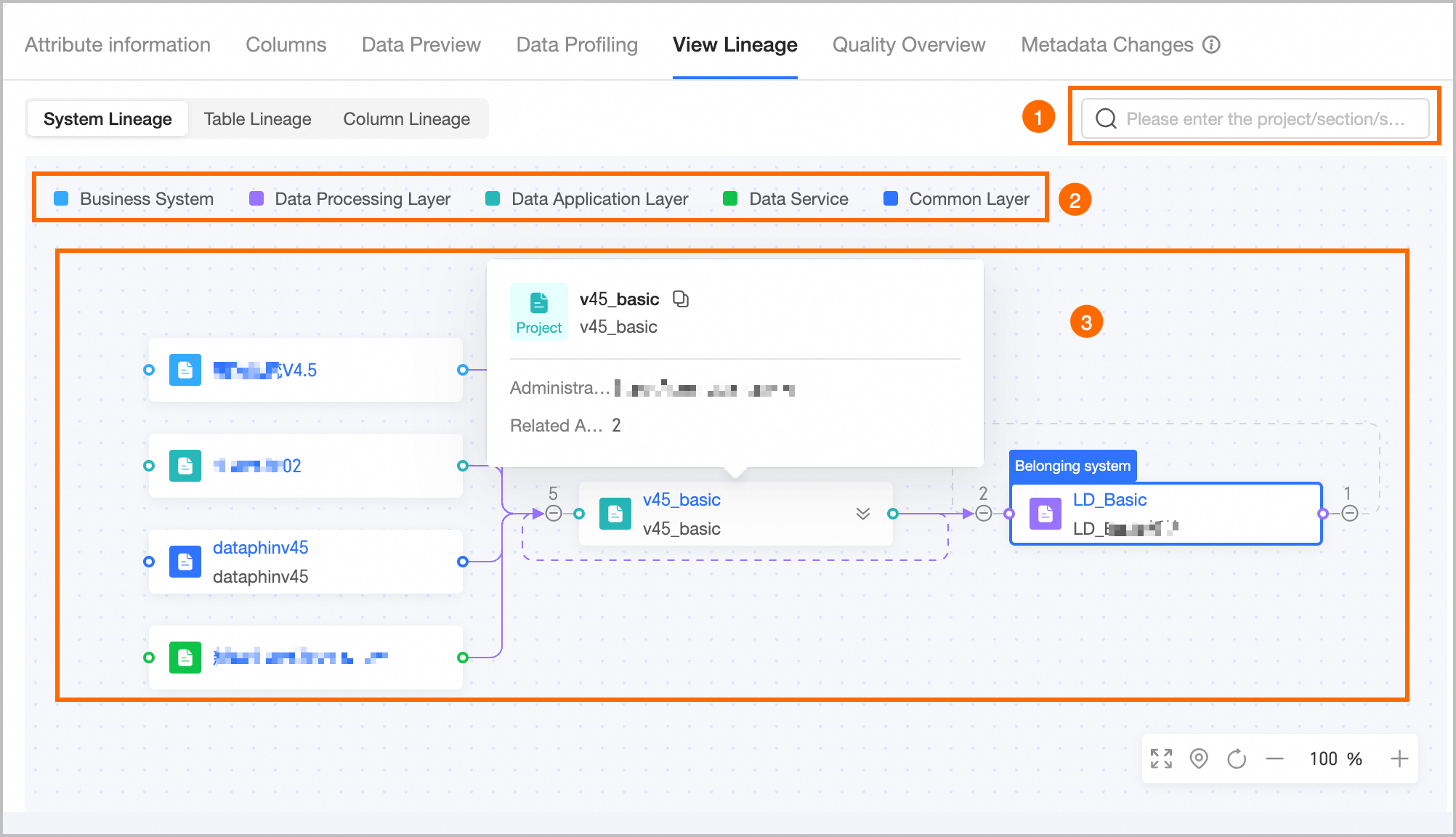
Section | Description |
①Search | Allows you to search for expanded nodes on the current page by keywords in the names of projects, business segments, or source systems. You can click the left/right arrows next to the search box or use the arrow keys on your keyboard to switch between selected nodes. The system automatically locates the first matched node. |
②Legend | Displays the layer to which the current asset belongs, including business system (the system to which data source tables and custom metrics belong), data collection layer (the ODS layer), data processing layer (the intermediate layer, the system to which logic tables and modeling metrics belong), data application layer (the application layer), data service, report application layer, and common layer. |
③Lineage graph | Displays the complete data lineage graph for the current asset. You can manually expand upstream and downstream nodes. The graph displays direct table-level lineage for the current table and the tables of the current metrics, grouped by system.
|
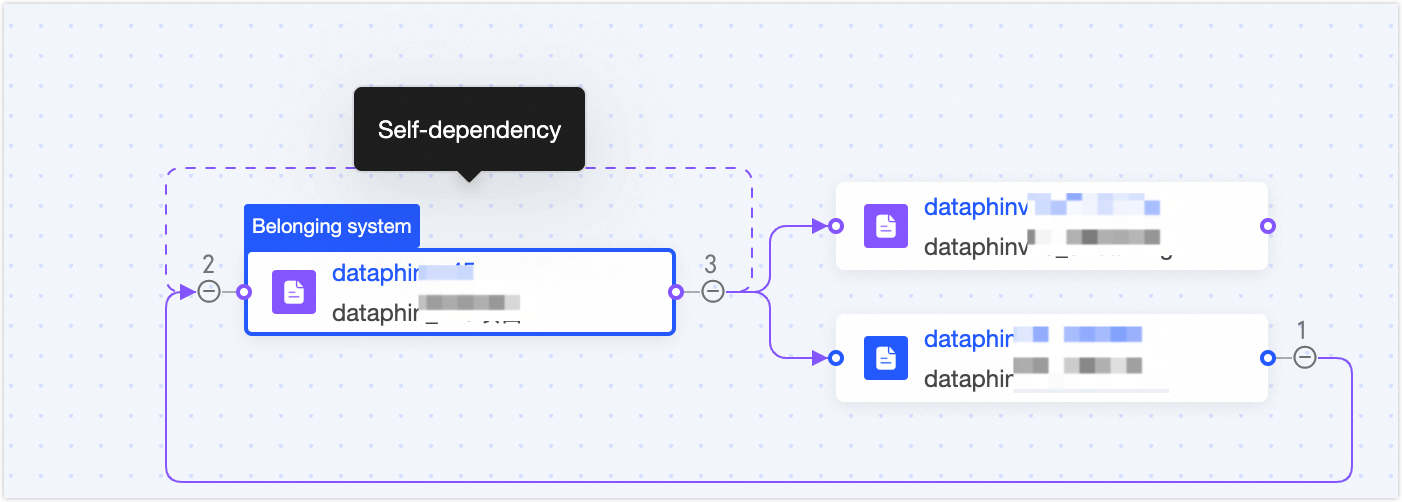
Table-level lineage
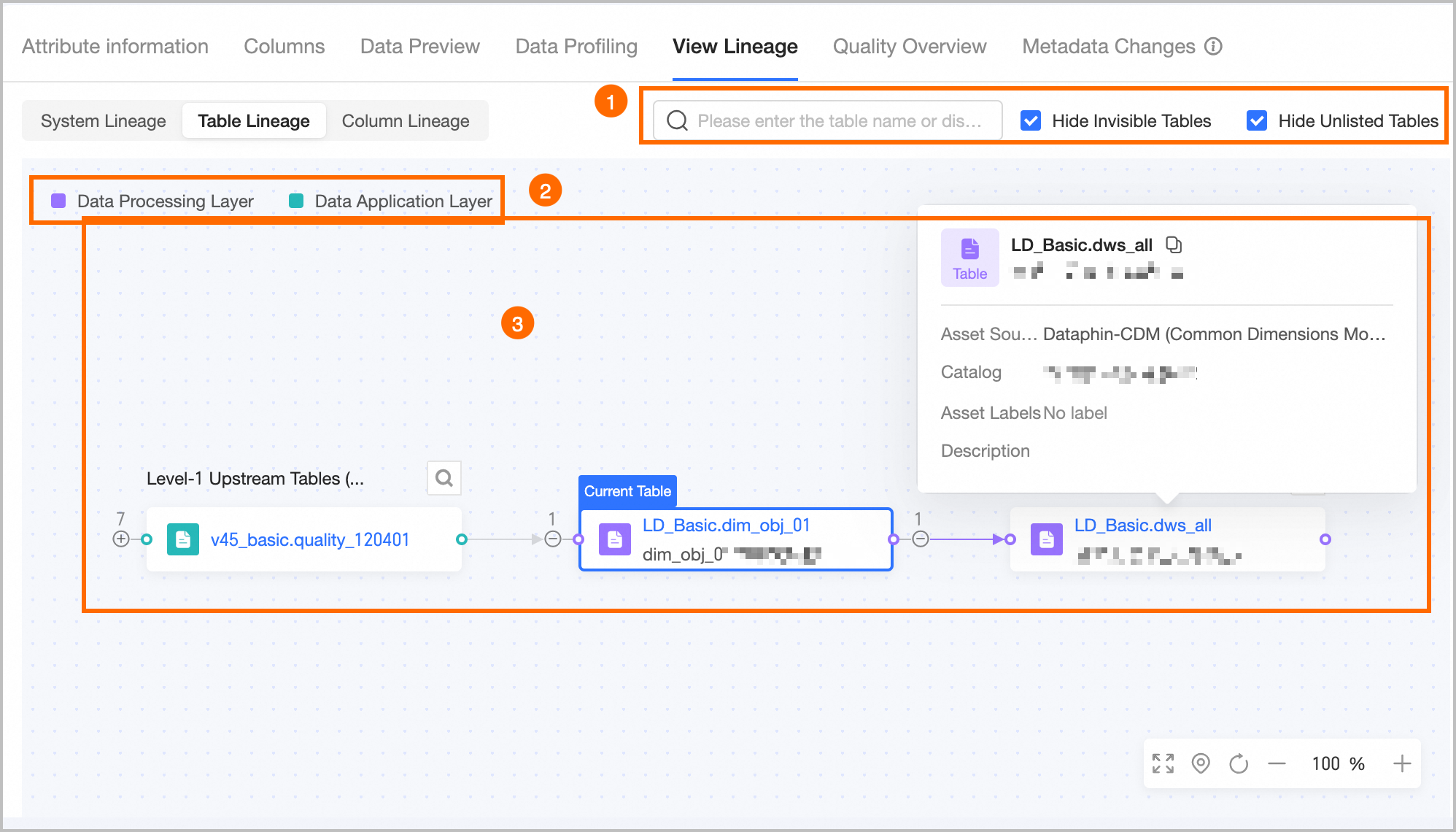
Section | Description |
①Search and quick filters |
|
②Legend | Displays the layer to which the current asset belongs, including business system (the system to which data source tables and custom metrics belong), data collection layer (the ODS layer), data processing layer (the intermediate layer, the system to which logic tables and modeling metrics belong), data application layer (the application layer), data service, report application layer, and common layer. |
③Lineage graph | Displays the complete data lineage graph for the current asset. You can manually expand upstream and downstream nodes.
|
Field-level lineage
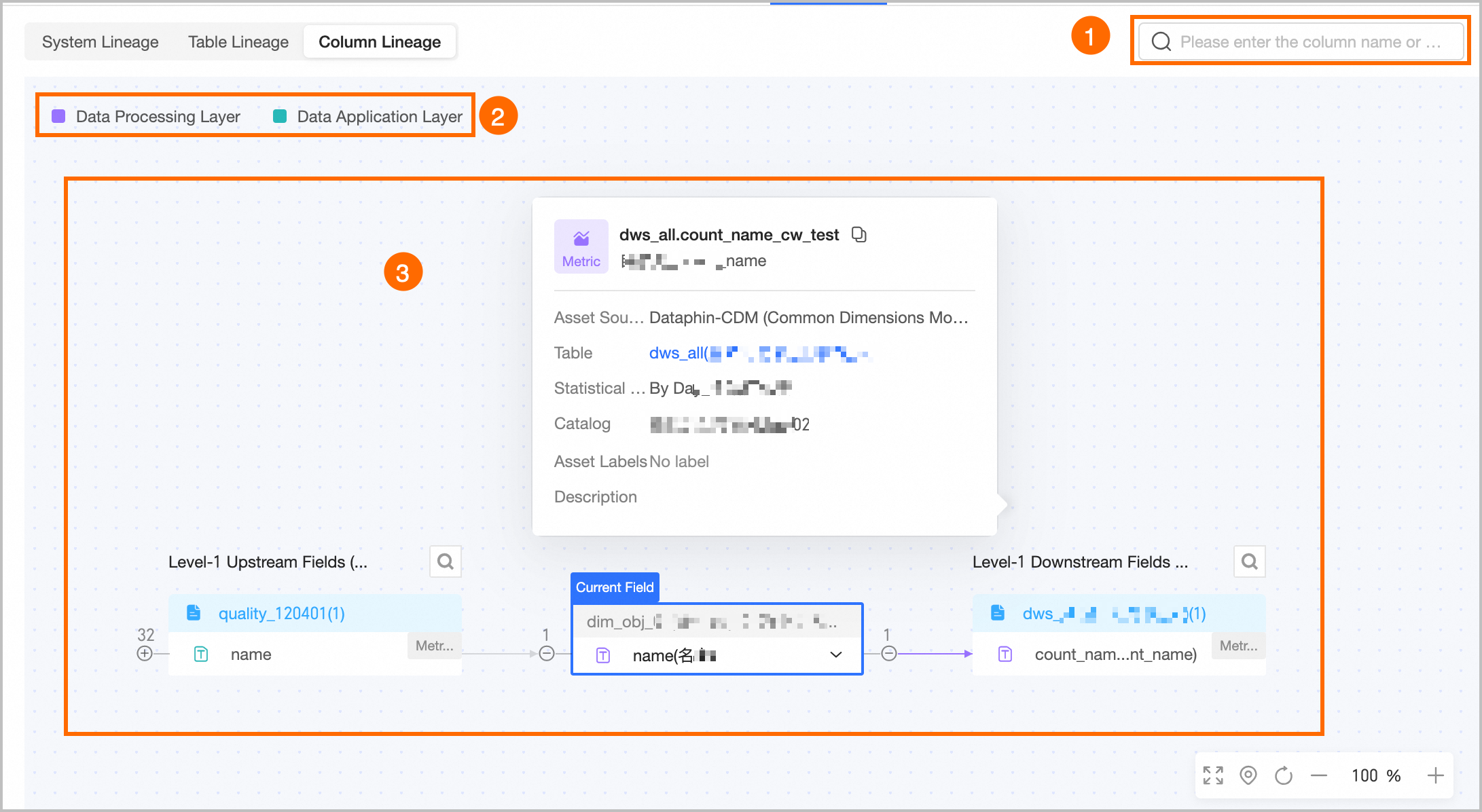
Section | Description |
①Search | Allows you to search for expanded nodes on the current page by field name. You can click the left/right arrows next to the search box or use the arrow keys on your keyboard to switch between selected nodes. The system automatically locates the first matched node. |
②Legend | Displays the layer to which the current asset belongs, including business system (the system to which data source tables and custom metrics belong), data collection layer (the ODS layer), data processing layer (the intermediate layer, the system to which logic tables and modeling metrics belong), data application layer (the application layer), data service, report application layer, and common layer. |
③Lineage graph | Displays the complete data lineage graph. You can manually expand multiple upstream or downstream levels and search by field name. If a cyclic dependency exists, you cannot expand it further and must view the downstream lineage from the starting node.
|
Quality Profile
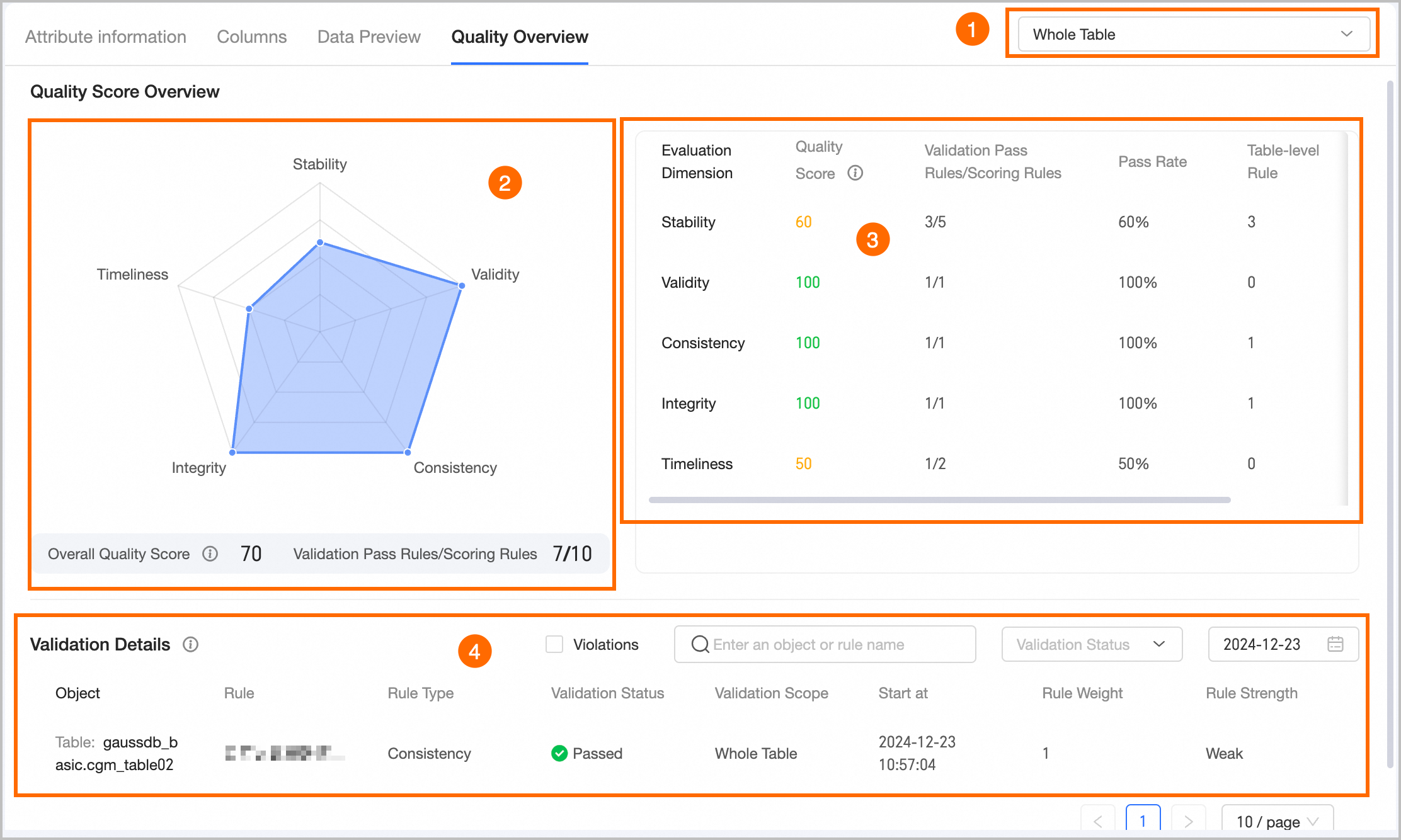
Section | Description |
①Filter | Allows you to filter the quality score profile and rule verification details for a specified object (the entire table or a specific field). |
②Quality Score Radar Chart | Displays a quality characteristic radar chart for the selected object (the entire table or a specific field), along with the overall quality score and a summary of passed rules versus scoring rules.
|
③Score List | Displays the quality characteristic assessment details for the selected object, including assessment dimension, quality score, rules passed/scoring rules, pass rate, and the number of table-level and field-level rules.
|
④Rule Verification Details | You must enable rule verification details on the edit page of a manually listed table asset. The statistics include verification records from the last 30 days for all monitoring rules on the current data table. The results are aggregated based on the rule's scoring method and verification outcome. You can view rule verification details for a specific date, quickly filter for Abnormal Results, filter by verification status, or search by the name of the object or rule. |