Technical indicator details
You can only view details for published assets. This topic describes how to view metric asset details.
Prerequisites
You have activated the Intelligent R&D Edition or purchased the Asset Operations - Advanced Edition value-added module.
Limitations
When the data source type is PolarDB-X (formerly DRDS), SAP HANA, IBM DB2, or OceanBase (in MySQL or Oracle tenant mode), data source tables and their included custom metrics the data preview feature.
Metric asset details
In the top navigation bar of the Dataphin homepage, choose Assets > Asset Catalog.
Click the Metrics tab, and then click the name of the target asset to open its details page.
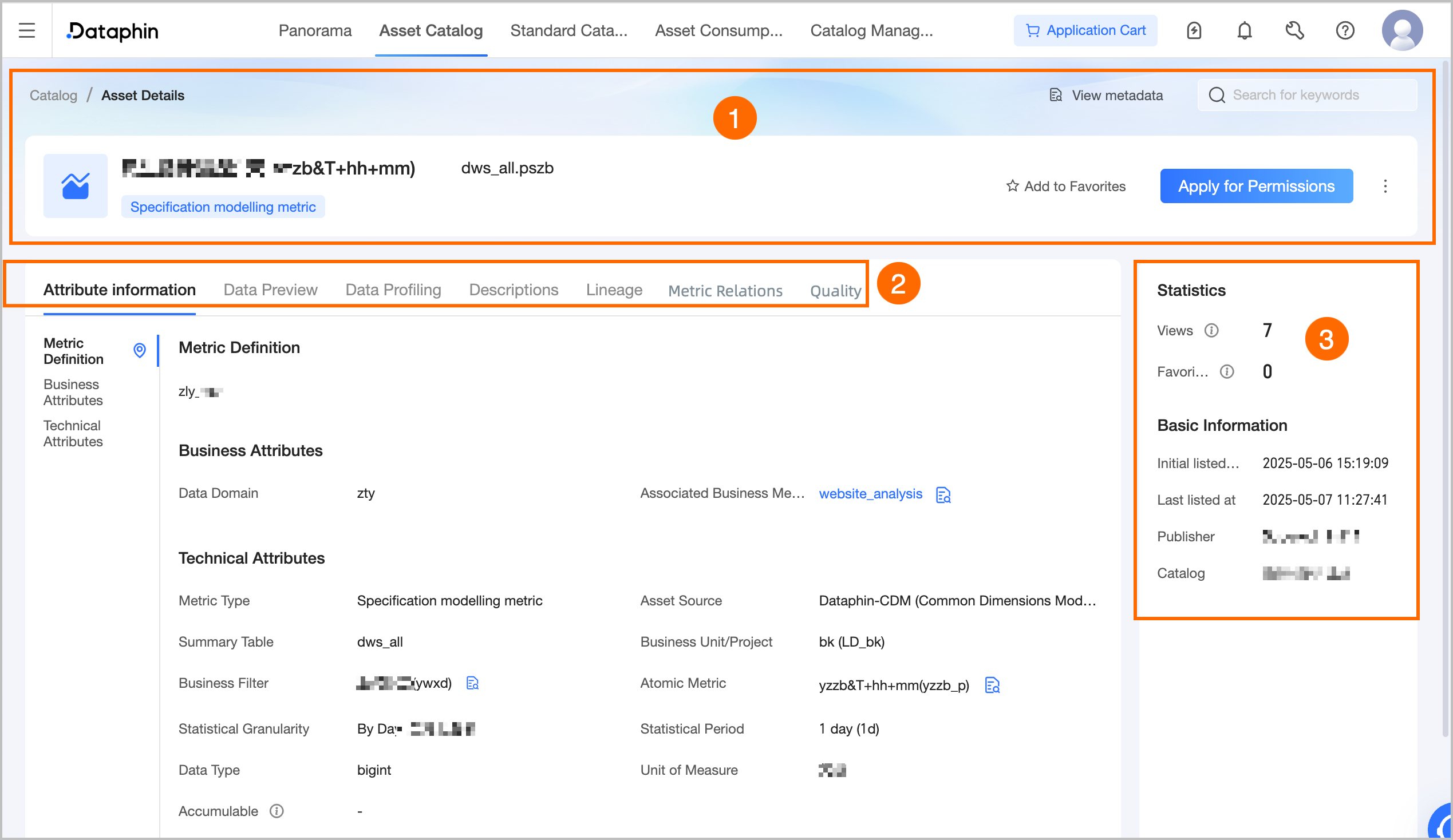
Section
Description
① Summary
Shows the metric's name, type, description, and tags. You can also perform the following operations:
View Metadata: Opens the metric's details page in the asset list. This operation is not supported for custom metrics.
Search for Assets: Quickly search for other objects, select the asset you want to view, and then open its details page.
Favorite: Click to favorite or unfavorite the asset. After you favorite an asset, you can find it in your personal data center. For more information, see View and manage my favorited assets.
Apply for Permissions: Click to go to the permission application page for the current table. For more information, see Apply for, renew, and return table permissions.
Manage Publication: Click to go to the edit page for the current metric asset under Catalog Management. You can modify asset properties, usage instructions, and more. For more information, see Edit asset information.
Report Data Quality Issue: Click the
 icon and select Report Data Quality Issue. You can report data quality issues that you find, such as unstable data output or inaccurate content, to the quality owner. This helps the owner correct issues and improve the asset's quality. For configuration details, see Add and manage an issue list.
To use the Report Data Quality Issue feature, you must have the data quality module enabled. You can then track the resolution process and results of your reported issues in the issue list within the data quality module.
② Basic Information
Properties: Displays the metric's properties, including its metric definition, business attributes, and technical attributes.
Metric definition: Available only for modeled metrics. Displays the metric definition entered in R&D > Develop > Metrics.
Business attributes: Displays information such as the subject domain and associated business metrics.
Associated business metrics: Click a business metric name to go to its details page in the asset catalog.
Technical attributes: Displays the metric type, asset source, summary table, data section, business qualifier, atomic metric, granularity, statistical period, data type, unit of measure, and whether the metric is aggregatable.
Summary table: Displays the name of the summary table. If you have permission to view the table, you can click the table name to go to its details page in the asset catalog.
For an atomic metric or business qualifier, click the View icon next to the metric name to see its calculation logic. This operation is not supported for custom metrics.
Granularity: Displays the names of the entities that constitute the granularity. Click the View icon to see each entity's name, code, description, data section, and subject domain. You can also perform the following operations:
View Details: Click to go to Plan > Data Architecture and view the detailed information on the business entity's tab.
View Entity Relationship Diagram: Opens the Entity Relationship Diagram panel, which shows a diagram centered on the business entity.
Custom attributes: Displays properties created in Data Warehouse Planning > Property Management that are configured to be visible in the asset catalog. These are categorized as business, management, or technical attributes.
Data preview: You must have consumption permissions for the metric to use the data preview feature. This feature allows you to preview the first 50 rows of data, showing results only for the fields for which you have SELECT permissions. For information on how to apply for permissions , see Apply for, renew, and return table permissions.
After filtering the data, you can search or filter by field, view single-row details, auto-fit column widths, expand or collapse field display names, and transpose rows and columns. You can also click the sort icon next to a field to keep it Unsorted or sort it in Ascending or Descending order. Double-click a field value to copy it.
Data profiling: The data quality feature must be enabled. If a profiling report exists for the table to which the metric belongs, you can view the report for the metric value field.
Usage Instructions: This feature must be enabled on the metric asset's edit page during manual publication. This section displays usage instructions for the asset, providing a reference for data viewers and users.
Lineage: This feature must be enabled on the metric asset's edit page during manual publication. It displays a direct lineage graph centered on the asset. The graph may include unpublished assets or assets for which you lack view permissions, but you cannot view their details. For more information, see Metric lineage.
Metric relationship: This feature is available for modeled metrics and requires the metric relationship diagram to be enabled on the metric asset's edit page during manual publication. It displays a metric relationship diagram with the current asset as the root node. For more information, see metric relationship diagram.
Quality overview: This feature must be enabled on the metric asset's edit page during manual publication, and you must have purchased the data quality module. This section displays an overview of the metric's quality score and rule verification details. For more information, see Quality overview.
③ Asset Information
Displays detailed information about the metric, including Usage Statistics and Basic Information.
Usage Statistics: Includes the number of views and favorites for the metric.
Views: Displays the page views (PV) for the current metric. The count increments with each page refresh and is updated in real time. This count includes only visits to the asset details page in the asset catalog.
Favorites: Displays the number of times the current metric has been favorited by users. The count is updated in real time.
Basic Information: Includes the initial publication time, last publication time, publisher, and home directory.
Metric lineage
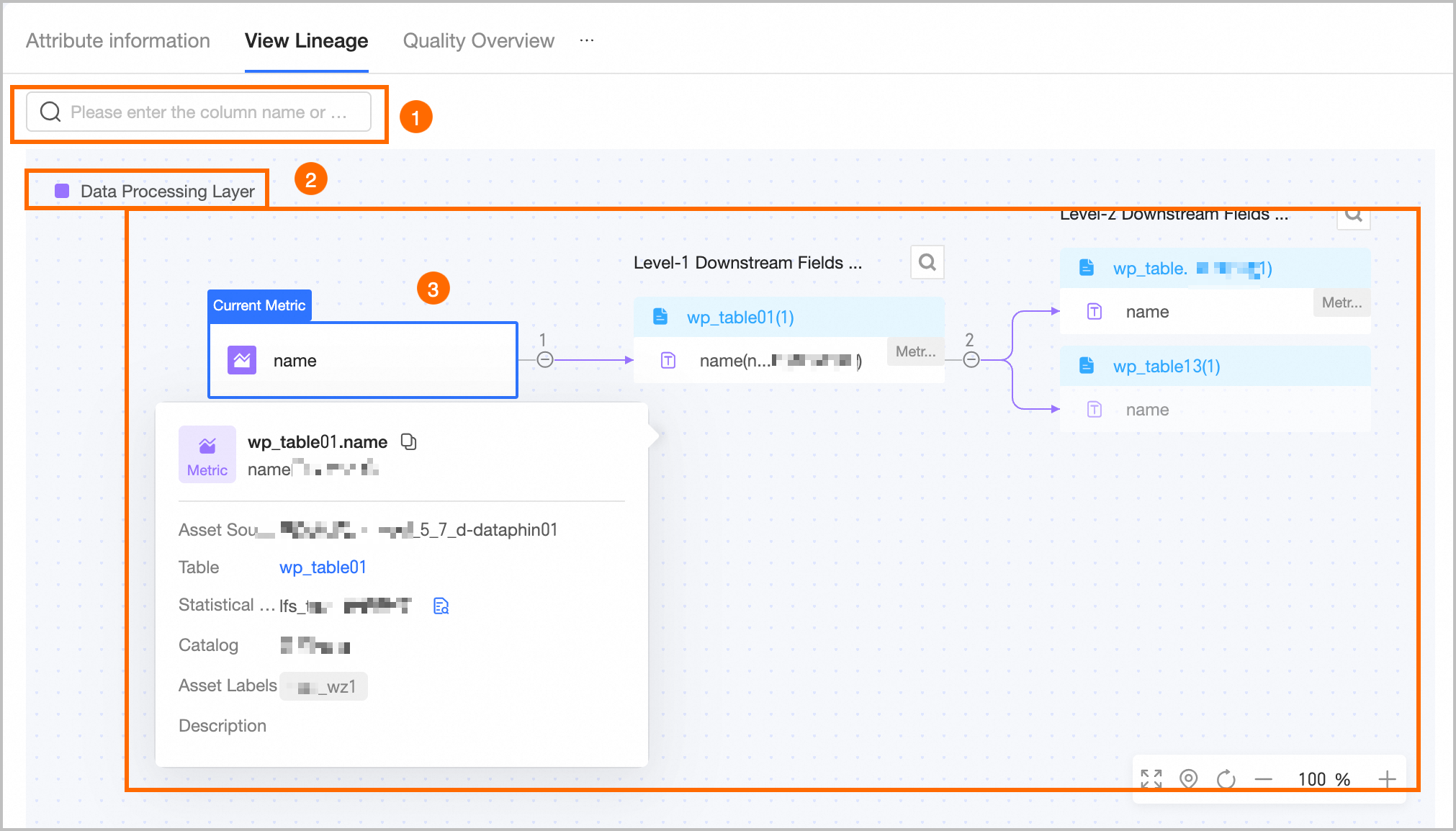
Area | Description |
① Search | Search for expanded nodes on the current page by field name. You can click the left or right arrows next to the search box or use the arrow keys on your keyboard to switch between selected nodes. The system automatically locates the first match. |
② Legend | Displays the layer to which the current asset belongs. Layers include business systems (for data source tables and custom metrics), the data ingestion layer (staging layer), the data processing layer (intermediate layer and systems for logical tables or modeled metrics), the data application layer (application layer), data services, the report application layer, and the common layer. |
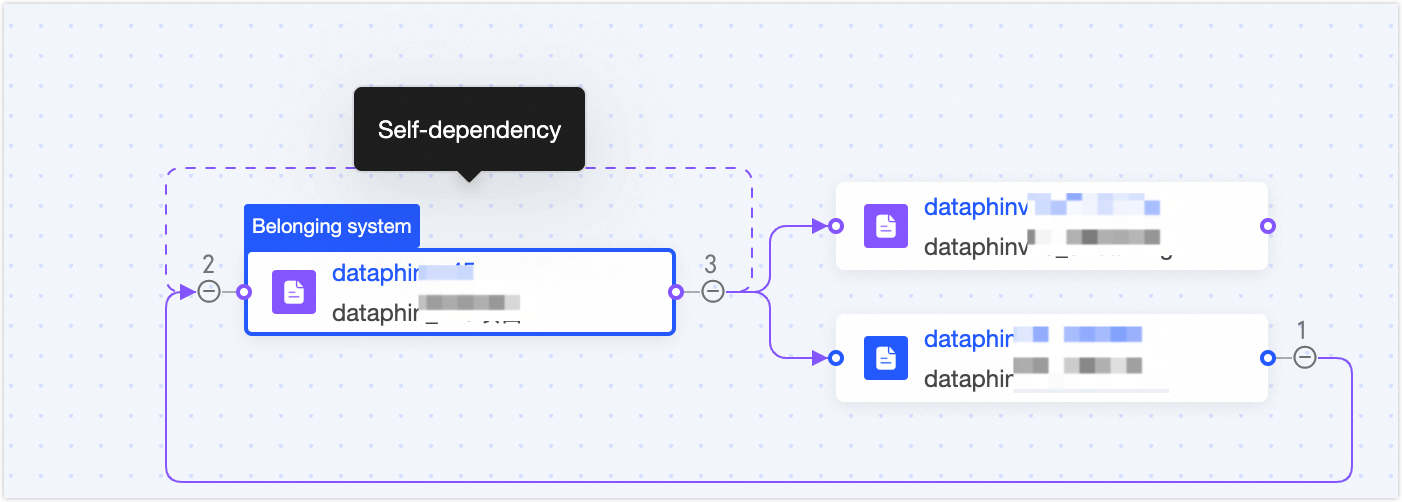
③ Lineage graph | Displays the complete lineage graph. You can manually expand multiple levels of upstream or downstream nodes. Fuzzy search by field name is supported. If a circular dependency exists, you cannot expand the node further. In this case, you must trace the downstream flow from the starting node.
|
Metric relationship diagram
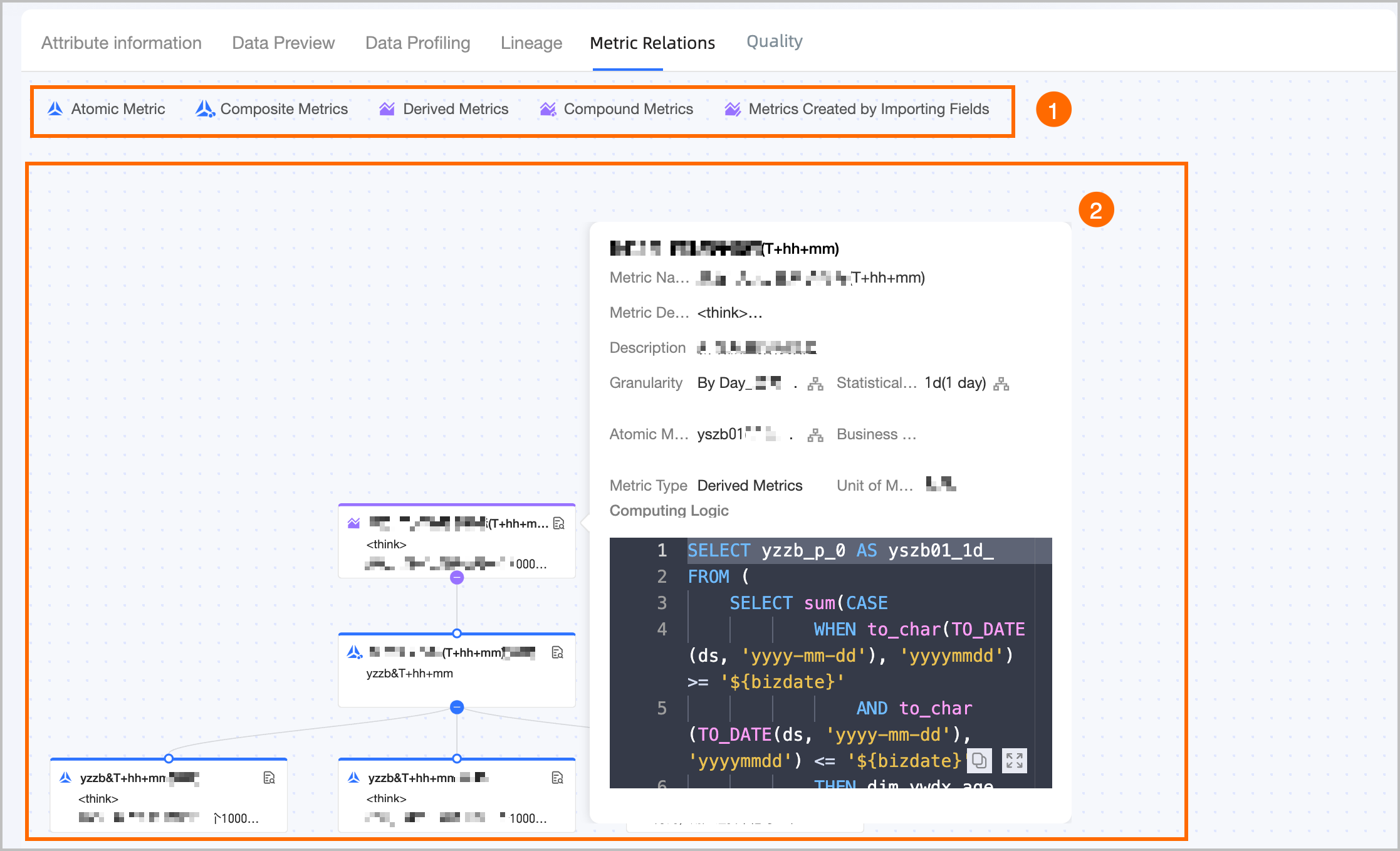
Area | Description |
① Legend | Displays the types of metrics in the relationship diagram, including atomic metric, derived atomic metric, derived metric, complex derived metric, and registered metric. |
② Metric relationship diagram | Displays a diagram of the metric processing logic rooted at the current metric. Hover over a metric name to view its name, unit of measure, and metric definition. View Details: This operation is available only for published metrics for which you have view permissions. The information displayed varies by metric type.
Note
|
Quality overview
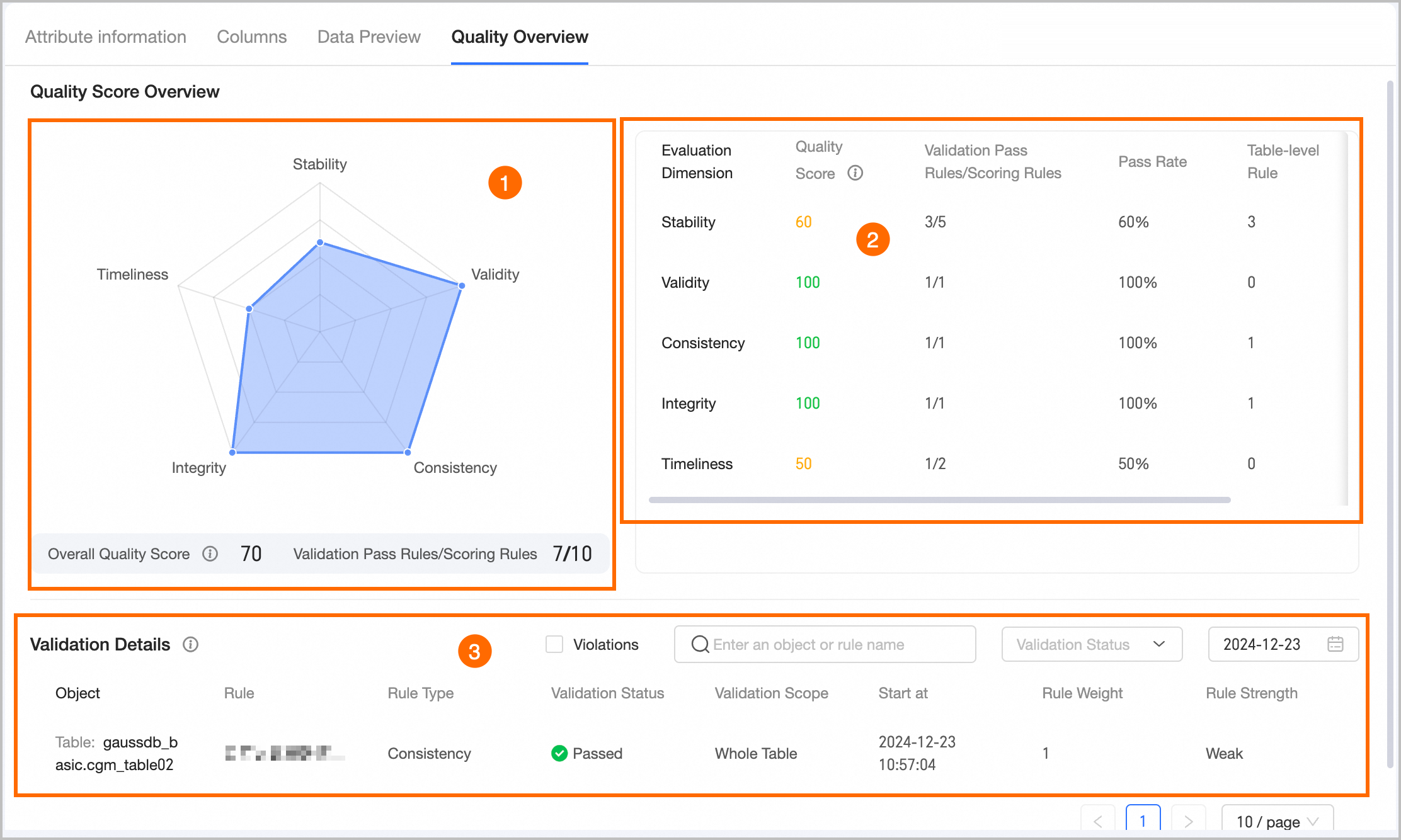
Area | Description |
① Quality score radar chart | Displays the metric's quality characteristics radar chart, overall quality score, and the ratio of passed rules to scored rules.
|
② Score List | Displays a detailed quality assessment for the current metric, including the evaluation dimension, quality score, passed/scored rules, pass rate, and the counts of table-level and field-level rules.
|
③ Rule verification details | To use this feature, you must enable it on the table asset's edit page during manual publication. You can view rule verification details for a specific date, filter for abnormal results, filter by verification status, or search by rule name.
|