Business Metric Details
You can only view details for listed assets. This topic describes how to view the details of a business metric.
Prerequisites
You have enabled the Intelligent R&D Edition or purchased the Asset Operations - Advanced Edition value-added module.
Metric Asset Details
On the Dataphin homepage, in the top navigation bar, choose Assets > Asset Catalog.
On the Metric tab, click the name of the desired asset to open its details page.
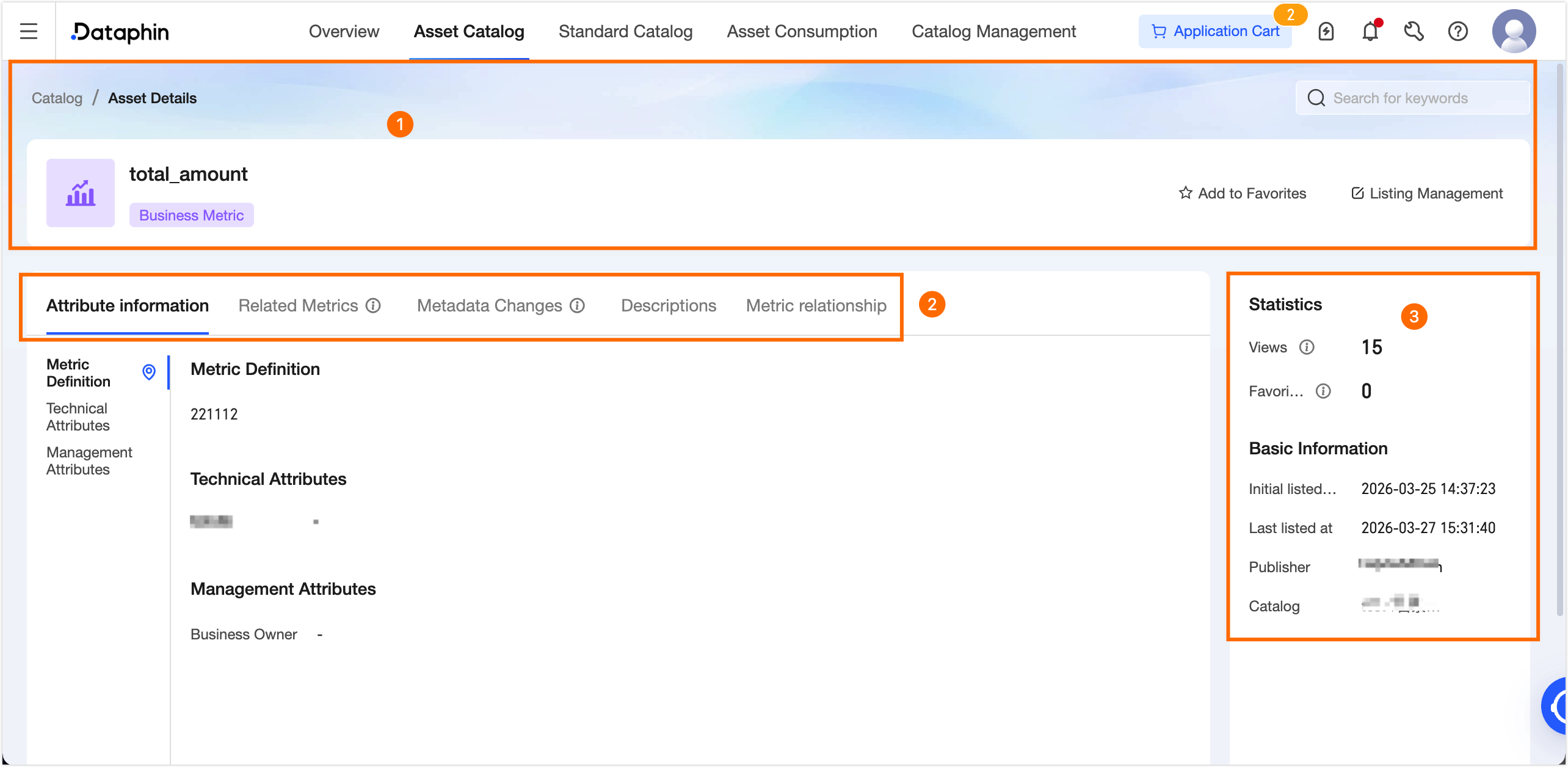
Section
Description
① Summary
Displays the name, type, description, and tags of the business metric. You can also perform the following operations:
Search assets: Search for other assets. Select an asset to view its details.
Favorite: Click to add or remove the asset from your favorites. Favorited assets are available in the Personal Data Center. For more information, see View and manage my favorite assets.
Listing Management: Click Listing Management to open the asset's edit page in Catalog Management. You can modify the asset's properties and usage notes. For more information, see Edit asset information.
② Basic information
Attribute information: Displays the attributes of the metric, including its metric definition and management attributes.
metric definition: Describes the metric's calculation logic, helping business users understand it.
business attribute: Displays the owner of the metric.
custom attribute: Displays attributes that are created in Data Warehouse Planning > Attribute Management and are visible in the Asset Catalog. Custom attributes are categorized as business attributes, management attributes, or technical attributes.
Related metrics: You can view only related metrics that are listed and for which you have permissions. You can switch between business metrics and technical metrics.
Business metrics: Displays the metric's name, metric definition, and relationship information. A metric's metric definition is visible only if the metric is listed, you have permission to view it, and its definition is configured as viewable. You can also perform the following operations:
View: Navigates to the details page of the metric in the Asset Catalog.
View Metric Analysis Graph: The Metric Relationship graph is available only for modeled metrics that were manually listed and have this feature enabled. Click to open the Metric Relationship graph with the current asset as the root node.
Technical metrics: Displays the metric's name, statistical granularity, statistical period, metric definition, description, associated summary table, and data type. A metric's metric definition is visible only if the metric is listed, you have permission to view it, and its definition is configured as viewable. You can also perform the following operation:
View: Click to go to the details page for the metric in the Asset Catalog.
Metadata change: This section compares the current attribute values with the previously listed version. When an attribute value changes, a metadata change record is created. This record includes the time of the change and relevant details. You can click Version Comparison in the Actions column to view more details. By default, the 10 most recent metadata change records are retained.
Version Comparison: On the Version Comparison page, you can switch between different versions to check for metadata updates.
Version selection: Select a base version and a comparison version to view the metadata differences between them.
base version: Select a historical version created before the comparison version.
comparison version: Select a new version created after the base version.
Basic information: Displays the listing time and the user who listed the asset.
Attribute value changes: When an attribute value changes, the previous value is highlighted in orange in the base version, and the new value is highlighted in green in the comparison version.
usage notes: If enabled on the edit page for a manually listed business metric, this section displays the usage notes for the asset to guide data consumers.
Metric Relationship: Displays the complete Metric Relationship graph, starting from the current asset as the root node. The graph is generated based on metric calculation logic and visually represents the processing logic between metrics. By default, 10 levels of the graph are expanded, and you can manually expand more. If a node appears multiple times in the graph, only the downstream nodes of its first occurrence can be expanded. Other instances of the same node cannot be expanded to prevent duplication and display errors.
View Details: Click to open the metric's details page in Assets > Asset Catalog.
③ Asset information
Displays detailed information for the business metric, such as Usage Statistics and basic information.
Usage Statistics: Includes the metric's page views and number of favorites.
page view (PV): Displays the total number of page views (PV) for the current metric. The real-time count increments each time the page is refreshed. This count includes only views of the asset details page within the Asset Catalog.
number of favorites: Displays how many times users have favorited the metric. The count is updated in real time.
Basic information: Includes the initial listing time, most recent listing time, publisher, and the catalog it belongs to.