View and manage quality validation records
This topic outlines the process for viewing and managing quality validation records for Dataphin tables, domain-wide tables, metrics, data sources, and real-time metadata tables.
View validation records
Navigate to the Dataphin home page, and from the top menu bar, select Administration > Data Quality.
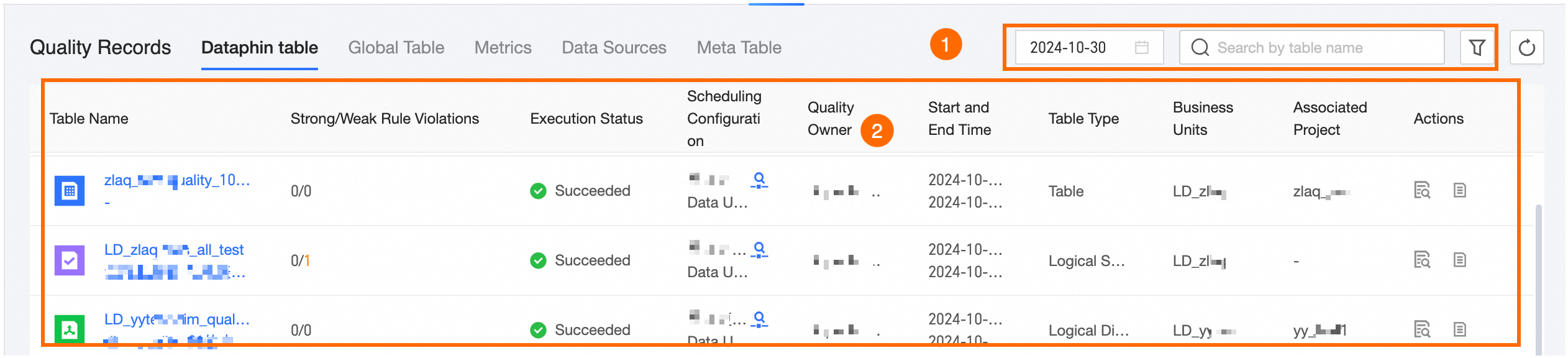
In the left-side navigation pane, click Quality Record, then select Dataphin Table to access the validation record page for Dataphin tables. The layout of validation record pages is similar across different object types, as illustrated below with the Dataphin Table example.
Parameter
Description
① Filter and search
Filter validation records by supported fields, date, or My Responsible records, and search by object name keyword.
② List area
View information for different object types and perform actions such as examining validation details, viewing quality reports, and stopping validations.
View Validation Details: To view the validation details for the current object, single click the
 icon or the table name. For more information, see or Validation Record Details.
View Quality Report: To view the quality report, single click the
 icon, which will direct you to the quality rule details page for the current object.
Stop: To halt the execution of validation objects, simply single click the stop
 icon, thereby terminating the quality rule validation task.Note
Upon termination, the execution status switches to canceled. Rules that have been completed remain unaffected, while those still in progress are marked as canceled.
Validation record details
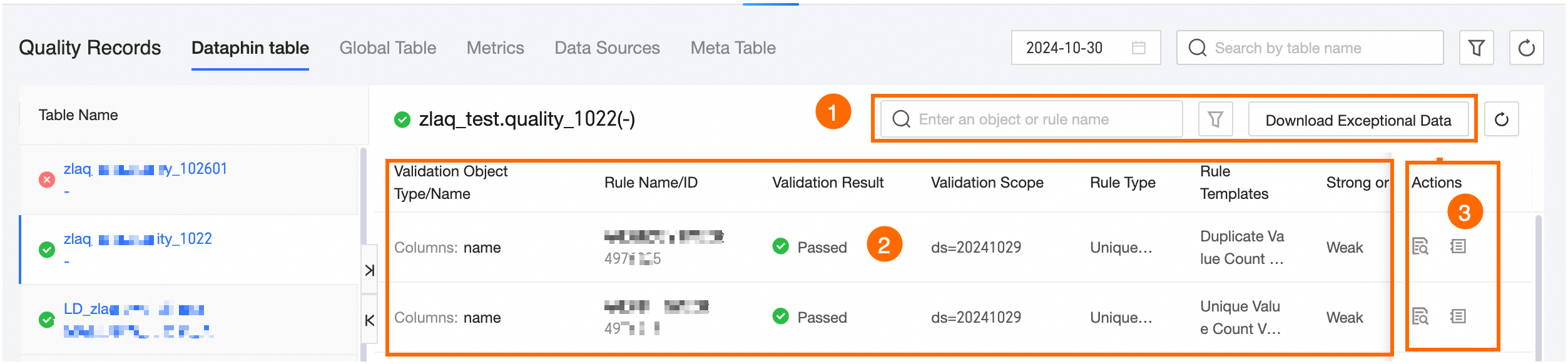
To access the details of a validation record, click on the object's name or the  icon in the operation column. The layout of these detail pages is consistent across different object types, as shown in the Dataphin Table example below.
Area | Description |
① Filter, search, and download abnormal data area |
|
② List area | This section displays the validation object's type/name, rule name/ID, result, scope, type, template, strength, and start time of validation. |
③ Operation area |
|
 icon. This includes basic information, configuration settings, and results of the validation.
 icon.
icon. icon.
icon.