Create a MaxCompute compute source
A MaxCompute compute source attaches a Dataphin project to a MaxCompute project to provide a compute source for offline computing tasks. If Dataphin uses MaxCompute as its compute engine, you must add a MaxCompute compute source to your project. This is required to use features such as standard modeling, ad hoc queries, MaxCompute tasks, and general-purpose scripts. This topic describes how to create a MaxCompute compute source.
Prerequisites
The compute engine for your Dataphin instance is set to MaxCompute. For more information, see Set the compute engine for a Dataphin instance.
Accounts with the super administrator or project administrator role can create compute sources. For more information, see Data Warehouse Planning Permission List .
Procedure
Go to the Planning page of the data warehouse. For more information, see Data warehouse planning entry points.
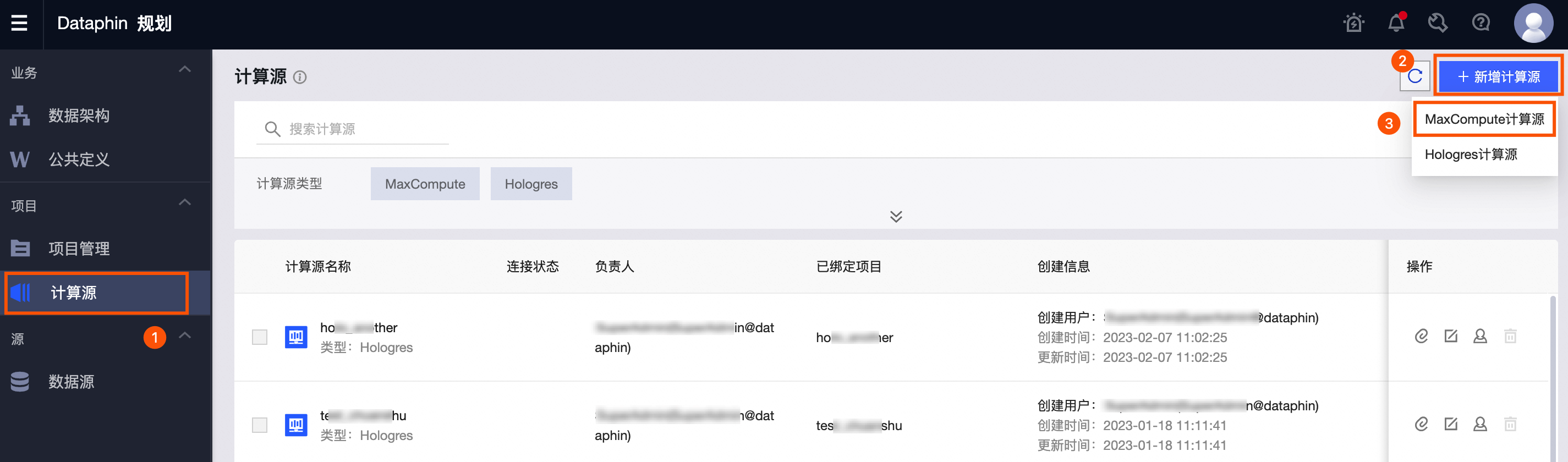
On the Planning page, follow the steps shown in the figure to open the Create Compute Source page.
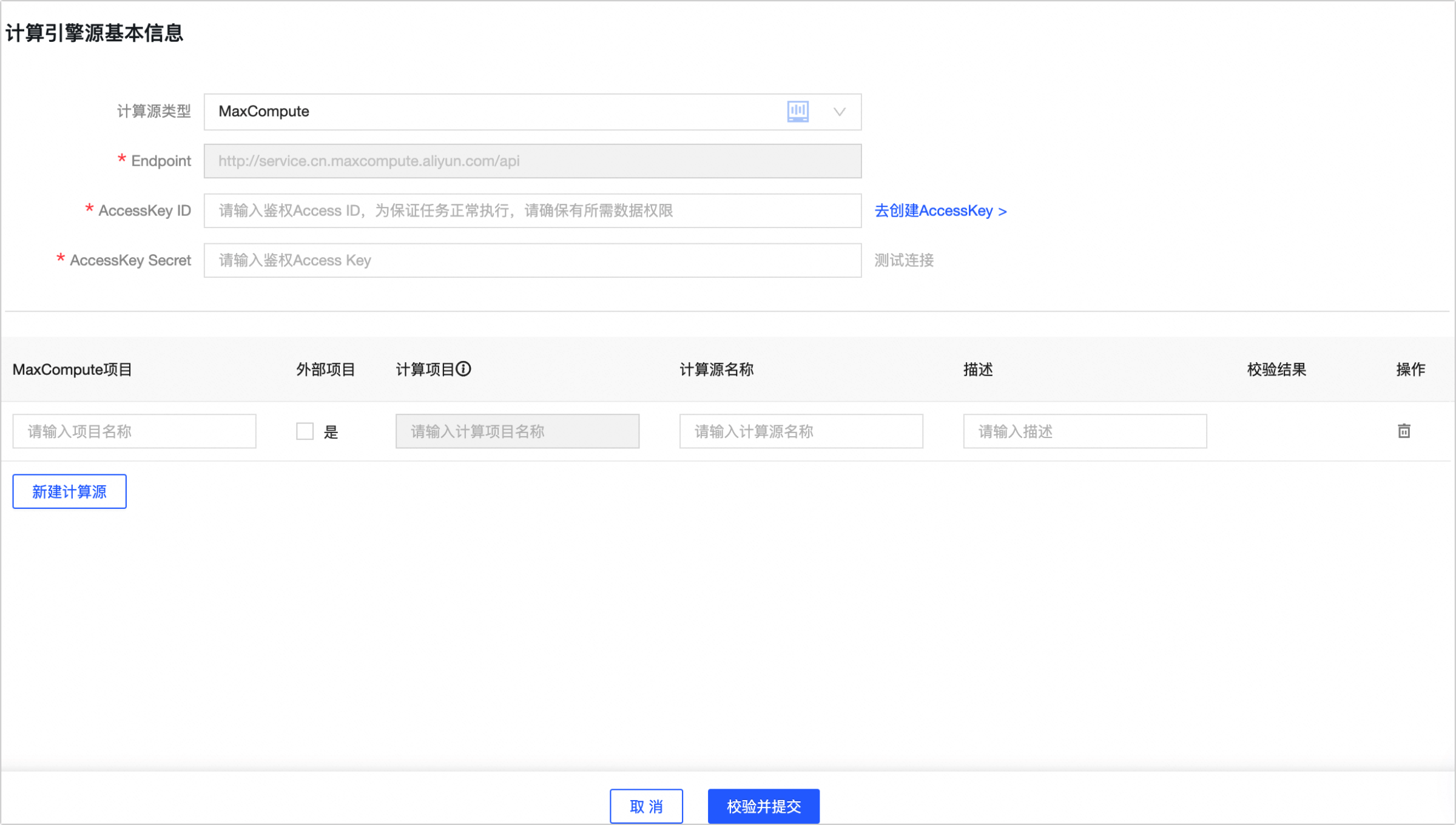
On the Create Compute Source page, configure the parameters.
Parameter
Description
Compute source type
Select MaxCompute.
Endpoint
The Endpoint of the compute engine is used by default and cannot be changed.
AccessKey ID and AccessKey Secret
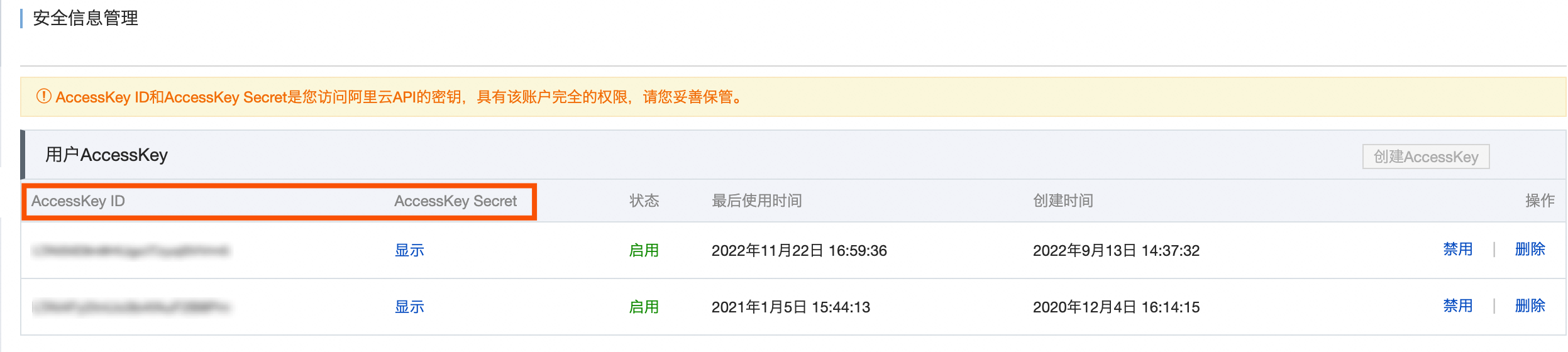
Enter the AccessKey ID and AccessKey secret of an account that has access to the MaxCompute project data.
You can obtain the AccessKey ID and AccessKey secret on the User Information Management page.
 Important
To ensure a stable connection between the Dataphin project and the MaxCompute project, use the AccessKey of a MaxCompute project administrator.
To ensure successful metadata collection, do not change the AccessKey of the MaxCompute project.
MaxCompute project
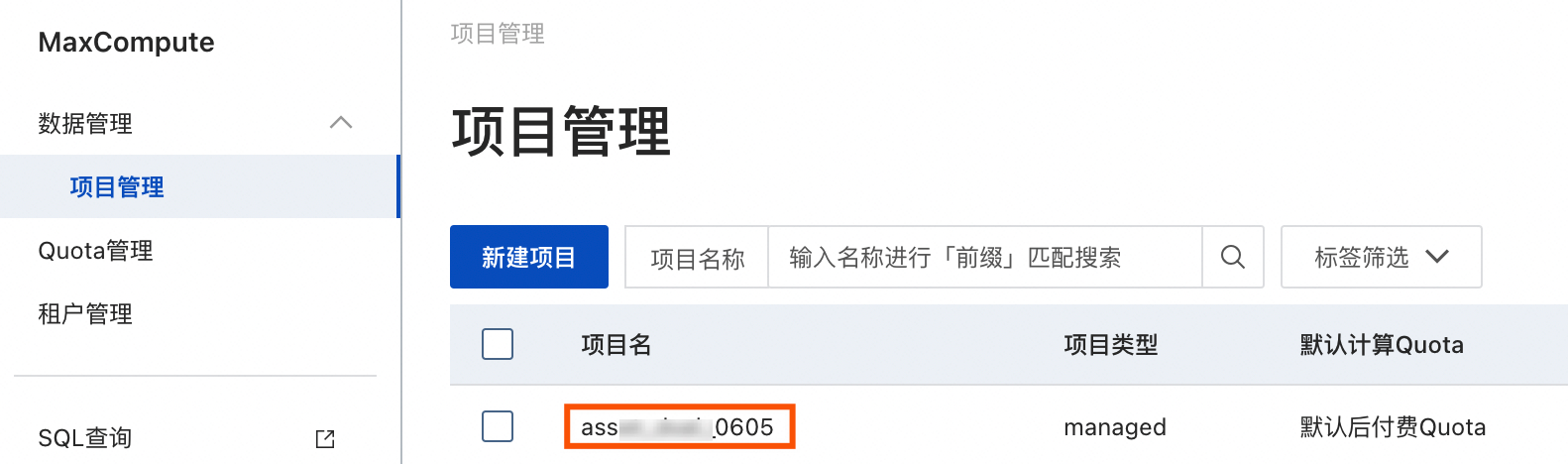
Enter the name of the MaxCompute project.
NoteThis is the name of the MaxCompute project, not the DataWorks workspace.
Log on to the MaxCompute console. In the upper-left corner, switch to the correct region. The MaxCompute Project Name is displayed on the Project Management tab.
External project
This option is not checked by default. If you check Yes, you must specify a MaxCompute project to use as a compute resource.
NoteIntegration tasks do not support reading data from or writing data to external MaxCompute projects.
You cannot use a Hologres engine to accelerate queries on external MaxCompute projects.
You cannot retrieve the storage usage of tables in external projects from MaxCompute metadata.
The resource does not support storage health scores or storage usage.
Compute project
Enter the name of the external MaxCompute project to use as a compute resource.
Compute source name
Enter a name for the compute source. The name must follow these rules:
You can use Chinese characters, digits, letters, underscores (_), and hyphens (-).
Be no more than 64 characters in length.
Description
Enter a brief description of the compute source.
NoteTo create multiple compute sources for different AccessKey IDs in a batch, click Create Compute Source. You can create up to 10 compute sources at a time.
Click Test Connection to test the connectivity between Dataphin and the account that is associated with the specified AccessKey ID.
After the test is successful, click Validate and Submit. The system validates the connectivity and creates the compute source.
What to do next
After you create the MaxCompute compute source, you can attach it to a project during project creation. For more information, see Create a project.