Grant and revoke variable permissions
You can batch grant and batch revoke variable permissions to control access across accounts.
Prerequisites
A variable group is created in global variables. For more information, see create global variables.
Grant variable permissions
-
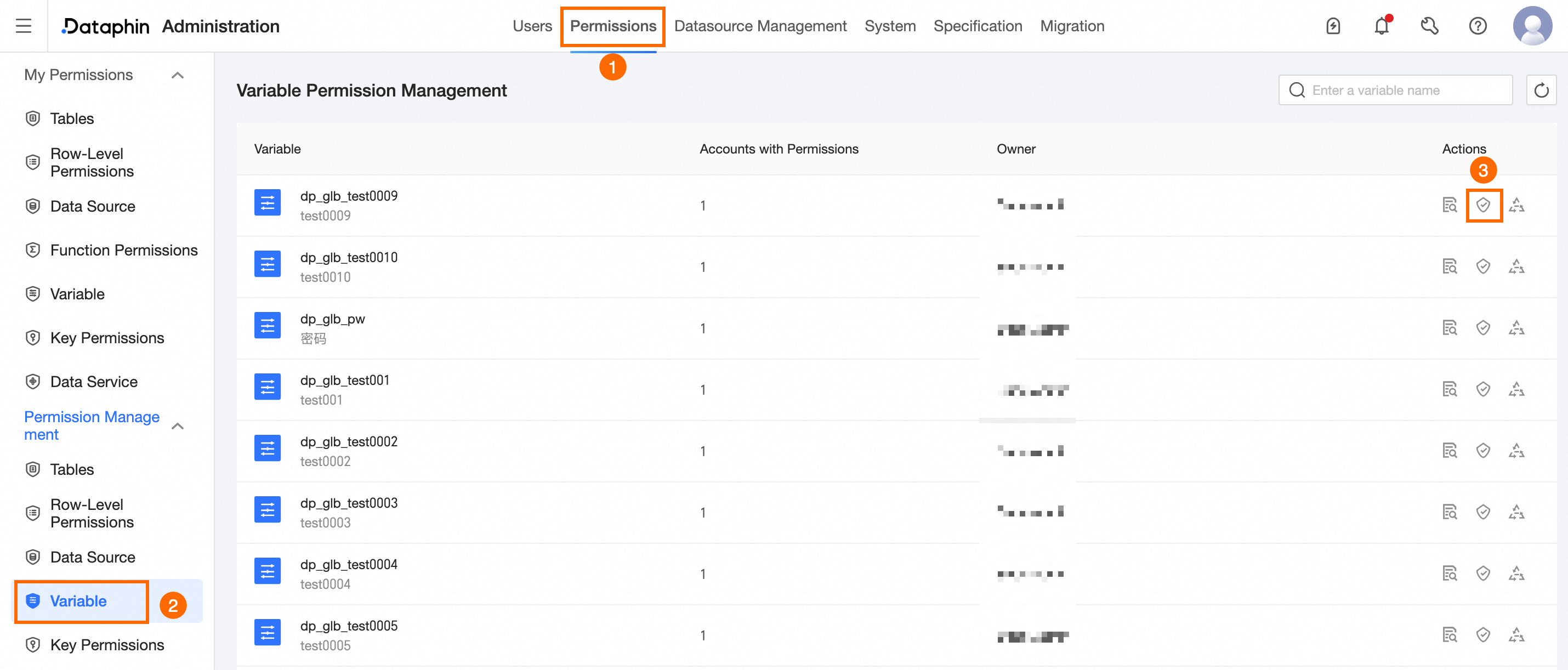
Navigate to the Dataphin home page and single click the Management Center in the top menu bar.
-
Follow the instructions in the diagram to access the Variable Authorization dialog box.
-
Enter the required parameters as prompted in the variable authorization dialog box.
Parameter
Description
Account Type
Grant variable permissions to User Account and Project Account simultaneously or individually.
-
User Account is typically used for data modeling and development in the development environment. The developed data is then published to the production environment. If User Account is selected, specify a Valid Until date.
-
Project Account is used for managing and executing tasks in the production environment. If Project Account is selected, specify the Project Owner.
Authorization Reason
The reason for granting variable permissions. Maximum length: 128 characters.
-
-
Click OK to finalize the authorization process.
Revoke variable permissions
-
On the Variable Permission page, single click the Actions
 icon corresponding to the row where you wish to revoke permissions.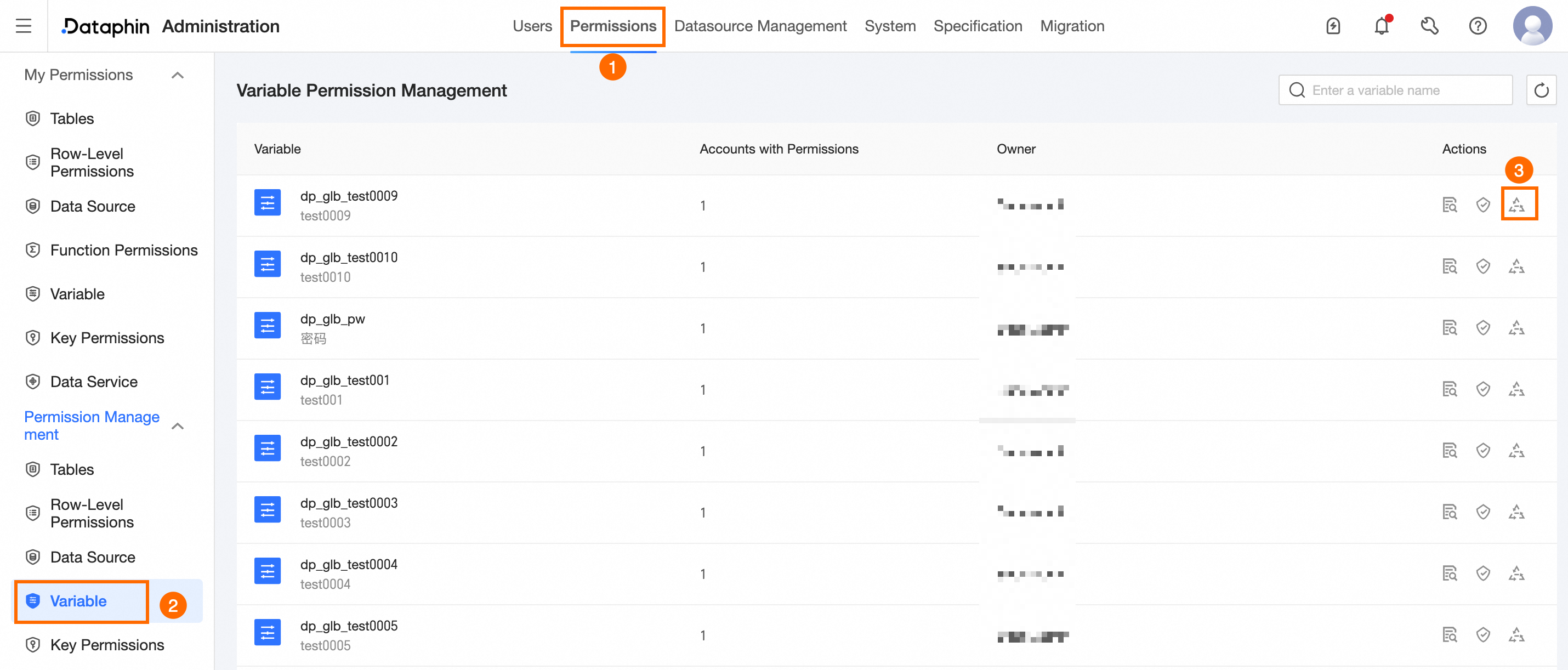
-
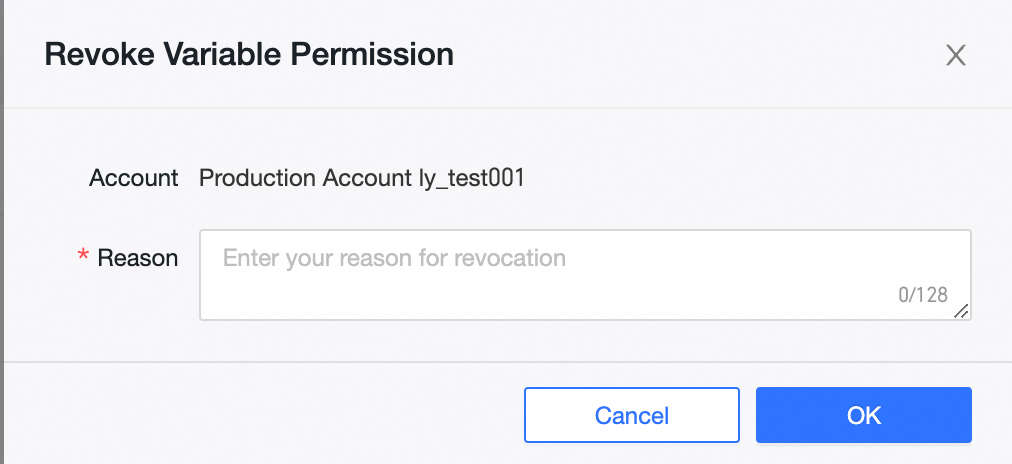
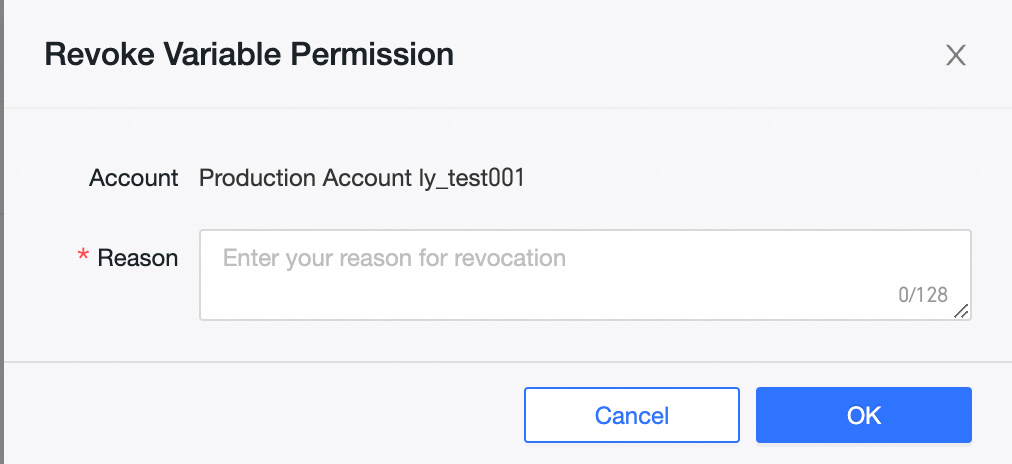
Enter the required parameters as prompted in the variable permission revocation dialog box.
Parameter
Description
Revoke User
Select User Account or Project Account to specify which permissions to revoke.
-
For User Account, choose the specific user account to revoke permissions from.
-
For Project Account, choose the tenant account to revoke permissions from.
Revocation Reason
The reason for revoking variable permissions. Maximum length: 128 characters.
-
-
Click OK to complete the revocation process.
View variable details
To view details of variable permissions, single click the variable name or the  icon in the Actions column.
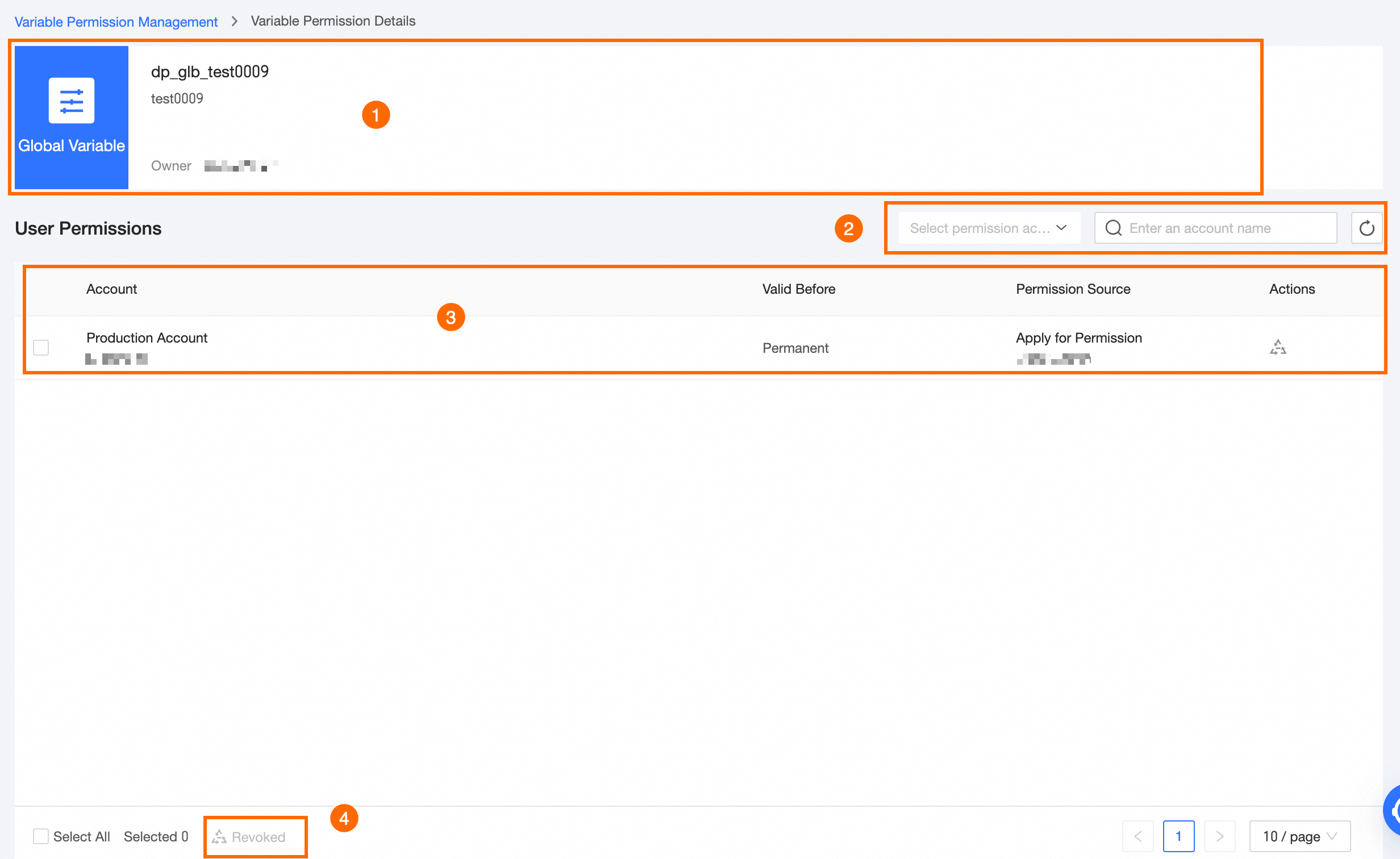
|
Area |
Parameter |
|
①Basic Information Area |
Displays the Variable Name and Owner of the data table. |
|
②Filter and Search Area |
Filter by Account Type and Permission Type, or search by account name. |
|
③List Area |
Lists Account, Valid Until, and Permission Source details. You can also click Revoke in the Actions column to revoke permissions. To revoke variable permissions for an individual account, select Revoke and provide a Revocation Reason in the Variable Permission Revocation dialog box, then click OK.
|
|
④Batch Operation Area |
Revoke: To batch revoke variable permissions for multiple accounts, use the Variable Permission Batch Account Revocation dialog box. Provide the Revocation Reason and single click OK to confirm.
|