Configure HBase output widget
The HBase output widget writes data to an HBase data source. When synchronizing data from other sources to HBase, configure the target data source after setting up the source data.
Prerequisites
The high availability feature of DataService Studio or the tag service module is purchased and activated, which is required to configure active/standby links for the data source.
An HBase data source is created. For more information, see Create HBase Data Source.
The account used to configure the HBase output widget must have write-through permission for the data source. If you lack the required permission, request access. For more information, see Apply for, Renew, and Return Data Source Permissions.
Procedure
On the Dataphin home page, select Development > Data Integration from the top menu bar.
In the integration page's top menu bar, select Project (Dev-Prod mode requires selecting Environment).
In the navigation pane on the left, click Batch Pipeline. In the Batch Pipeline list, click the offline pipeline you want to develop to access its configuration page.
Click Component Library in the upper right corner to open the Component Library panel.
In the Component Library panel's left-side navigation pane, select Output. Find the HBase component in the output widget list and drag it to the canvas.
Drag the
 icon from the target input, transform, or flow widget to connect it to the HBase output widget.
On the HBase output component card, click the
 icon to open the HBase Output Configuration dialog box.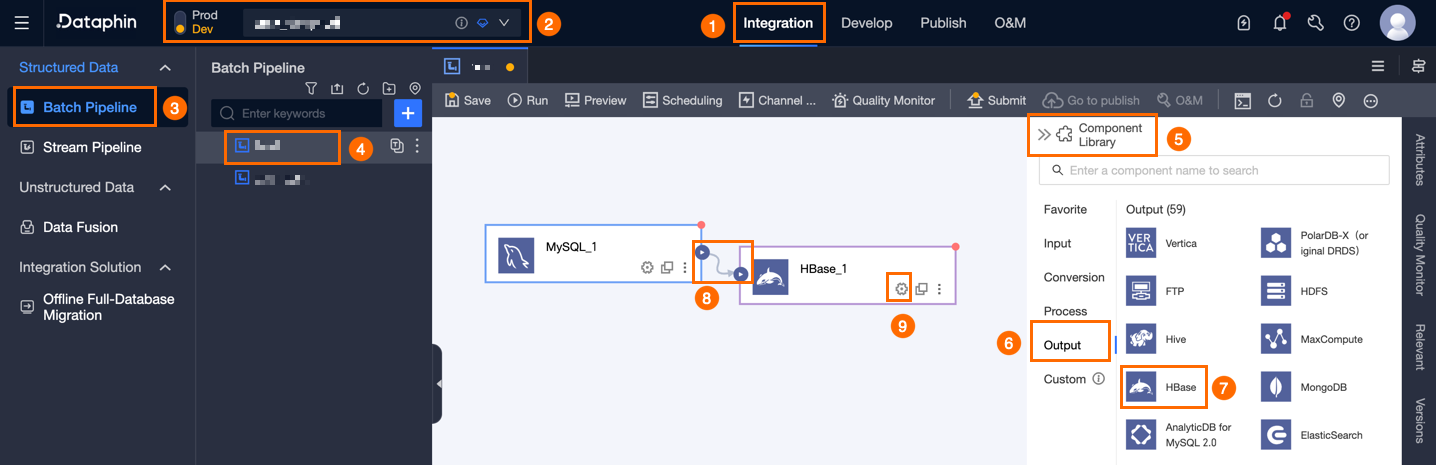
Configure the parameters in the Hbase Output Configuration dialog box.
Parameter
Description
Basic settings
Step Name
The name of the HBase output widget. Dataphin automatically generates a step name, which you can modify as needed. Naming rules:
Can only contain Chinese characters, letters, underscores (_), and numbers.
Cannot exceed 64 characters.
Datasource
The drop-down list displays all HBase-type data sources, including those with and without write-through permission. Click the
 icon to copy the data source name.
For data sources without write-through permission, click Request next to the data source to request permission. For more information, see Request, renew, and return data source permissions.
If no HBase-type data source exists, click Create Data Source to create one. For more information, see Create HBase data source.
Select Link
When the high availability of the tag service feature is enabled and the selected HBase data source active/standby link is Dual Active/standby Link, you can choose Active Link or Standby Link for integration, which only affects the production data source.
Table
Select the target table for data synchronization.
File Encoding
Select the file encoding. Supported options: UTF-8 and GBK.
Rowkey
Click Add to configure multiple Rowkeys. Supported constant data types include String, Int, Boolean, Long, Float, and Short.
Version Number Source Of Value
The source of the version number. Options:
Current time: Uses the current time as the version number.
Specified time: Uses a fixed time. Configure the Select Time parameter to specify the version number time.
Specified time column: Uses a time column from the table. Configure the Select Time Column parameter to choose the column.
Field mapping
Input Field
Displays the input fields based on the output of the upstream widget.
Output Field
The output fields for the target table. You can configure output fields by using Batch Add or Create New Output Field:
Batch Add: Click Batch Add to configure fields in JSON or TEXT format.
Batch configuration in JSON format, for example:
// Example: [{"name": "user_id","type": "String"}, {"name": "user_name","type": "String"}]Notename specifies the field name and type specifies the field type. For example,
"name":"user_id","type":"String"imports the user_id field with the String type.Batch configuration in TEXT format, for example:
// Example:
user_id,String
user_name,String
The row delimiter is used to separate the information of each field. The default is a line feed (\n), and it supports line feed (\n), semicolon (;), or period (.).
The column delimiter is used to separate the field name and field type, with the default being a comma (,).
Create new output field.
Click + Create New Output Field, and fill in the Column and select Type according to the page prompts.
Copy upstream field.
Click Copy Upstream Field to automatically generate output fields based on the upstream field names.
Manage output fields.
You can perform the following operations on added fields:
Click the Actions column's
 icon to edit existing fields.
Click the Actions column
 icon to delete the existing field.
Mapping
Maps input fields from the source table to output fields of the target table for data synchronization. Two mapping modes are available:
Same-name Mapping: Maps fields with the same field name.
Same-row Mapping: Maps fields by row position when field names differ between the source and target tables.
Click Confirm to finalize the property configuration for the Hbase Output Widget.
 icon to delete the existing field.