Intelligent Knowledge Extraction
The system uses a large model to intelligently parse uploaded files, extract knowledge, and generate candidates. You can then edit, apply, or discard these candidates and perform disambiguation for suspected duplicate entities. This topic shows you how to perform intelligent knowledge extraction.
Permissions
Workspace administrators and modelers can upload documents and modify candidates.
Business experts can upload documents and modify candidates from the documents they upload.
Limitations
A maximum of 1,000 candidates can be extracted per run.
The large model supports a maximum of five concurrent extraction tasks.
Procedure
In the top navigation bar of the Dataphin homepage, choose Knowledge Graph > Knowledge Management.
On the Knowledge Management tab, click Intelligent Add to open the intelligent add page for the current workspace.
On the Intelligent Add page, you can use a large model to parse uploaded files and intelligently extract entities and relationships. This feature simplifies the development process and improves efficiency.
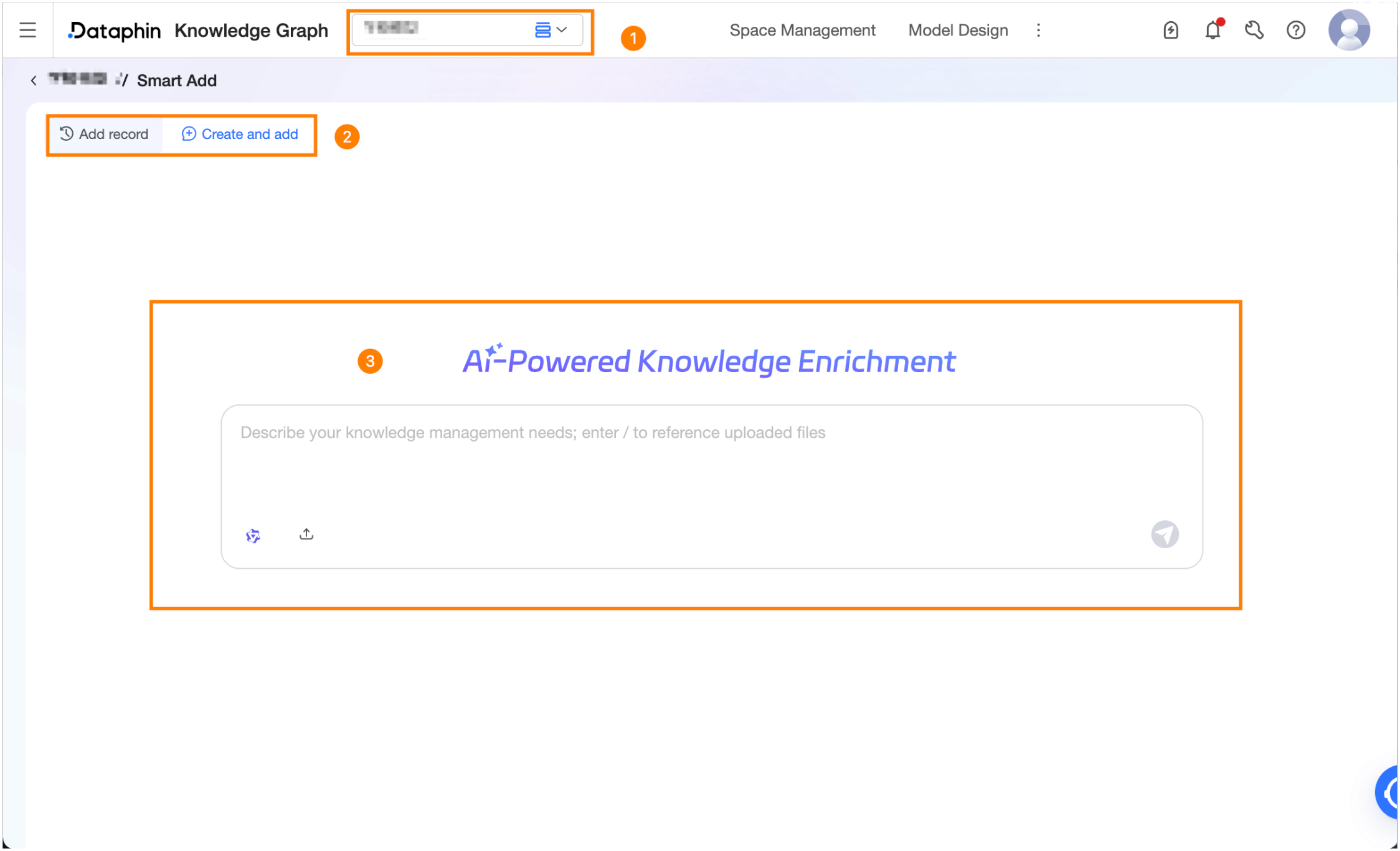
Area
Description
① Workspace Switch
You can switch to any workspace that you have permission to view.
② Add Record/New Add
Add Record: Click Add Record in the upper-left corner. In the Add Record list, you can view add records in different states and perform the following operations:
Search: Search for add records by task name. The search is case-sensitive.
Rename: Click the Rename icon next to an add record name to rename it. The name cannot exceed 256 characters.
Delete: Click the Delete icon next to an add record name to delete it. This action cannot be undone. Proceed with caution.
New Add: Click New Add in the upper-left corner to open a new task page.
③ Intelligent model parsing
The system uses a large model to parse uploaded files and extract knowledge.
Problem description: You can use natural language to describe the knowledge you want to extract.
Model Switch: Switch to an enabled model in Model Configuration. The model type must include Text or Vision (Images and Videos) for intelligent Q&A.
File Upload: Upload local files for the model to parse. Click the File Upload icon to upload files.
Supported file formats are .pdf, .txt, .xlsx, .docx, .doc, .md, and .html. You can upload up to 20 files at a time, and the total file size cannot exceed 50 MB.
Send: Press Enter or click the send icon to trigger a response.
Add Again/Stop Add: During file parsing, you can perform the Add Again and Stop Add operations. After stopping an add operation, you can view the log or continue adding.
Parsing Progress Log: The dialog area shows a real-time log of the extraction process. The log details the file being parsed, the number of entities and relationships extracted from each file, deduplication and merging results, and a final summary. If an entity is missing a required attribute or a relationship requires manual confirmation, the system highlights it in the log, allowing you to handle these items promptly after parsing is complete.
Manage Candidates
After the task completes successfully, candidates that require confirmation appear in the List View.
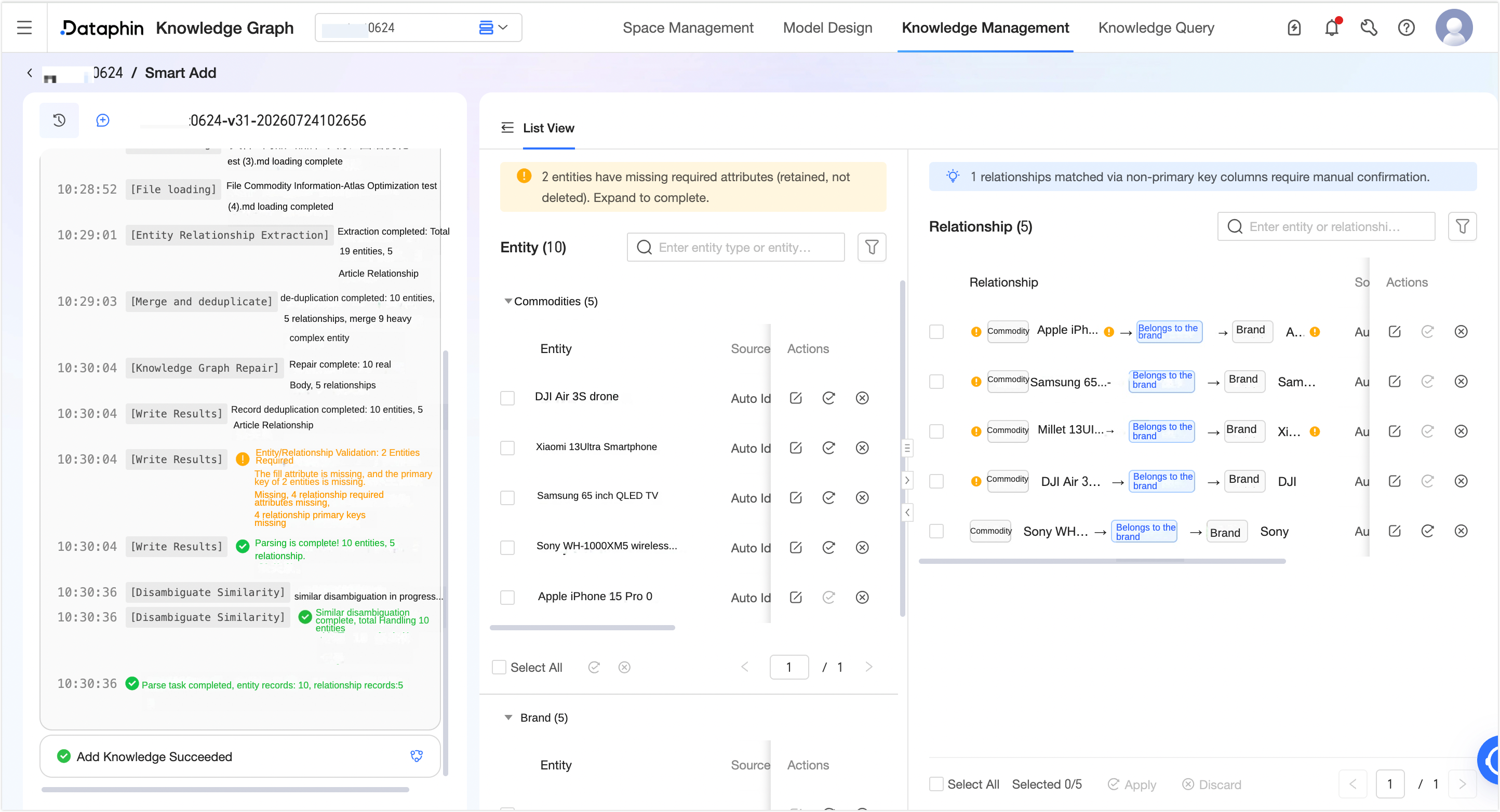
Entity List
You can search for entities by entity type or entity name, or filter entities by source document, review status, or confidence score. The search is case-sensitive.
The list displays the Name, Source Details, confidence score, match status, and review status for each entity.
Name: Displays the name of the entity. Entities with empty required attributes are kept as candidates, and relationships that reference these entities are also retained. An
 icon indicates the number of missing required attributes. We recommend completing all required attributes before you apply the entity.
Source Details: Click the
 icon next to the source details to view the source document and source snippet for the current entity in the Source Details dialog box.
Confidence score: This score indicates the model's confidence in the extracted result. The score is an AI-generated estimate and is not the same as accuracy. Evaluate this score based on your business scenario.
Match Status: After extraction, the system automatically performs disambiguation detection and assigns a match status to each candidate. The match status can be one of the following:
No Duplicates: No matching entity is found in the existing knowledge graph. The Match Status column displays No Duplicates, new entity. You can apply it directly.
Suspected Duplicate: This status indicates that an entity's match score meets the disambiguation threshold but not the automatic association threshold. You must manually review the entity to determine if it is a duplicate.
Highly Duplicate: An existing entity is found with a match score that meets the automatic association threshold. It is highly likely to be a duplicate entity.
You can perform the following operations on an entity.
Entity Disambiguation Confirmation: The system compares the attribute values of the current entity with those of existing entities based on business identification rules. If an entity's match status is Suspected Duplicate or Highly Duplicate, the Match Status column displays Associate or To be selected. Click the Edit icon in the Match Status column or the Apply icon in the Actions column. In the Entity Disambiguation Confirmation dialog box, perform one of the following operations:
Create as New Entity: Creates a new entity. You must complete all required attributes, including the primary key, before you can apply it.
Associate with Existing Entity: Merges the candidate with an existing entity. The candidate's attributes are merged into the existing entity according to these rules: if an attribute exists in both, the candidate's value overwrites the existing one; if an attribute is missing from the candidate, it inherits the value from the existing entity.
NoteThe system does not perform disambiguation detection if the attribute values for both entities are empty.
The system automatically reruns disambiguation detection whenever you add or change attribute values.
Edit: Click the Edit icon in the Actions column to open the Edit Entity panel. This panel displays the entity's basic information, relationships, and node graph.
Basic Information: Displays information related to the selected entity type. For more information, see the entity section of List View.
Relationship List: Displays the relationship network for the current entity. You can edit, apply, or discard target relationships.
Node graph: Displays the entity's relationships in a force-directed graph.
Apply: This operation is available when the review status is Pending Review or Discarded. Applying an entity adds it to the Knowledge Graph > Knowledge Management > List View tab. You can click the Apply icon in the Actions column or select entities in the entity list and click Apply at the bottom.
NoteWhen you apply entities in bulk, candidate entities with a match status of No Duplicates are automatically created. Candidate entities with a match status of Suspected Duplicate or Highly Duplicate are skipped. You must resolve them individually before they can be applied.
Entities with incomplete required attributes, including the primary key, cannot be applied and are skipped during bulk application. You must provide values for these attributes before applying them.
Discard: This operation is available when the review status is Pending Review or Applied. You can click the Discard icon in the Actions column or select entities in the entity list and click Discard at the bottom.
NoteDiscarding an entity also discards its associated relationships.
Relationship List
You can search for relationships by entity or relationship name, or filter them by entity type, relationship type, source document, review status, or confidence score.
The list displays the relationship name, source details, confidence score, and review status.
Source Details: Click the
icon next to the source details to view the source document and source snippet for the current relationship in the Source Details dialog box.Confidence Score: This score indicates the model's confidence in the extracted result. The score is an AI-generated estimate and is not the same as accuracy. Evaluate this score based on your business scenario.
Relationship Matching: During multi-document parsing, the system can intelligently identify and associate entities by using non-primary key attributes. If the system finds only one matching entity during a reverse lookup, it automatically lists it as a candidate for association. If suspected duplicate candidates exist, they are marked with an
 icon, and you must select an entity to associate. If the system matches no entity but the reference information contains a primary key, the system automatically creates a new entity and adds it to the candidates. If the primary key is missing, you must add it and re-trigger the matching process.Note
The system displays all automatically parsed results as candidates; it does not write them directly to the knowledge graph. If a relationship is missing a required attribute, it remains in the candidate list and is marked with an
icon. We recommend completing the required attributes before you apply the relationship.
You can perform the following operations on a relationship.
Edit: You can click a relationship to open the Edit Relationship panel, which displays information related to the selected relationship type. For more information, see the relationship section of List View.
Apply: This operation is available when the review status is Pending Review or Discarded. Applying a relationship adds it to the Knowledge Graph > Knowledge Management > List View tab. You can click the Apply icon in the Actions column or select relationships in the list and click Apply at the bottom.
NoteApplying a relationship also applies its associated entities.
Discard: This operation is available when the review status is Pending Review or Applied. You can click the Discard icon in the Actions column or select relationships in the list and click Discard at the bottom.