Knowledge Query
The knowledge query feature provides an intuitive search portal that supports keyword searches. It uses a force-directed graph to visualize, filter, and analyze knowledge. This topic describes how to perform a knowledge query.
Limitations
Only the top 10 entities from the search results appear.
Procedure
In the top navigation bar of the Dataphin homepage, choose Knowledge graph > Knowledge query.
On the Knowledge query page, you can search by keyword.
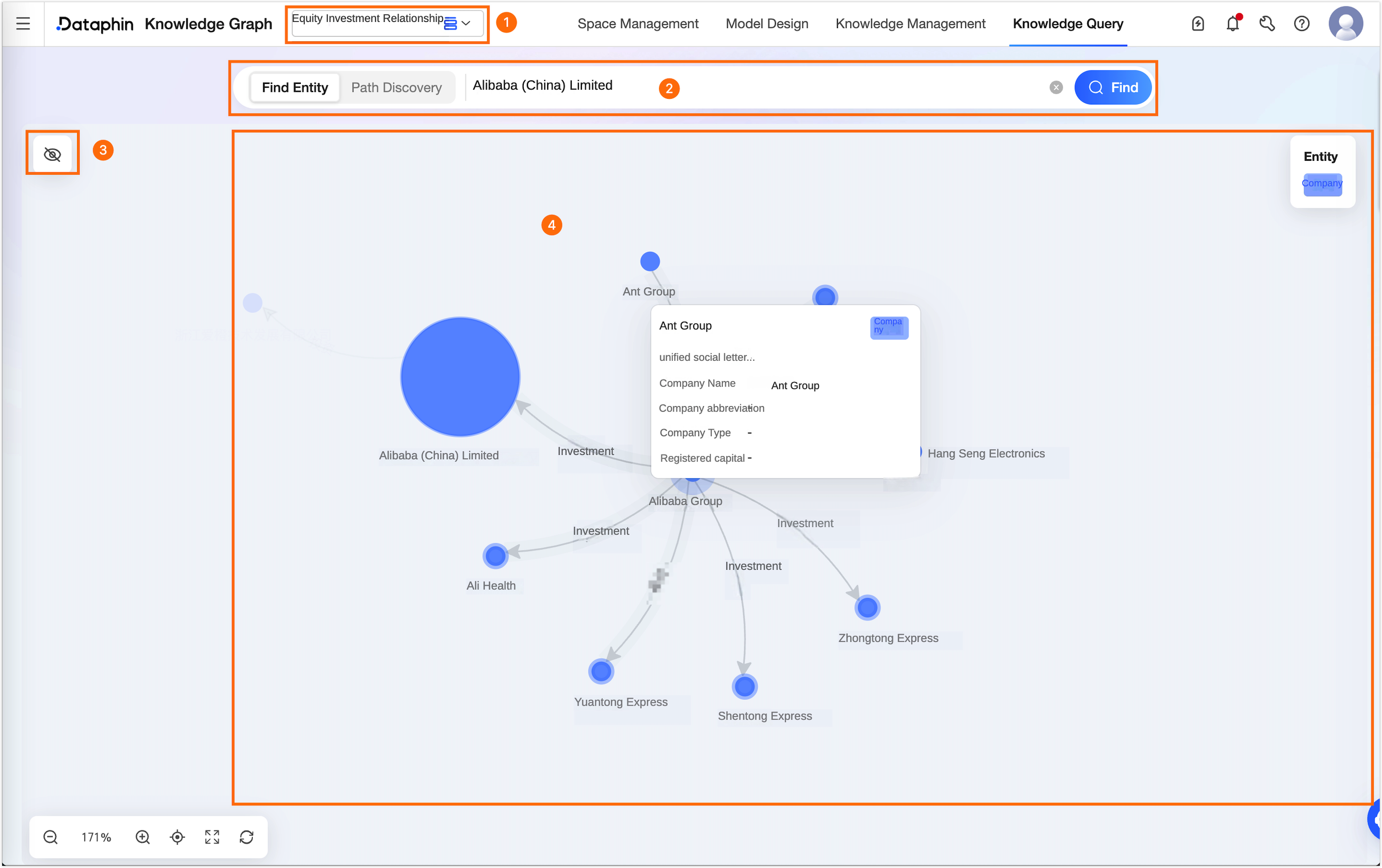
Area
Description
1
Workspace switch
Lets you switch between workspaces that you have permission to view.
2
Search area
You can search by using either Find entity or path discovery. Searches are case-sensitive.
Find Entity: Lets you specify an entity by searching with keywords, using natural language, or selecting directly from a list of matching entities.
NoteSemantic search is available if the feature is enabled for entity type attributes, your account has sufficient credits, and the vector model service is available. The system automatically vectorizes your search terms, matches them against fields with semantic search enabled, and returns highly similar entities.
Path Discovery: Allows you to query for entities by specifying a start node, intermediate nodes, and an end node, with a maximum query depth of six steps. The system returns all discovered paths. You can view these paths, the total number of paths, and the query depth in the right-side panel.
3
Attribute filtering area
Click the
 icon. The left panel lets you filter by entity type, relationship type, and attributes. Click Apply filters to display the filtered entity relationship network on the canvas.
Entity Type: Focuses the canvas on nodes of the selected type and their relationship network. Deselecting an entity type hides its corresponding entities, neighbors, and relationships from the canvas.
Relationship Type: Filters the canvas to show only relationships of the selected type. Deselecting a relationship type hides those relationships and their associated entities.
In the attribute filter area, you can configure more granular attribute conditions for entities. You can stack multiple filter conditions.
Add Entity Type: Click Add entity type, and select the target entity from the currently selected entity types.
Add Filter Condition: Click Add filter condition to select the attributes of the entity and set the filter conditions.
Numeric attributes: The following operators are supported: =, ≠, >, <, ≥, and ≤.
Text attributes: The following operators are supported: =, ≠, contains, and starts with.
4
Graph display
The canvas displays the selected entity's relationship network as a force-directed graph. You can click any entity in the graph to expand its connected nodes.
Entity details: Hover over or click an entity to view its basic information, relationship list, and source document in the right-side panel.
Basic Information: Displays the attribute information defined for the current entity in the model design.
Relationship List: Displays the nodes connected to the current entity. Clicking an entity in this list centers the canvas on it and expands its connected nodes.
Source Document: Displays the source documents and related snippets for the current entity. Tracing data back to its origin helps verify its accuracy.