Push management
Push management delivers governance results by SMS, email, and internal message. This topic describes how to create, edit, and delete pushes.
Access the push management page
On the Dataphin homepage, choose Governance > Resource Governance from the top menu bar.
In the left-side navigation pane, choose Governance Item Management > Push management to open the Push management page.
On the Push management page, view pushes under the My and All tabs.
You can quickly filter pushes by entering a push name keyword in the search box, or click the
 icon and filter by status: All, online, suspended, or offline.
Push name: The push's name.
Owner: The push's owner.
Start date: The push's start date.
End date: The push's end date.
Push status: The push's status, which can be online, suspended, or offline.
Create a push
On the Push management page, click +Create Push in the upper-right corner.
On the Push configuration page, configure the following parameters.
Push name: Enter a name for the push.
Effective date: The date the push takes effect.
Push frequency: The frequency of the push. You can select a scheduled push or a periodic push.
Scheduled push: Select a specific date for the push.
Periodic push: Select a recurrence policy and time. The available policies are Daily, Weekly, and Monthly.
Push channel: The push channels. Options include email, SMS, and internal message.
Edit push data:
If you do not have any governance items, click Create governance item to open its creation page. For details on parameter configuration, see Create a governance item.
If you already have governance items:
Click Add governance item. In the Add Governance Item dialog box, click the
 icon next to the target governance item in the list on the left to add it to the New Governance Items list on the right.
You can quickly filter results by entering a keyword of the governance item name in the search box. You can also click the
icon and filter by Type, owner, or governance object.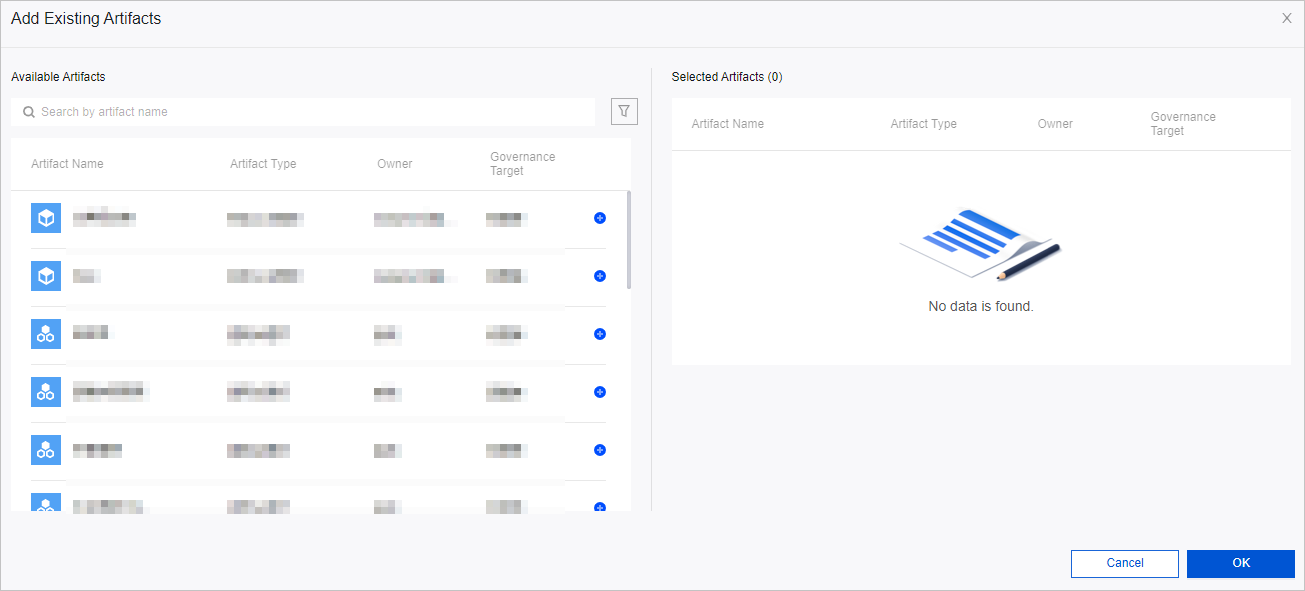 Note
NoteThe Add Governance Item dialog box lists only enabled governance items.
After you add the items, click OK.
In the Edit push data section, click Next.
Select a project and click Send Test. After the Sent successfully message appears, click Submit.
In the Confirm Submission dialog box, click Confirm to create the push.
The push status of a newly created push is online by default.
Manage pushes
On the Push management page, you can view, edit, suspend, delete, and transfer ownership of pushes.
View: In the Actions column for the target push, click the View icon to view the parameter configuration, the push's governance items, and push data.
Edit: In the Actions column for the target push, click the Edit icon. You can modify the effective date, push frequency, push channel, and push data. For more information, see Create a push.
Suspend push: In the Actions column for the target push, click the Suspend push icon to suspend the push.
Transfer owner: You can transfer ownership of one or more pushes. To transfer ownership of a single push, click the Transfer icon in its Actions column, select an active member of the current tenant, and then click OK. To transfer ownership of multiple pushes, select them in the list, click Batch Transfer at the bottom, select an active member of the current tenant, and then click OK.
NoteAfter the transfer, the original owner can no longer change the configuration of the push.
Delete: In the Actions column for the target push, click the More icon and select Delete. This action is irreversible.
Single-tenant multi-engine
In multi-engine mode, if resource governance is active, the push management list shows only projects that use the MaxCompute or Hive compute engine.