Create a label project
A project is the fundamental organizational unit in Dataphin, serving as the primary boundary for multi-user isolation and access control. To start label development, you must create a label project. This topic describes how to create a label project.
Prerequisites
-
To perform standardized modeling, you must first create a data board. Otherwise, you can only perform general development. For more information, see Create a data board.
-
You must create a corresponding compute source. For more information, see Compute sources.
Limitations
-
Only super administrators, system administrators, or board architects can create label projects in Dataphin.
-
In Dataphin, only project super administrators, system administrators, or board architects can apply for permissions to enable or disable read/write access for data tables.
Step 1: Select the project type
-
On the Dataphin homepage, choose Plan > Project from the top menu bar.
-
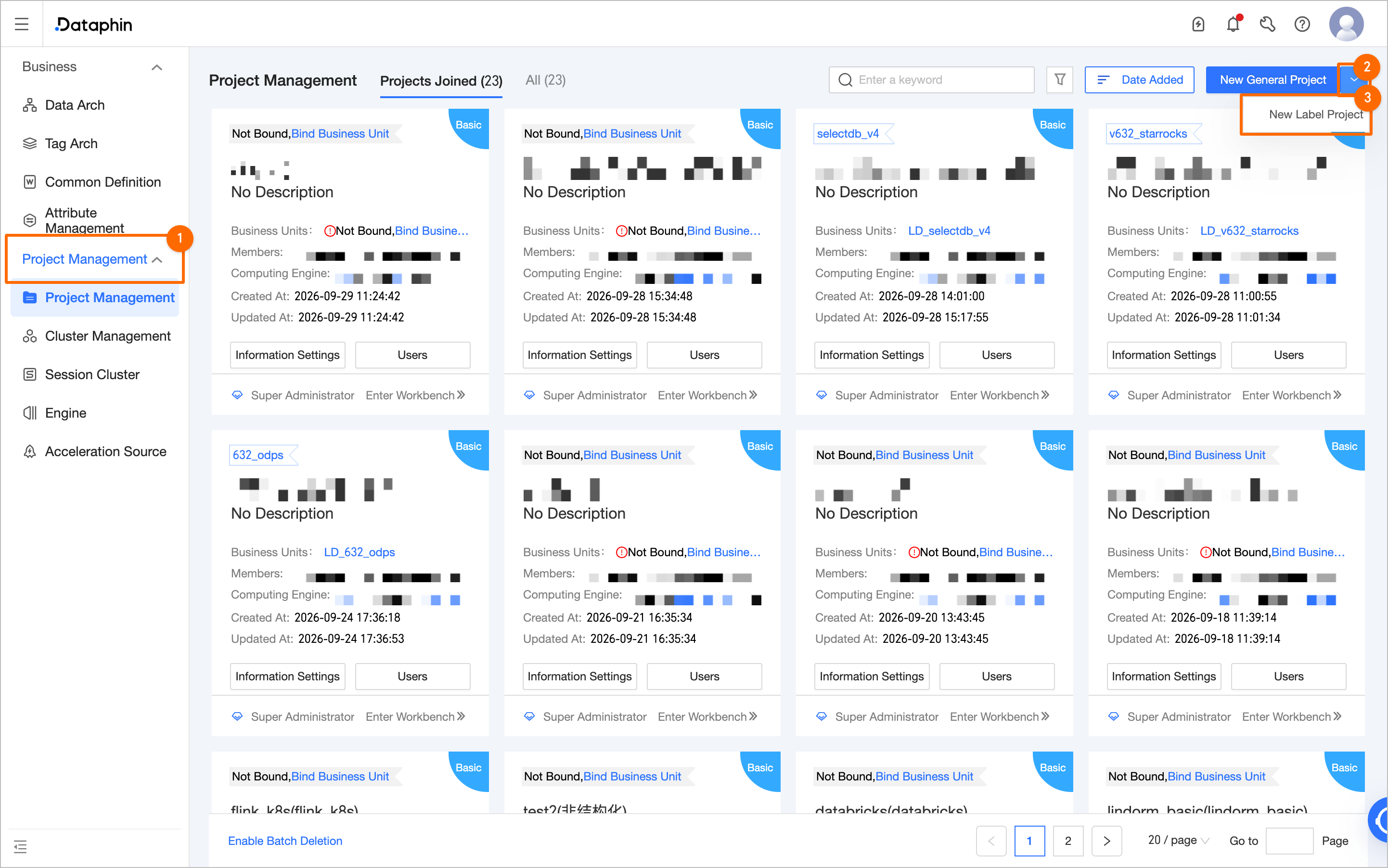
On the Project Management page, click the dropdown arrow next to Create General Project and select Create Label Project.
Step 2: Configure data board and basic information
-
In the Create Project dialog box, configure the Affiliated data board, Basic information, and Business information settings for the label project.
NoteA label project operates in a production (Prod) environment and is equivalent to a Prod project. Due to differences in the data development workflow, it is called a Basic label project. Within the project, you can edit, develop, and submit data objects. After submission, these objects are updated for production scheduling and O&M monitoring.
Section
Parameter
Description
Affiliated data board
Data board
Select the data board for the project. Selecting a data board enables standardized modeling. Otherwise, you can only perform general development.
NoteIf a data board is in Dev-Prod mode, you cannot create standardized modeling objects in a Basic project that belongs to a Prod business board. You can only create data in the operational data store (ODS) layer and application layer. This restriction prevents the data standards of the public layer from being affected and avoids data production anomalies.
Basic information
Project English name
Enter the English name for the project. The name must meet the following rules:
-
Must contain only letters, digits, and underscores (_).
-
Must not start with
LD_. -
Must not exceed 64 characters in length.
Project name
Enter the name for the project. The name must meet the following rules:
-
Must contain only Chinese characters, digits, letters, underscores (_), and hyphens (-).
-
Must not exceed 64 characters in length.
Compute source type
Select a compute source type, and then select the corresponding compute source.
Important-
A compute source can only be bound to a single project.
Dataphin integrates with Platform for AI (PAI) to provide basic algorithm scheduling capabilities. When you create a visual modeling workspace in PAI, you select a MaxCompute-based resource group as the compute resource. For more information, see Overview of Resource Management. If you enable machine learning, you must configure the following parameters.
-
PAI region: Select the region where your Dataphin instance is located.
-
AccessKey ID and AccessKey Secret: Enter the AccessKey ID and AccessKey Secret of the account that needs to access PAI.
-
PAI project name: Select a PAI project.
-
Recommendation: We recommend using the same MaxCompute project for both PAI and this Dataphin project.
Description
Enter a brief description of the project.
Business information
Workspace type
Defines the characteristics of development jobs and data outputs for the project. The default is Application layer. The available workspace types are:
-
Intermediate layer: Stores consistent, accurate, and clean data after processing.
-
Operational data store (ODS) layer: Stores raw data integrated from business systems, which serves as the source for subsequent processing and development.
-
Application layer: This layer addresses business requirements by defining and generating personalized data metrics for various scenarios.
-
Common layer: Stores common aggregated data, such as summary data for a specific dimension within a subject area.
Security settings
Global security settings
Security settings provide fine-grained control over data access and Spark job authentication to ensure data security. For more information, see Security settings.
Data result download (download approval)
Dataphin allows you to download business data. You can configure whether data can be downloaded at the project level. After data is downloaded, the system no longer manages it. You can set watermarks as a reminder to handle data securely and avoid unauthorized sharing. For more information, see Configure data download.
ImportantOnly non-visitor users can download data results.
Data permission approval
Data permission approval policies allow you to specify different approval rules for different data sensitivity levels. This enables approvers to focus on highly sensitive data while bypassing approvals for public data, reducing the workload of permission management. For more information, see Configure data permissions.
Asset security policy
After installation, you can use data security policies to protect sensitive data. You can modify these policies by choosing Governance > Data Security > Project Security Policy. For more information, see Project security policies.
Submission settings
Code review
This feature is disabled by default. If you enable it and configure the Approval settings, compute jobs in this project will require a code review upon submission.
-
Specify approver: By default, Project administrator is selected. You can also select Custom to choose multiple members as approvers.
-
Specify approval template: Approvals are processed according to the selected template. You can only select custom approval templates created for the Code review use case. If no suitable template is available, click + New Template to go to the Approval Template page and create one.
Job parameter configuration
Default Flink job parameters
After you enable the stream engine, you can enter Flink parameter settings in the text box. These settings are then applied by default when you create Flink tasks in this project. The parameters must be in the key-value pair format:
key:value. For example:taskmanager.numberOfTaskSlots:1. -
-
Click OK to create the label project.
Single-tenant multi-engine
In single-tenant multi-engine mode, the settings for Project English name, Project name, Workspace type, Security settings, Submission settings, and Job parameter configuration are the same as in single-engine mode. For more information, see the preceding sections. You must also configure Engine settings.
|
Parameter |
Description |
|
|
Engine settings |
Batch computing |
You can enable or disable batch computing. If enabled, you must select a Batch engine type and a Batch compute source. If disabled, you cannot create batch compute jobs in this project.
|
|
Stream computing |
You can enable or disable stream computing. If enabled, you must select a stream engine from the available cluster types that correspond to the created stream compute sources. If disabled, you cannot create stream compute jobs in this project. You cannot modify the stream engine type after the project is created.
|
|
|
Default project resource group |
Compute jobs created in this project use the default resource group configured here for scheduling. This setting is available only when a batch engine is enabled for the project. You can also customize the resource group for individual jobs during job configuration.
Note
|
|
|
Description |
Enter a brief description for the project. The description cannot exceed 128 characters. |
|
Next steps
After you create a label project, you can bind it to a marketplace during the marketplace creation process. For more information, see Create a marketplace.