View asset catalog
The asset catalog displays listed assets and lets you perform operations like searching for them and applying for consumption permissions. It offers an efficient way to find your data assets.
Five-minute overview
Prerequisites
To use the intelligent search feature, you must activate X-Asset Q&A. Currently, only table assets support intelligent search.
Table/Metric/Dashboard Assets: The asset operations module must be purchased and enabled for the current tenant.
API Assets: The asset operations module must be purchased and enabled for the current tenant. You must also purchase the data service feature.
Catalog page
On the Dataphin homepage, choose Assets > Asset Catalog in the top navigation bar.
On the catalog page, you can search for assets and view their details.
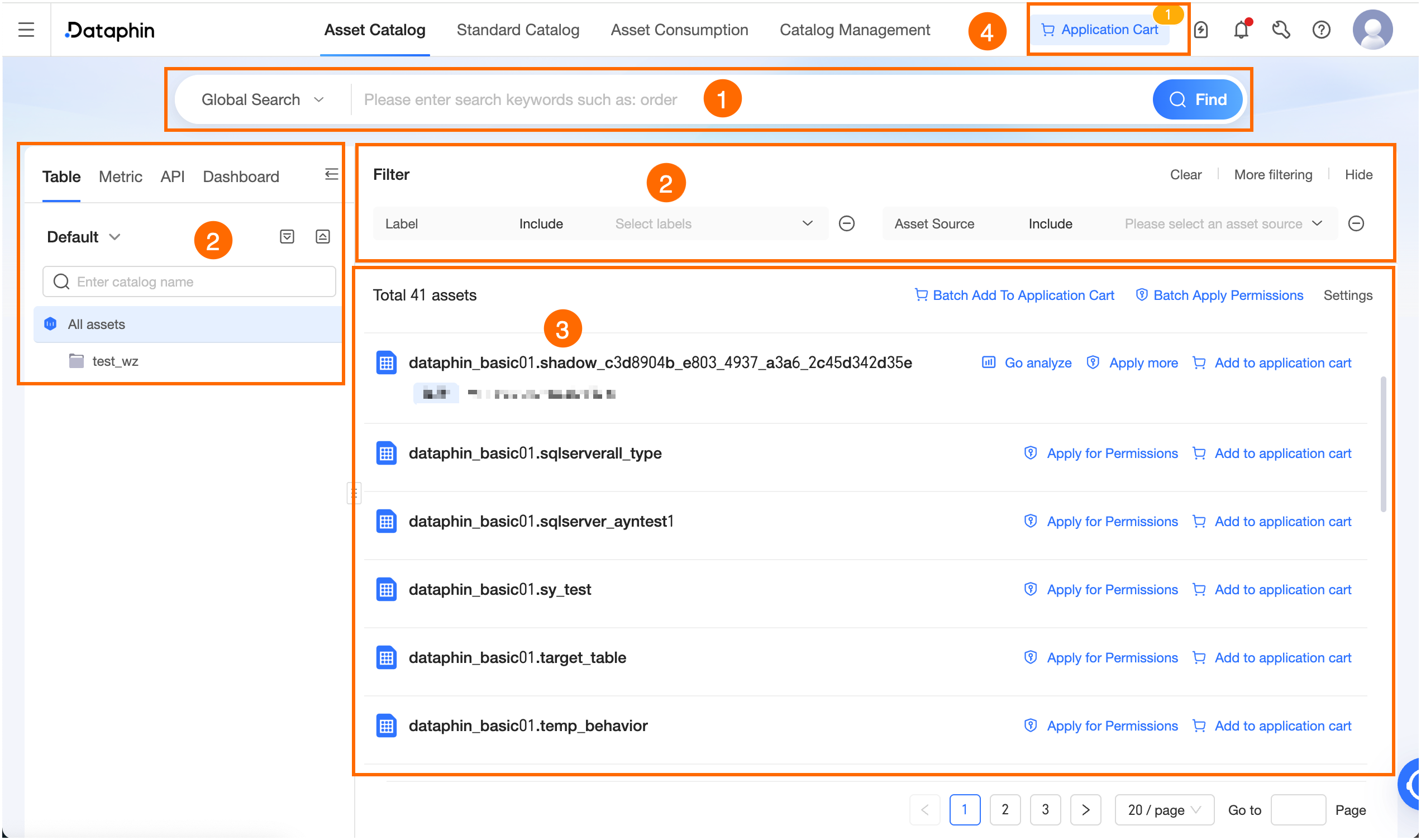
Area
Description
① Search area
Global search: Searches all assets by name, display name, or description.
Additionally, you can search for business metrics by their associated technical metrics, and vice versa. You can also search tables by field name or description, and dashboards by chart name or description.
Search within results: Narrows the current search results with an additional keyword.
Search by name only: Searches all assets by name.
Search by description only: Searches all assets by description.
Intelligent search: To use intelligent search, you must purchase the X-Asset Q&A and asset operations features. In the Intelligent discovery area, the model finds assets that you have permission to view based on your input and returns up to 10 of the most relevant assets. You can perform the following operations on an intelligent search:
Stop: Click to stop the query.
Retry: Click to restart the asset search based on the most recent input.
View/Collapse Thought Process: If the model for X-Asset Q&A supports thinking mode, it displays the reasoning process here. You can click to expand or collapse this content.
Close: Click to close the Intelligent discovery area.
② List filtering
All Assets: You can click All Assets to view all asset objects under this topic.
The left pane lets you view tables by topic, showing all catalogs within that topic. You can switch topics at the top. When you select a catalog, the list on the right shows the assets in that catalog and its sub-catalogs.
To the right of the topic, click Expand All or Collapse All to expand or collapse the topic's catalog tree. You can also click Collapse Navigation to hide the entire catalog tree. To show the tree again, click Expand Navigation in the upper-left corner.
You can filter assets by system and custom attributes. Click More Filters and select the attributes to use as filters in the dialog box that appears.
The supported filter conditions are Contains, Does not contain, Is empty, and Is not empty.
Contains/Does not contain: You can select multiple attribute values. If the attribute's input method is custom, you can enter custom keywords.
Is empty/Is not empty: No additional configuration is required.
NoteThe "Is empty" and "Is not empty" conditions are unavailable for the "Asset Source" filter.
Filter conditions are unavailable for the "Statistical Granularity" attribute.
Custom attributes in the filters are attributes that are created in data warehouse modeling > attribute management and are visible in the asset catalog.
Enabling too many filters can affect query performance. We recommend using 10 or fewer filters.
③ Asset list
The asset list summarizes each asset to help business users understand them. Click Settings, select the attributes to display in the dialog box, and then click OK.
NoteYou can select up to 16 attributes.
You can sort the selected attributes. The asset list displays the attributes in the order you set.
The selectable attributes include all custom attributes and some system attributes configured to be visible in the asset catalog on the data warehouse modeling > attribute management page.
Table assets
This view displays the asset's name, asset type, tags, description, highest data classification level (requires the data security module), and information for the selected attributes. You can also perform operations such as Go to analyze, Apply for permissions, Add to application basket, Batch apply for permissions, and Batch add to application basket.
View asset details: Click an asset's name to view its detailed information. For more information, see View table asset details.
A yellow icon indicates a deleted asset. You can remove it from the Listed Assets list by clicking Unlist.
Go to analyze: Once you have consumption permissions for a table asset, you can create notebook tasks for Dataphin tables of the MaxCompute, Hive, AnalyticDB for PostgreSQL, Doris, or StarRocks type, and for tables from some data sources. This allows you to perform visual analysis on the asset in a notebook or Quick BI.
Notebook analysis: Click to go to the notebook page and automatically create a corresponding notebook task. For more information, see Create a notebook.
For a list of data source table types that support notebook analysis, see Operations supported for different asset types.
Quick BI dashboard/Self-service data retrieval: Click to open the My BI Analysis drawer, where you can view BI analysis tasks that use the current asset as a dataset. For more information, see My BI Analysis.
NoteYou cannot create Quick BI analysis tasks for Hive data sources of version CDH 5.x Hive 1.1.0 or MySQL data sources of version MySQL 5.1.43.
Only some data source tables support the creation of Quick BI analysis tasks. For more information, see Operations supported for different asset types.
Apply for permissions/Apply for permissions in batches: You must enable data consumption on the edit page of a manually published table asset. You can select one or more assets in a list to apply for consumption permissions. For more information, see Apply for consumption permissions.
Add to application basket/Batch add to application basket: You must enable data consumption on the edit page of a manually published table asset. You can add selected assets from a list to the application basket and then apply for consumption permissions for them in a batch. For more information, see Apply for consumption permissions.
Metric assets
This view displays the asset's name, metric type (for technical metrics only), tags, description, and information for the selected attributes.
View asset details: Click an asset's name to view its detailed information. For more information, see View metric asset details.
Apply for permissions: This operation is supported only for technical metrics. Clicking it opens the permission application page for the metric's table. For more information, see Apply for, renew, and return table permissions.
A yellow icon indicates a deleted asset. You can remove it from the Listed Assets list by clicking Unlist.
API assets
This view displays the asset's name, API ID, tags, description, service project, API group, and information for the selected attributes. You can also view asset details or apply for permissions.
View asset details: Click an asset's name to view its detailed information. For more information, see View API asset details.
A yellow icon indicates a deleted asset. You can remove it from the Listed Assets list by clicking Unlist.
Apply for permissions: Click to go to the permission application page for the API. For more information, see Manage API permissions.
Dashboard assets
This view displays the asset's name, asset type, tags, description, asset source, BI workspace/catalog, total number of charts, and information for the selected attributes.
View asset details: Click an asset's name to view its detailed information. For more information, see View dashboard asset details.
A yellow icon indicates a deleted asset. You can remove it from the Listed Assets list by clicking Unlist.
④ Application basket
The application basket helps you efficiently apply for consumption permissions for multiple assets at once. For more information, see Apply for consumption permissions.