X-Data Quality addresses data quality issues, such as detected anomalies and reported problems. It uses a large model to perform problem analysis, generate a key evidence chain, and provide rectification suggestions. This topic describes how to use X-Data Quality.
Prerequisites
You must purchase the Data Quality and X-Data Quality features to use X-Data Quality.
You have configured and enabled X-Data Quality. For more information, see Intelligent Application.
Permissions
Super administrators, quality administrators, and custom global roles with the Problem List - View permission can use X-Data Quality.
Intelligent analysis workflow
This section describes the workflow for using a large model to perform intelligent root cause analysis on data quality issues. The workflow consists of selecting a data quality issue, analyzing the problem, and generating rectification suggestions.
Data Quality Issue: Select the data quality issue that you want to analyze.
problem analysis: The large model analyzes the selected data quality issue and identifies abnormal data in the affected table for further analysis.
rectification suggestions: The system assesses the key evidence chain and recommends rectification suggestions to improve data quality.
Procedure
On the Dataphin homepage, choose Super X > X-Data Quality from the top navigation bar to go to the X-Data Quality page.
The X-Data Quality page lets you perform intelligent root cause analysis for data quality issues to find solutions and improve data reliability and analysis efficiency.
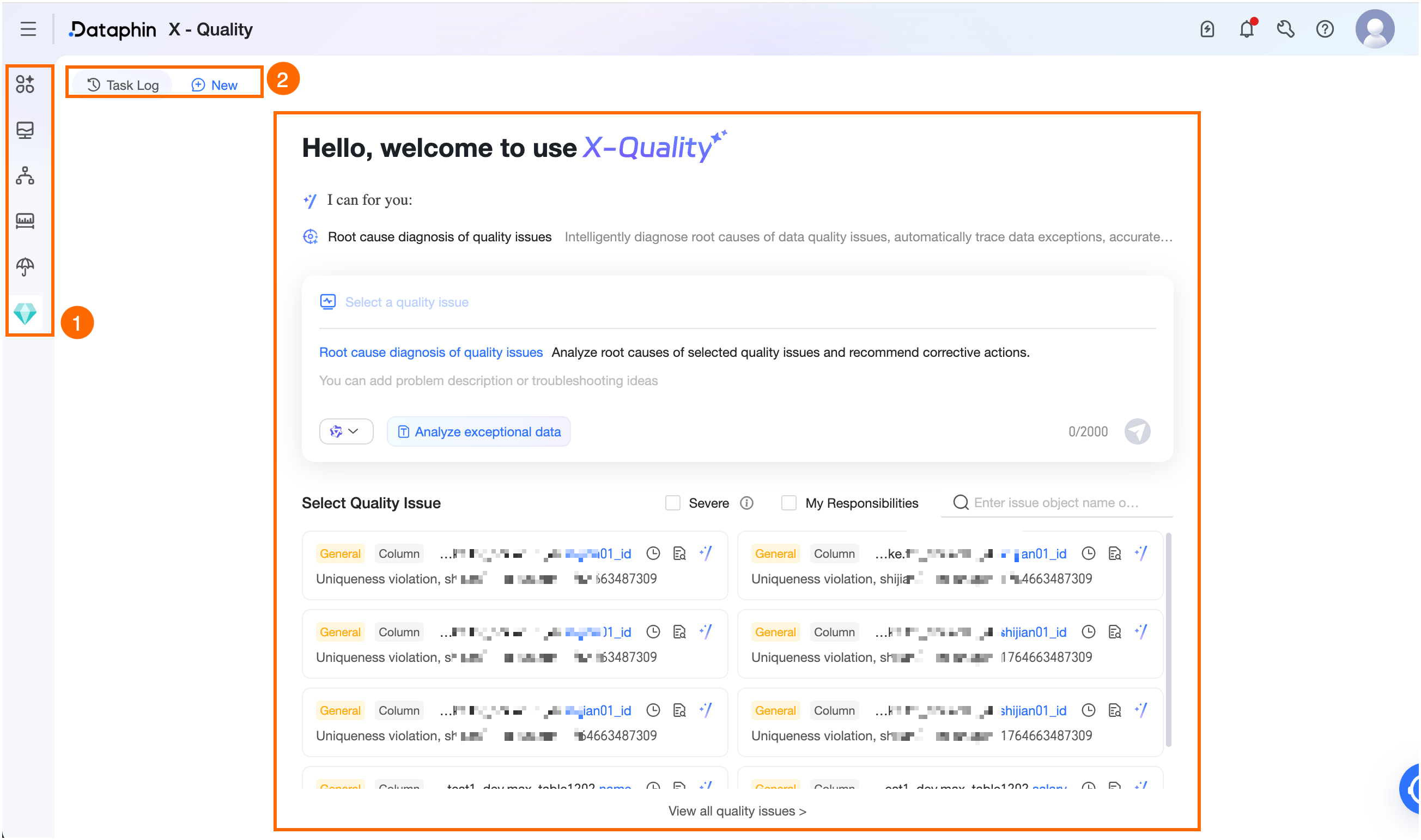
Area
Description
① intelligent assistant
Switch between enabled Intelligent Applications that you have permission to use.
② Task Records/New Task
Task Records: Click Task Records in the upper-left corner. In the Task Records dialog box, you can view up to 20 task records from the last 7 or 30 days and perform the following actions:
Search: Search for task records by keyword.
Rename: Click the Rename icon next to a task record name. The new name can be up to 256 characters long.
Delete: Click the Delete icon next to a task record name to delete a single task record.
New Task: Click New Task in the upper-left corner to start a new task page.
③ intelligent root cause analysis
Data Quality Issue: Select a data quality issue for intelligent root cause analysis. You can select an issue from the Select a data quality issue list or enter a custom problem description in the text box. The description can be up to 2,000 characters long.
Analyze Abnormal Data: When a task runs, the large model queries the affected table of the selected data quality issue to find abnormal data for analysis. Queries run only on tables for which your account has the SELECT permission.
Switch Model: Switch between models configured for the current intelligent assistant to perform intelligent Q&A.
This list shows data quality issues in Dataphin tables that are in the Pending state. You can click View All Data Quality Issues at the bottom to navigate to the Governance > Data Quality > Problem List page to view all data quality issues.
Search and filter: You can search for issues by object name or description, and use filters to quickly find Critical or My issues.
Actions: The following actions are available for each data quality issue.
View Discovery Time: Hover over the Clock icon to view the discovery time and duration of the data quality issue. For system-generated issues, the discovery time is the validation time. For manually reported issues, it is the time the issue was reported.
View Details: Click the View icon to see the rule validation details, operation logs, and related knowledge base articles for the issue object. The knowledge base is available only for system-generated issues.
intelligent root cause analysis: Click the intelligent root cause analysis icon. The system uses a large model to analyze the data quality issue and provide rectification suggestions. For more information, see View the intelligent root cause analysis.
Start: After you configure the data quality issue, click the
 icon to trigger the task.
For more information about the task execution workflow, see Workflow for intelligent analysis of data quality issues. After the task is successfully executed, you can view the intelligent root cause analysis.
Intelligent root cause analysis
The problem analysis page displays the configured data quality issue. It uses a large model to perform problem analysis, generate a complete evidence chain, and provide improvement suggestions.
You can view the basic information and root cause inference for the current data quality issue.
Basic Information: Includes the object name, rectification status, issue source, discovery time, and problem summary for the current data quality issue.
Root Cause Inference: Includes the cause category, specific reason, likelihood analysis, and root cause summary for the current data quality issue.
You can perform the following actions on the problem analysis page.
View and track rectification: If a rectification process has been initiated for the issue, click View Details to navigate to the Governance > Data Quality > rectification process page. On this page, you can track the entire rectification process for the issue.
View the problem analysis diagram: Click the drop-down arrow icon next to View lineage to see the complete analysis chain diagram for the data quality issue on the canvas.
View lineage: If your account has the Asset Inventory - View permission, you can click this to navigate to the Governance > Asset Inventory details page to view the lineage information for the current asset object.
View detailed description: Click the View icon in the Actions column. In the detailed description panel, you can view the root cause summary, key evidence chain, impact assessment, and improvement suggestions for the issue. You can click Download at the bottom to download the analysis details to your local device.