X-Protect
X-Protect uses a large model to analyze selected data tables, identify core fields, and recommend data classification and grading. You can review and apply or discard the recommendations.
Prerequisites
-
To use X-Protect, you must purchase the Data Security and X-Protect features.
-
X-Protect is configured and enabled in .
Permissions
Super administrators, security administrators, and custom global roles with the finding-Manage permission can use X-Protect.
Intelligent recommendation workflow
The large model recommends classification and grading through three steps:
-
Data scope: Select the data scope for intelligent recommendations.
-
Identify core fields: The large model performs semantic analysis on selected data assets to identify core fields.
-
Recommend classification and grading: The system combines classification semantics with sample data to recommend classification and grading for sensitive data protection.
Procedure
-
On the Dataphin homepage, choose Super X > X-Protect.
-
On the X-Protect page, apply classification and grading labels to protect sensitive data.
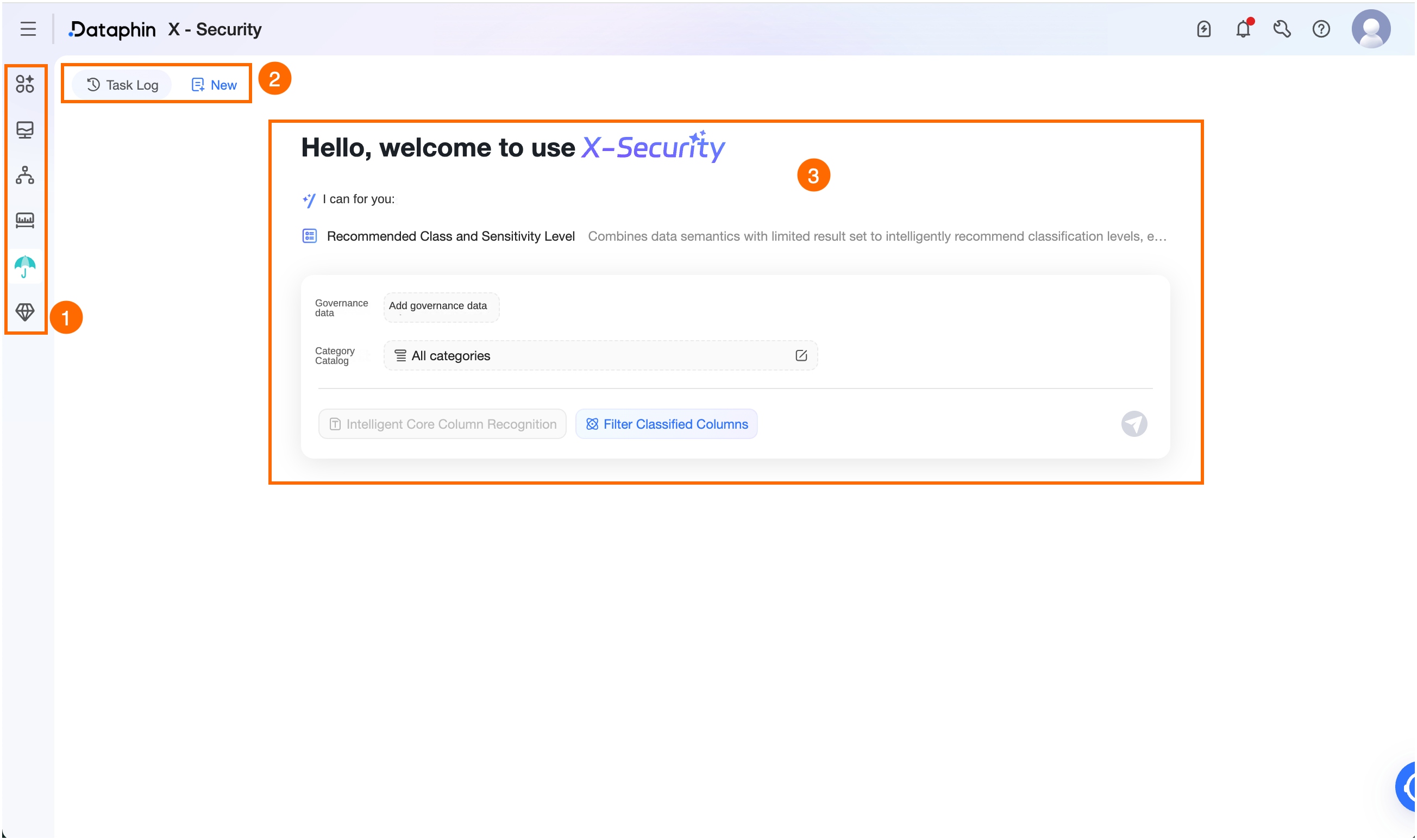
Area
Description
① Intelligent Assistant
Switch between enabled intelligent applications that you have access to.
② Task Record/New Task
-
Task Record: Click Task Record in the upper-left corner to open the Task Record dialog box. View up to 20 task records from the last 7 or 30 days. Available operations:
-
Search and filter: Search by keyword, or filter by governance operation or data source.
-
Rename: Click the Rename icon next to a task record name. Maximum 256 characters.
-
Delete: Click the Delete icon next to a task record name to delete it.
-
-
New Task: Click New Task in the upper-left corner to create a task.
③ Intelligently recommend classification and grading
Select a data scope to receive recommended findings.
-
Add data: Add data sources for your assets. Projects contain only physical tables, while business categories contain only logical tables. Click Select Governance Data or Add Data Source. In the Add Data Source panel, select your assets and click OK. You can select up to five data sources.
-
Asset search and filter: Search by keyword, or filter by environment and asset type.
-
Asset rule configuration: Select an asset, click the Edit icon under Data scope, configure the scope in the Data Scope Configuration dialog box, and click OK.
Data scope: Choose All Tables or Specified Tables. For Specified Tables, configure up to 10 filter conditions based on full table name, asset inventory tag, table description, or db/schema (data source assets only). Join conditions with AND or OR.
-
Full table name/Table description/db/schema: Filter conditions include Prefix match, Suffix match, Contains (table description only), and In (db/schema only).
-
Prefix match, Suffix match, and Contains accept up to 256 characters.
-
In allows up to 500 assets of the corresponding type from the current data source.
-
-
Asset inventory tag: Supported filter conditions are Contains any and Contains all.
-
Contains any: Matches assets whose inventory tag contains any selected tag value.
-
Contains all: Matches assets whose inventory tag contains all selected tag values.
-
-
-
-
All data classification catalogs: Select a classification catalog to improve recommendation accuracy. To create a classification, click Go to to open Governance > Data Security > Data Classification.
-
Intelligently identify core fields: When enabled, the task performs semantic analysis to identify core fields before recommending classification and grading. When disabled, all fields of selected assets are included.
ImportantIdentifying core fields reduces noise from irrelevant data but may skip some objects that need governance.
-
Filter classified fields: Excludes fields that already have a finding from automatic or manual identification.
-
Run: Click the
 icon to start the task.
The task follows the Intelligent recommendation workflow for classification and grading. After the task runs successfully, view the recommended findings.
-
Manage findings
The findings list shows classification and grading recommendations generated through semantic analysis by the large model for your configured assets.
-
Search findings by data table, field, or classification name. Filter by data source or classification catalog, or use quick filters for Pending Review or Application Failed status.
-
Each finding shows the table/data source, field, data classification, data grading, and review status.
-
Table/Data source: Shows the project name for physical tables, business category for logical tables, or db/schema for data sources. Click the name to open the asset details under Governance > Asset Inventory.
-
Data classification: Click a classification name to view its details in the View Classification dialog box.
-
-
Available actions for each finding:
Actions
Description
Apply
Available for Pending Review, Application Failed, or Discarded findings. Adds the finding to Governance > Data Security > Findings. Click the Apply icon in the Actions column for a single finding, or select multiple Pending Review or Application Failed findings to apply in bulk.
Discard
Available for Pending Review or Application Failed findings. Click the Discard icon in the Actions column for a single finding, or select multiple Pending Review or Application Failed findings to discard in bulk. Discarded findings can still be applied later.
Delete finding
Available for Applied findings. Deletes the finding. To re-add it, import findings in bulk or create a new identification rule on the Data Security page.