Add a data source from a VPC
Updated at:
Configure a data source that resides in a Virtual Private Cloud (VPC) to connect the VPC database to DataV and use it as a widget data source.
Background information
For more information about VPC, see What is VPCProcedure
Log on to the DataV console.
On the My Data tab, select Data Source Management and click Add Data.
- Select RDS for MySQL from the Type drop-down list.
- Select Intranet from the network type drop-down list, and select the region where the target ApsaraDB RDS for PostgreSQL instance resides from the region drop-down list.
- Turn on VPC and enter the database information.
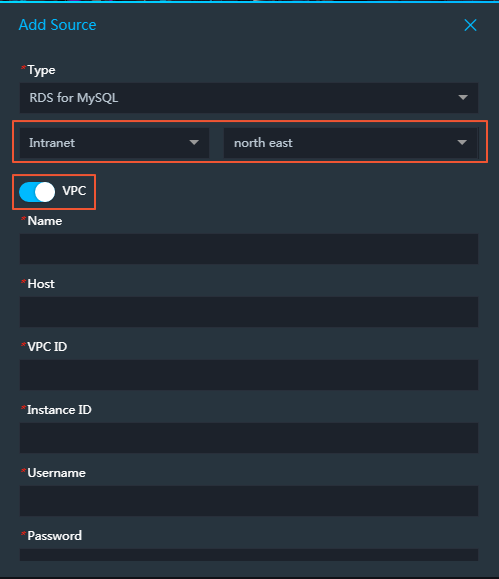
You can obtain the VPC ID and Instance ID in the Alibaba Cloud console.
- If your database runs on an ApsaraDB for RDS instance, obtain the VPC ID and Instance ID from the ApsaraDB for RDS console.
- If your database runs on an ECS instance in a VPC, obtain the VPC ID and Instance ID of the ECS instance.
After you enter the database information, DataV automatically tests whether the database can be connected.Important If your RDS for MySQL database is switched from the classic network to the Virtual Private Cloud network and the data source cannot be connected by using the preceding methods, you can use the following methods to solve the problem:- Method 1: Add a -1 after the obtained VPC ID and instance ID, and then test the connection again. If you still cannot connect, try Method 2.
- Method 2: Call the RDS for MySQL Query details about an instance interface, obtain the VPC ID and instance ID, and then test the connection again. If you still cannot connect to Alibaba Cloud, contact Alibaba Cloud technical support engineers.
- If your database runs on an ApsaraDB for RDS instance, obtain the VPC ID and Instance ID from the ApsaraDB for RDS console.
- After the database passes the connectivity test, click OK.
After the configuration is complete, you can use the VPC database as a widget data source.
Is this page helpful?