How to use callback IDs to enable filter interaction between widgets
This topic describes how to use a callback ID to enable filter interaction between widgets in the DataV console. When you click one widget, another widget responds to that action.
What is a callback ID
A callback ID is a parameter variable. It controls how parameters are passed between widgets to enable interaction. For example, in the following figure, when you click the ticker board widget, its current value is passed to other widgets through the income field.
How to set a callback ID
Log on to the DataV console.
- On the My Visualizations page, click Edit above the project that you created.
Select the Ticker Board widget. Click the Interaction tab in the editor on the right of the canvas.
Select the Enable checkbox to the right of the On Data Change event.
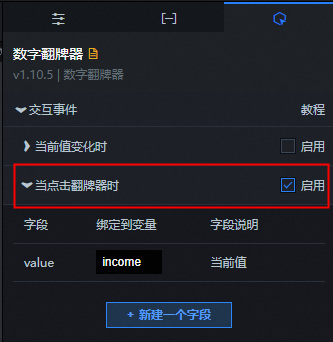
In the Bind to Variable field, change the variable name from
valuetoincome.After this is configured, other widgets can use income to retrieve the corresponding parameter value.
How to use a callback ID
Select another ticker board widget and click the Data tab.
Click Configure Data Source and set the data source type to Database.
In the SQL input box, enter
select :income as value.Click the
 icon in the upper-right corner of the page to preview the results.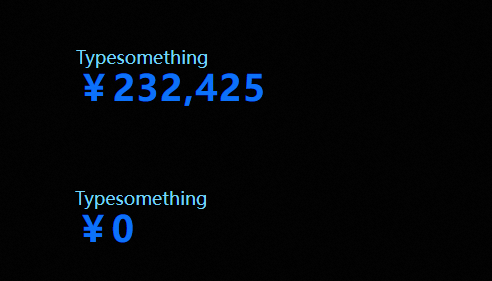
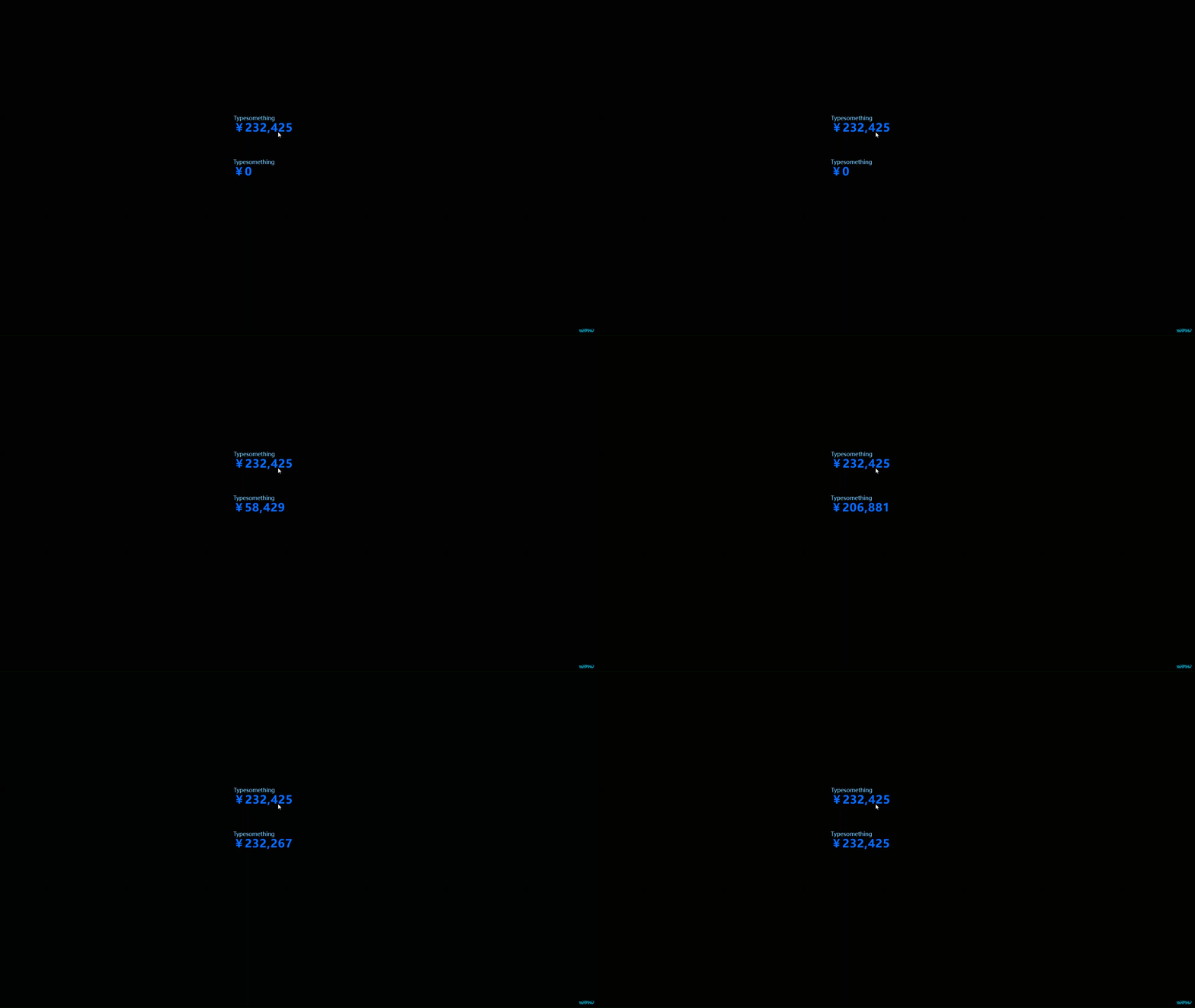
When you click the upper ticker board, the value of the lower ticker board updates to match it. This confirms that the data is retrieved using the callback ID.
FAQ
Q: In the canvas editor, I configured a callback ID, but the callback value cannot be retrieved. This causes the data query to fail. What should I do?
A: The canvas editor cannot trigger events to retrieve callback values. This causes the data request to fail. Use one of the following two methods to view the return value of the request:
Preview page: Check the return value of the request on the Network tab of the browser console, or view the value directly in the widget.
Edit page: Add test parameters to the visualization application URL to test the data. Use the following format:
https://datav.aliyun.com/admin/screen/99999?parameter_name=parameter_value