Create a live comment effect
Use the General Title widget to create a live comment effect on a data screen.
Demonstration
Procedure
Log on to the DataV console.
-
Select a visualization application and click Edit to open the canvas editor.
-
Add six General Title widgets to the canvas and change their text colors and names.
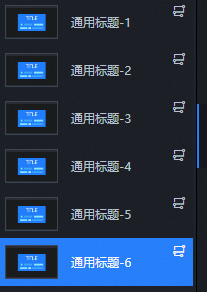
-
Note the y-axis position of each General Title widget. For example, General Title-1: 160.
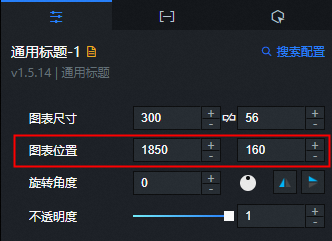 Note
NoteSet the x-axis position of all General Title widgets to 1850 to place them in a hidden starting position on the right side of the canvas.
-
Right-click the widgets and import them into the Blueprint Editor.
-
On the Logic Node tab, add five timers and connect the right-side node of Serial Data Processing to the Move action of each widget.
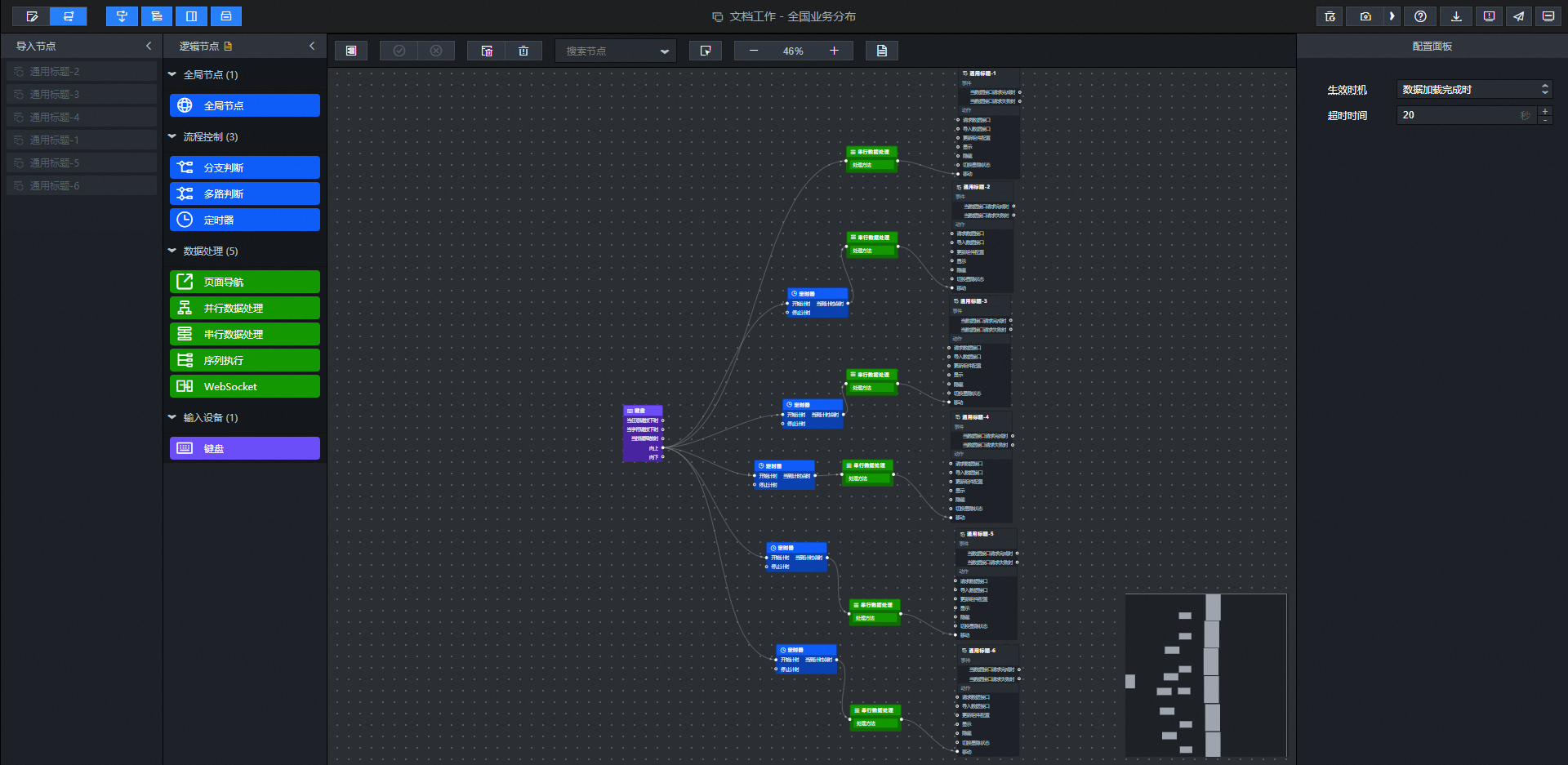
-
Configure the processing method for the Serial Data Processing node. The following example uses General Title-1. For other widgets, change only the y-axis position.
return { // The movement method. Absolute positioning: to. Relative positioning: by. Default value: to. "positionType": "to", // The target position. x-coordinate, y-coordinate. "attr": { "x": -240, // Ensures the widget moves off the canvas from the left side. "y": 160 // The initial y-axis position of the widget. This ensures the widget moves in a straight line to the left. }, // The animation method. "animation": { "enable": true, // The animation delay. "animationDuration": 6000, // Sets the movement speed of the widget. // The animation curve. Valid values: linear, easeInOutQuad, or easeInOutExpo. "animationEasing": "linear" } } -
Configure the timer delays. For example, set General Title-2 to move 1 second after General Title-1, and set custom delays for the remaining widgets.
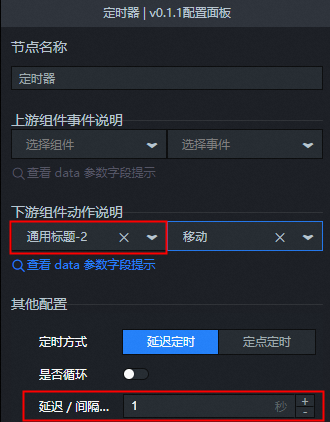
-
Click the
 icon in the upper-right corner of the page to preview the results.
 icon in the upper-right corner of the page to preview the results.