FAQ about computer models and browser versions
Certain computer models and browser versions may cause the DataV editor to stutter. Learn how to identify and resolve these issues.
Editor stuttering issues for MacBook users
Symptoms
On a MacBook, the DataV editor page may stutter and CPU usage may spike. This typically occurs in the following scenarios:
-
You use a MacBook with a Retina screen at a high resolution.
-
You use the latest version of the Chrome browser.
-
You use the DataV editor for a visualization application project that contains the Basic Flat Map widget.
Cause
Chrome version 66.0.3359.31 on macOS introduced a bug (for a detailed description of this bug) that causes the following problems:
-
When rendering the canvas, CPU usage spikes from an occasional 3% to 5% to a sustained 100%, causing the frame rate of frontend pages with canvas widgets to drop below 8 fps and resulting in severe stuttering.
-
All web products that use frontend canvas widgets are affected.
-
The issue becomes more severe as the number of canvas pixels and layers increases, causing significant stuttering when editing the DataV Basic Flat Map widget at a standard 1920 × 1080 resolution.
Solution
This bug has been reported to the Google Chrome team, but no fix timeline has been provided. Use the following workarounds in Chrome for macOS.
-
We recommend using Chrome version 57 or later.
-
Use a different browser, such as Safari.
-
Temporarily use a Windows computer for editing.
Potential impacts and solutions after upgrading to Chrome 80 or later
Background
On February 4, 2020, Google released Chrome 80. This version gradually blocks third-party cookies by adding the SameSite=Lax attribute to all cookies by default (Cookies default to SameSite=Lax). It also rejects setting the SameSite=None attribute for insecure cookies (Reject insecure SameSite=None cookies). These changes help prevent cross-site request forgery (CSRF) attacks.
How to determine if upgrading to Chrome 80 affects your visualization application
-
In Chrome, open
chrome://flags/#same-site-by-default-cookiesand set SameSite by default cookies to Enabled. -
Then, open
chrome://flags/#cookies-without-same-site-must-be-secureand set Cookies without SameSite must be secure to Enabled. -
Restart the browser. Open your DataV visualization application and check if all data is returned and displayed correctly.
-
If the data is returned correctly, upgrading to Chrome 80 will not affect your visualization application.
-
If the data is not returned correctly, upgrading to Chrome 80 will affect your visualization application. Upgrade with caution. Troubleshoot and resolve the issue based on the following scenarios.
-
Scenario 1: Using an API data source
The widget uses an API data source that requires user logon information (cookies) to retrieve data from a third-party website.
Impact: Widget data cannot be returned or displayed correctly.
Solution: Determine whether the API uses the HTTPS or HTTP protocol.
-
Using the HTTPS protocol (Chrome 95 and later)
Check if the Set-Cookie response header includes SameSite=None and Secure. If it does not, add these attributes to the header.
-
Using the HTTP protocol (Chrome 80)
-
In Chrome, open
chrome://flags/#same-site-by-default-cookiesand set SameSite by default cookies to Disabled. -
Then, open
chrome://flags/#cookies-without-same-site-must-be-secureand set Cookies without SameSite must be secure to Disabled. -
Restart the browser.
-
-
Using the HTTP protocol (Chrome 91 to 94)
-
In Chrome, open
chrome://flags/. Search for same and set Enable removing SameSite=None cookies to Disabled. -
Open
chrome://flags/again. Search for same and set Schemeful Same-Site to Disabled.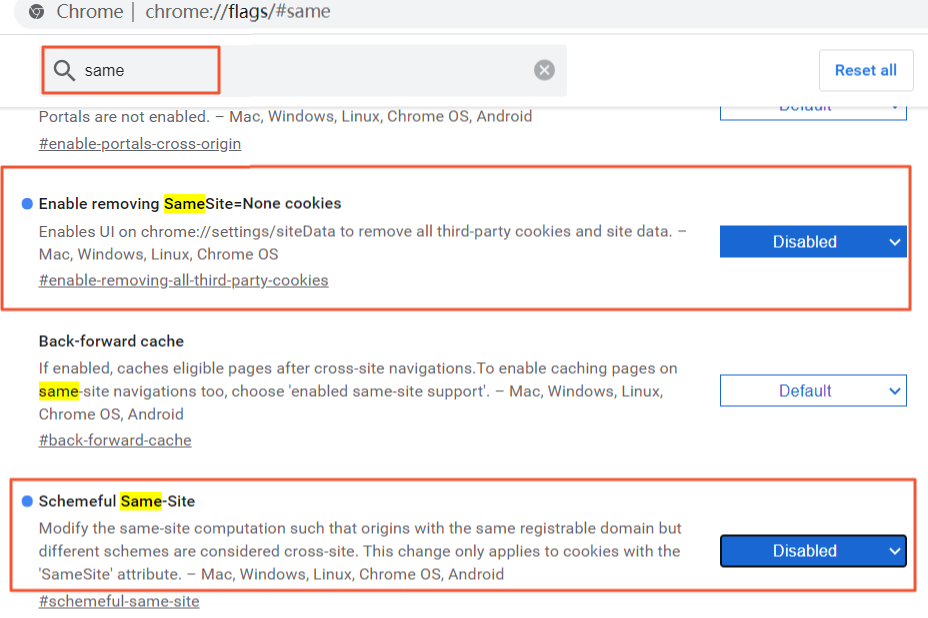
-
Restart the browser.
-
Scenario 2: Using a local HTTP deployment
You access a locally deployed DataV service over HTTP. The logon feature may not work over HTTP in Chrome 80, which can render the service unusable.
Solution: Choose one of the following solutions.
-
Follow the solution for the HTTP protocol described in Potential impacts and solutions after upgrading to Chrome 80 or later (deprecated).
-
Modify the HTTP service. Purchase an SSL Certificate and upgrade the service to HTTPS. Then, follow the solution for the HTTPS protocol described in Potential impacts and solutions after upgrading to Chrome 80 or later (deprecated).
-
Roll back Chrome to version 79 or earlier and turn off automatic updates.