Common configuration issues
Frequently asked questions and solutions for widget configuration items.
What is the relationship between data series and configuration item series?
-
Data Series
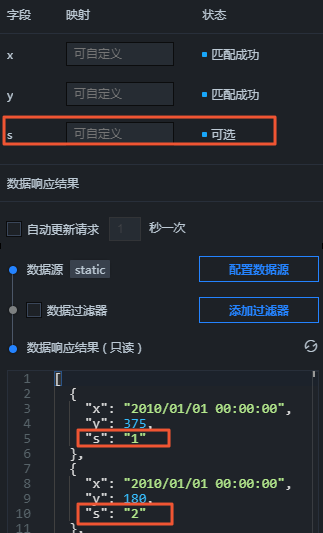
Many basic 2D widgets, such as line and column charts, support multiple series. Configure different s fields in the Data tab of the configuration panel.
-
Configuration Item Series
Widgets that support multiple series, such as line and column charts, typically have a Data Series configuration item in the Configuration tab.
Define an array of styles that cycle through and apply to different data series. In the following example, two series are specified, and the widget uses the styles of
['Series 1','Series 2']to cycle through and render the s field in the data.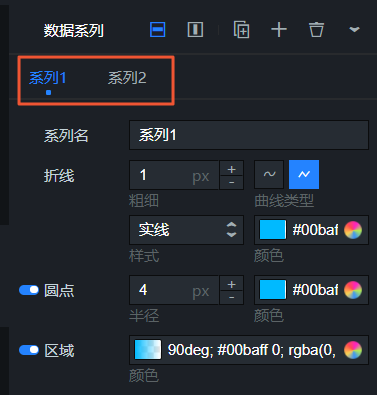
-
Common Mistakes
-
The Series Name in the configuration item serves as both the style name and the chart legend name. If left empty, it defaults to the s field value of the corresponding data series.
Figure 1. Non-empty Series Name
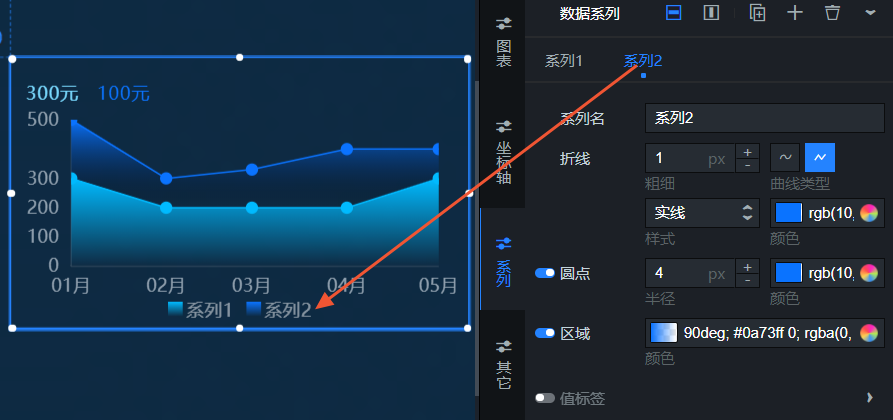
Figure 2. Empty Series Name
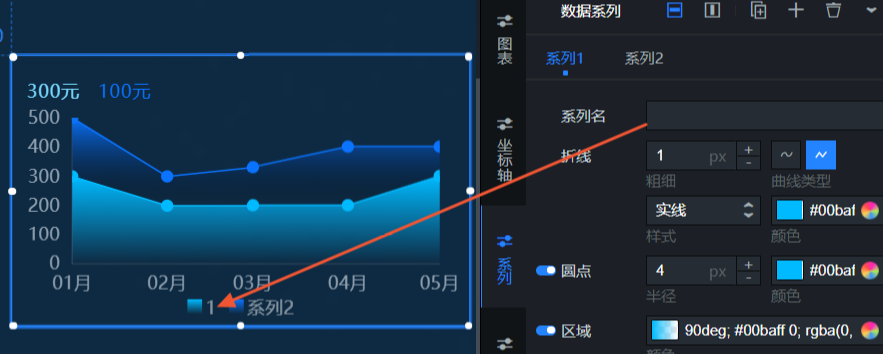
-
The series in the configuration item and the data series are matched by their order of appearance, not by name.
For instance, if the configuration item series is
[Series 1, Series 2, Series 3], it maps to the data as[{s1: Series 1 style},{s2: Series 2 style},{s3: Series 3 style},{s4: Series 1 style},{s5: Series 2 style}].NoteIn this example, s1, s2, s3, s4, s5 correspond to the order in which the s field appears in the data.
-
To enforce a fixed data series style (e.g., s2 must be red, s1 must be blue), sort the data in the filter or data source after configuring the series styles.
For example, if the configuration item series is
[Red, Blue], you can adjust the data order to[{"s":"2"},{"s":"1"}].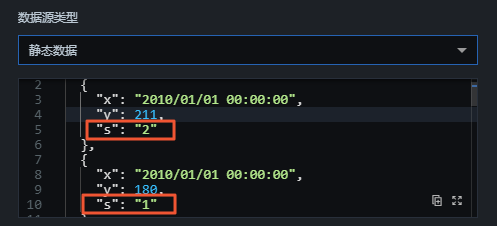
-
How to configure interaction features?
The interaction feature is in testing. For configuration guidance, see chart filter interaction.
How to control displayed data through URL parameters?
SQL variables can be denoted by :dot-id, for example: select car_speed, car_color, car_name from table where car_ID = :dot-id.
Pass parameters through the URL to control these variables. For example: http://datav.aliyun.com/...?spm=xxxxx&dot_id=10102.
Why is the component not modified after the callback ID changes?
-
Testing the Component's Callback ID on the Edit Page
Cause of the issue: Components on the edit page cannot retrieve callback values from other components.
Solution: Include default values in the URL to test the component on the edit page.
For instance,
xxxx/admin/screen/123456?value=123&name=12345. -
Testing the Component's Callback ID on the Preview or Publish Page
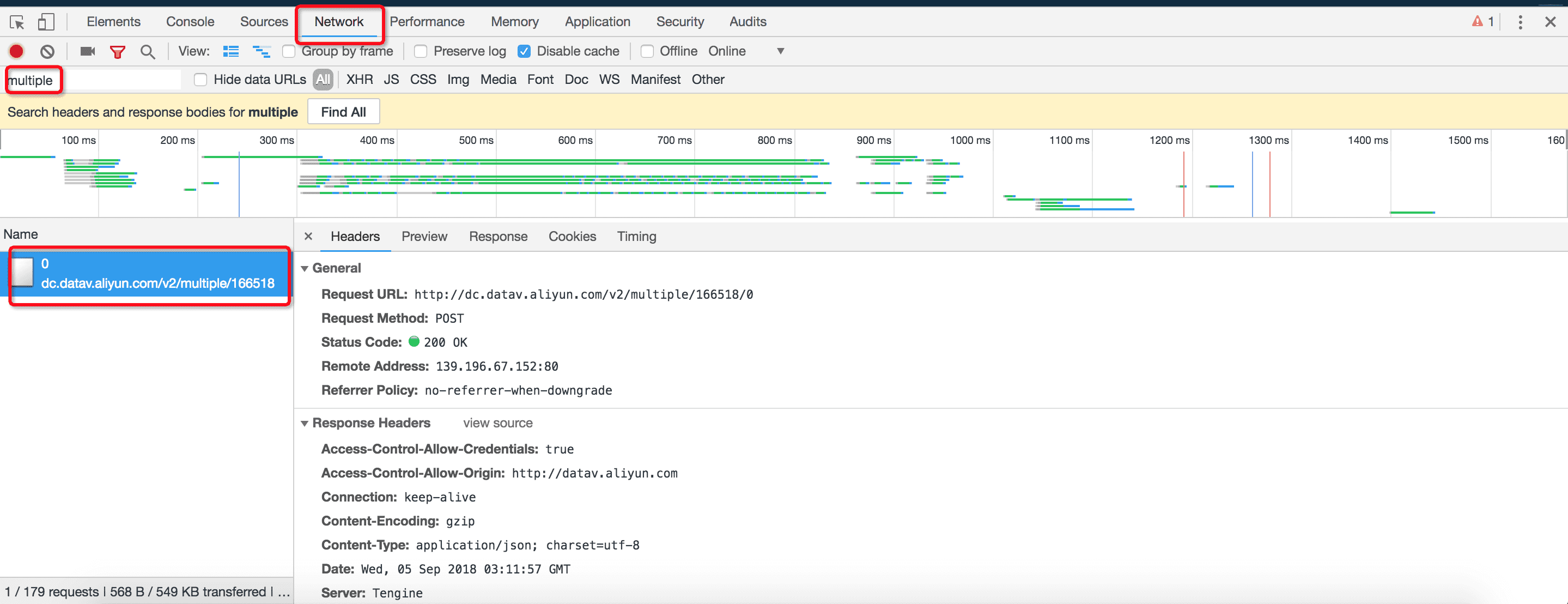
On the preview or publish page, open the browser console's network tab (shortcut: F12 on Windows, option+command+i on Mac), search for
multiple, and check whether the component initiates a request after the callback changes.-
If no results appear, the component did not initiate a request. Check the callback configuration.
-
If results appear, the component made a request. Verify that the request parameters are the correct callback parameters and that the request returns a 200 status (the Status is 200 in the image below).

If the request fails, check the data source's connection status.
-
-
If the Number Ticker Board component receives data normally but does not update, check whether Data Jitter Correction is enabled in the component's configuration.
When enabled, the component does not update when incoming data is less than the current value.
Disable this option if your data fluctuates and you need to render the current data in real-time.
How to add a click event to the entire group?
-
Problem Description: How to add a click event to a group in DataV-Board 7.0 to trigger related instructions.
-
Solution: Add an image or title widget to the desired group and set it to a transparent style. Clicking the transparent widget or image triggers the corresponding event.
-
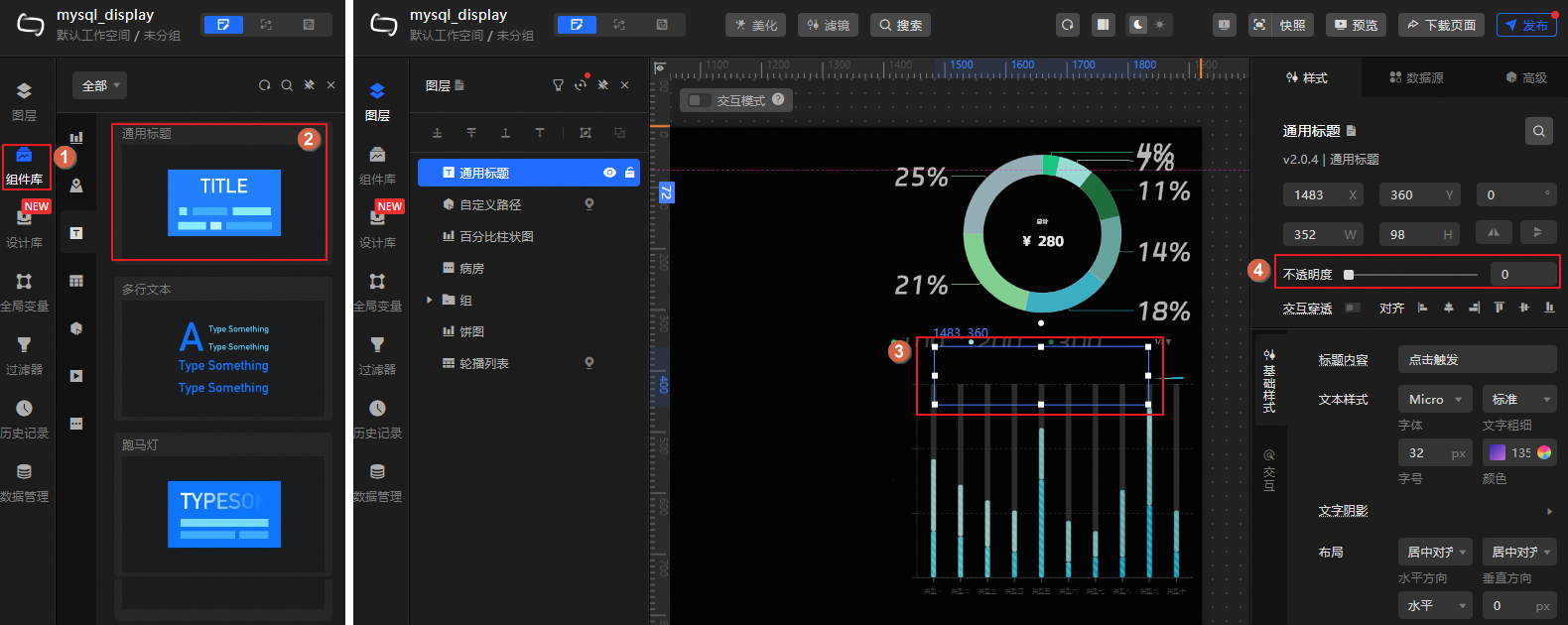
Operation Example: As shown below, add a general title to the top layer of the current group (created by the pie chart and list carousel) and set the title widget to transparent. Then, add relevant instructions to the title widget to trigger events on click. For more widget operations, see PC widgets.