Add a Hologres data source
Add a Hologres data source to DataV to query and visualize data from your Hologres instances.
Prerequisites
You have a Hologres data source ready to add.
Add the IP addresses of the corresponding region to your data source whitelist to ensure that DataV can access your database. For more information, see Configure a database whitelist.
Limits
This feature is available only in DataV Enterprise Edition and later versions.
Add a Hologres data source
Access the DataV console.
-
On the Workbench page, click in the navigation pane on the left. On the Data Source page, click New Data Source.
-
From the Type list, select Hologres.
-
Choose the region where your instance is located from the list, selecting Intranet.
-
Select the network type for the intranet database, which includes Virtual Private Cloud (VPC) and Classic Network.
-
Virtual Private Cloud (VPC)
-
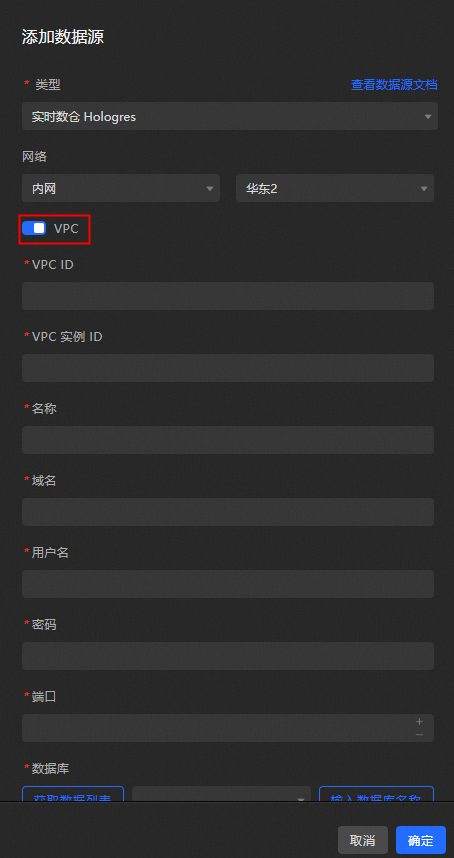
Activate the VPC switch to switch to VPC mode.
-
Enter the database information.
Parameter
Description
VPC ID
The VPC ID of the specified VPC to which the Hologres instance is attached. Go to the Hologres Management Console product page, and obtain the VPC ID from the Network Information column of the specified VPC in the Scenarios section.
VPC instance ID
The instance ID generated after the Hologres instance is attached to the specified VPC. Go to the Hologres Management Console product page, and obtain the instance ID from the Network Information column of the specified VPC in the Scenarios section.
Name
The display name of the data source. You can specify a custom name.
Domain name
The domain name of the Hologres instance. Go to the Hologres Management Console product page, and obtain the domain name from the Network Information column of the specified VPC in the Domain Name section.
Username
The AccessKey ID of the account used to log on to the Hologres instance.
Password
The AccessKey Secret of the account used to log on to the Hologres instance.
Port
The port number of the VPC in which the Hologres instance resides. Go to the Hologres Management Console product page, and obtain the port number from the Network Information column of the specified VPC in the Domain Name section.
Database
The name of the selected database.
-
The system will automatically test the connection to confirm database accessibility once the information is entered.
ImportantShould an error message Access VPC instance fail appear during the test, try appending the suffix -1 to the Instance ID and test the connection again.
-
-
Classic Network
-
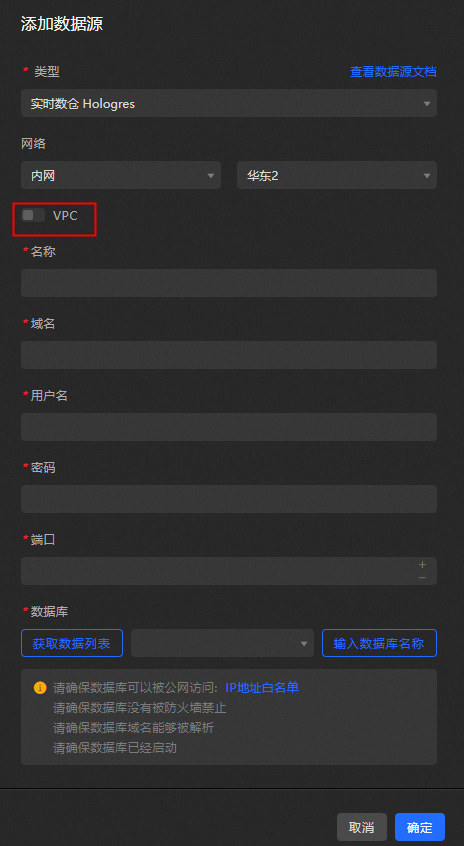
Deactivate the VPC switch to enter Classic Network mode.
-
Enter the database information.
Parameter
Description
Name
The display name of the data source. You can specify a custom name.
Domain name
The domain name of the Hologres instance. Go to the Hologres Management Console product page, and obtain the domain name from the Network Information section of the classic network domain name.
Username
The AccessKey ID of the account used to log on to the Hologres instance.
Password
The AccessKey Secret of the account used to log on to the Hologres instance.
Port
The port number of the classic network endpoint used by the Hologres instance. Go to the Hologres Management Console product page, and obtain the port number from the Network Information section of the classic network domain name.
Database
The name of the selected database.
-
The system will automatically test the connection to confirm database accessibility once the information is entered.
ImportantShould an error message Access VPC instance fail appear during the test, try appending the suffix -1 to the Instance ID and test the connection again.
-
-
-
Once the connection test succeeds, click OK to finalize the data source addition.
The new data source will be automatically displayed in the data source list.
Add a data source through the Internet
Access the DataV console.
-
On the Workbench page, click in the navigation pane on the left. On the Data Source page, click New Data Source.
-
From the Type list, select Hologres.
-
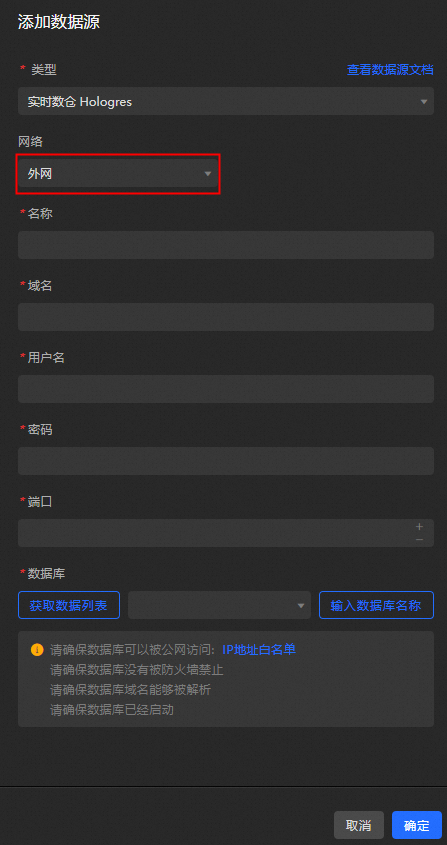
Choose Internet from the list.
-
Enter the database information.
Parameter
Description
Name
The display name of the data source. You can specify a custom name.
Domain name
The domain name of the Hologres instance. Go to the Hologres Management Console product page, and obtain the domain name from the Network Information section of the public domain name.
Username
The AccessKey ID of the account used to log on to the Hologres instance.
Password
The AccessKey Secret of the account used to log on to the Hologres instance.
Port
The port number of the public endpoint used by the Hologres instance. Go to the Hologres Management Console product page, and obtain the port number from the Network Information section of the public domain name.
Database
The name of the selected database.
The system will automatically test the connection to confirm database accessibility once the information is entered.
-
Once the connection test succeeds, click OK to finalize the data source addition.
The new data source will be automatically displayed in the data source list.
What to do next
To use the data source in your widgets, see Configure a widget data source.
FAQ
For more information, see FAQ about data source configuration and usage.