Add an RDS for PostgreSQL data source
Add an RDS for PostgreSQL instance as a data source in DataV to visualize your PostgreSQL data on dashboards.
Prerequisites
You have an RDS for PostgreSQL data source ready to be added.
You must add the IP addresses for the corresponding region to the whitelist of your data source. This ensures that DataV can access your database. For more information, see Configure a database whitelist.
Limits
This feature is available only in DataV Enterprise Edition and later versions.
Add a data source over an internal network
Access the DataV console.
On the Workbench page, click in the navigation pane on the left. On the Data Source page, click New Data Source.
-
From the Type list, select RDS for PostgreSQL.
-
Select Private Network and the region where your RDS instance is located.
-
Select the network type for the internal database. The options are virtual private cloud (VPC) and classic network.
-
Virtual private cloud (VPC)
-
Turn on the VPC switch to enter VPC mode.
-
Enter the database information.
NoteTo create a new database, see Create a database.
Parameter
Description
Name
The display name of the data source.
VPC ID
The ID of the VPC where your RDS for PostgreSQL instance is located. To obtain the ID, go to the RDS Management Console and find the ID in the Network Type column on the Instance List page.
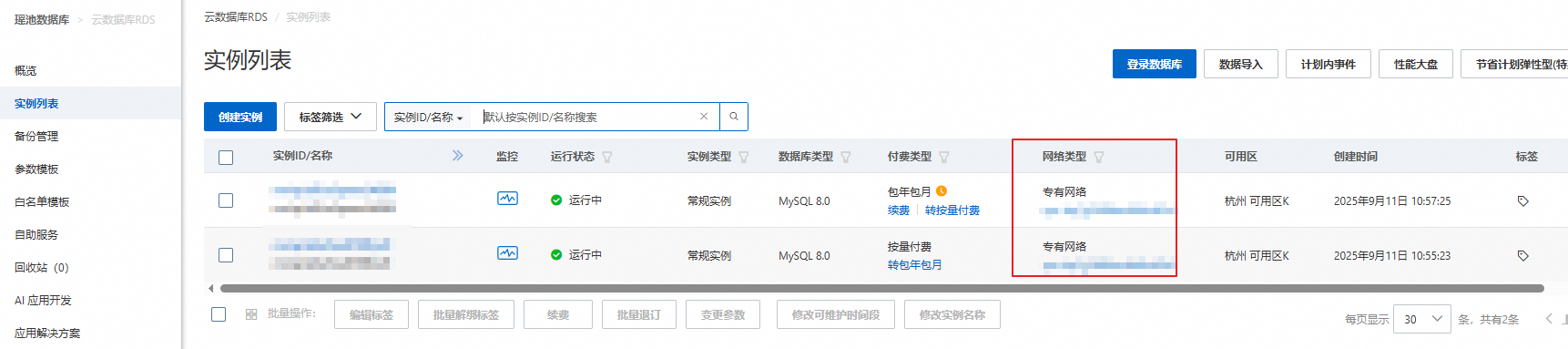
VPC Instance ID
The ID of the database instance within the VPC. You can find this ID on the instance details page in the RDS console.
NoteYou can usually find the VPC instance ID of a database instance in its product console. However, due to how VPC networks are implemented, the instance ID shown in the console may not be the one required for DataV data source configuration. You must use the database product's OpenAPI to get the correct VPC instance ID for DataV. This is typically the VpcCloudInstanceId or VpcInstanceId found in the instance details. For information about the API operation to query instance details for a specific database product, see Query instance details.
Domain Names
The endpoint used to connect to the database.
ImportantThis is the domain name or IP address that the DataV server uses to access your database over the public network or an Alibaba Cloud internal network in certain regions.
For example, if you use an Alibaba Cloud RDS for PostgreSQL instance in an internal network environment, the domain name might be pgm-bpxxxxxxxxxxxxxx15970.pg.rds.aliyuncs.com. You can find this on the instance details page in the RDS console.
Port
The port number of the database.
Username
The username used to connect to the database.
Password
The password used to connect to the database.
Database
The name of the database to connect to.
-
After you enter the database information, the system automatically tests the database connection.
-
-
Classic network
-
Turn off the VPC switch to enter the classic network mode.
-
Enter the database information.
NoteTo create a new database, see Create a database.
Parameter
Description
Name
The display name of the data source.
Domain Names
The endpoint used to connect to the database.
ImportantThis is the domain name or IP address that the DataV server uses to access your database over the public network or an Alibaba Cloud internal network in certain regions.
For example, if you use an Alibaba Cloud RDS for PostgreSQL instance in an internal network environment, the domain name might be pgm-bpxxxxxxxxxxxxxx15970.pg.rds.aliyuncs.com. You can find this on the instance details page in the RDS console.
Port
The port number of the database.
Username
The username used to connect to the database.
Password
The password used to connect to the database.
Database
The name of the database to connect to.
-
After you enter the database information, the system automatically tests the database connection.
-
-
-
If the connection test is successful, click OK to add the data source.
The new data source appears in the data source list.
Add a data source over a public network
Access the DataV console.
On the Workbench page, click in the navigation pane on the left. On the Data Source page, click New Data Source.
-
From the Type list, select RDS for PostgreSQL.
-
Select Public Network.
For information about setting a public endpoint, see Set a connection address.
-
Enter the database information.
Parameter
Description
Name
The display name of the data source.
Domain Names
The endpoint used to connect to the database.
ImportantThis is the domain name or IP address that the DataV server uses to access your database over the public network or an Alibaba Cloud internal network in certain regions.
For example, if you use an Alibaba Cloud RDS for PostgreSQL instance in a public network environment, the domain name might be pgm-bpxxxxxxxxxxxxxxqo.pg.rds.aliyuncs.com. You can find this on the instance details page in the RDS console.
Port
The port number of the database.
Username
The username used to connect to the database.
Password
The password used to connect to the database.
Database
The name of the database to connect to.
After you enter the database information, the system automatically tests the database connection.
-
If the connection test is successful, click OK to add the data source.
The new data source appears in the data source list.
What to do next
After you obtain the raw data, see Configure a widget data source to adapt the data for your widgets.
FAQ
For more information, see FAQ about data source configuration and usage.