Adding blockchain as a service data source
Add Blockchain as a Service (BaaS) data sources in DataV and configure the required parameters. With BaaS, you can invoke smart contracts through REST APIs, query blockchain information, and retrieve block and transaction data.
Prerequisites
The Blockchain as a Service data source that you want to add is prepared.
Limits
This feature is available only in DataV Enterprise Edition and later versions.
Adding blockchain as a service data source
Access the DataV console.
-
On the Workbench page, click in the navigation pane on the left. On the Data Source page, click New Data Source.
-
From the Type list, select Blockchain as a Service.
-
Enter the necessary information for the Blockchain as a Service data source.
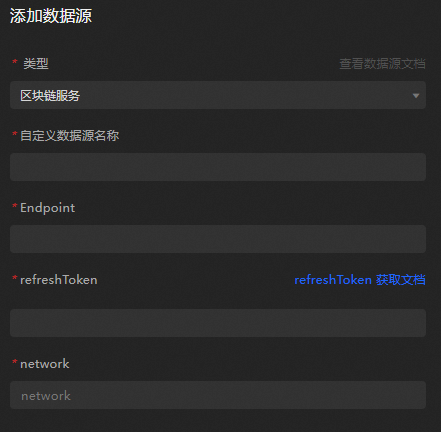
Parameter
Description
Custom Data Source Name
The display name of the data source. You can specify a custom name.
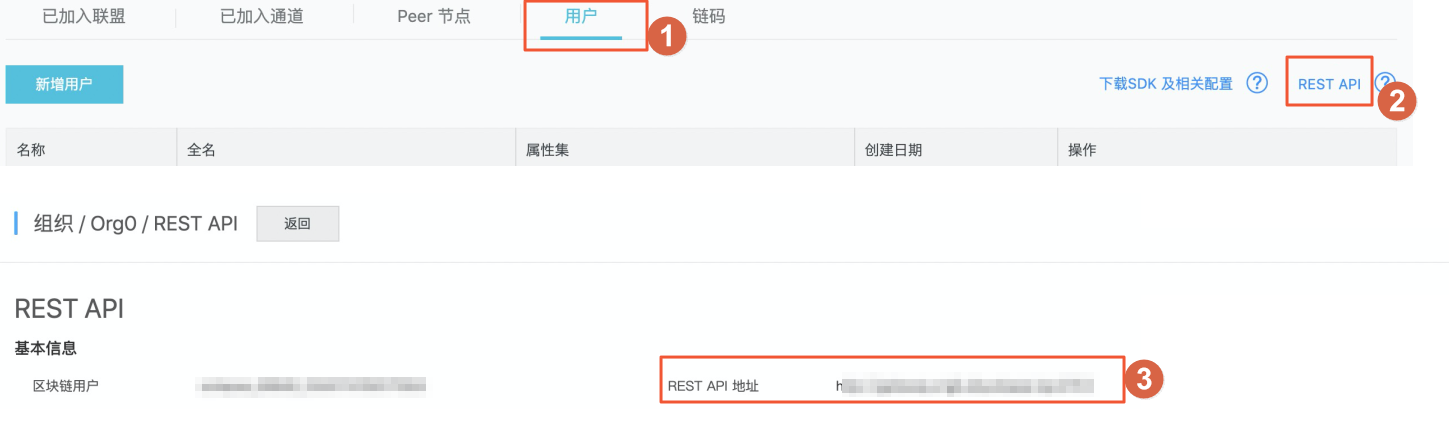
Endpoint
The REST API address of the data source. In the Blockchain as a Service console, click your Organization User REST API REST API Address to find it.
refreshToken
The access token for authenticating requests to this data source. In the Blockchain as a Service console, click your Organization REST-API, click Generate Token in the sidebar, and copy the token from the output.

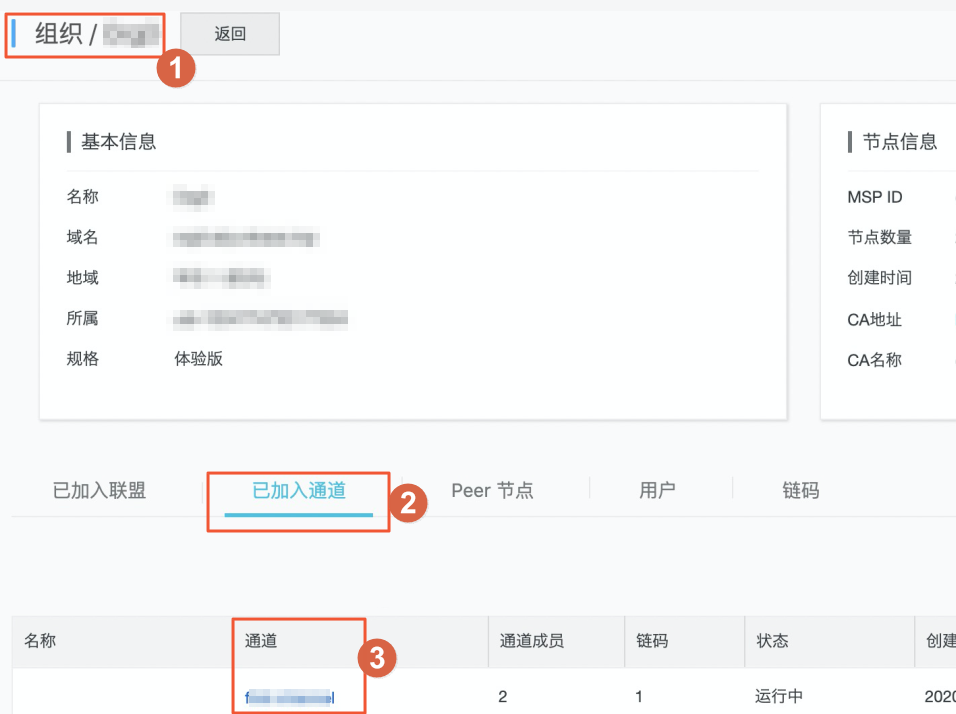
network
The channel name of the data source. In the Blockchain as a Service console, click your Organization > Joined Channels to find it.
-
Once the information is filled in, click OK to finalize the data source addition.
The new data source is automatically added to the data source list.
Using blockchain as a service data source
Access the DataV console.
-
On the Workbench page, hover over the data dashboard you want to edit and click Edit.
ImportantIf you have not created a data dashboard, see Create a PC Dashboard Using a Template.
-
On the canvas editing page, select a widget from the canvas.
If the canvas has no widgets, add one first. For more information, see Widget Canvas Operations.
-
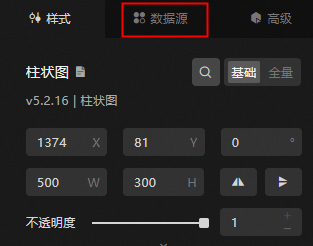
In the widget configuration panel on the right, select Data Source.
-
In the Set Data Source section, choose Data Source Type as Blockchain as a Service.
-
From the Select Existing Data Source list, choose the configured Blockchain as a Service data source.
-
In the Query Parameter field, input the necessary blockchain parameters for the query.
NoteBlockchain data can be queried in multiple ways. Enter the query parameters that match your data type.
-
Click View Data Return Results to examine the returned data.
What to do next
To use the data source in your widgets, see Configure a widget data source.
FAQ
For more information, see FAQ about data source configuration and usage.